
Compliance Dashboard
every deadline that can bite you, on one screen
How to read everything your site owes on one calendar, add the obligations no module produces, track respirator fit tests, and stay ahead of every review and corrective action before it lapses.
Short answer
ShieldSphere's Compliance Dashboard is one calendar of everything your site owes. It gathers six things the software already knows are due - policy reviews, training, fit tests, corrective actions, ZeroState inspections and SDS reviews - and lets you add a seventh: the obligations no module produces, like EPCRA reporting, permit renewals and insurance certificates.
1What the Compliance Dashboard does
The Compliance Dashboard answers one question - what do I owe, across everything - and answers it on a calendar.
Deadlines in ShieldSphere are generated by six different modules, each on its own schedule. Read module by module and you are doing the merge in your head. This page does the merge for you: everything with a date lands on one calendar, whatever produced it.
The page has three bands:
| Band | What it is for |
|---|---|
| Status cards | Compact counts across the top - the shape of the month in one glance. |
| The calendar | The working surface. Every due item from every source, by date. |
| Module tabs | The detailed trackers, unchanged, underneath. Where you go to work one source properly. |
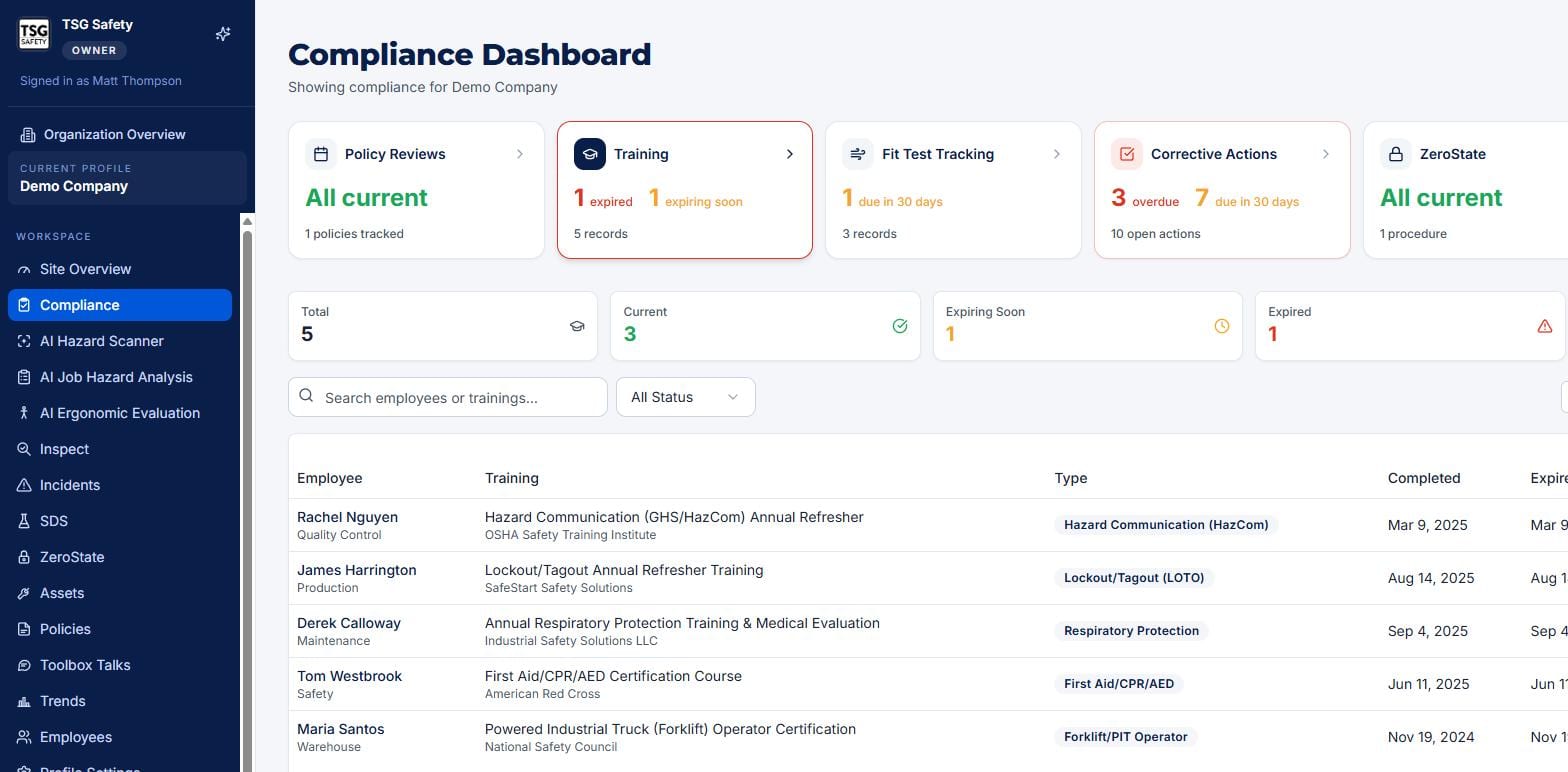
Training records used to be created and managed on this dashboard. They now live in Training, which also covers toolbox talks, sessions with QR sign-in, and the requirements matrix. Training deadlines still appear on this calendar - the dashboard shows them, the Training module owns them. See the Training User Guide.
2The calendar
Seven sources feed the calendar. Six are generated by the software from records you already keep; the seventh is whatever you type in yourself.
| Source | What it puts on the calendar |
|---|---|
| Policy Reviews | Written programs due for their periodic review (from the Policies module). |
| Training | Training and certifications reaching their expiry date (from the Training module). |
| Fit Tests | Respirator fit tests due for annual renewal, per OSHA 1910.134(f). |
| Corrective Actions | Open corrective actions from every module, by due date. |
| ZeroState | Lockout/tagout procedures and their periodic inspections. |
| SDS Reviews | Safety Data Sheet reviews for the chemical inventory. |
| Compliance tasks | Anything you enter yourself - see the next section. |
Switch between the month view and the agenda view depending on what you are doing. Month is for planning - you can see where the load falls. Agenda is for working - it is the ordered list of what is overdue and what is coming.
Each source has its own colour for items that are merely pending, but anything overdue is shown the same way across all seven. An overdue SDS review cannot look gentler than an overdue fit test just because its module's colour is calmer.
3Tasks you enter yourself
Most safety obligations are not produced by a module. They are produced by a regulator, a landlord, an insurer or a client - and they are the ones that get missed.
Compliance tasks are the seventh source: Tier II and EPCRA reporting, permit renewals, insurance certificates, internal audits, anything else with a date on it. Adding one puts it on the same calendar as everything else, which is the whole point - a filing deadline you keep in a spreadsheet is a deadline you will find out about late.
Give it a title, a location and a due date
Tasks belong to a site, so they follow the same per-location access as everything else. The optional Category is free text - EPCRA, Permits, Insurance, Audits - and is how you group obligations that come from the same source.
Set how often it repeats
One-time, Monthly, Quarterly, Every 6 months, Annually, or a Custom interval in days. Recurrence is what makes the task worth entering once instead of remembering it every year.
Set the priority and who to remind
Priority is Low, Medium or High. Remind (email) names the person who should hear about it, which is often not the person entering it.
When you complete a recurring task, the next due date is calculated from the date it was scheduled, not the date you ticked it off. An annual filing due 1 March that you submit on the 20th stays due 1 March next year, instead of sliding three weeks later every year until it is in April.
4Fit test tracking
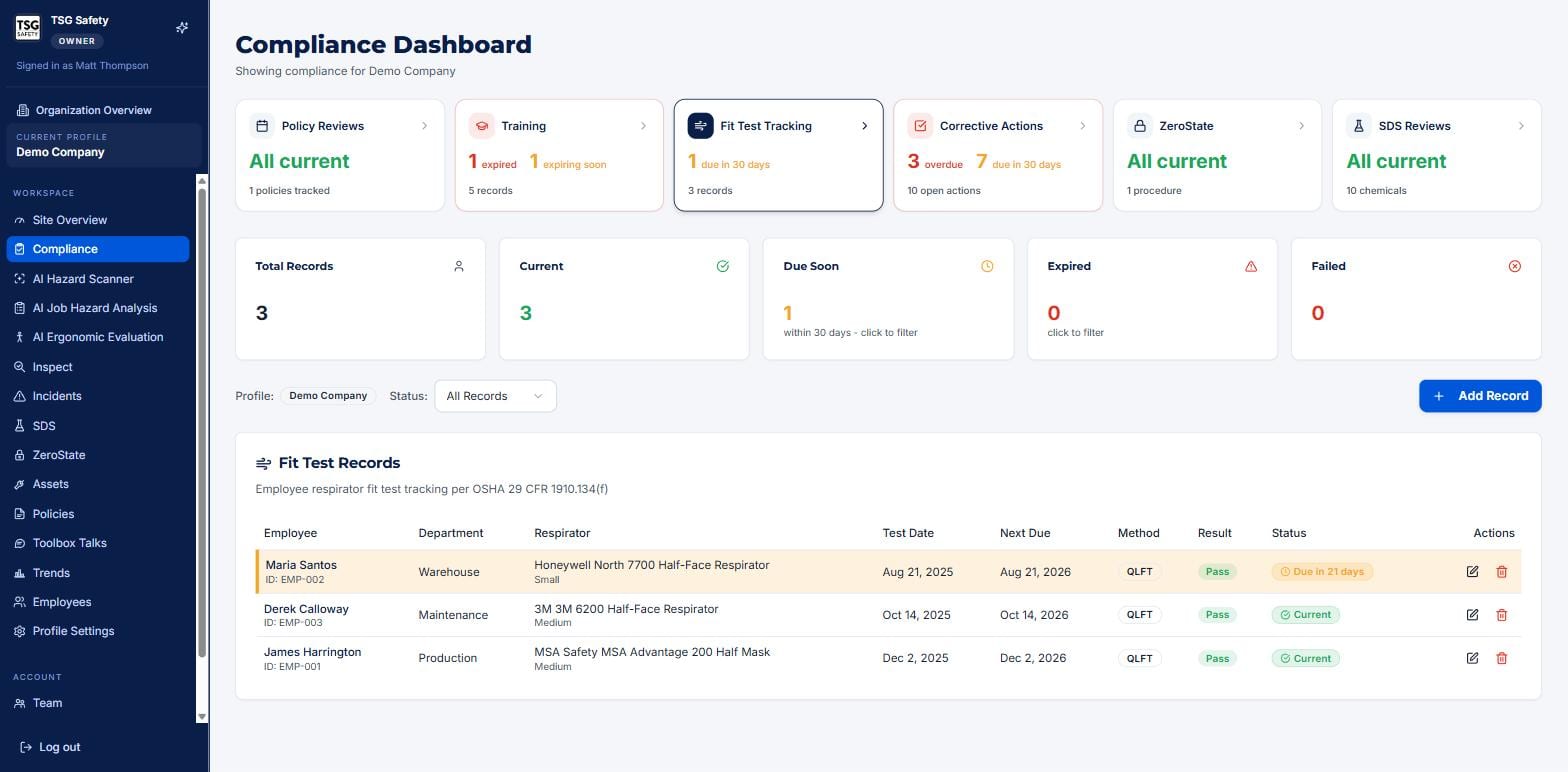
Anyone in a respirator needs a fit test on record, renewed annually. ShieldSphere tracks the clock.
Open the Fit Tests tab. The records follow OSHA 29 CFR 1910.134(f): the employee, the respirator make and model, the test date and next-due date, the method (QLFT or QNFT), the result, and a status that flips to Due soon and then Expired as the year runs out.
5Corrective actions across all modules
Corrective actions are raised all over ShieldSphere. This is the one place you see every one of them together.
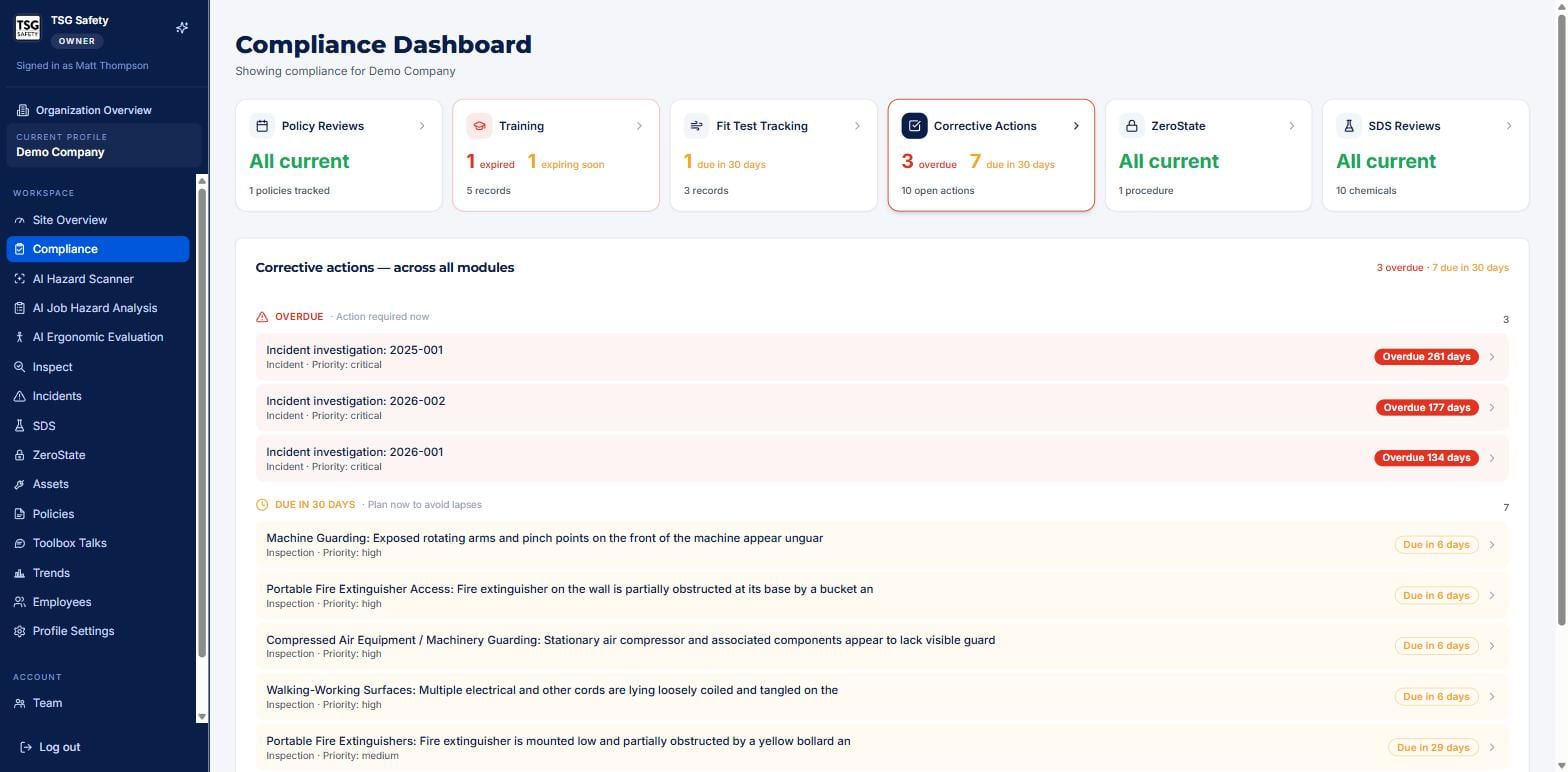
Work the Overdue group first - these are the ones already past their date - then the Due in 30 days group to stay ahead. Clicking any action takes you to it in its home module, where you assign, work and close it.
6Policy and SDS reviews
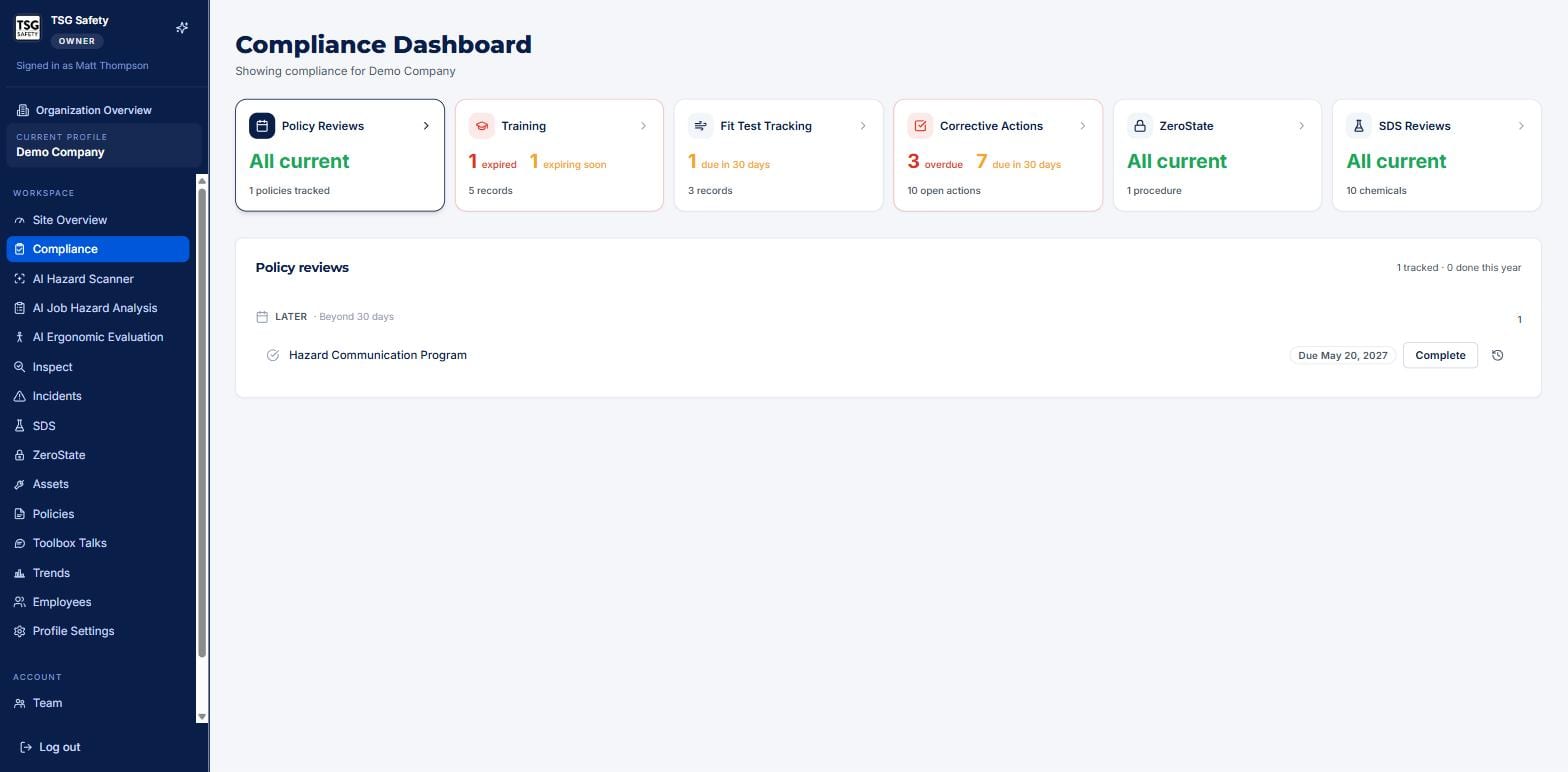
The Policy Reviews, ZeroState and SDS Reviews tabs are windows into those modules' schedules. Policy Reviews lists written programs coming due for their periodic review; ZeroState shows lockout procedures and their annual inspections; SDS Reviews tracks the chemical inventory's review dates.
You can mark a policy review complete from this dashboard, but the record lives in the Policies module. When the calendar and a module ever seem to disagree, the module is the source of truth.
7Troubleshooting
| Symptom | Cause and fix |
|---|---|
| An item is still showing but I fixed it | Confirm you closed it in its home module. The calendar mirrors the module - it updates when the source does. |
| A training shows expired | Record the renewal in the Training module - that is where training records now live. The calendar follows it. |
| A fit test is due soon | The annual renewal is within 30 days. Schedule the fit test and add the new record when done. |
| A task I added is not on the calendar | Tasks belong to one location. Check the profile filter matches the site you added it to. |
| The dashboard is for the wrong site | Check the current profile in the sidebar - compliance is shown per site. |
| An overdue corrective action will not clear | Open it from the calendar and close it in its module - the count follows the action's real status. |
Try Compliance Dashboard in ShieldSphere
Start a free hazard scan and see the platform these guides describe - no credit card required.
Screens captured from the live application in July 2026 using a demonstration site - your screens will show your own data. Because ShieldSphere ships changes regularly, check the version above against the current release before circulating this guide widely. Questions? Contact support.