
Contractor Management
from prequalification to a defensible risk score
How to qualify the contractor companies you hire: the prequalification questionnaire, the contractor portal, documents and AI reviews, ARMOR required programs, and the risk score.
Short answer
ShieldSphere Contractor Management prequalifies the contractor companies an organization hires. Admins send each contractor a secure portal link to complete a safety questionnaire and upload documents; ShieldSphere flags risky answers, reviews written safety programs with AI, tracks insurance and OSHA 300A data, and computes a 0-100 risk score that drives site-access decisions.
1What Contractor Management does
One record per contractor company - who they are, whether they may be on your sites, and the paper trail that justifies the answer.
OSHA's multi-employer rules expect a host employer to know who is working on its sites and to have vetted them. Contractor Management keeps that defensible: every contractor carries a site-access status with a reasoned history, a prequalification questionnaire with automatic review flags, a document file with expiry tracking, safety performance data checked against industry benchmarks, and an auditable risk score.
Org admins
Do everything in this guide: add contractors, run prequalifications, send portal links, approve documents, run AI reviews, configure ARMOR, generate scores, and change site-access status.
Org members
Read-only. Members see contractors for the sites they can access, open every tab and the scorecard, and download documents - but every write action is admin-only.
Contractor Management is an organization add-on rather than a standard tier feature. If you do not see Contractors in your sidebar, contact ShieldSphere to enable it for your organization.
2Adding contractors and site access
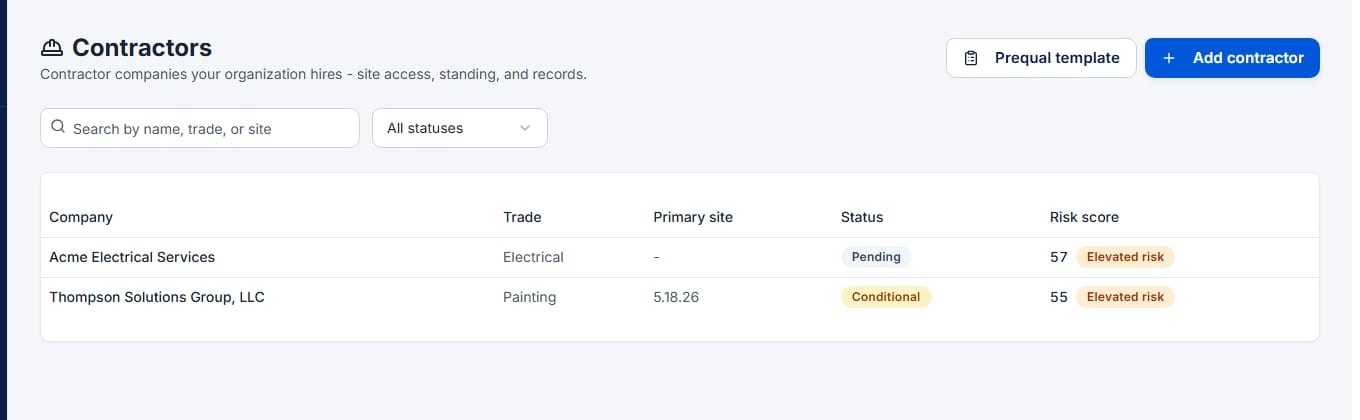
The list is your roster; the status on each row is the decision that matters.
Add the contractor company
On the Contractors page, click Add contractor. Only Company name is required; add the Trade (pick from the suggestions or type your own) because it drives the industry benchmarks and program checklists used later, and set a Primary site so the record is scoped to the location that hires them.
Understand the statuses
Every contractor carries a site-access status shown as a badge everywhere the contractor appears.
| Status | Meaning |
|---|---|
| Pending | New record - not yet evaluated. The default for a just-added contractor. |
| Approved | Cleared for site work. |
| Conditional | Allowed on site with restrictions - the reason explains the condition. |
| Suspended | Not allowed on site. Weighs heavily against the risk score. |
| Expired | A previously granted approval has lapsed. |
| Inactive | Not currently engaged. |
Change status with a reason
Open the contractor and click Change status. A Reason is always required and is recorded in the History tab - "Old → New" with the reason and timestamp. This is the only way status changes, so the history is complete by construction.
Archiving a contractor hides it from the active list but deletes nothing - records and history are retained and the contractor can be restored at any time. Use the status filter's Archived option to find archived records.
3The prequalification questionnaire
A structured safety questionnaire the contractor answers once per qualification cycle - filled in by your team, or by the contractor through a portal link.
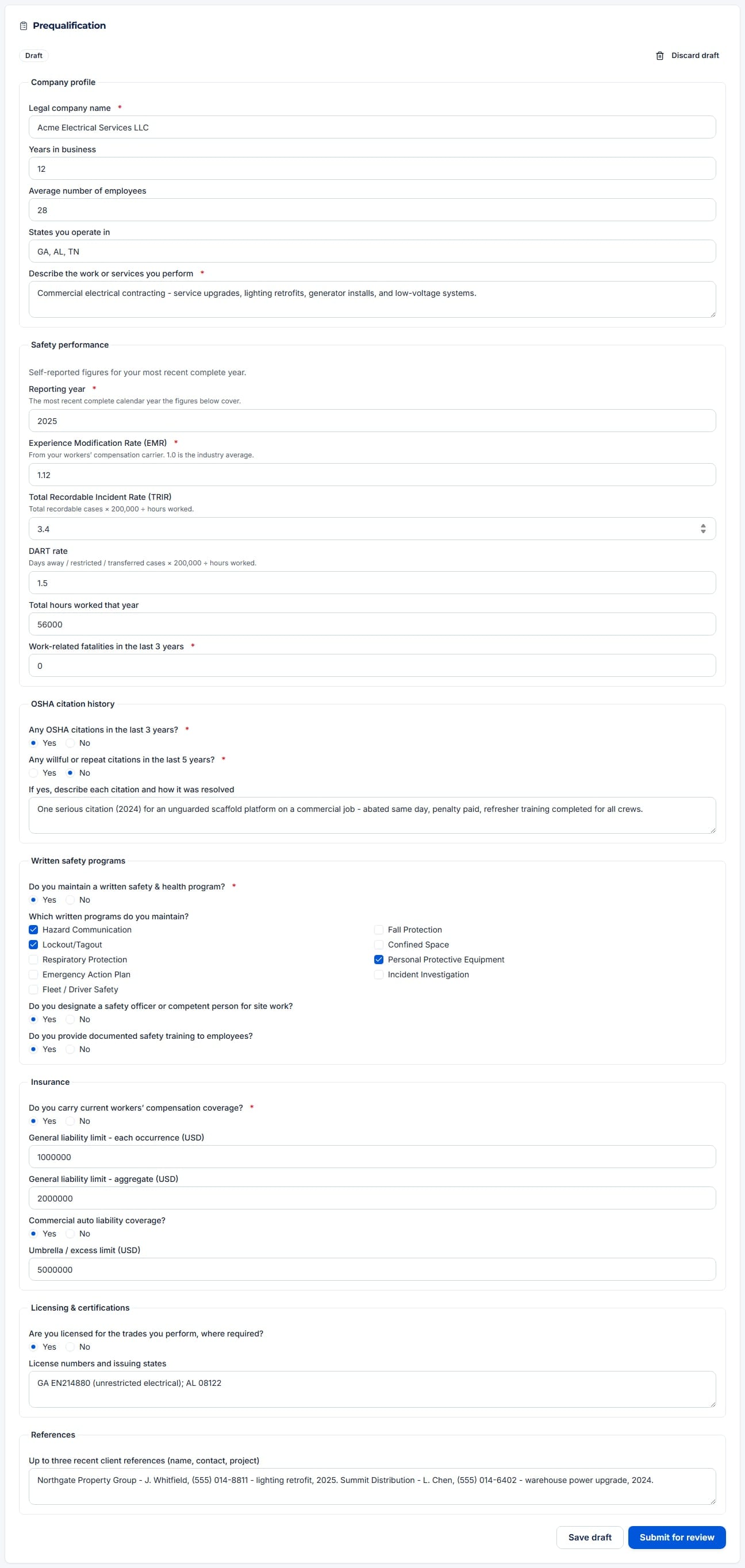
The standard questionnaire covers seven areas: Company profile, Safety performance (reporting year, EMR, TRIR, DART rate, hours worked, fatalities), OSHA citation history, Written safety programs, Insurance, Licensing & certifications, and References. Required questions are marked with an asterisk.
Start a prequalification
An admin clicks Start prequalification on the Prequalification tab. That creates a draft using the current question set - your organization's customized template if one exists, otherwise the ShieldSphere standard set.
Fill it in - or hand it to the contractor
You can complete the questionnaire internally (for example, from a paper form the contractor returned) and use Save draft as you go. Or skip internal entry entirely: send the contractor a qualification request link (section 4) and they complete the same questionnaire themselves. The record notes which path was used - "by the contractor via portal" or "internally".
Submit for review
Click Submit for review. Missing required answers block submission with a toast listing exactly which fields are incomplete. The response becomes Submitted - awaiting review and locks for evaluation (section 5).
Every response stores the full question set it was answered against. Editing your template later never rewrites an in-flight or historical response - old responses always render exactly as originally asked, with their original flags. Previous prequalifications stay visible in the Previous prequalifications list with their question-set version.
Discard draft removes a draft and its unsaved answers permanently. Submitted and reviewed prequalifications are never deleted.
4Sending a qualification request link
The contractor gets one secure, expiring link - no account, no password - and everything they submit arrives quarantined for your review.
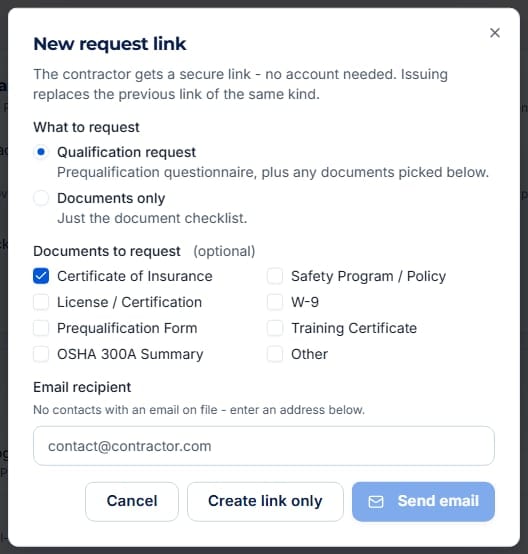
Choose what to request
In the New request link dialog, pick Qualification request (the prequalification questionnaire plus any documents you select) or Documents only (just a document checklist). The Certificate of Insurance is pre-checked; add safety programs, licenses, W-9s, training certificates, or an OSHA 300A as needed.
Send it
Pick an email recipient - the primary contact is preselected, or choose Another email address... - and click Send email, or use Create link only and deliver the URL yourself. The link is shown once, at issue time; copy it then, because it cannot be displayed again. Issuing a new link replaces the previous link of the same kind.
What the contractor sees
A single page titled "Qualification request from [your organization]": a document checklist showing each requested type as needed, awaiting review, or accepted, and (for qualification requests) the questionnaire with Save progress and Submit questionnaire buttons. They can return with the same link to finish. Uploads land on your side marked Needs review.
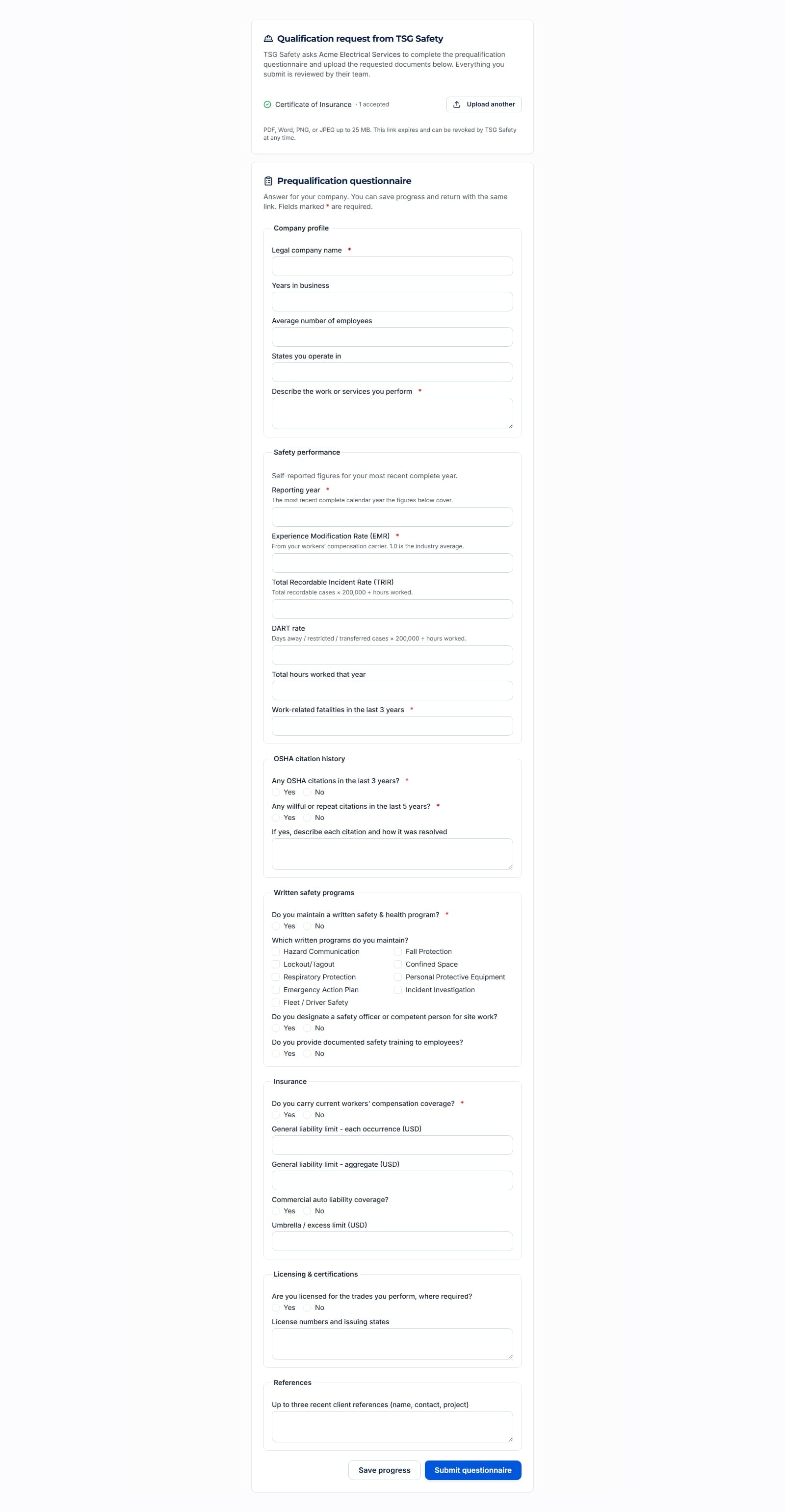
Links expire (14 days by default) and can be revoked at any time from the Contractor portal links dialog, which also shows when each link was last opened. A revoked, expired, or replaced link shows the contractor a neutral "no longer available" page.
5Reviewing a submissionAdmin
ShieldSphere reads the answers before you do - the Review flags panel points at exactly what deserves scrutiny.
Automatic review flags
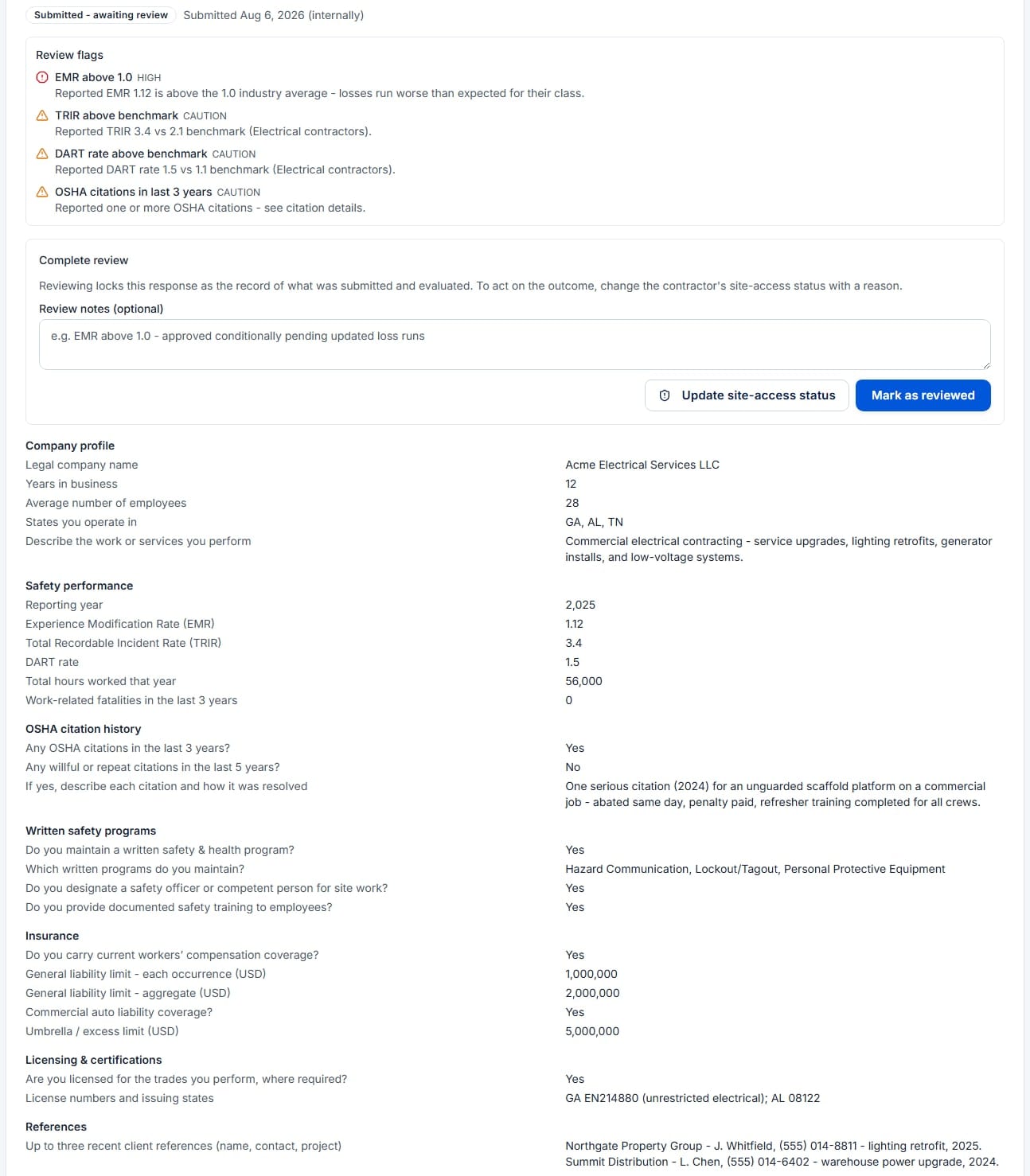
When a prequalification is submitted, the answers are checked deterministically - the same math every time, nothing persisted or AI-generated. TRIR and DART comparisons use trade-specific industry benchmarks matched from the contractor's trade.
| Flag | Severity and trigger |
|---|---|
| EMR above 1.0 | High - losses run worse than expected for their insurance class. |
| Fatalities reported | High - any work-related fatality in the last 3 years. |
| Willful or repeat citations | High - willful or repeat OSHA citations within the last 5 years. |
| No written safety program | High - reports no written safety & health program. |
| No workers' compensation coverage | High - reports no current workers' comp coverage. |
| TRIR above benchmark | Caution - reported TRIR exceeds the trade benchmark. |
| DART rate above benchmark | Caution - reported DART rate exceeds the trade benchmark. |
| OSHA citations in last 3 years | Caution - one or more citations reported; read the details answer. |
Complete the review
In the Complete review panel, record optional Review notes (for example, "EMR above 1.0 - approved conditionally pending updated loss runs") and click Mark as reviewed. Reviewing locks the response as the record of what was submitted and evaluated. To act on the outcome, click Update site-access status and change the contractor's status with a reason - the decision and its justification live in the status history, not in the questionnaire.
Approve portal documents
Portal uploads sit in the Documents tab with a Needs review badge. Open each one, verify it, then click Approve - and in the same pass use Edit to set the document type, effective date, and expiration date. Only approved, current, non-archived documents count toward compliance, reminders, and the risk score. To reject an upload, Archive it (reversible via Restore).
A pending-review document does not count for anything yet - a contractor whose COI is uploaded but unapproved still scores as having no current COI. Review the queue promptly.
6Customizing the questionnaireAdmin
One template per organization - reword, reorder, add, or remove anything, with guardrails around the questions that power automatic flags.
The builder opens seeded with the ShieldSphere standard set. You can edit section titles and descriptions, add sections, and per question change the label, answer type (Short text, Long text, Number, Yes / No, Multi-select), required flag, help text, and multi-select options. Click Save template to publish; the header badge changes from Standard set to Customized - v1 and counts up on each save.
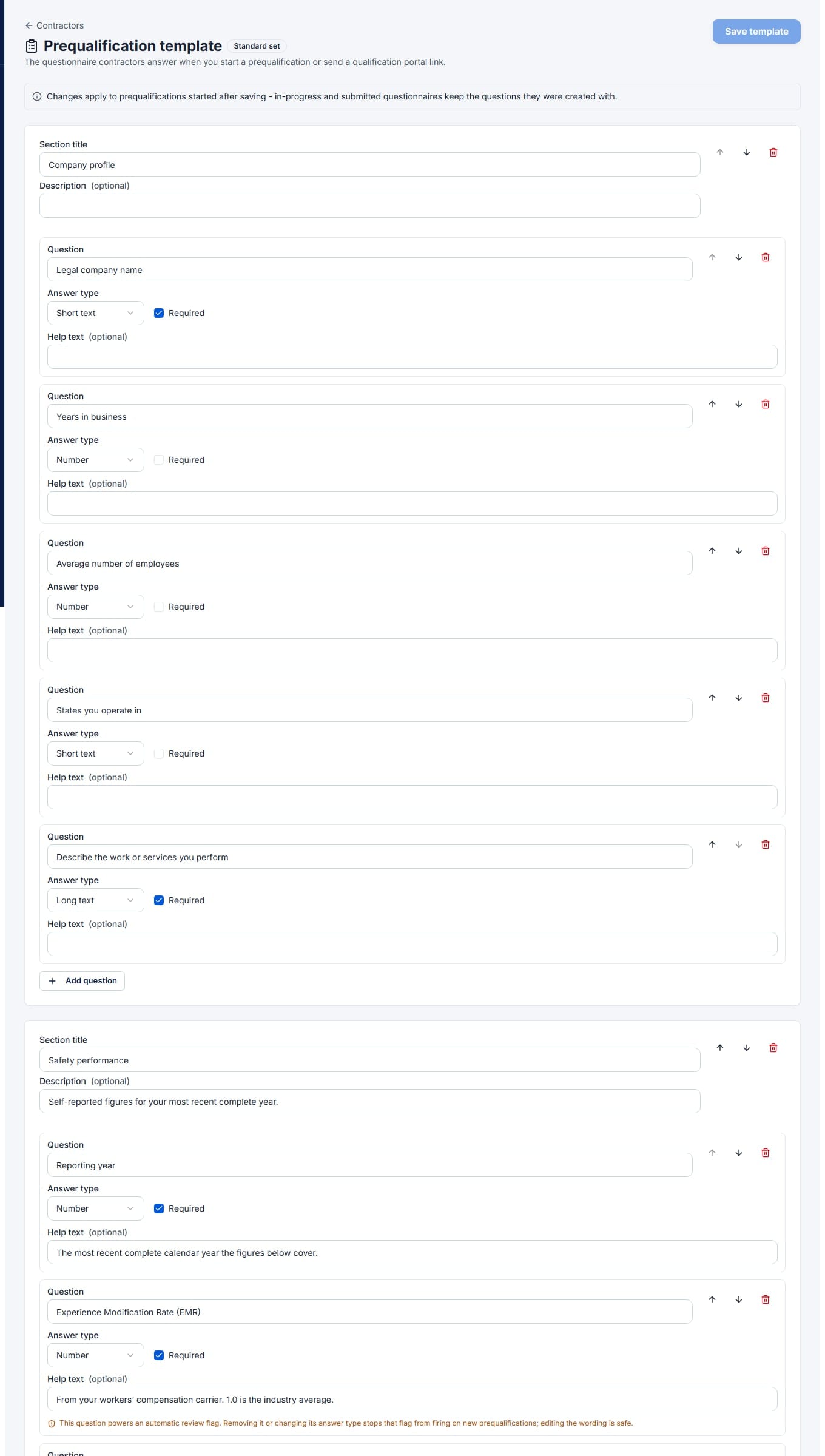
Changes apply to prequalifications started after saving. In-progress and submitted questionnaires keep the questions they were created with.
Eight standard questions (EMR, TRIR, DART, fatalities, citations, willful/repeat citations, written program, workers' comp) power the automatic review flags. The builder marks each with an inline warning: rewording is safe, but removing one or changing its answer type stops that flag from firing on new prequalifications. Custom questions never generate flags.
Reset to standard deletes your customization and returns new prequalifications to the standard set - existing responses are unaffected.
7Documents, COIs, and AI reviews
Insurance certificates, safety programs, licenses, and 300As - versioned, expiry-tracked, and readable by AI so the data in them becomes data in ShieldSphere.
Upload PDF, Word, PNG, or JPEG files up to 25 MB, typed as: Certificate of Insurance, Safety Program / Policy, License / Certification, W-9, Prequalification Form, Training Certificate, OSHA 300A Summary, or Other. Set the Effective date and Expiration date - rows show an amber "Expires in Nd" badge inside 30 days and a red "Expired" badge past due, and the organization owner receives 30-day, 7-day, and overdue email reminders. Upload new version keeps the previous file as read-only history.
Extract with AI - COIs and 300As
On a Certificate of Insurance or OSHA 300A Summary document, the sparkles button opens AI extraction. Nothing is saved until you click apply - review every value against the document first.
COI extraction
Reads carrier, policy number, effective and expiration dates, coverage limits, and whether the certificate holder appears to be named additional insured. Apply to document saves the details and dates onto the document record.
300A extraction
Reads year, hours worked, and case counts, then recomputes TRIR and DART from the counts as an arithmetic check. Save as annual metrics writes a year row into Safety Performance - flagged for review if the stated rates do not match the math.
Program review - the written-program AI check
On a Safety Program / Policy document (PDF or Word), the clipboard-check button opens Program review. Click Run program review: the AI judges the uploaded program against the written-program elements expected for the contractor's trade - Hazard Communication, PPE, Fall Protection, Lockout/Tagout, and so on - and returns a verdict per element: Present, Partial, or Missing, each with the model's notes and a supporting quote from the document. The coverage score counts present as 1 and partial as half. Citations shown come from ShieldSphere's curated standards data, never from the AI.
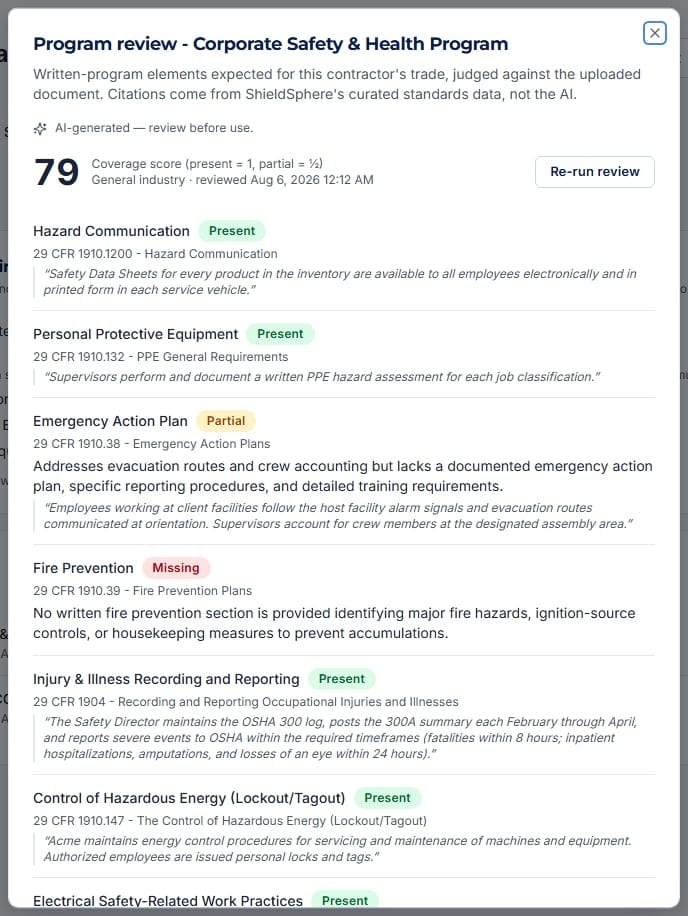
The program review score is the largest single input to the risk score (section 9), and it is how ARMOR requirements pass (section 8). Re-run the review whenever the contractor uploads a new program version - a review of a superseded file does not fully count.
8ARMOR - required programsAdmin
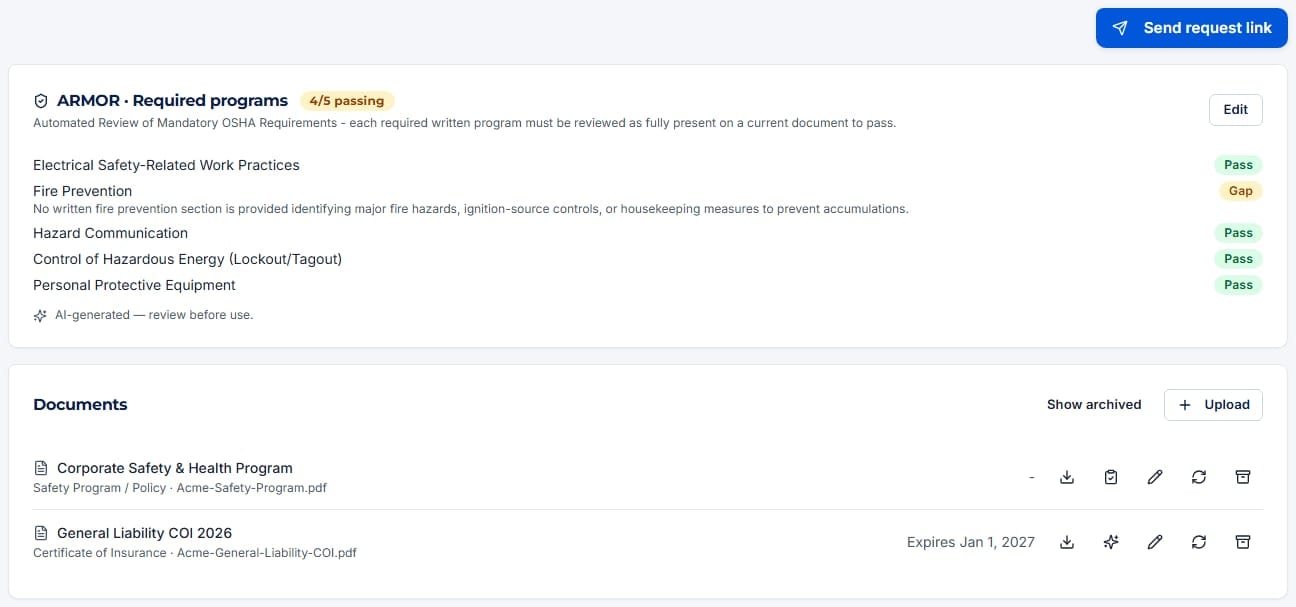
Automated Review of Mandatory OSHA Requirements: declare which written programs this contractor must have, and hold them to fully-present - not partial - coverage.
Configure the required set
Click Configure and check the programs this contractor must have on file - for example Fall Protection and Lockout/Tagout for an electrical contractor working at height. The catalog covers the curated program elements ShieldSphere reviews against, including trade-conditional ones. Click Save requirements.
The 100% rule
Each requirement shows Pass, Gap, or Not reviewed. A requirement passes only when the AI program review judged that element fully Present on a current document - a Partial verdict is a gap, not a pass. The card's overall badge reads PASS only when every required program passes; otherwise it shows how many pass, for example "2/4 passing".
Granting a variance
If you decide a requirement should not apply, remove it in Edit - an explicit, recorded decision. There is no partial-credit threshold to quietly lower.
When ARMOR is configured, the written-program portion of the risk score is driven by required-programs passing rather than raw checklist coverage - a missing mandatory program cannot be compensated by good coverage elsewhere. Required programs are always included in the review checklist, even when outside the contractor's trade defaults, so a requirement can always be judged.
9Safety performance and the risk score
Annual EMR, TRIR, and DART data checked against trade benchmarks - and a deterministic 0-100 score that weighs leading indicators over raw injury rates.
Recording annual metrics
Enter the contractor's EMR, TRIR, DART rate, hours worked, and OSHA 300A case counts per year - leave unknown fields blank. When you enter counts and hours, the dialog computes the rates live so a typo in a stated rate is caught at entry. The fastest path: upload the contractor's OSHA 300A Summary in the Documents tab and use Extract with AI, which fills a year row for you and arithmetic-checks it. Rows whose stated rates disagree with the recomputed math carry an amber Check math badge until corrected.
Generating the risk score
The score is computed from the contractor's recorded data by a fixed, repeatable rubric - higher score means lower risk - and every generation stores the exact inputs as an audit trail. AI writes the explanatory narrative, but never the number: refreshing without data changes returns the same score.
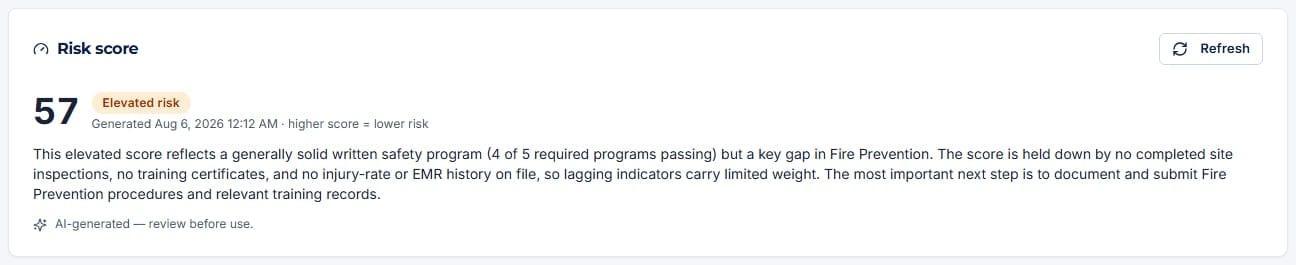
| What is weighed | Points and logic |
|---|---|
| Leading indicators (45) | The written-program review score (or ARMOR required-programs passing, when configured), completed site inspections, and training certificates on file. |
| Compliance & insurance (20) | A current, approved COI, and no expired documents. |
| Lagging indicators (25) | Three-year exposure-weighted TRIR and DART versus the trade benchmark, plus EMR. Self-reported rates count at reduced credit until verified against a 300A; rates from under 200,000 exposure hours carry reduced weight, because at small hours a single incident is statistical noise rather than a trend. |
| Standing & history (10) | Site-access status, incidents linked in the last 12 months, and prior suspensions. |
| Band | Score |
|---|---|
| Low risk | 80-100 |
| Moderate risk | 60-79 |
| Elevated risk | 40-59 |
| High risk | 0-39 |
Because leading indicators dominate, the fastest improvements are: get the safety program uploaded, reviewed, and passing its ARMOR requirements; keep the COI current and approved; and verify self-reported rates by extracting the 300A. A new contractor with nothing on file scores low - that is "not yet qualified", not a judgment.
The scorecard
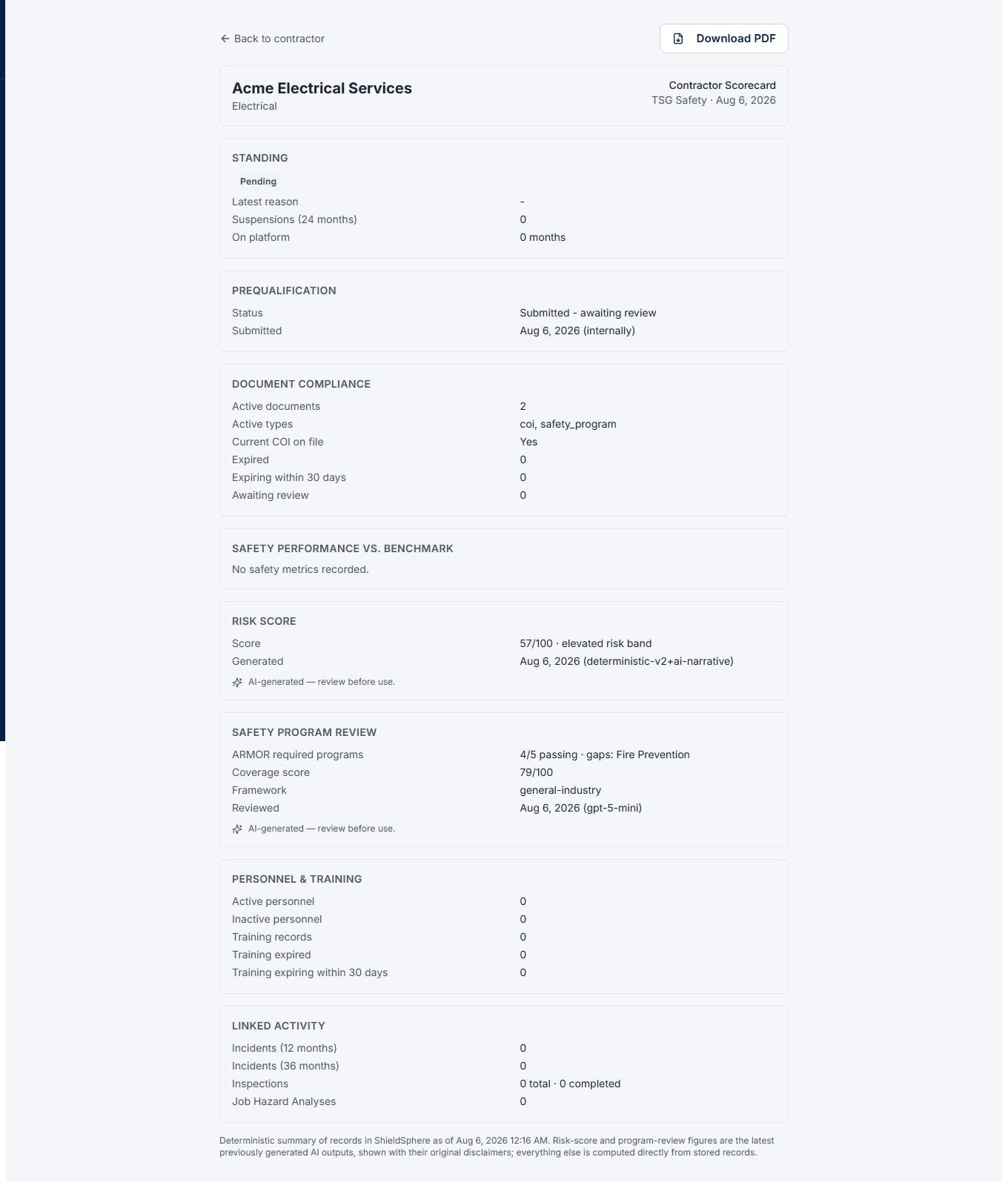
The Scorecard button on the contractor header opens a one-page summary - standing, prequalification, document compliance, performance versus benchmark, risk score, program review and ARMOR rollup, personnel and training, and linked activity - with a Download PDF button. The page and the PDF are built from the same data loader, so the two never disagree. Incidents, inspections, and JHAs linked to the contractor from those modules appear both here and on the Overview tab's Linked records card.
10Troubleshooting
| Symptom | Cause and fix |
|---|---|
| No Contractors link in the sidebar | The Contractor Management add-on is not enabled for your organization, or your account is not in the organization. Contact ShieldSphere or your admin. |
| Buttons like Add, Upload, or Start prequalification are missing | You are an org member, not an admin. Every write action in this module is admin-only. |
| The contractor says their portal link does not work | The link expired, was revoked, or was replaced by a newer one - issuing a new link of the same kind always replaces the old. Open Send request link and issue a fresh one. |
| Score says "no current certificate of insurance" but a COI is visible | The COI is pending review (portal uploads quarantine until approved) or its expiration date has passed. Approve the document and set its dates via Edit. |
| An ARMOR requirement shows "Not reviewed" | No program review has judged that element on a current document. Upload the program (or its latest version) and run Review on it - required elements are always included in the checklist. |
| A metrics row shows "Check math" | The stated TRIR or DART disagrees with the rate recomputed from the case counts and hours. Re-check the source 300A and edit the row - unverified rates count at reduced credit in the score. |
| Submit for review is blocked | Required questions are unanswered - the toast lists which. Portal contractors see the same guard on their side. |
| The risk score did not change after fixing documents | Scores are generated on demand and stored immutably. Click Refresh on the risk score card to generate a new one from current data. |
Try Contractor Management in ShieldSphere
Start a free hazard scan and see the platform these guides describe - no credit card required.
Screens captured from the live application in August 2026 using a demonstration site - your screens will show your own data. Because ShieldSphere ships changes regularly, check the version above against the current release before circulating this guide widely. Questions? Contact support.