
AI Ergonomic Evaluation
a workstation photo becomes a risk assessment
How to evaluate a worker or workstation from photos or a short clip, read the ergonomic risk factors and recommendations, and export the report.
Short answer
ShieldSphere's AI Ergonomic Evaluation reviews a photo or short clip of a worker at their workstation and identifies where the setup is straining their body. It returns an overall ergonomic risk rating, a list of risk factors such as monitor position, seating and reach, each tied to the body regions it affects, and a concrete recommended change for every factor.
1What Ergonomic Evaluation does
The Ergonomic Evaluation looks at a photo of a worker at their workstation and tells you where the setup is quietly straining their body - and exactly what to change.
You give it a workstation two ways - up to five photos from different angles, or a short clip that captures repetition and technique over time - and it returns:
- An overall ergonomic risk rating for the setup.
- A list of risk factors - monitor position, seating, reach, and so on - each tied to the body regions it affects.
- A recommendation for each factor, written as a concrete change you can make.
- The state ergonomic requirements that apply, where the site's jurisdiction has them.
This content is AI-generated and informed by professional safety expertise. It is a first-pass assessment, not a substitute for a professional ergonomic evaluation. Review, customize and approve it with a qualified safety professional before relying on it in your workplace.
Ergonomic Evaluation is a site-level module - evaluations belong to the site (profile) selected in the sidebar. It sits alongside the AI Hazard Scanner and Job Hazard Analysis as one of the three AI assessment tools, each aimed at a different kind of risk.
2Words you'll see
| Term | What it means |
|---|---|
| Evaluation | One assessment of one workstation, from the photos or clip you uploaded. |
| Overall risk | The setup's headline rating - Low, Moderate or High. |
| Risk factor | One aspect of the setup that creates strain - monitor height, seating, reach - with its own risk level. |
| Body region | The parts of the body a factor affects - neck, shoulders, lower back, wrists - shown as tags on the factor. |
| Confidence | How sure the AI is about a factor, as a percentage. |
| Recommendation | The specific change that reduces the factor - raise the monitor, add a keyboard tray, adjust the chair. |
| State ergonomic requirements | Enforceable ergonomic rules in State-Plan states (federal OSHA has no dedicated ergonomics standard). |
3Run an evaluation
A few phone photos of someone at their desk is all it takes.
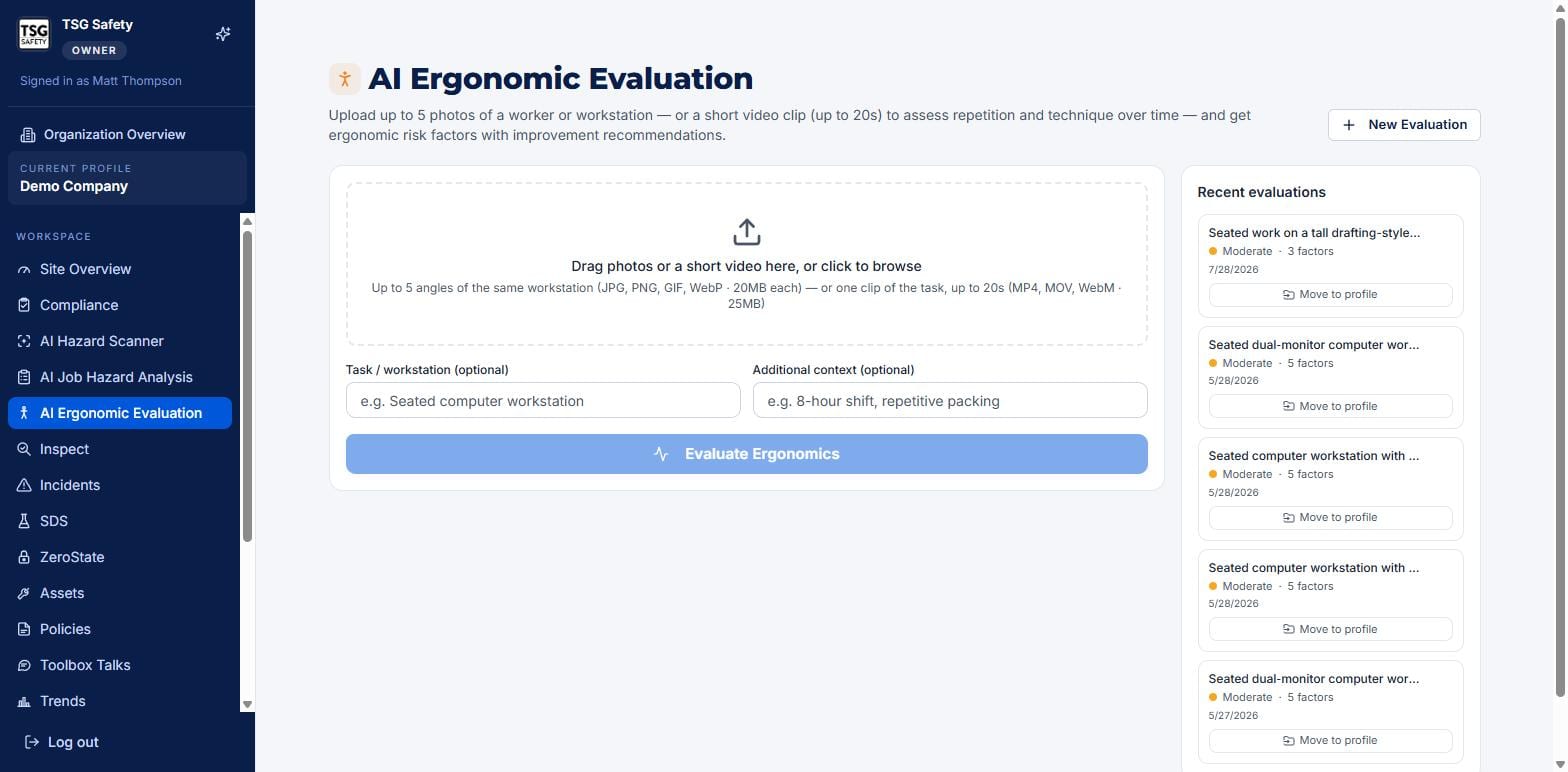
Add photos or a clip
Drag in up to five photos of the same workstation from different angles (JPG, PNG, GIF or WebP, up to 20 MB each), or one short clip of up to twenty seconds (MP4, MOV or WebM, up to 25 MB). More angles give a more complete read; a clip is best when the risk is in repetition and technique over a shift.
Add task and context
Task / workstation and Additional context are optional but sharpen the result. A note like "8-hour shift, repetitive packing" tells the AI what the body is doing all day, not just how the desk looks in a still.
Click Evaluate Ergonomics
The assessment appears in a few seconds and saves to Recent evaluations. From there you review it - the AI drafts, you and a professional decide.
4Read the evaluation
Overall risk first, then the specific factors - each one a body region, a cause, and a fix.
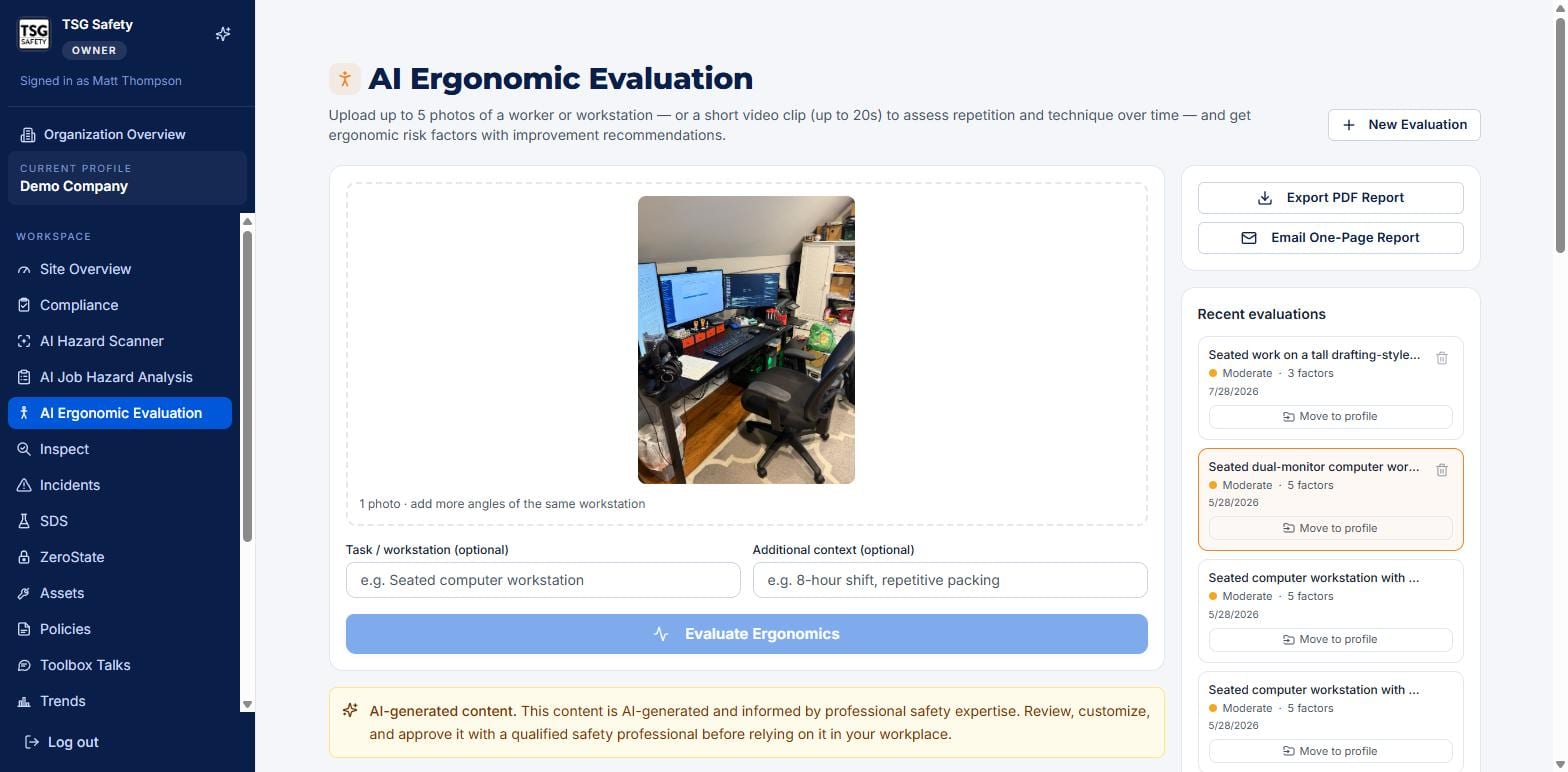
Below the photo sits the overall risk banner and a short summary, then - where the jurisdiction has them - the state ergonomic requirements that apply. Federal OSHA has no dedicated ergonomics standard, so this section is what makes the assessment actionable in State-Plan states like California.
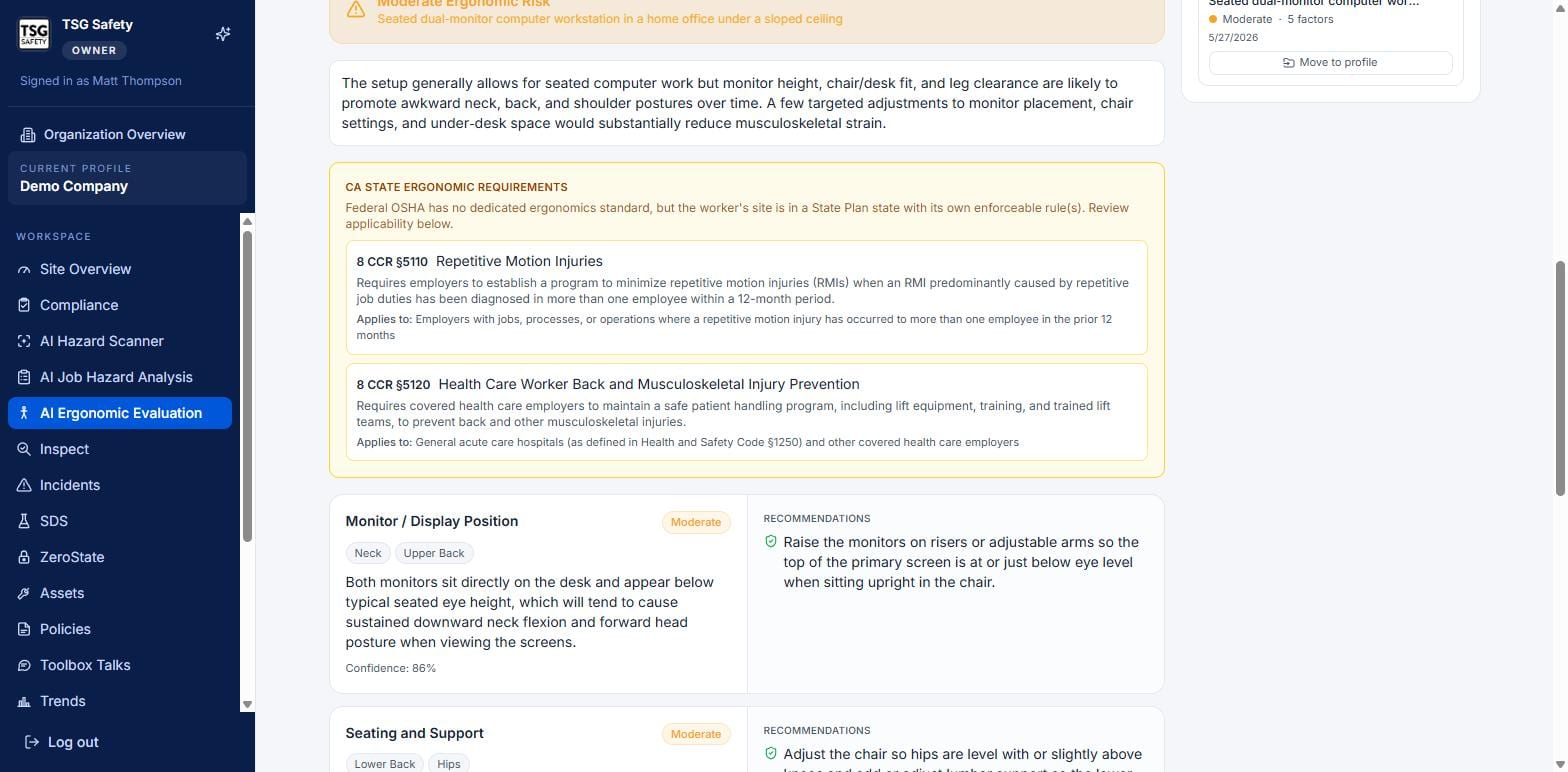
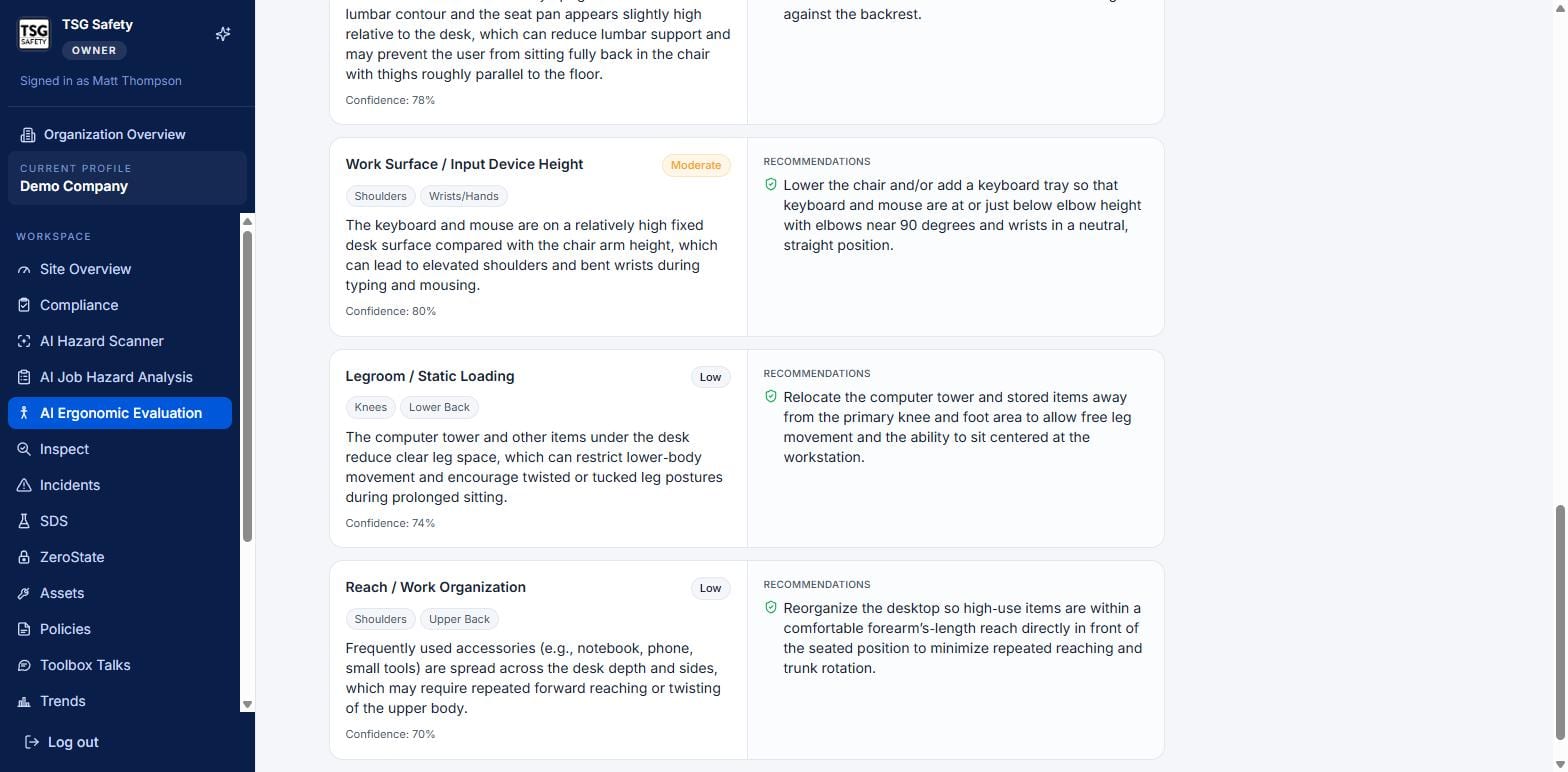
Each risk factor is a card: the aspect of the setup, a risk badge, the body regions it strains, a description of why, a confidence score, and a concrete recommendation. Work down them from highest risk to lowest.
5Export and share
The panel at the top right of any evaluation turns it into something you can hand over:
Export PDF Report
The full evaluation - photo, overall risk, every factor and recommendation - as a document for the file or the worker.
Email One-Page Report
A short summary sent straight from the app to whoever owns the fix.
In the Recent evaluations list, Move to profile reassigns an evaluation to a different site if it was captured under the wrong one, and the trash icon removes one you no longer need.
6Troubleshooting
| Symptom | Cause and fix |
|---|---|
| Evaluate Ergonomics does nothing | No photo or clip has been added. Add at least one - up to five photos, or one clip of twenty seconds or less. |
| The read is shallow or generic | One angle only, or no context. Add more photos of the same workstation and fill in the task and shift context. |
| No state requirements are shown | The site's jurisdiction has no dedicated ergonomics standard. The factors and recommendations still apply. |
| The evaluation is on the wrong site | Use Move to profile on the evaluation in the Recent list. |
| I need this to become tracked work | Ergonomic fixes are recommendations, not tracked actions here. Raise them as corrective actions from Incidents or Inspect if you want owners and due dates. |
Try AI Ergonomic Evaluation in ShieldSphere
Start a free hazard scan and see the platform these guides describe - no credit card required.
Screens captured from the live application in July 2026 using a demonstration site - your screens will show your own data. Because ShieldSphere ships changes regularly, check the version above against the current release before circulating this guide widely. Questions? Contact support.