
AI Hazard Scanner
a photo becomes a cited safety review
How to scan workplace photos or a short clip, read the AI's findings against the OSHA standards, and turn them into assigned work - all in one place.
Short answer
ShieldSphere's AI Hazard Scanner turns a phone photo of your workplace into a first-pass safety review in seconds. Upload one to five photos or a short clip, and each finding comes back tied to a specific OSHA standard with a recommended fix. You verify what is real, then raise corrective actions, seed a Job Hazard Analysis, or pull the scan into a full inspection.
1What the Hazard Scanner does
The Hazard Scanner turns a phone photo of your workplace into a first-pass safety review - cited to the OSHA standard, ranked by risk, with a suggested fix - in seconds.
Every scan follows the same short arc:
- Upload one to five photos, or a short video clip, of the area you want checked.
- Findings come back, each tied to a specific OSHA standard with a recommended fix.
- Verify each finding against the photo - the AI drafts, you decide.
- Act on what's real: raise corrective actions, seed a Job Hazard Analysis, export a report, or pull the scan into a full Inspect inspection.
It is built to be used on the floor, with the operator, on the spot - fast enough to walk an area and talk through what the camera saw before you have left the room.
Photo scan
Upload up to five stills of a work area. Best for covering a lot of ground quickly - a bench, a bay, a storage room.
Video clip
Upload one clip of up to twenty seconds. Best for a task in motion, where the hazard is in how the work is done, not just the scene.
Findings are AI-generated from the photo you uploaded. They are a first pass, not a citation and not a substitute for a walkthrough. Verify on-site conditions and consult a qualified safety professional before acting on anything the scanner surfaces.
The Hazard Scanner is a site-level module - every scan belongs to the site (profile) selected in the left sidebar. Its findings do not have to live in isolation: a scan can be turned into corrective actions, seeded into a Job Hazard Analysis, or imported wholesale into an Inspect inspection with its findings intact.
2Words you'll see
| Term | What it means |
|---|---|
| Scan | One photo set (or one clip) analyzed on one date, saved to this site. |
| Potential violation | A hazard the AI spotted, with a severity, an OSHA citation, and a suggested corrective action. Also called a finding. |
| Risk level | The scan's overall rating - High, Medium or Low - rolled up from its findings. |
| OSHA framework | Which rule set the AI cites against - General Industry (29 CFR 1910), Construction (1926), and so on. |
| Corrective action | The assigned task that fixes a finding, with an owner and a due date. Lives in the site's corrective-actions workflow. |
| JHA | Job Hazard Analysis - a separate module that breaks a task into steps and controls. A scan can seed one. |
3Run a scan
From photo to cited findings in about the time it takes to describe what you are looking at.
Add your photos or clip
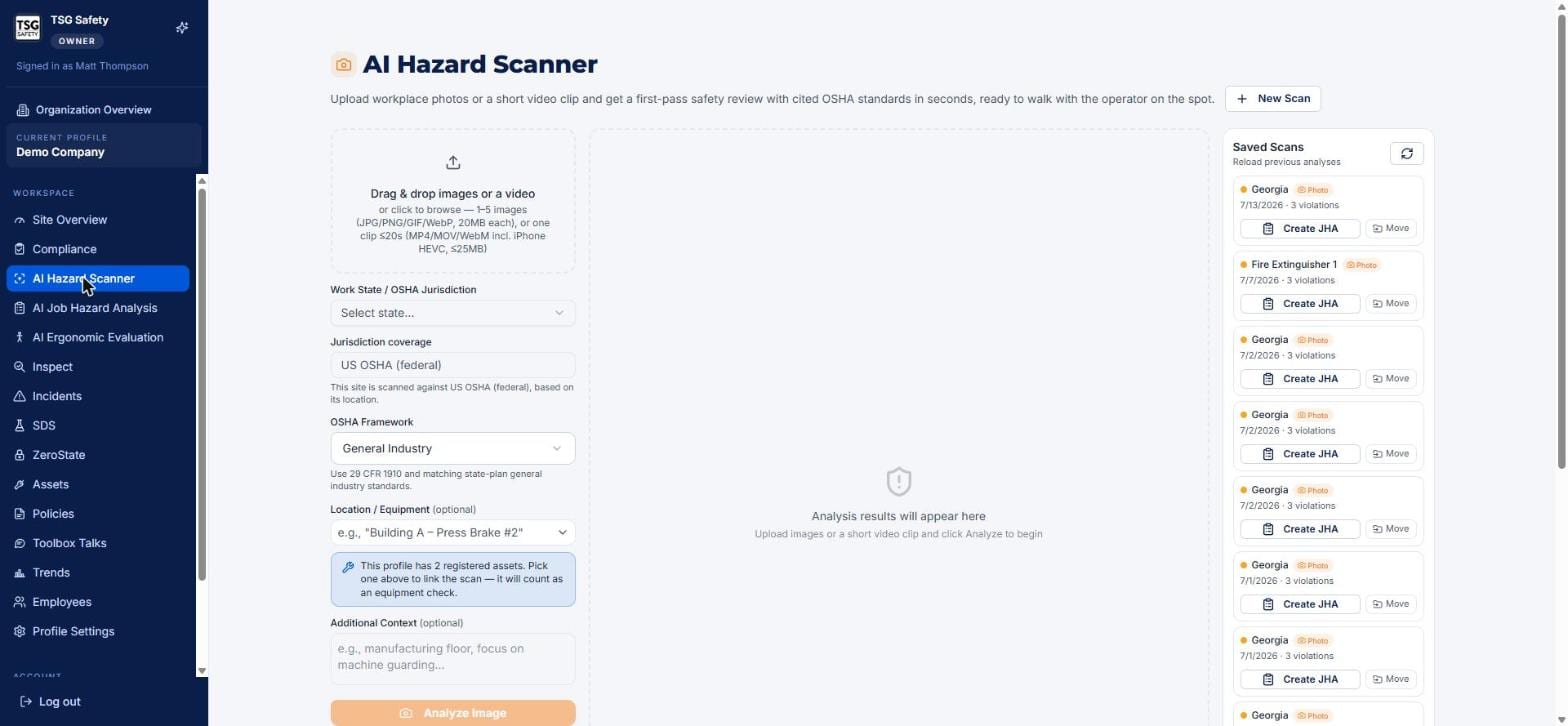
Drag images onto the upload box, or click it to browse. You can add one to five images (JPG, PNG, GIF or WebP, up to 20 MB each), or one video clip of twenty seconds or less (MP4, MOV or WebM, including iPhone HEVC, up to 25 MB).
Set the state and framework
Work State decides which jurisdiction's standards the AI cites, so get it right. Jurisdiction coverage then shows what the site is scanned against (for most sites, US OSHA federal). OSHA Framework - General Industry, Construction, and so on - narrows it further to the rules that fit the work.
Link a location or asset, and add context
Both are optional but both pay off. Picking a registered asset under Location / Equipment links the scan to that equipment and logs it as an equipment check. Additional Context - a line like "manufacturing floor, focus on machine guarding" - points the AI at what you actually care about.
The Location / Equipment dropdown is populated by the Assets module. If it is empty, this site has no assets registered yet.
Click Analyze Image
The AI reviews the photo and the results appear in the center panel in a few seconds. The scan saves itself as it completes - you will see it drop into Saved Scans on the right, and a "Scan saved" confirmation with its ID.
Clear, well-lit shots of the work area. Include the full workspace, not just the hazard. Capture equipment, signage and PPE in frame. Multiple angles give a more thorough review. For a clip, hold the camera steady and keep it under twenty seconds while the task is performed.
4Read the results
The AI drafts. You verify. Nothing here is a finding until you have eyeballed the photo against it.
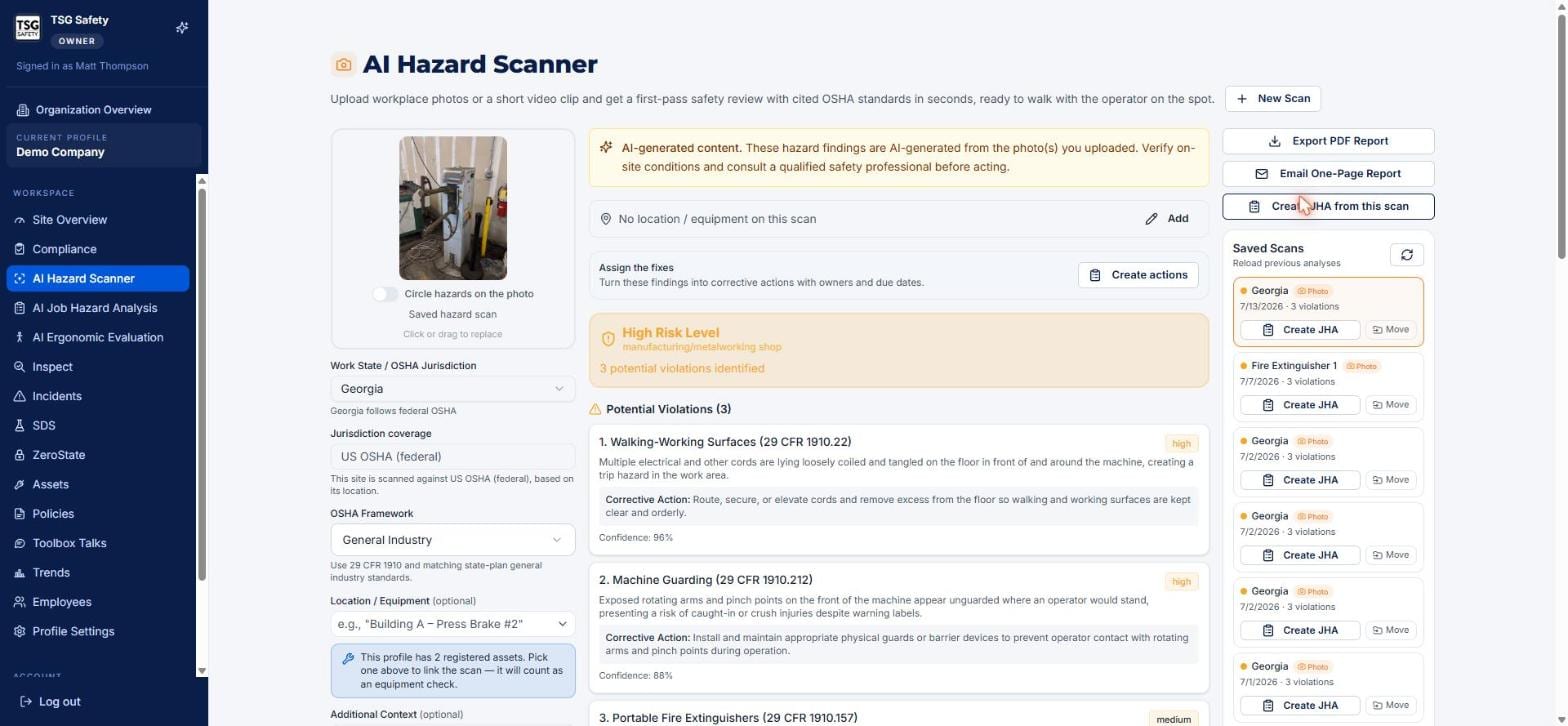
Each potential violation gives you four things to weigh:
- Standard and severity - the specific OSHA citation (for example
29 CFR 1910.212) and a high / medium / low badge. - The observation - a plain-language description of what the camera saw and why it is a hazard.
- Corrective Action - the recommended fix. This text carries through if you turn the finding into an assigned action, so it is worth reading closely.
See exactly what it flagged
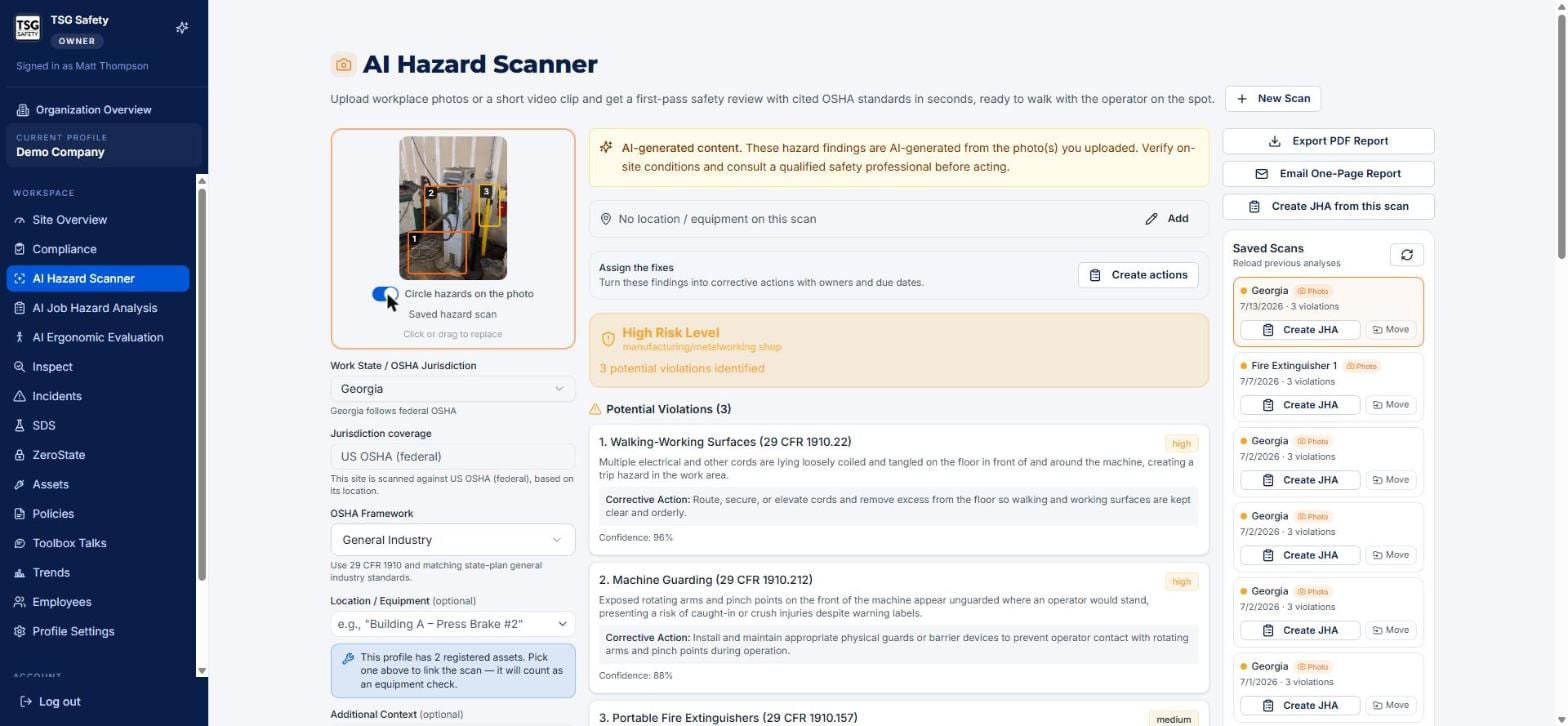
Flip on Circle hazards on the photo and the scanner overlays a numbered box on each hazard, matched to the numbered findings below. It is the fastest way to confirm the AI is looking at the thing you think it is.
Jurisdiction-specific guidance
Below the findings, the scanner spells out the exact citations behind each hazard - the specific subparagraphs of the standard - and the controls that satisfy them, tuned to the state and framework you chose. This is the part to copy into a report or hand to whoever owns the fix.
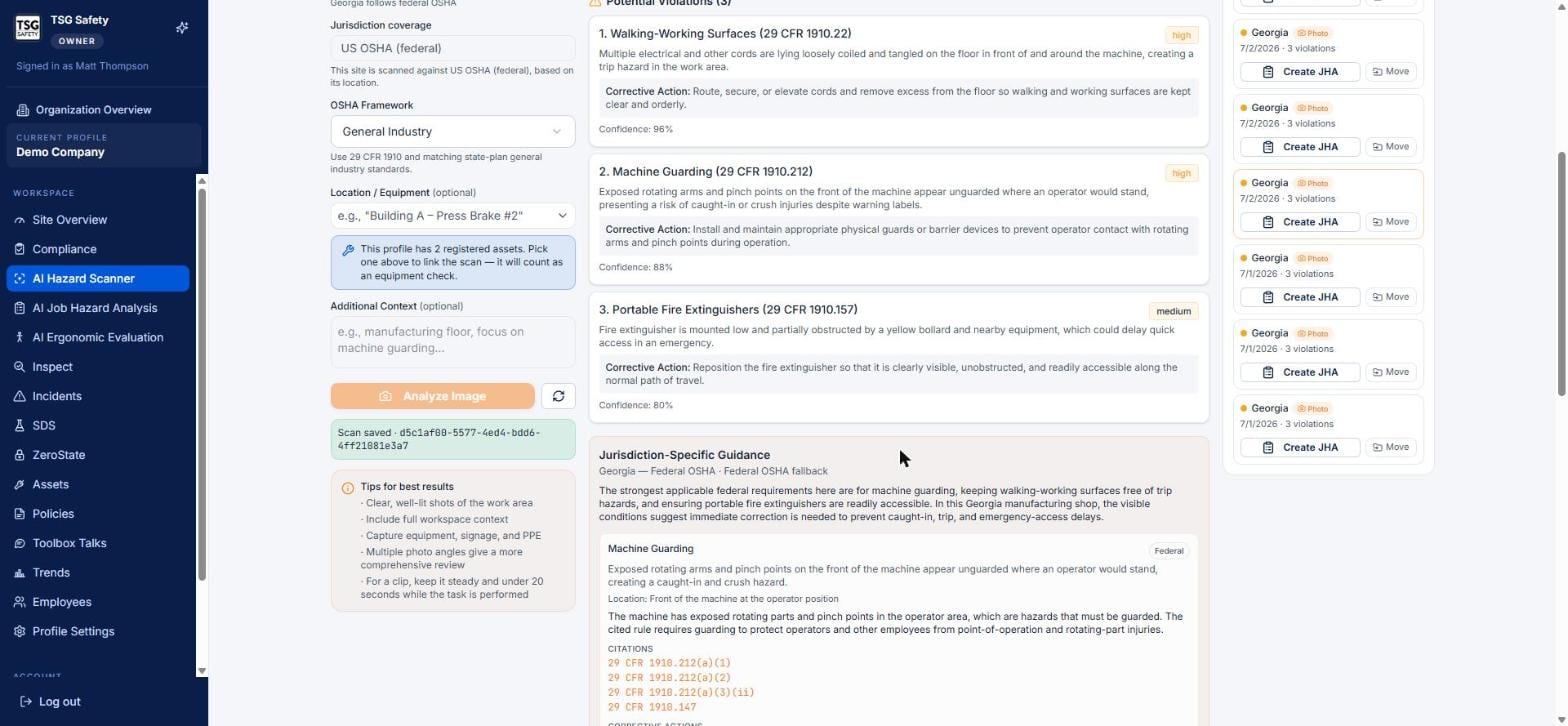
29 CFR 1910.212(a)(3)(ii) and the matching controls, drawn from the jurisdiction on the left.The banner at the top of every result says it plainly: these findings are AI-generated from the photo. A photo cannot see a locked-out breaker, a permit on file, or a guard that is off for maintenance. Walk the area before you treat a finding as fact.
5Turn findings into work
A scan that ends at "we photographed it" does not reduce risk. Every result has exits that turn findings into something that gets done.
Create corrective actions
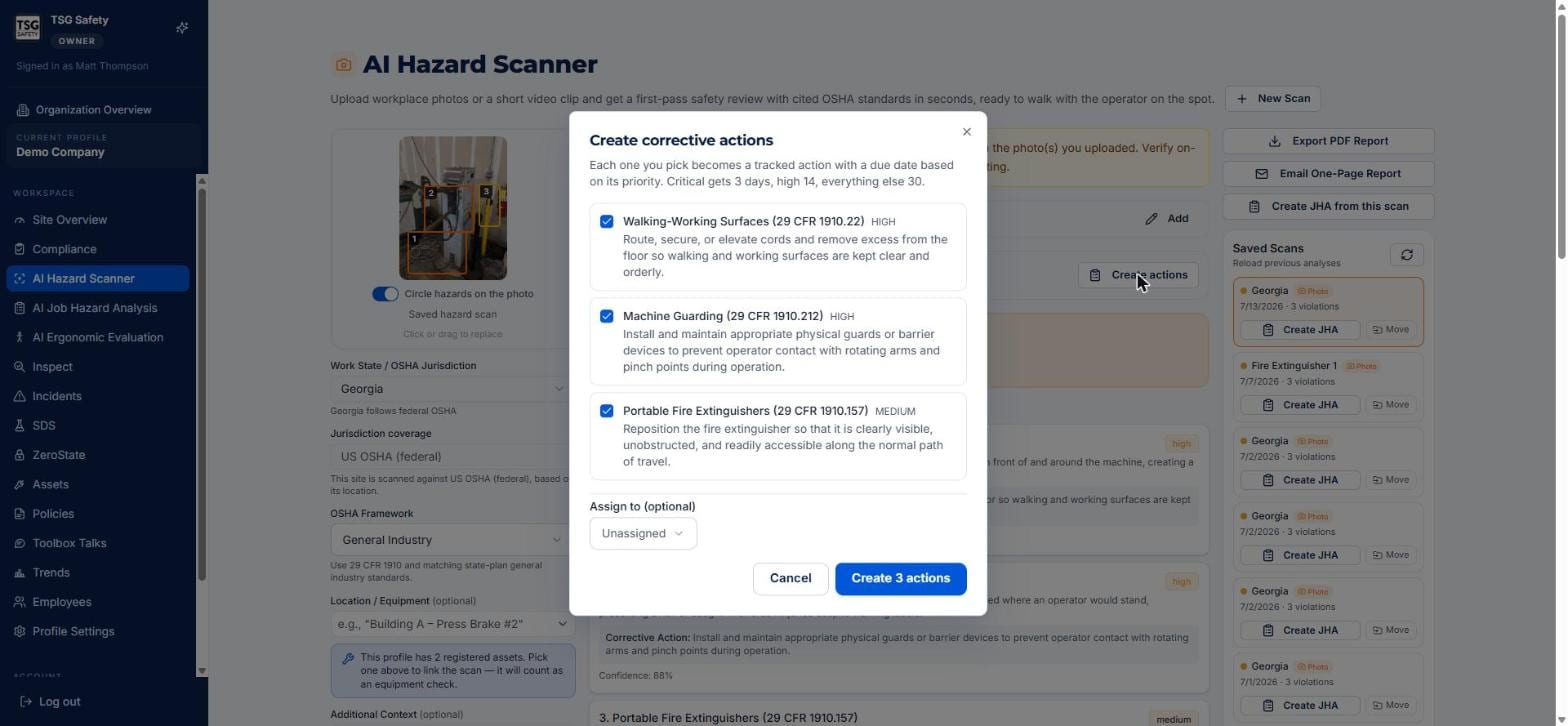
Click Create actions. Every finding is pre-selected and becomes a tracked corrective action with a due date set from its priority - Critical gets 3 days, high 14, everything else 30. Untick anything you do not want raised, set an optional assignee, and confirm.
Brief the crew on it
Each finding carries a Schedule a toolbox talk link. It suggests talks from the ShieldSphere library that match that hazard, and you pick one and a date - the talk is then adopted for this site and scheduled, with a link back to the finding that prompted it. That link is the useful part: it lets you show an inspector the loop closing, from the hazard being spotted to the crew being briefed on it.
The link only appears once the scan has been saved to a location, because the talk is adopted for a site. On an unsaved scan you will not see it.
Create a Job Hazard Analysis from the scan
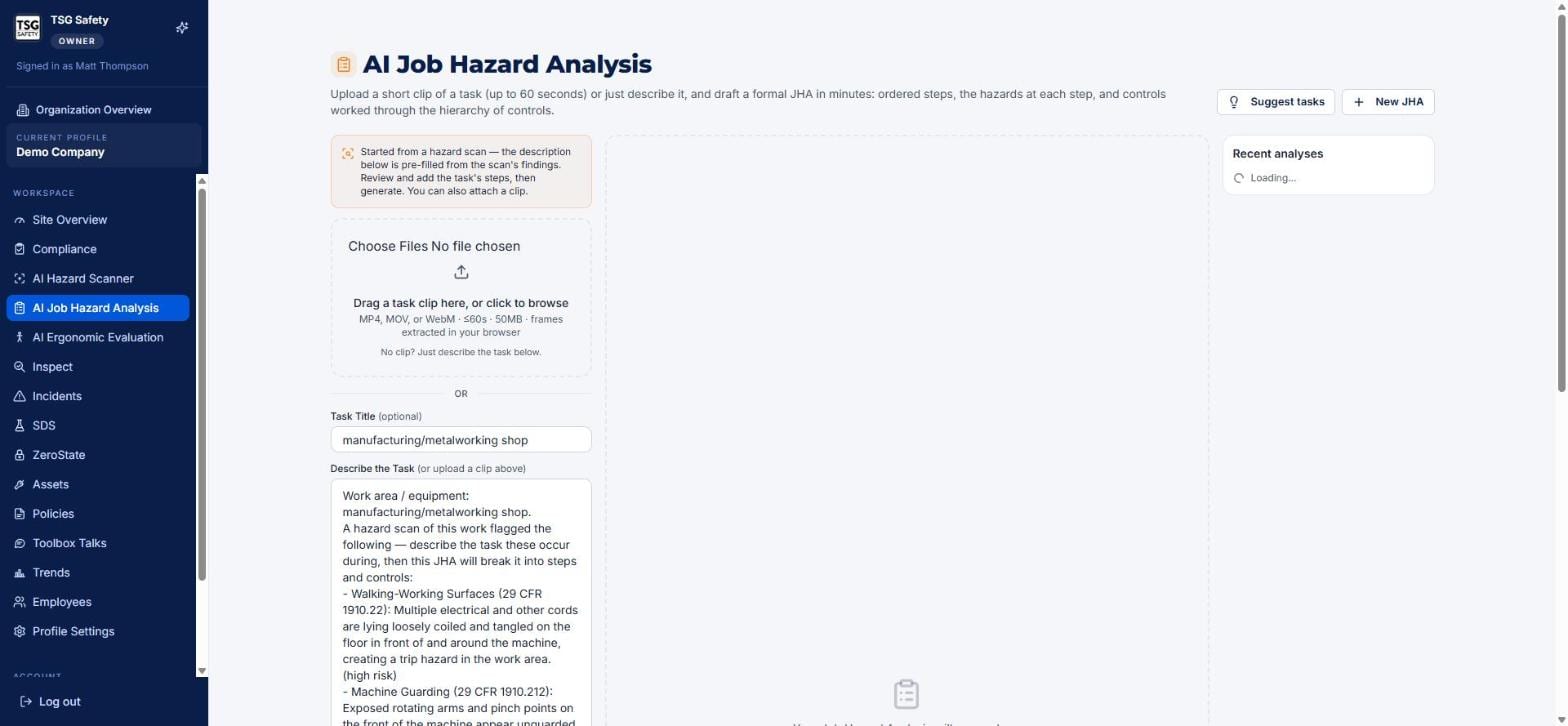
When the risk is in how a task is done, click Create JHA from this scan. It opens the Job Hazard Analysis module with the task description already filled in from the scan's findings - you review the steps, add the clip if you have one, and generate.
Export or email a report
Export PDF Report
The full scan - photo, findings, citations and guidance - as a client-ready PDF for sending or filing.
Email One-Page Report
A short summary sent straight from the app, sized for the crew or a supervisor who just needs the headline.
Photos you scan here can be pulled straight into an Inspect inspection, bringing their saved findings with them - no second AI scan. If your team scans as they walk, the inspection almost builds itself. See the Inspect User Guide, "Run a photo inspection".
6Saved scans
Every scan for the current site is listed under Saved Scans on the right of the module, newest first. Each row shows a risk dot, a photo or video badge, the date, and the violation count.
| Control | What it does |
|---|---|
| Open a scan | Click the row to reload its full results in the center panel - findings, guidance and all. |
| Reload previous analyses | The refresh icon at the top of the list pulls in scans saved since you opened the page. |
| Create JHA | Seed a Job Hazard Analysis straight from the saved scan, without opening it first. |
| Move | Send a scan to a different site or profile - useful when it was captured under the wrong one. |
7Troubleshooting
| Symptom | Cause and fix |
|---|---|
| Analyze Image does nothing | No file has been added yet, or the file is too large or an unsupported type. Add one to five images (20 MB each) or one clip of twenty seconds or less. |
| A finding looks wrong | It is a first pass. Verify it against the photo using Circle hazards, and drop or downgrade it when you create actions. |
| The wrong standards are being cited | Check the Work State and OSHA Framework - they decide the jurisdiction and rule set the AI cites from. |
| The Location / Equipment dropdown is empty | No assets are registered for this site yet. Add them in the Assets module. |
| I need a formal step-by-step task analysis | Use Create JHA from this scan - the Job Hazard Analysis module breaks the task into steps and controls. |
| I want this on the official inspection record | Import the scan into Inspect and finalize it there - a finalized inspection is the defensible record. |
Try AI Hazard Scanner in ShieldSphere
Start a free hazard scan and see the platform these guides describe - no credit card required.
Screens captured from the live application in July 2026 using a demonstration site - your screens will show your own data. Because ShieldSphere ships changes regularly, check the version above against the current release before circulating this guide widely. Questions? Contact support.