
Incidents
from the report to the OSHA log, in one place
How to record incidents and near misses, investigate root cause, drive corrective actions, and let ShieldSphere build your OSHA 300, 301 and 300A forms for you.
Short answer
ShieldSphere's Incidents module is OSHA recordkeeping done as you go. Record an injury, illness or near miss with the details OSHA asks for, classify the outcome, investigate root cause and raise corrective actions. The OSHA 300 Log, 301 incident report and 300A annual summary then build themselves from what you entered, so the log exists and is right before an inspector asks.
1What Incidents does
Incidents is your OSHA recordkeeping done as you go - so that when an inspector asks for the 300 Log, it already exists and it is already right.
The module holds the whole life of a workplace injury or illness, from the moment it happens to the trend it becomes:
- Record the incident (or a near miss) with the details OSHA asks for.
- Classify it - injury or illness, and the outcome - which decides how it lands on the log.
- Investigate the root cause and raise corrective actions so it does not repeat.
- Report - the OSHA 300 Log, 301 incident report and 300A annual summary build themselves from what you entered.
- Trend - rates and patterns roll up so you can see whether the programme is working.
Recordable incident
A work-related injury or illness that meets OSHA's recording criteria. Goes on the 300 Log.
Near miss
An event that could have caused injury but did not. Tracked for learning - it does not go on the 300 Log.
Incidents is a site-level module - every record belongs to the site (profile) selected in the left sidebar, and to a year (the selector top-right). The forms and rates you see are always for that one site and that one year.
2Words you'll see
| Term | What it means |
|---|---|
| Recordable | An injury or illness that meets OSHA's criteria for the 300 Log - death, days away, restricted duty, transfer, loss of consciousness, or treatment beyond first aid. |
| Classification | Whether the case is an injury or an illness type. Drives column M on the 300 Log. |
| Outcome | The most serious result - death, days away from work, job transfer or restriction, or other recordable. Only one per case. |
| Privacy case | A sensitive injury (per 29 CFR 1904.29) where the employee's name is withheld from the log. |
| DART rate | Days Away, Restricted or Transferred - cases per 100 full-time workers. An industry benchmark of severity. |
| TCIR | Total Case Incident Rate - all recordable cases per 100 full-time workers. |
| Root cause analysis | A structured investigation (for example 5 Whys) that finds why the incident happened, not just what happened. |
| 300 / 301 / 300A | The three OSHA forms: the log, the individual incident report, and the annual summary you post each spring. |
3The Incidents home screen
Click Incidents / OSHA 300 in the left sidebar, under Daily Work. The top of the screen is your recordkeeping scoreboard for the selected year, and the seven tabs below are the whole module.
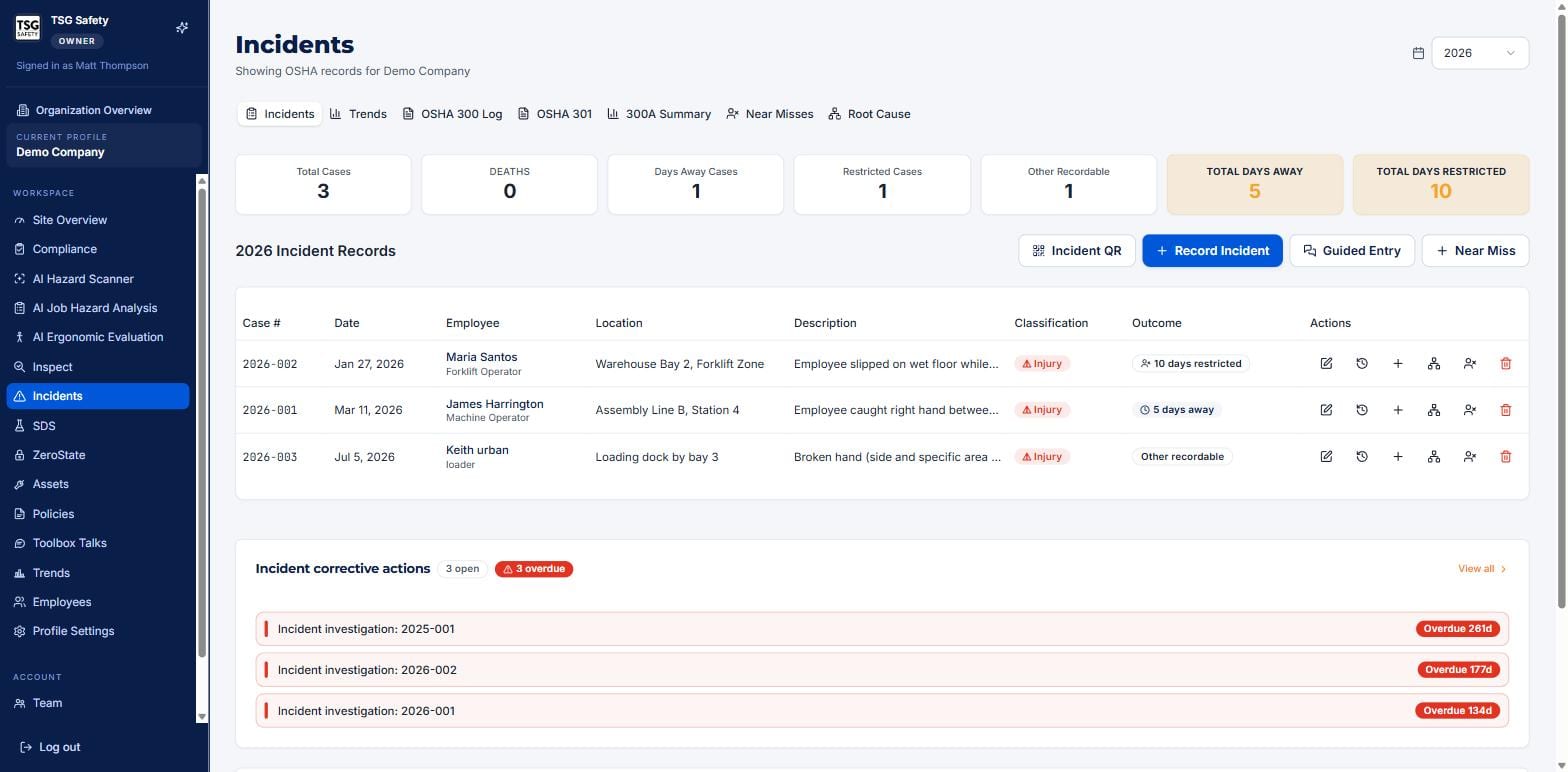
| Tab | What lives there |
|---|---|
| Incidents | The records table for the year, plus the corrective actions raised from them. |
| Trends | Rates and charts - recordable count, DART, days away, monthly pattern. |
| OSHA 300 Log | The Form 300 log, built from your records, ready to export. |
| OSHA 301 | The individual incident reports behind each case. |
| 300A Summary | The annual summary and your DART / TCIR rates. |
| Near Misses | The near-miss log - tracked separately from recordable cases. |
| Root Cause | Every investigation across the site, with its status. |
Record Incident is the full form. Guided Entry walks you through it step by step. Near Miss logs a close call. Incident QR gives you a printable code a worker can scan to report from the floor, no login needed.
4Record an incident
One form, entered once, becomes the 300 Log row and the 301 report together.
Identify the person and the event
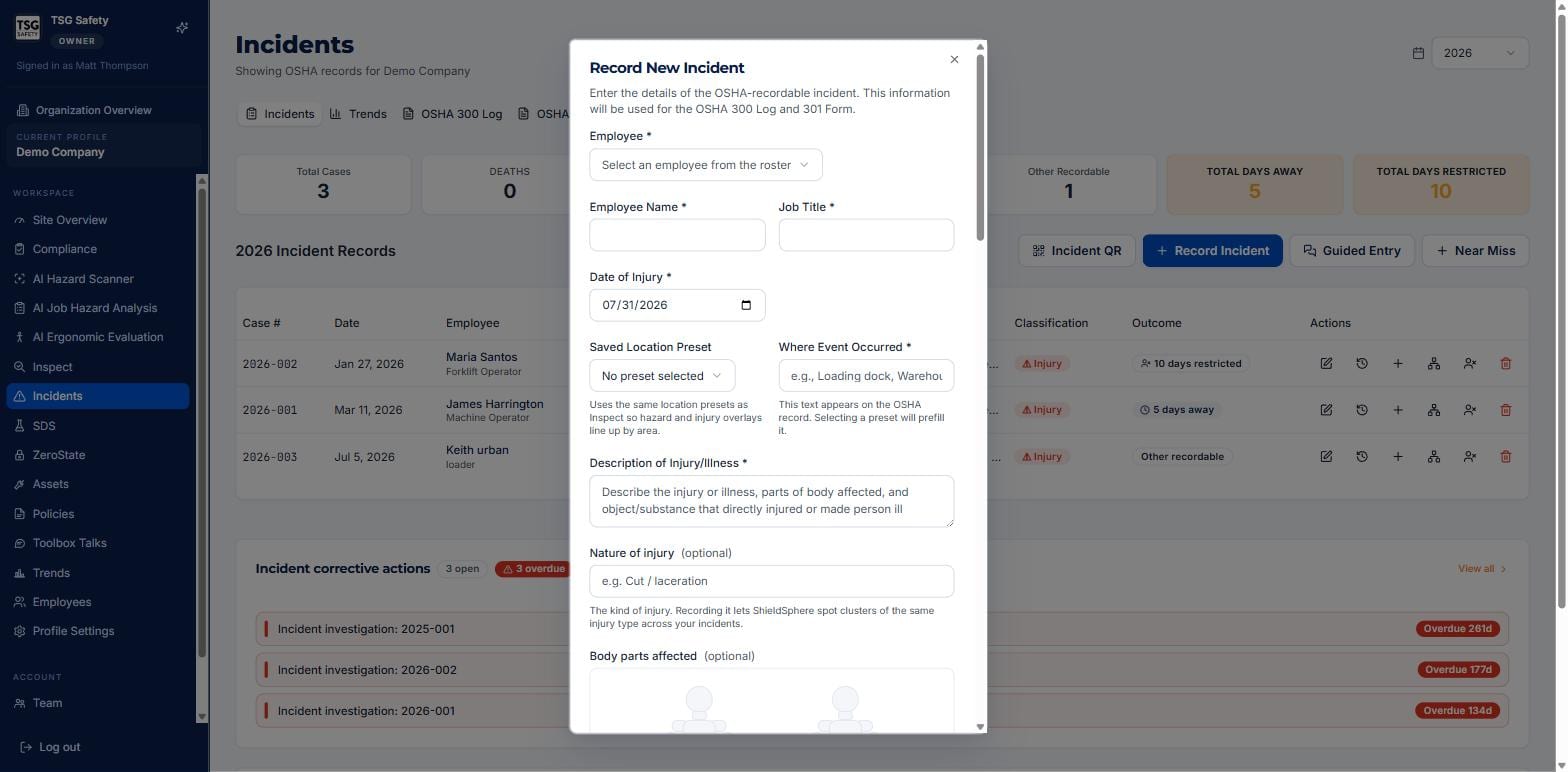
Pick the employee from the roster (or type a name), set the date of injury, and say where it happened. Choosing a Saved Location Preset lines the incident up with the same areas you use in Inspect. Then describe the injury or illness in plain, specific terms.
Mark the body parts and classify the case
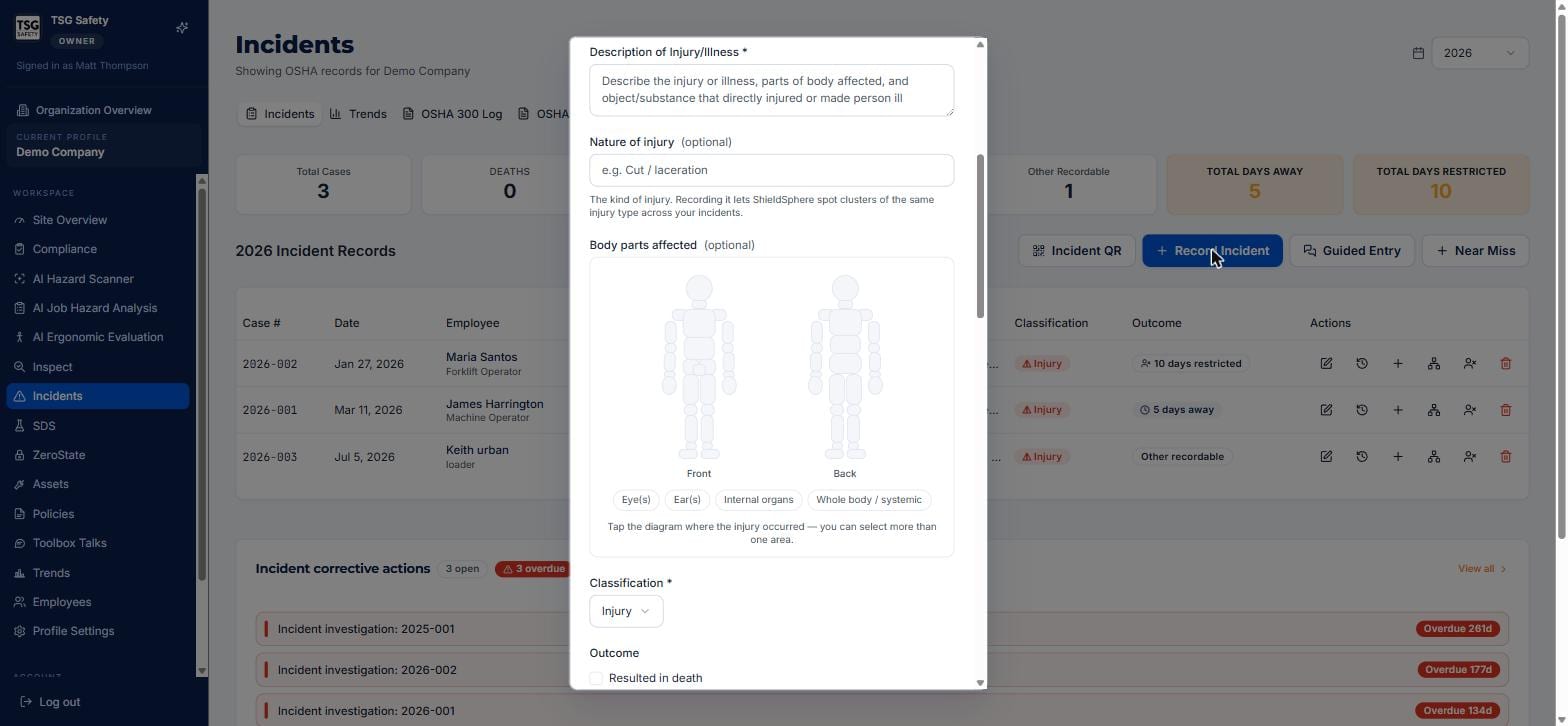
Tap the body diagram where the injury occurred - you can select more than one area - and record the nature of injury. Then set the Classification (injury or an illness type). Recording these lets ShieldSphere spot clusters of the same injury across your site.
Set the outcome and finish the 301
Choose the outcome - resulted in death, days away from work, job transfer or restriction. Tick Privacy case for sensitive injuries to withhold the name from the log. Below that, the OSHA 301 section collects the employee and treatment details the individual report needs.
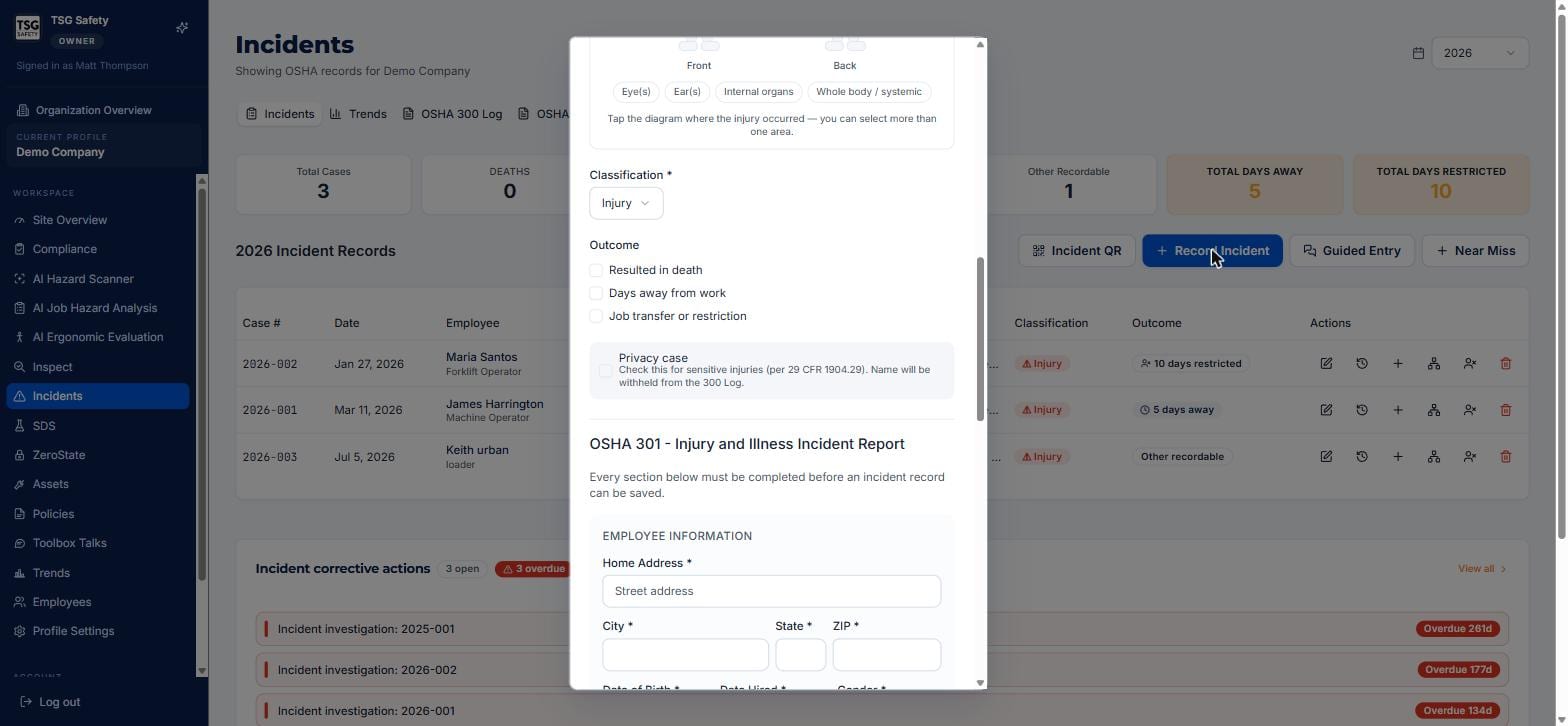
The outcome you choose here is exactly what lands in the "Classify the case" columns of the OSHA 300 Log. Get it right and the log is right; the form is only ever as accurate as this step.
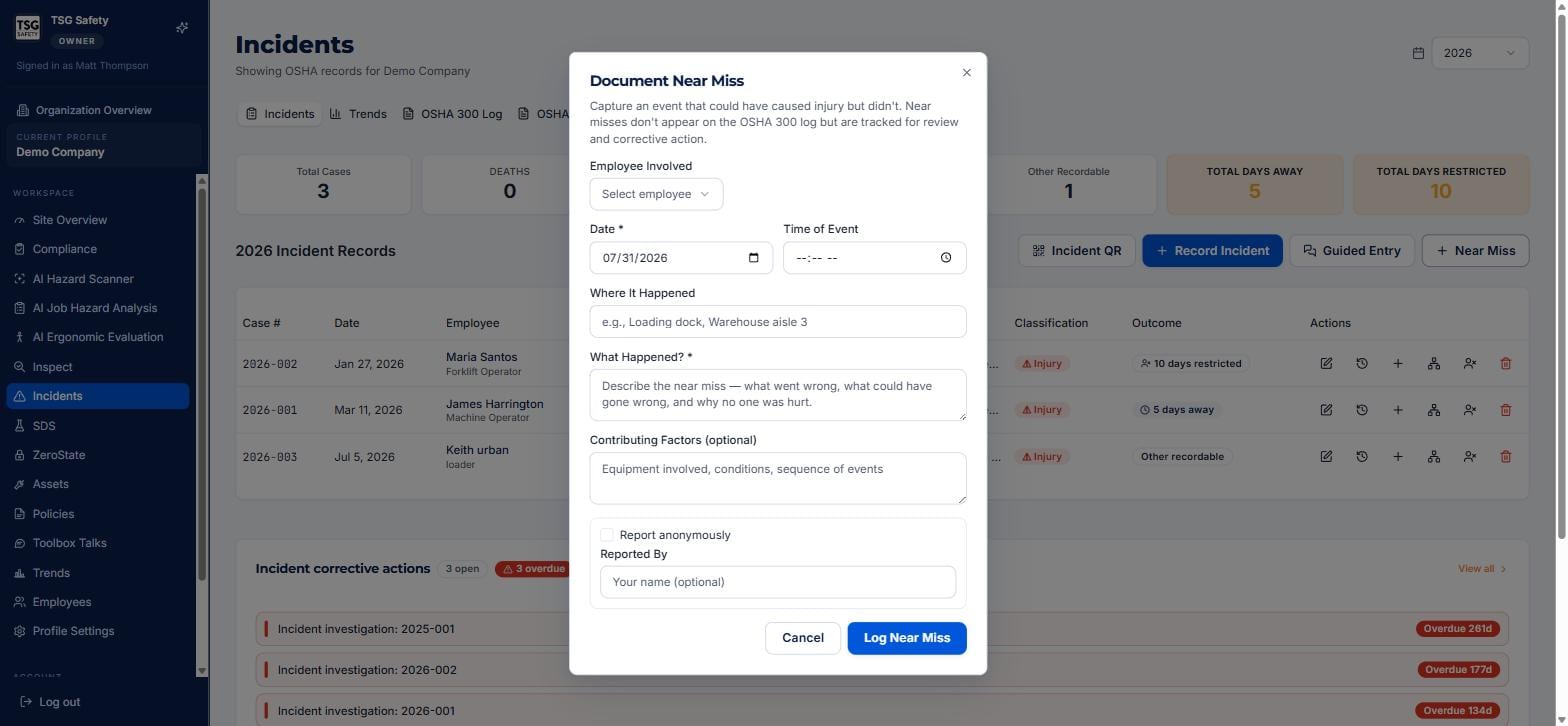
5Log a near miss
The close call you write down today is the recordable you avoid next month.
The near-miss form is deliberately short - date, where it happened, what happened, and any contributing factors. It can be filed anonymously, and the person reporting does not need to have been hurt.
6Investigate and correct
Recording an incident documents it. Investigating it is what stops the next one.
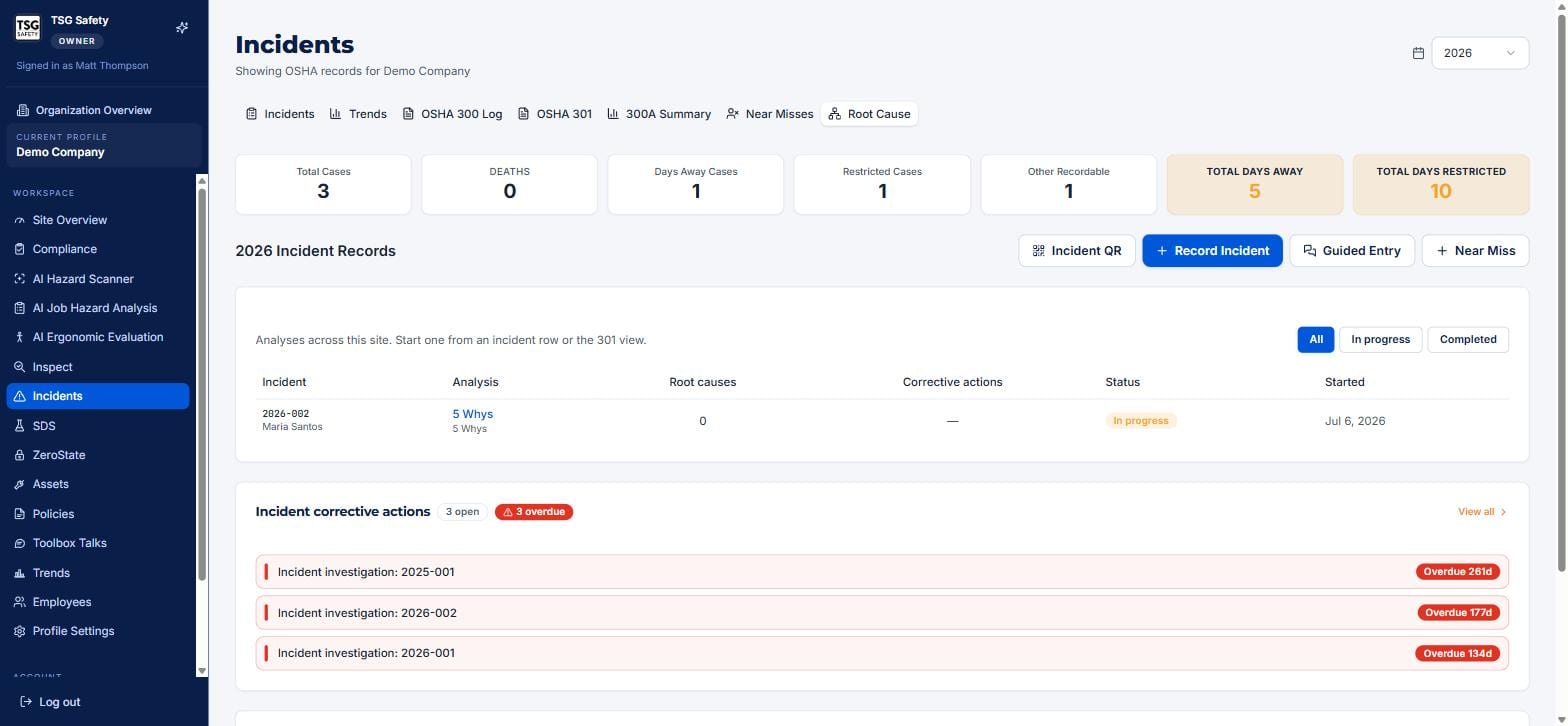
Root cause analysis
Start an investigation from an incident row or from the 301 view, and it appears on the Root Cause tab. ShieldSphere gives you a structured method - a 5 Whys analysis - that drives past the surface cause to the real one, and tracks each investigation from In progress to Completed.
Corrective actions
Findings from an incident or its investigation become corrective actions - assigned tasks with owners and due dates - shown right on the Incidents home under Incident corrective actions. They share the same corrective-actions engine as Inspect, so Overdue here is the same number an inspector will ask about there.
An incident with no investigation and no corrective action is a repeat waiting to happen - and on the record, it reads as a case you noticed and did nothing about. Close the loop.
7The OSHA forms
You already did the work when you recorded each case. These tabs just assemble it into the official forms.
OSHA 300 Log
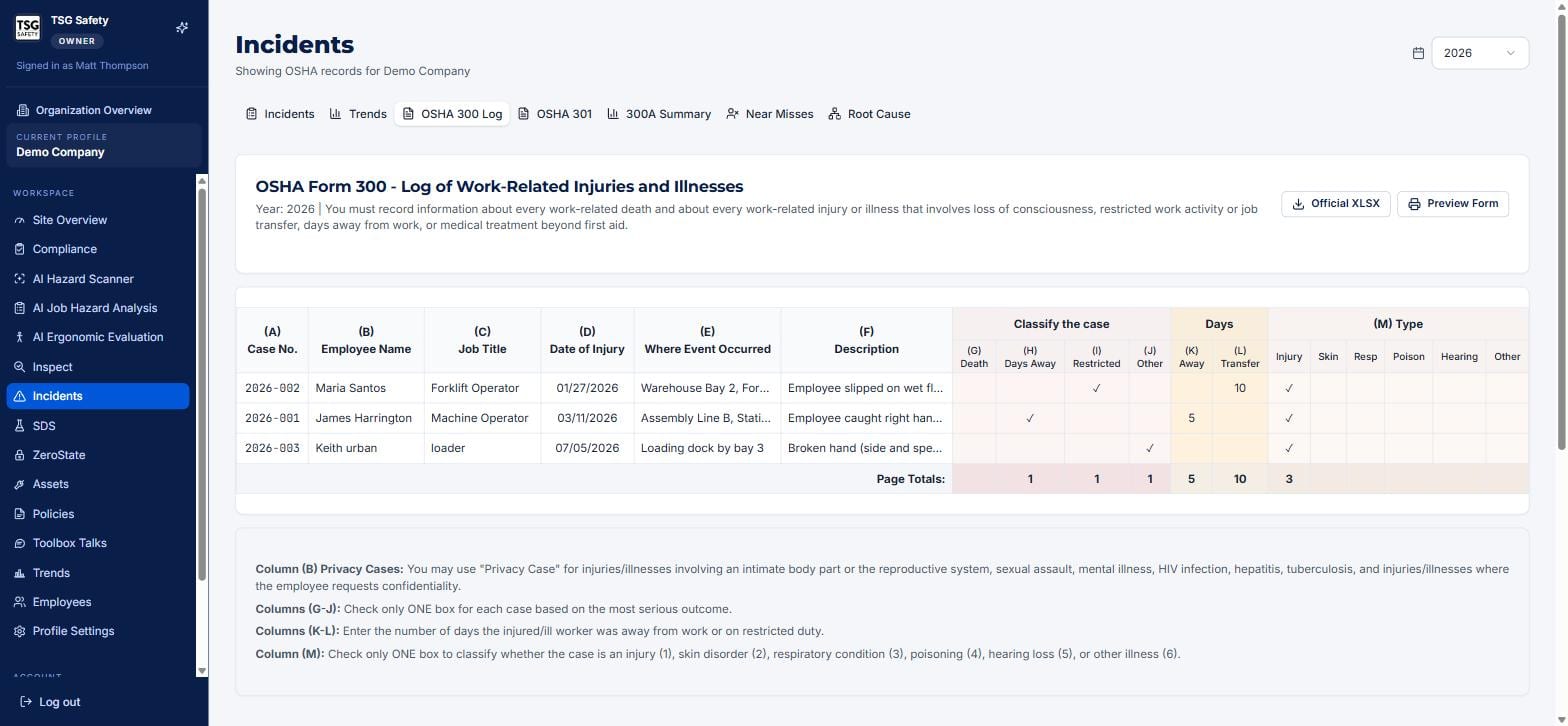
The OSHA 300 Log tab is Form 300 built from your records - every case as a row, classified across columns A to M, with page totals calculated for you. Official XLSX downloads the file - and it is the one to use. ShieldSphere fills OSHA's own published template, so the workbook you get is the real form rather than a copy of it that could drift.
300A Summary and your injury rates
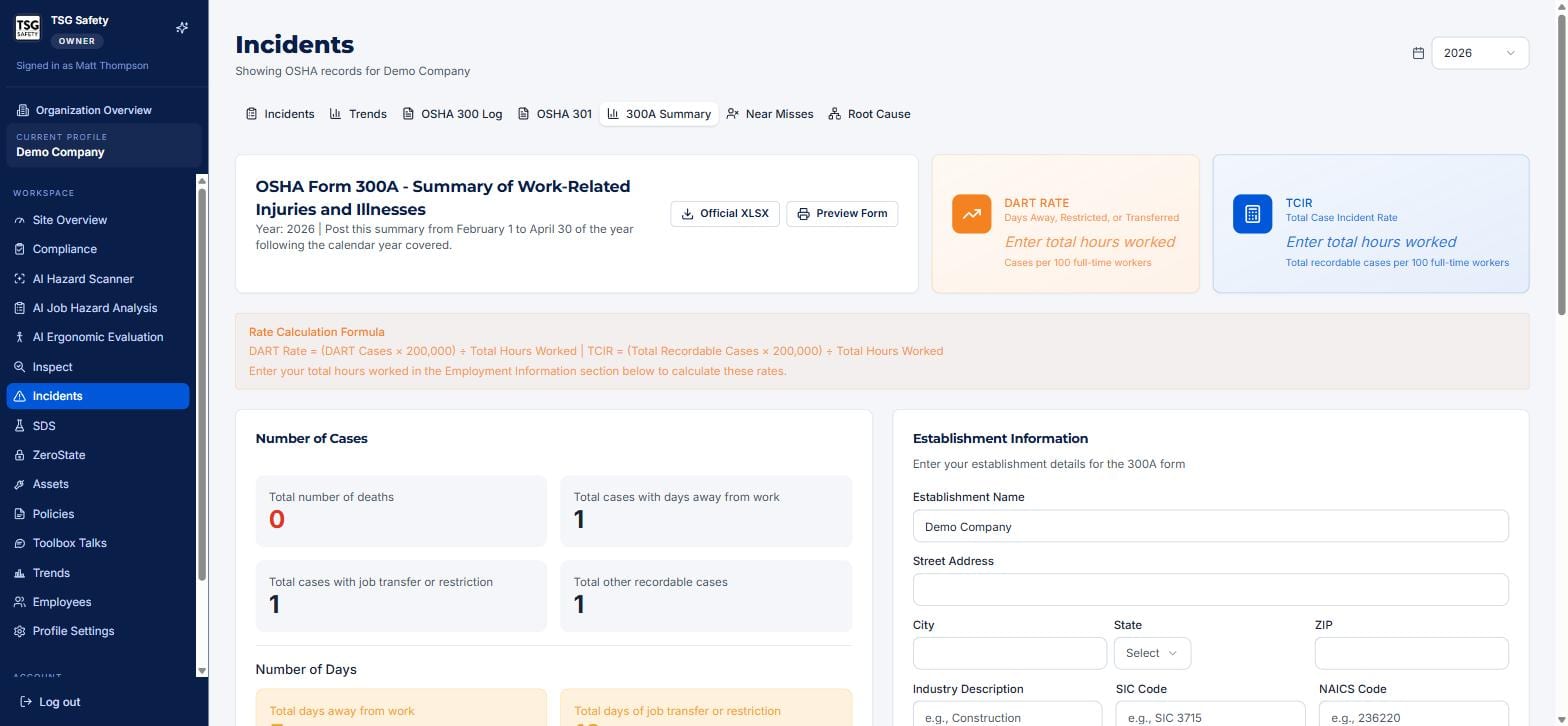
The 300A Summary tab is the annual summary you post from February through April. Enter your total hours worked and ShieldSphere calculates your DART rate and TCIR - the two numbers that let you benchmark against your industry.
8Reading the Trends tab
One year's log tells you what happened. Trends tells you whether you are getting safer.
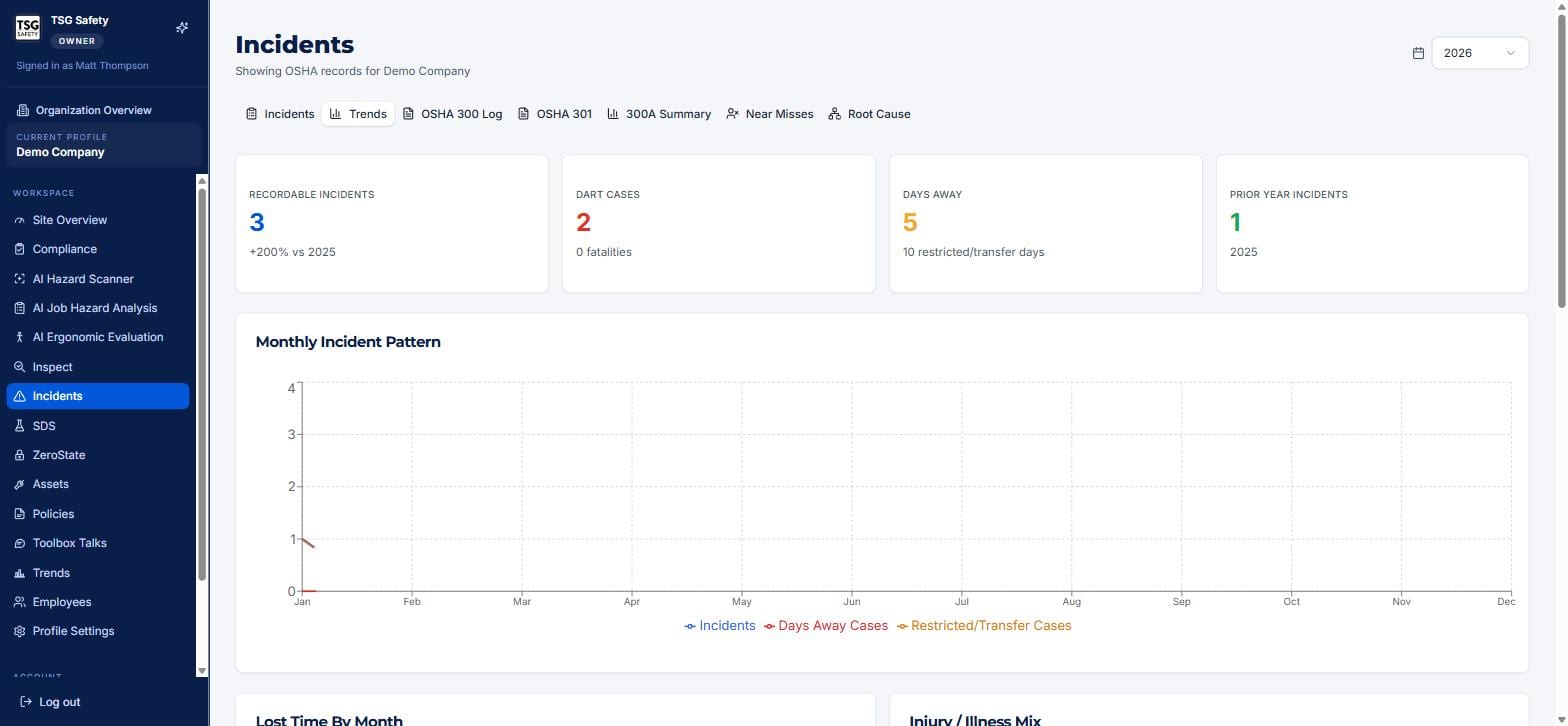
Watch the year-over-year change and the DART cases tile before the raw count. A rising recordable number is not always bad - it can mean people are finally reporting - but a rising DART rate means the cases that do happen are getting more serious, and that is the one to act on.
9Troubleshooting
| Symptom | Cause and fix |
|---|---|
| The record will not save | Every section of the OSHA 301 must be completed first. Scroll the form for a required field left blank. |
| A case is on the wrong line of the 300 Log | Its outcome is set wrong. Edit the incident and correct the outcome - only the single most serious one should be ticked. |
| My DART / TCIR rates are blank | Enter total hours worked in the 300A Summary. The rates cannot compute without them. |
| A near miss is not on the 300 Log | That is correct. Near misses are tracked separately and never appear on the 300 Log. |
| An employee's name should not be public | Tick Privacy case on the incident. The name is withheld from the log per 29 CFR 1904.29. |
| I'm looking at the wrong year or site | Check the year selector top-right and the current profile in the sidebar. Every figure is scoped to both. |
Try Incidents in ShieldSphere
Start a free hazard scan and see the platform these guides describe - no credit card required.
Screens captured from the live application in July 2026 using a demonstration site - your screens will show your own data. Because ShieldSphere ships changes regularly, check the version above against the current release before circulating this guide widely. Questions? Contact support.