
OSHA ITA Filing
from your 300A to OSHA's Injury Tracking Application
How administrators check whether a site has to file with OSHA's Injury Tracking Application, get the establishment details and cases ready, upload a CSV or send the filing directly with an ITA API token, and keep a log of what was filed.
Short answer
ShieldSphere's OSHA ITA filing tool lives on each site's 300A Summary tab. It checks whether the site has to file, flags every item OSHA would reject, builds the 300A and case files from your incident records, and lets an administrator upload a CSV or send the filing with an ITA API token. A filing log records each attempt.
1What OSHA ITA filing does
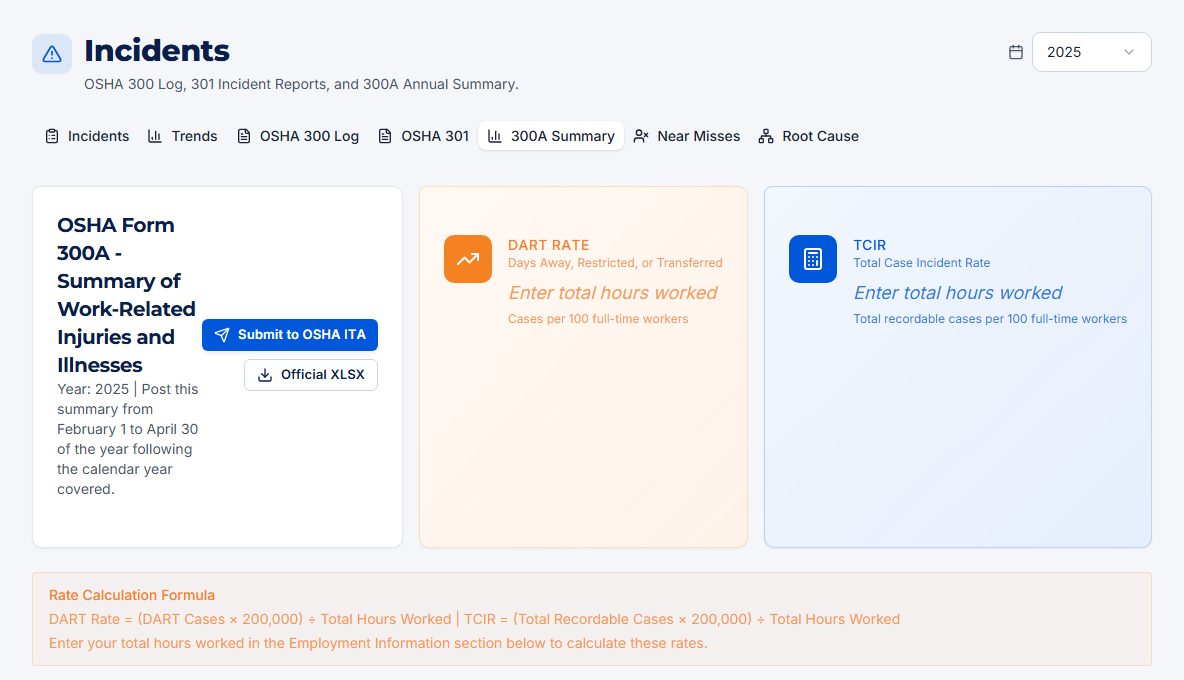
The 300A summary you already keep in ShieldSphere has a second job: for many sites, the same numbers also go to OSHA electronically.
ShieldSphere does not replace OSHA's own Injury Tracking Application (ITA). It prepares what you would otherwise type there: the establishment details, the 300A totals and, where required, every case from the 300 log and 301 reports. It then helps you get them to OSHA in one of two ways, a CSV file you upload on OSHA's site or a direct send using your company's own ITA account.
Everything is done one site and one year at a time, from the site's 300A Summary tab.
It is part of the Incidents module on the Growth plan; ask your ShieldSphere contact to switch it on if you do not see it. Owners, admins, members and viewers can open the checklist and download CSV files. Only owners and admins can save an API token, send to OSHA or mark a filing as done.
After any filing, sign in to OSHA's Injury Tracking Application and check that the 300A, and the cases if they apply, show as submitted for the right establishment and year. The log in ShieldSphere records what ShieldSphere sent or what you told it; OSHA's site is the record that counts.
2Words you'll see
| Word | What it means |
|---|---|
| ITA | OSHA's Injury Tracking Application, the website where employers submit injury and illness data. |
| Establishment | One physical site. Each is filed separately. |
| 300A summary | The annual totals. This is the filing most sites make. |
| Case data | Every case from the 300 log and 301 reports, sent in addition to the 300A by larger sites in listed industries. |
| NAICS code | The six-digit industry code for the site. It decides which OSHA lists the site is on. |
| Peak employment | The most people employed at the site at one time during the year, counting part-time, seasonal and temporary workers. |
| Appendix A, Appendix B | OSHA's industry lists. Appendix A industries file the 300A at 20 or more employees. Appendix B industries also file case data at 100 or more. |
| API token | A secret key created in your ITA account that lets ShieldSphere send on your behalf. |
| Sandbox | OSHA's test copy of ITA. Nothing sent there counts as filed. |
| Confirmation number | The number OSHA gives a successful submission. |
3Set up the establishment
Open the site's 300A Summary tab and choose the year. The Establishment Information card holds what OSHA needs. Changes save automatically, and the card shows All changes saved or Not saved with a Try again link. If the year is new, the card is filled in from earlier records and says so; update anything that changed.
| Field | Notes |
|---|---|
| Establishment Name | The site's name. |
| Street address, city, state, ZIP | The physical address. A PO Box is not accepted. State is a two-letter code and ZIP is 5 or 9 digits. |
| NAICS code | Exactly six digits. |
| Annual average employees, total hours worked | Also feed the 300A and the incident rates. |
Under Electronic filing with OSHA (ITA), which does not print on the 300A, fill in:
| Field | Notes |
|---|---|
| Legal company name | The company that owns the site. |
| EIN (federal tax ID) | Nine digits. Dashes are fine. |
| Establishment size | Fewer than 20, 20 to 99, 100 to 249, or 250 or more employees. |
| Establishment type | Not a government entity, State government entity or Local government entity. |
| Does this site have to send case data (Forms 300 and 301)? | Yes or No. Section 4 can answer it for you. |
| Reason for change | Only when you are correcting something you already filed. Up to 100 characters. |
The Company Executive Certification block below it holds the executive's name, title, phone and date for the 300A itself.
You do not have to hunt for a field the checklist complains about. Each item has a Fix link that closes the dialog and takes you to that field (section 5).
4Do I have to file?
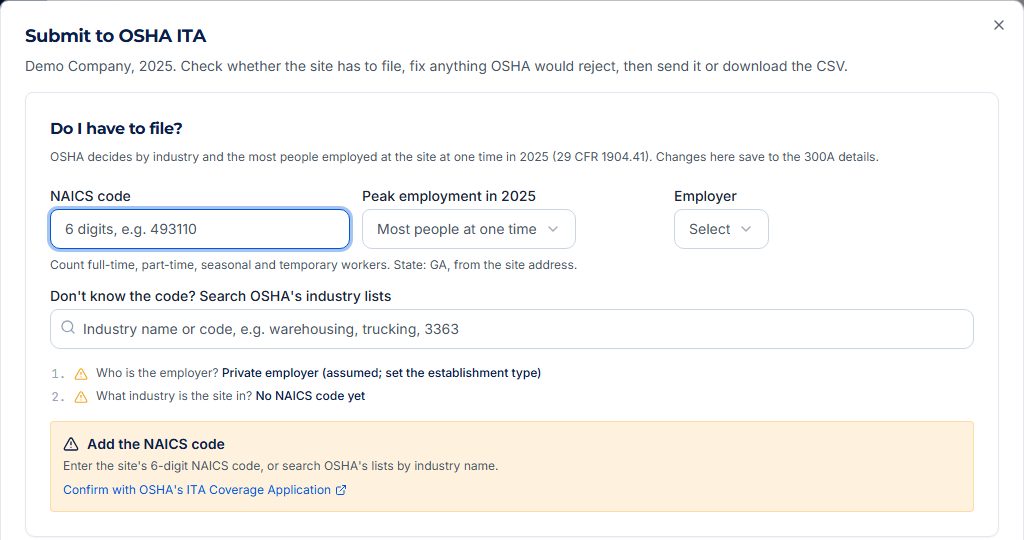
Press Submit to OSHA ITA. The dialog is titled Submit to OSHA ITA, and its first card, Do I have to file?, walks through OSHA's rule (29 CFR 1904.41) using the site's industry, peak employment and employer type. Changes you make here save to the same establishment details.
Answer the three questions
Enter the NAICS code (six digits), choose Peak employment for the year, and choose the Employer type. The state comes from the site's address, so State Plan rules can be checked.
Not sure of the code? Search
Type an industry name or a code into Don't know the code? Search OSHA's industry lists. Each result shows a badge: 300A at 20+, 300A + 300/301 at 100+ or Partially exempt. Pick one to check it. OSHA still needs the full six-digit code to file, so find it on the Census NAICS site and enter it above.
Read the answer and the steps
The numbered list shows each question, the answer and the rule behind it. The result box then gives one of these headlines:
| Result | Meaning |
|---|---|
| File the 300A summary | The site files the summary only. The panel shows the due date for the year. |
| File the 300A, 300 and 301 | The site files the summary and every case. |
| Not required to file | For example a partially exempt industry, fewer than 20 employees, or an unlisted industry under 250 employees. Keep your records on site as usual. |
| Check this NAICS code with OSHA | A newer industry code that OSHA lists differently. Use OSHA's coverage tool to confirm. |
| Add the NAICS code / Set the peak employment | An answer is missing. |
If the answer differs from what the establishment details say about case data, a button offers Save: case data required or Save: case data not required. A State Plan note may also appear for public employers. Finally, the link Confirm with OSHA's ITA Coverage Application opens OSHA's own tool, and you should use it as the last word on whether you must file.
5Get ready: the checklist
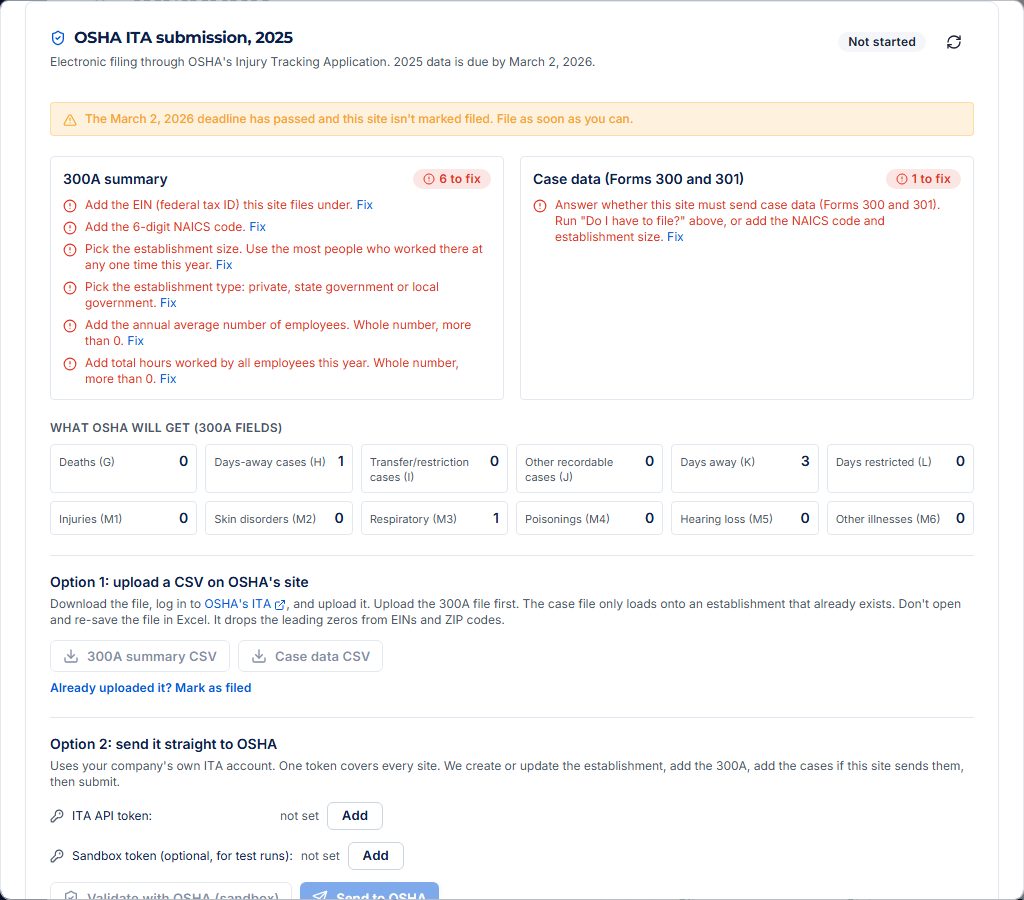
Below the coverage check, the panel OSHA ITA submission, [year] shows a status badge at the top right and a refresh button (Re-check). It re-runs by itself a moment after you change the 300A details. The badge reads one of:
| Badge | Meaning |
|---|---|
| Not started | Nothing has been filed or downloaded for this year. |
| CSV downloaded, not marked filed | You built a file but have not recorded that you uploaded it. |
| Sending to OSHA | A direct send is in progress. |
| OSHA rejected the last try | The most recent send failed. See the log for the reason. |
| 300A filed, case data not yet | The summary is done and this site also owes case data. |
| Case data filed, 300A not yet | The reverse. |
| Filed | The summary, and the cases if required, are recorded as accepted or marked filed. Only real filings count; a sandbox test never does. |
Two checklist sections follow: 300A summary and Case data (Forms 300 and 301). Each shows Ready, N to fix or Waiting. Items in red must be fixed before the file can be built. Items starting Check: are warnings you can send with, but should read.
- For establishment problems, such as a missing EIN or a PO Box address, press Fix to jump to the field.
- For a problem with one case, such as a missing date of birth, hire date, or a narrative field, press Open case to edit that case.
- For a death case with no date of death, a date box and Save appear right in the checklist.
Below the checklist, What OSHA will get (300A fields) shows the twelve totals that will be sent: deaths, days-away cases, transfer or restriction cases, other recordable cases, days away, days restricted, and the six injury and illness types. Compare them with your 300A page. If ITA's totals differ, a warning explains why, usually because ITA counts each case once by its most serious outcome.
If the site does not have to send case data, the case section reads Not required for this site, and the case file option is hidden. If you marked it required when the industry rules say otherwise, you get a warning, but the file is still built.
6File: CSV upload or direct send
When the checklist is ready, choose one of two routes. You can file the summary by one route and the cases by the other, if you need to.
Option 1: upload a CSV on OSHA's site
Download the files
Press 300A summary CSV. If the site files case data, also press Case data CSV. Each button is enabled only when its section is ready. Do not open and re-save the file in Excel, because that drops the leading zeros from EINs and ZIP codes.
Upload on OSHA's ITA
Follow the link OSHA's ITA in the panel, sign in, and upload the 300A file first. The case file only loads onto an establishment that already exists.
Record it
OSHA emails a confirmation after it processes the upload. Back in ShieldSphere, owners and admins press Already uploaded it? Mark as filed, choose What you filed (300A summary or 300/301 case data), paste the OSHA confirmation number from the email, optionally add a Note, and press Save. The status becomes Filed once everything required is marked.
Option 2: send it straight to OSHA
This uses your company's own ITA account. One token covers every site. ShieldSphere creates or updates the establishment in ITA, adds the 300A, adds the cases if the site sends them, then submits.
Create a token in ITA and save it
In your ITA account, open the API Token page and copy a token. In ShieldSphere press Add next to ITA API token, paste it into the box, and press Save. ShieldSphere checks the token with OSHA first. If OSHA refuses it, the token is not saved. Once saved, only the last four characters are ever shown. Use Replace or Remove to change it.
Optional: try the sandbox first
OSHA has no check-only mode. To test, make an account on OSHA's sandbox and save its token as the Sandbox token (optional, for test runs). Then press Validate with OSHA (sandbox). It runs the same calls against OSHA's test site, and nothing there counts as filed.
Send
Press Send to OSHA. The button changes to a confirmation, This files [year] for [site] with OSHA, with Yes, send it. A result box then reports whether OSHA accepted it, lists any errors and OSHA warnings, and under Every call we made shows each step ShieldSphere took.
Confirm on OSHA's site
Sign in to OSHA's ITA and check that the establishment, the 300A and any cases appear for the right year. Do this every time, even when the result box says it was accepted.
Send to OSHA and Validate with OSHA stay disabled until the matching token is saved, the checklist is fully ready and the year is one OSHA's API currently accepts. The panel says which year that is. For any other year, use the CSV route. If another send for the same site and year is already running, you are asked to wait a few minutes.
Use the CSV route for now, and ask your ShieldSphere contact to enable token storage.
7The filing log and the organization view
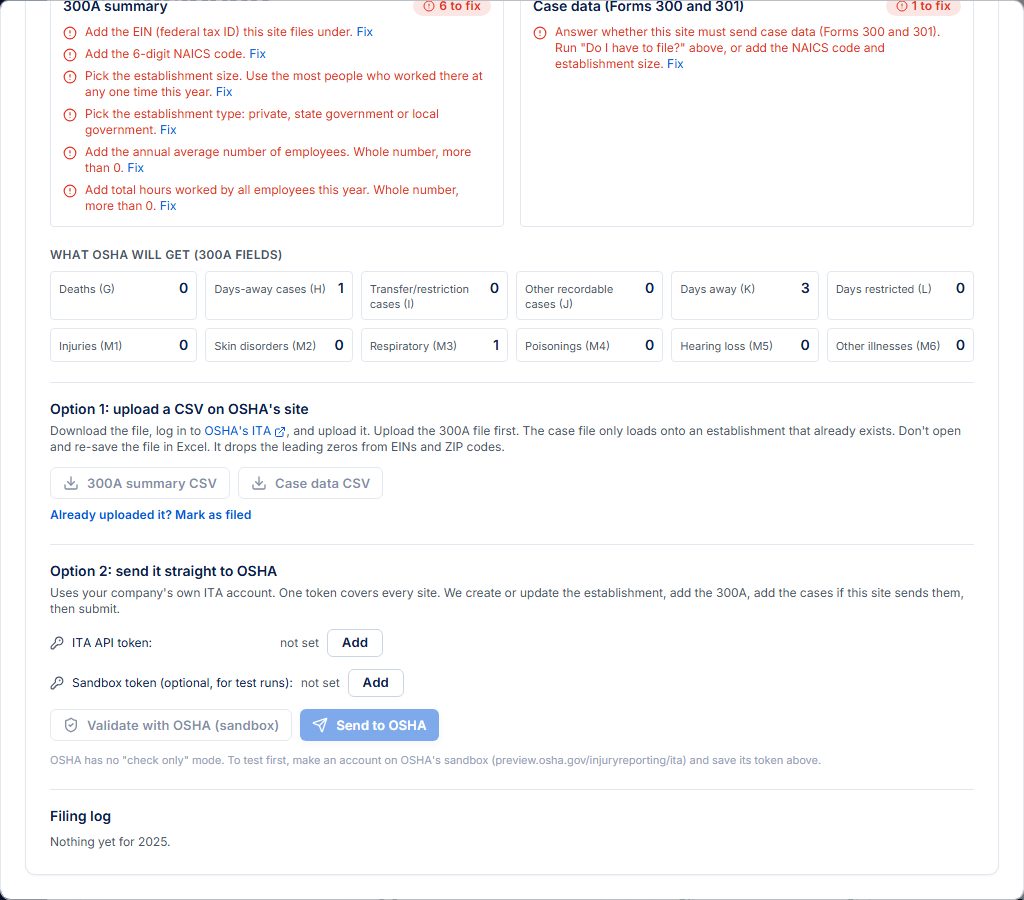
At the bottom of the panel, the Filing log lists everything done for the site and year, newest first. It reads Nothing yet for [year] until you start.
| Column | What it shows |
|---|---|
| When | Date and time. |
| What | 300A summary, or 300/301 case data with the number of cases. |
| How | API or CSV. |
| Status | CSV downloaded, Sending, Accepted by OSHA, Rejected by OSHA, or Marked filed by hand. |
| OSHA confirmation | The confirmation number, when there is one. |
| Detail | An error message for a rejection, or the note you entered. |
Every CSV you download is logged as CSV downloaded, which is why the badge says it is not marked filed until you record the upload.
All sites at once
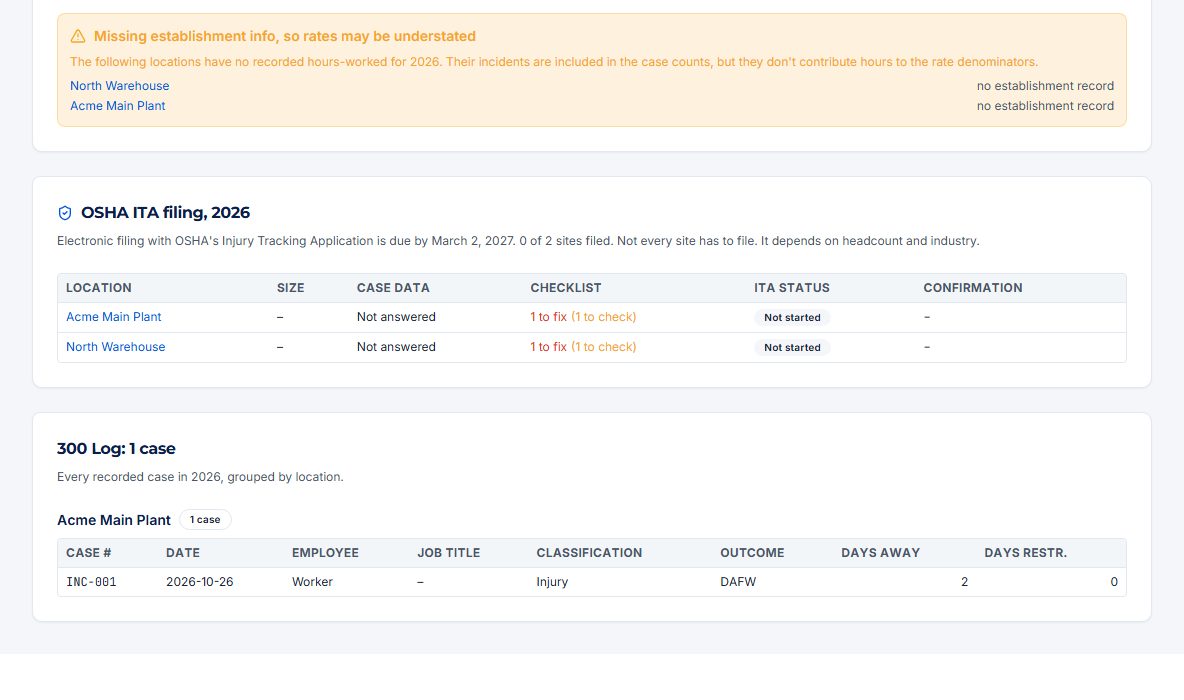
On the organization-wide OSHA page, the table OSHA ITA filing, [year] shows one row per site with Size, Case data (Required, No or Not answered), Checklist (Ready, a count to fix, or No 300A details), ITA status and Confirmation. Its header shows the due date for the year and how many sites have filed, and reminds you that not every site has to file. Click a site to go to its 300A tab. See the Organization Dashboard guide.
If the due date has passed and a site is not marked filed, the site panel shows a notice saying so.
8Troubleshooting
| What you see | What to do |
|---|---|
| No Submit to OSHA ITA button | Your plan does not include the Incidents module, or your seat is not set up for it. Ask your ShieldSphere contact. |
| The CSV buttons are disabled | The matching checklist section is not ready. Fix the red items. Case data is also disabled if the site does not have to send it. |
| Send to OSHA is disabled | Check that a token is saved, the whole checklist is ready, and the year is one the API accepts. Otherwise use the CSV route. |
| OSHA refused the token | Copy it again from ITA's API Token page. It was not saved. |
| Token saved but "OSHA's check came back with" an error | It is saved, but OSHA did not confirm it. Try the sandbox, or re-copy the token. |
| OSHA did not take it | Read the errors in the result box and the Detail column in the log, fix the items named, and send again. Nothing was submitted unless a listed step says so. |
| Totals differ from the 300A page | ITA counts each case once, by its most serious outcome. Check any case with more than one outcome box ticked. |
| Case file fails on OSHA's site | Upload the 300A file first. Cases only load onto an establishment that already exists. |
| EINs or ZIP codes lost their leading zeros | The CSV was opened and re-saved in a spreadsheet. Download a fresh copy and upload it without opening it. |
| Not sure the site must file | Use the link to OSHA's ITA Coverage Application. It is the authority. |
Try OSHA ITA Filing in ShieldSphere
Start a free hazard scan and see the platform these guides describe - no credit card required.
Screens captured from the live application in November 2026 using a demonstration site - your screens will show your own data. Because ShieldSphere ships changes regularly, check the version above against the current release before circulating this guide widely. Questions? Contact support.