
Permits
high-risk work, authorised before it starts
How to raise a permit to work, get it approved, run it while the job is live, and close it out - for hot work, confined space entry, energised work, excavation, working at height, line breaking and critical lifts, whether the crew is yours or a contractor's.
Short answer
ShieldSphere's Permits module is where high-risk work gets written down and authorised before anyone starts. You raise a permit against a type - hot work, confined space, energised work and so on - submit it for approval, mark it active when the job begins, and close it when the job is done. Every step is recorded, for your own crews and for contractors alike.
1What Permits does
A permit to work is a promise that somebody competent looked at this job, in this place, today, and said it was safe to start.
The module carries that promise as a record with a lifecycle. A permit is raised as a draft, submitted, approved by someone other than the person doing the work, marked active when the job actually starts, and closed when it finishes. Nothing about that is new - it is how permits have always worked on paper. What the module adds is that the paper cannot be lost, backdated, or signed by the person it was meant to check.
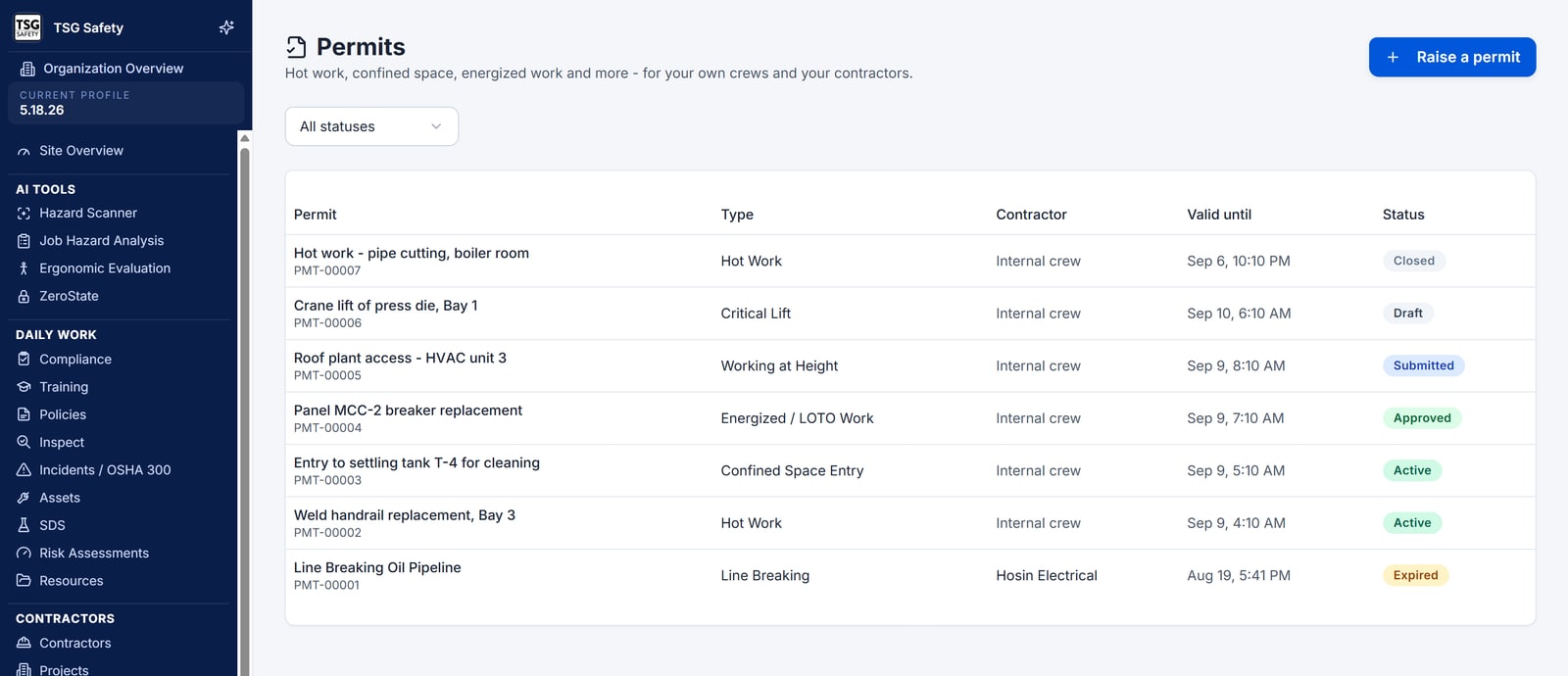
A permit can be raised for an internal crew or for a contractor. Contractors are where most organizations start, but your own people doing hot work need the same authorisation - and the module treats both the same way.
2Words you'll see
| Word | What it means |
|---|---|
| Permit type | The kind of work being authorised, and the questions that go with it. Hot work asks different things than a critical lift. |
| Draft | Being written. Not yet asking anyone for anything. |
| Submitted | Waiting for approval. This is the queue that needs watching. |
| Approved | Authorised, but the work has not started yet. |
| Active | The work is happening now. |
| Closed | The job finished and the permit was closed out properly. |
| Rejected | Approval was refused, with a reason recorded. |
| Expired | The valid-until time passed without the permit being closed. |
| Valid until | When the authorisation runs out. A permit is not open-ended. |
3Set up your permit types
Before the first permit you will see Permits are not set up yet and an invitation to Set up your permit types. That one step seeds the standard set:
Hot Work
Welding, cutting, grinding - anything producing sparks, flame or heat.
Confined Space Entry
Tanks, vessels, pits and any space with restricted entry and exit.
Energized / LOTO Work
Work on or near energised systems, and the isolation that goes with it.
Excavation / Trenching
Digging, with the ground conditions and services that come first.
Working at Height
Work where a fall is the hazard being controlled.
Line Breaking
Opening pipework or systems that carried something hazardous.
Critical Lift
Lifts where the load, the radius or the surroundings put it outside routine.
Seven types is a starting point, not a requirement. An organization that never enters a confined space is better off with three types people recognise than seven that make them hunt.
4Raise a permit
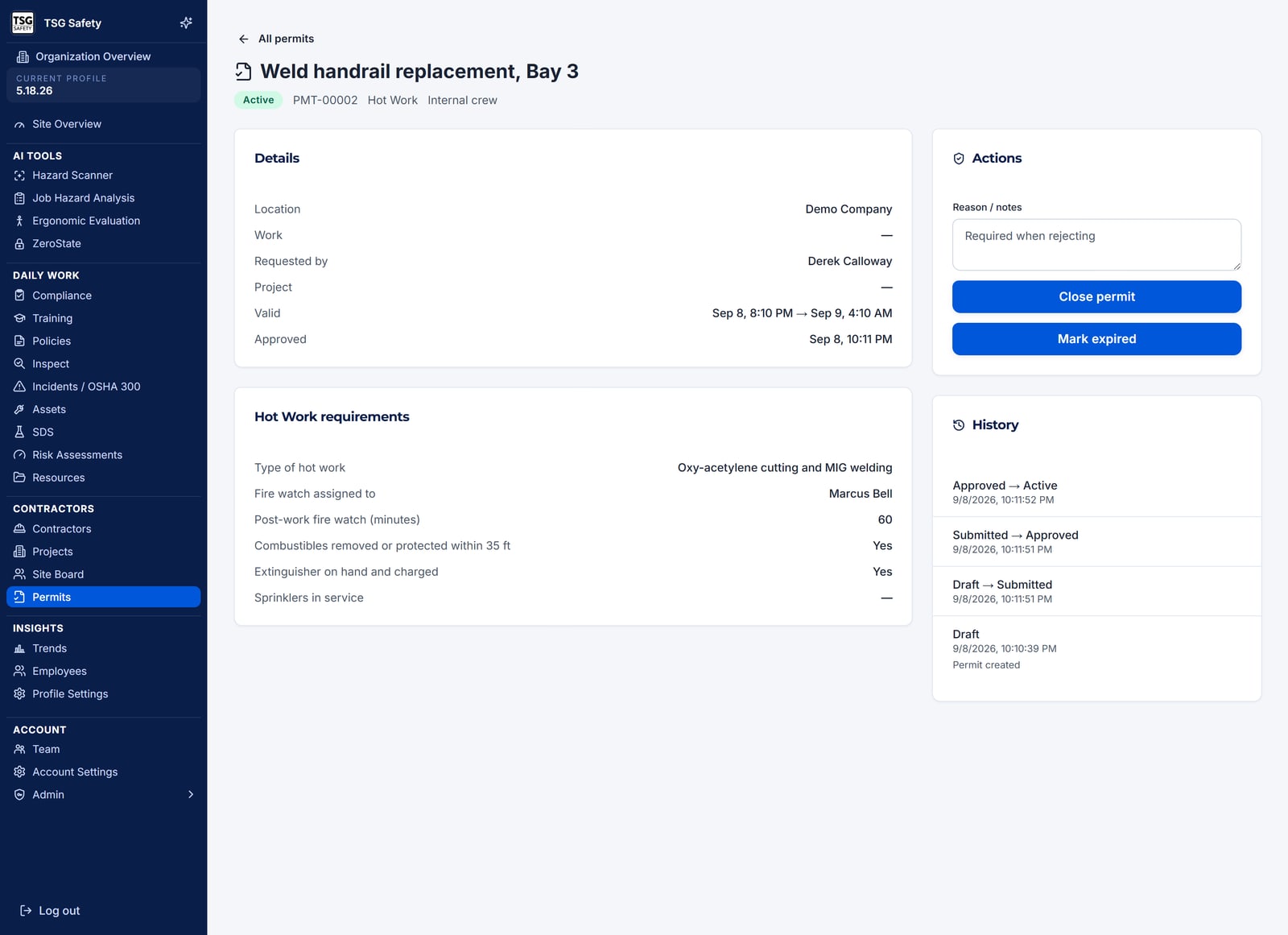
Pick the type, then describe the job
Permit type decides which questions you are asked, so choose it first. Then give the permit a title that says what the work actually is - Weld handrail, Bay 3, not Hot work.
Say where, who and when
Set the location, and optionally the project the work belongs to. Choose Internal crew or name the contractor. Set when the permit becomes valid and when it expires - the permit will not save if it expires before it starts.
Answer the type's questions and set the PPE
Each type carries its own checks. The PPE picker lists the standard protective equipment, with Add other PPE for anything specific to this job.
Saving leaves the permit as a draft. Nothing has been asked of anyone yet, so a permit half-written at the end of a shift is safe to leave.
5The approval path
A permit moves through a fixed sequence, and the buttons you see depend on where it is and what you are allowed to do. If you have no action available, the permit says so rather than showing you a button that will fail.
| Action | What it does |
|---|---|
| Submit for approval | Moves the draft into the approval queue. |
| Approve | Authorises the work. Recorded against the person who approved it. |
| Reject | Refuses it. A reason is required - a rejection nobody can explain is no use to the crew waiting. |
| Return to draft | Sends it back for changes without rejecting it outright. |
| Mark active (work started) | Says the job is now happening. |
| Mark expired | Ends a permit whose window has passed. |
| Close permit | The job finished and the permit is closed out. |
Approved means the work is authorised. Active means it is happening. Keeping them apart is what lets you answer "what is going on right now" without guessing - which matters most in an emergency, when the difference between a permit that was approved this morning and one where people are inside a vessel is the whole question.
6While the work is live
Every permit keeps a history of what happened to it and when. The Details view holds the answers given when it was raised; the activity beside it records each transition and who made it.
Filter the list by status to work the queue that matters at that moment:
Submitted
People waiting on an approval. Work this queue first - it is the one that stops jobs.
Active
What is happening on site now. The list to check before you leave for the day.
Expired
Permits whose window ran out without being closed. Each one is either work that overran or paperwork nobody finished.
A permit closed at the time records who finished the job and when. A permit closed a week later records only that somebody tidied up. The expired list is the honest measure of how well this is going.
7Troubleshooting
| What you see | What to do |
|---|---|
| "Permits are not set up yet" | Nobody has seeded the permit types. Use Set up your permit types - it is a one-off. |
| "No actions available to you for this permit" | The permit is in a state you cannot move it from, or approving it is not yours to do. Approval is deliberately not available to the person who raised it. |
| The permit will not save | Check the dates: a permit must expire after it becomes valid. A title and a permit type are both required. |
| A permit expired while the job was still running | Its window was too short. Close it out, note what happened, and raise the next one with a realistic window rather than extending indefinitely. |
| You cannot find a contractor in the list | The contractor has to exist in Contractor Management first. Raise it as an internal crew permit only if the work really is yours. |
| A rejected permit needs to go ahead after all | Rejection is final for that permit - the reason is part of the record. Raise a new one that addresses the reason it was refused. |
Try Permits in ShieldSphere
Start a free hazard scan and see the platform these guides describe - no credit card required.
Screens captured from the live application in September 2026 using a demonstration site - your screens will show your own data. Because ShieldSphere ships changes regularly, check the version above against the current release before circulating this guide widely. Questions? Contact support.