
Resources
one shared library, every version kept for audits
How to run your organization's shared safety file library: tags, single and bulk upload, versioning with full history, archive-instead-of-delete, and read-only sharing to the employee portal.
Short answer
The ShieldSphere Resource Library is an organization-wide home for shared safety files - policies, SOPs, permits, training materials. Admins upload and tag documents (singly or hundreds at once); everyone in the organization and, optionally, employee portal users can search and download them. Replacing a file keeps every prior version retrievable, and nothing is ever deleted - only archived.
1What the Resource Library is
Your organization's shared safety files and policies - with the audit posture built in: replacing a file keeps every prior version available.
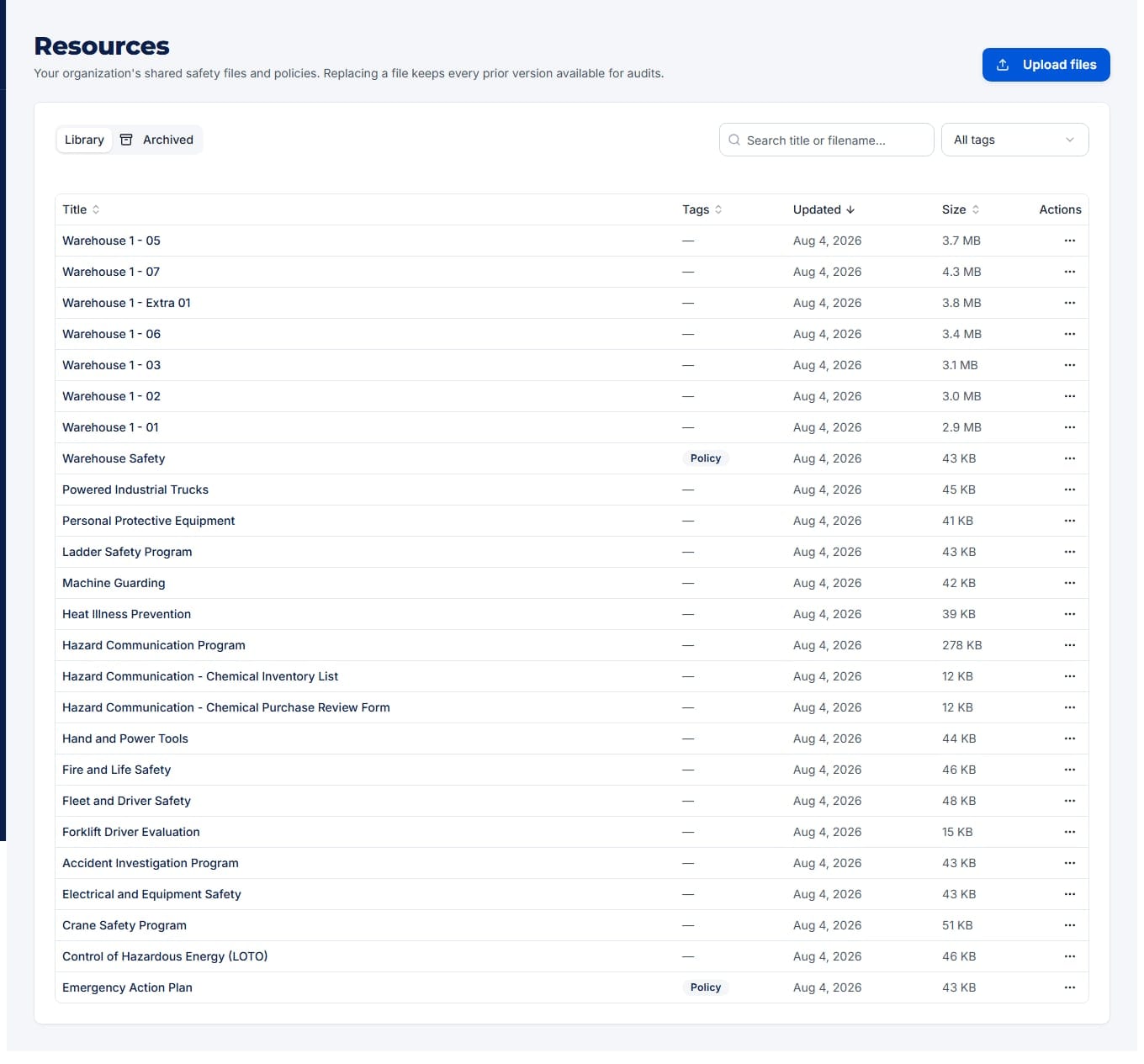
The library is organization-wide: one collection, visible to every member of your organization, and optionally to employees through the portal. It is built around three promises:
- Nothing is ever deleted. There is no delete button anywhere in the module - for anyone. Documents are archived instead, and archived documents stay viewable, downloadable, and restorable.
- Every version is kept. Replacing a file moves the old one into version history, where it remains downloadable for audits.
- Files are private. Documents live in private storage; every open or download uses a short-lived signed link. There are no public URLs.
Org admins
Upload, replace, edit titles and tags, archive and restore, manage the tag presets, and see the Archived view.
Org members and portal users
Search, filter, open, and download. Members can also open any document's version history; portal access is read-only current files.
The Resource Library is an organization add-on rather than a standard tier feature. If you do not see Resources in your sidebar, contact ShieldSphere to enable it for your organization.
2Setting up tagsAdmin
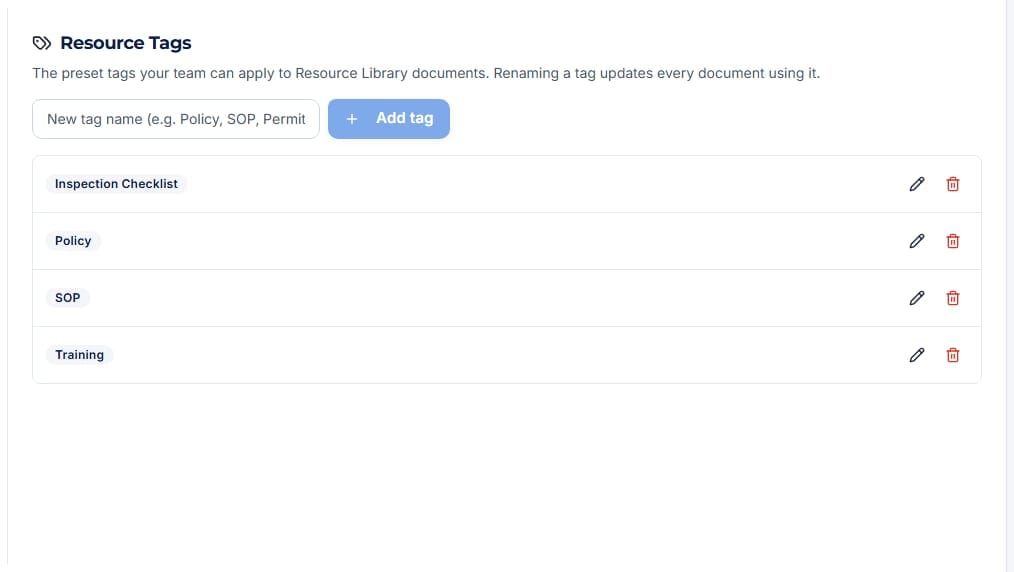
Tags are the library's one organizing axis - and they are preset-only, so "SOP", "sop", and "S.O.P." can never become three different tags.
Create your tag presets before the first big upload - a few broad categories like Policy, SOP, Training, Permit go a long way. There is deliberately no free-form tag entry in the upload or edit dialogs; if a tag does not exist yet, an admin adds it here first.
| Action | Behavior |
|---|---|
| Create | Tag names are unique per organization (case-insensitive), up to 50 characters. |
| Rename | Documents reference tags directly, so a rename updates everywhere the tag appears - no re-tagging needed. |
| Delete | Documents using the tag are kept - they just become untagged. The confirmation says so, and the result reports how many documents were untagged. |
3Uploading filesAdmin
One dialog for one file or six hundred - drop them in, tag the batch, and retry only what fails.
Pick the files
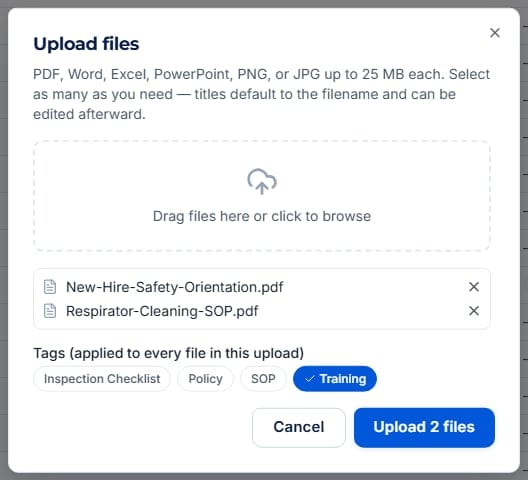
Drag files onto the drop zone or click to browse - select as many as you like. Accepted types: PDF, Word (.doc/.docx), Excel (.xls/.xlsx), PowerPoint (.ppt/.pptx), PNG, and JPEG, each up to 25 MB. Files that are oversized or an unsupported type are skipped at pick time, with a toast reporting how many were skipped.
Tag the batch
The Tags row applies to every file in the upload. Titles default to each file's name - so name files well before uploading. Both are editable afterwards, per document, via Edit title / tags.
Upload - and retry failures only
Files upload several at a time with a per-row spinner, check, or error icon. If any fail (a dropped connection, for example), the primary button becomes Retry failed (N) and re-uploads only those. Large selections are processed in batches automatically.
Moving an existing shared drive into the library? Upload in batches grouped by category, so each batch's shared tag set lands correctly - different tag sets need separate uploads or per-document edits afterwards.
4Finding, opening, and downloading
Search matches titles and filenames; one tag filter narrows the list; every column sorts.
The library table shows Title, Tags, Updated, and Size. Use the search box ("Search title or filename...") for a case-insensitive match on either, and the tag dropdown to filter to one tag - or to Untagged to find documents that still need categorizing. Click a column header to sort; click again to flip the direction.
Open
Clicking a document's title opens it in a new tab - PDFs and images render in the browser; Word, Excel, and PowerPoint files download instead.
Download
The row's Download action forces a download with the original filename, whatever the file type.
Opens and downloads use short-lived signed links (about 5 minutes). If a link you copied earlier stops working, just open or download again from the library - fresh links are issued every time.
5Replacing files - versioning
Replace is the versioning action: the new file becomes current, the old one becomes read-only history, and both stay downloadable.
Replace the fileAdmin
From the row menu choose Replace file. The dialog takes exactly one file, pre-fills the current title, and pre-selects the current tags - adjust either if the new revision warrants it. On save, the current file moves to version history.
View version history
Any org member can choose Version history from the row menu: every version, newest first, with file name, upload date and time, who uploaded it, size, a Current badge on the live version, and a download button per row - the audit retrieval path.
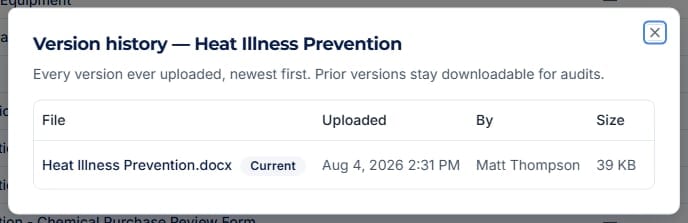
Superseded versions are read-only history - they cannot be edited, re-titled, or replaced. And an archived document cannot be replaced; restore it first.
6Archiving and restoringAdmin
Retire a document without losing it - archived files leave the library view but never the record.
From the row menu choose Archive. The confirmation says it plainly: the document moves out of the library but is never deleted - you can view, download, or restore it from the Archived view at any time. Admins switch between Library and Archived with the tabs above the table; the Archived view offers Restore per row.
The Archived view is admin-only. Members and portal users see only current, non-archived documents - so archiving is also how you unpublish a document from the portal without destroying it.
There is no hard-delete path in this module, for anyone, including admins. That is the audit posture: a document that once circulated can always be produced later.
7Sharing to the employee portal
Give field employees the current library - read-only, searchable, and always the live version.
Portal users with the Resources portal module enabled see the library at their portal under a "Resources" tile: search, tag filter, sort, open, and download - nothing else. They always see the organization-wide set of current, non-archived documents; superseded versions and the archive are not exposed.
Visibility is controlled per profile with the portal module toggle - it defaults to on wherever the library add-on is enabled, and turning it off hides the tile for that profile's portal users.
Because portal users always get the current version, replacing a file is how you push an update to the field - no re-sharing step. Post the new revision via Replace file and every portal download from that moment is the new one.
8Troubleshooting
| Symptom | Cause and fix |
|---|---|
| No Resources link in the sidebar | The Resource Library add-on is not enabled for your organization. Contact ShieldSphere to enable it. |
| No Upload button, no Archived tab | You are an org member, not an admin. Uploading, replacing, editing, archiving, tag management, and the Archived view are admin-only. |
| Some files never appeared after a big upload | Oversized or unsupported files are skipped at pick time (the toast reports a count, not names). Check that each missing file is PDF, Office, PNG, or JPEG and 25 MB or less, then re-upload it. |
| The tag I want is not in the list | Tags are preset-only. An admin adds it under Account Settings → Resource Tags, then it is available in upload and edit dialogs. |
| Replace file is missing on a document | The document is archived - restore it first - or you are looking at a superseded version in history, which is immutable. |
| A saved link to a document stopped working | Open and download links are signed and expire after about 5 minutes. Share the library page, not the file link; anyone with access gets a fresh link on click. |
| Portal users cannot see the Resources tile | Either the profile's Resources portal module toggle is off, or the organization's library add-on is disabled. Both must be on. |
| A filename looks different from what was uploaded | Filenames are sanitized for storage - unusual characters become underscores. The document title is independent and freely editable. |
Try Resources in ShieldSphere
Start a free hazard scan and see the platform these guides describe - no credit card required.
Screens captured from the live application in August 2026 using a demonstration site - your screens will show your own data. Because ShieldSphere ships changes regularly, check the version above against the current release before circulating this guide widely. Questions? Contact support.