
Risk Assessments
your scoring questionnaire, run properly and reported well
How to score a company against a weighted questionnaire, read the result, and send a branded report - including how to bring your existing scoring spreadsheet in and turn it into a question set you can reuse.
Short answer
ShieldSphere's Risk Assessments module scores a company against a weighted questionnaire you define. You import your existing scoring spreadsheet or build a question set in a visual builder, answer the questions with the score updating live, then produce a branded PDF report with category scores, ranked opportunities and an AI-written narrative.
1What Risk Assessments does
If you score companies on a spreadsheet and send them a report, this module is that process with the spreadsheet's fragility taken out of it.
The questionnaire is data, not code. You define the questions, the weights, the categories and the rating bands, and the module runs them. That means it is not tied to any one methodology - a broker scoring prospects, a consultant scoring clients and an insurer scoring risk can each run their own question set.
Risk Assessments is not part of any plan by default - it is enabled for organizations that need it, and hidden entirely otherwise. If you cannot see it in the sidebar and you think you should, that is the reason.
2Words you'll see
| Word | What it means |
|---|---|
| Question set | The questionnaire: its questions, weights, categories and rating scale. Reusable across assessments. |
| Assessment | One company scored against one question set on one date. |
| Category | A group of questions that scores as a unit, so the report can say where the weakness is. |
| Band | A score range with a rating and a colour - the scale that turns a number into a verdict. |
| Opportunity | A question that scored below its maximum, with the recommendation attached to it. |
| Narrative | The AI-written summary of the result: executive summary, priorities, strengths, path forward. |
| Prospect | An assessment not yet attached to a client - the normal state when you are assessing someone you have not won. |
3Bring your spreadsheet in
Most people arriving at this module already have a scoring tool. Start by importing it rather than rebuilding it.
Drop in an Excel workbook or a CSV, up to 10 MB. ShieldSphere reads the sheet and converts it into a draft question set - questions, weights, categories and the rating scale.
The scoring logic in a spreadsheet lives in its formulas. A CSV keeps only the values, which throws away the weights and the band scale - the very things worth importing. An .xlsx keeps them, and the conversion is much better for it.
Nothing is saved automatically. The draft opens in the builder with two kinds of note attached:
Assumption
Something the conversion inferred. Worth a glance to confirm it read your intent.
Needs review
Something it could not resolve confidently. Check these before you save.
The conversion cross-checks its own total against the total your workbook states and flags a disagreement. Score one company you already know the answer for and compare - an AI conversion should never go into use unreviewed.
4Build a question set by hand
You can also create a question set from scratch, or duplicate one you already have. The builder is visual: add, remove, reorder and drag questions between categories, with validation as you go. A JSON tab is there for bulk edits when clicking would be slower.
Questions come in a few shapes:
| Type | What it does |
|---|---|
| Multiple choice | One choice from a list; each choice carries its own points. |
| Number | A figure the assessor enters. |
| Calculated | A value derived from other answers rather than entered. |
The rating scale is a set of bands, each with a threshold - at least a number of points or a percentage - and a colour from blue for the best through green, amber and orange. Each question can also carry a recommendation, which is what appears in the report when that question scores below its maximum.
The ranked opportunities are the part of the report a customer acts on. A question with no recommendation still scores, but it contributes nothing to the advice - and advice is what they are paying for.
5Run an assessment
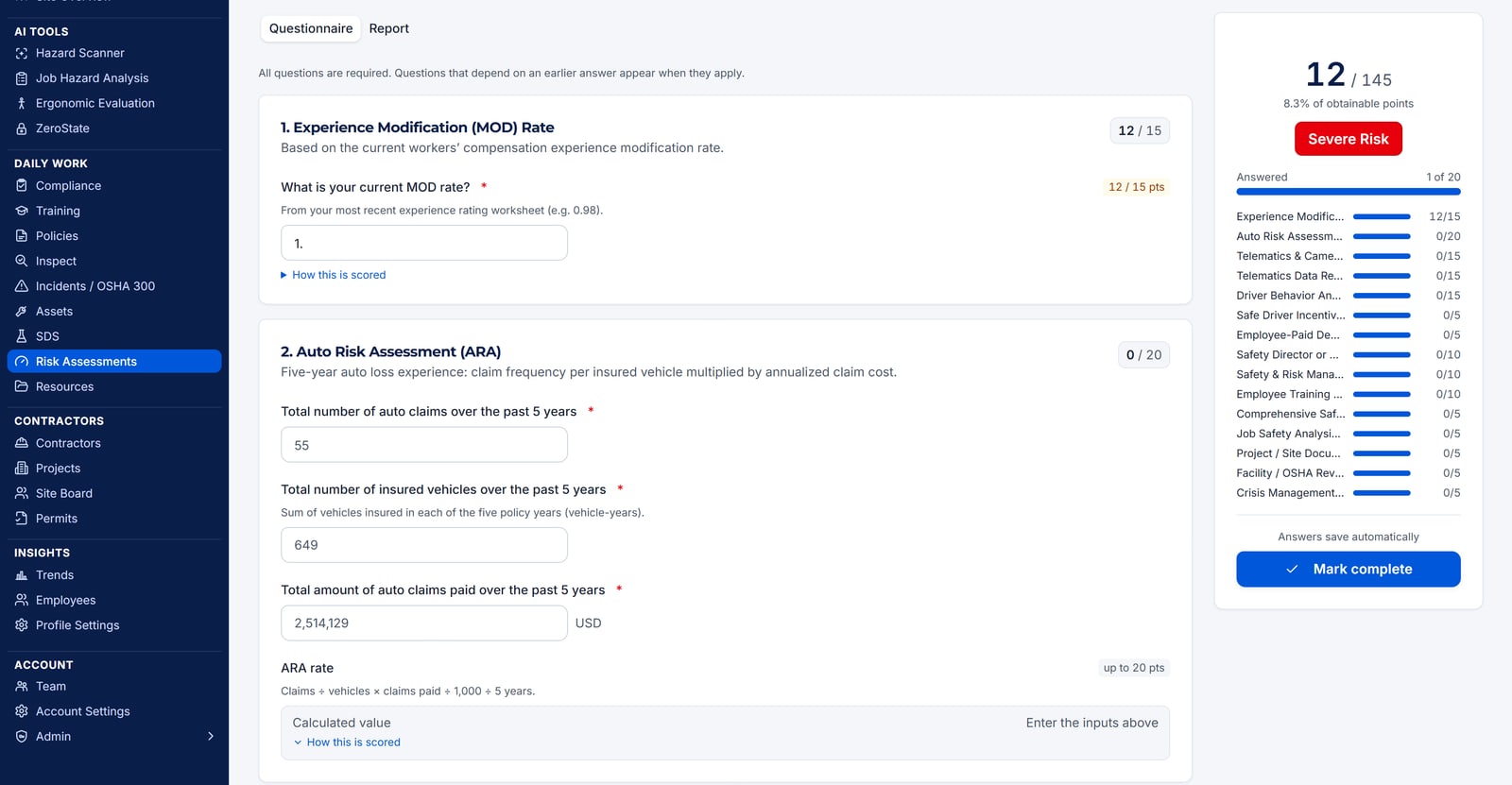
Start it
Pick the question set and name the company being assessed. Add a contact name and email if you have them, and set the assessment date. You can attach it to a client now, or leave it as a prospect.
Answer the questions
The score, the rating and the category breakdown update as you go, and answers save themselves - the workspace tells you when everything is saved and warns you when it is not. You can leave and come back.
Mark it complete
Every question has to be answered first. That is deliberate: a partial score is not a score, and a report built on one would be misleading in a way the reader could not see.
A completed assessment can be reopened if something needs changing.
6The report
Once complete, the Report tab holds the deliverable:
- The score banner and where it falls on your rating scale.
- Category scores, so the weakness has an address rather than being a single number.
- Opportunities, ranked - every question that scored below its maximum, with its recommendation.
- An AI narrative: executive summary, priorities, strengths and a path forward.
Download it as a PDF co-branded with your logo, or email it to the customer as an attachment straight from the assessment.
It is written from the scored result - the categories, the bands and the opportunities - rather than from general knowledge about the company. Read it before you send it, as you would any draft going out under your name.
7From prospect to client
Assessments usually start life attached to nobody: you are scoring a company you have not won yet, and they have no client record.
When they sign, create the client the way you normally would, then open the assessment, go to Details and pick them under Client. Nothing is copied or moved - the assessment simply gains a client, and the list picks up a Client column and a filter so you can see all assessments, just prospects, or one client's.
A prospect has no client to file under, so unattached assessments show in every workspace rather than disappearing when you switch. That is what stops last quarter's prospects quietly vanishing.
8Troubleshooting
| What you see | What to do |
|---|---|
| Risk Assessments is not in the sidebar | The module is enabled per organization. Ask whoever administers your ShieldSphere account. |
| "Create a question set first" | There are no question sets yet. Import your spreadsheet or build one - assessments need something to score against. |
| The import found no formulas | You probably uploaded a CSV or a values-only export. Upload the original .xlsx so the weights and bands come across. |
| The converted total disagrees with the workbook | The import flags this. Work through the "needs review" notes in the builder before using the set. |
| "Answer every question before marking the assessment complete" | Something is unanswered. A partial score would misrepresent the result, so completion requires all of them. |
| "Mark the assessment complete first" | The narrative is generated from the final result, so it needs a complete assessment to work from. |
| A calculated question shows nothing | It derives its value from other answers. Fill those in and it resolves. |
| The report has no opportunities | Every category scored its maximum - or the questions carry no recommendation text. Check which before congratulating anyone. |
Try Risk Assessments in ShieldSphere
Start a free hazard scan and see the platform these guides describe - no credit card required.
Screens captured from the live application in September 2026 using a demonstration site - your screens will show your own data. Because ShieldSphere ships changes regularly, check the version above against the current release before circulating this guide widely. Questions? Contact support.