
Team
who can log in, and what they can do
How to invite ShieldSphere users to your organization, set their roles, and scope which sites each one can reach.
Short answer
ShieldSphere's Team page controls who can log in to your organization and how much they can touch. It is the account-level companion to the Employees roster: where Employees lists the workers safety is about, Team lists the people who use the software. Each member has an account, a role that decides their reach, and a set of sites they can see.
1What the Team page does
Team is where you decide who can log in to ShieldSphere for your organization - and how much of it they can touch.
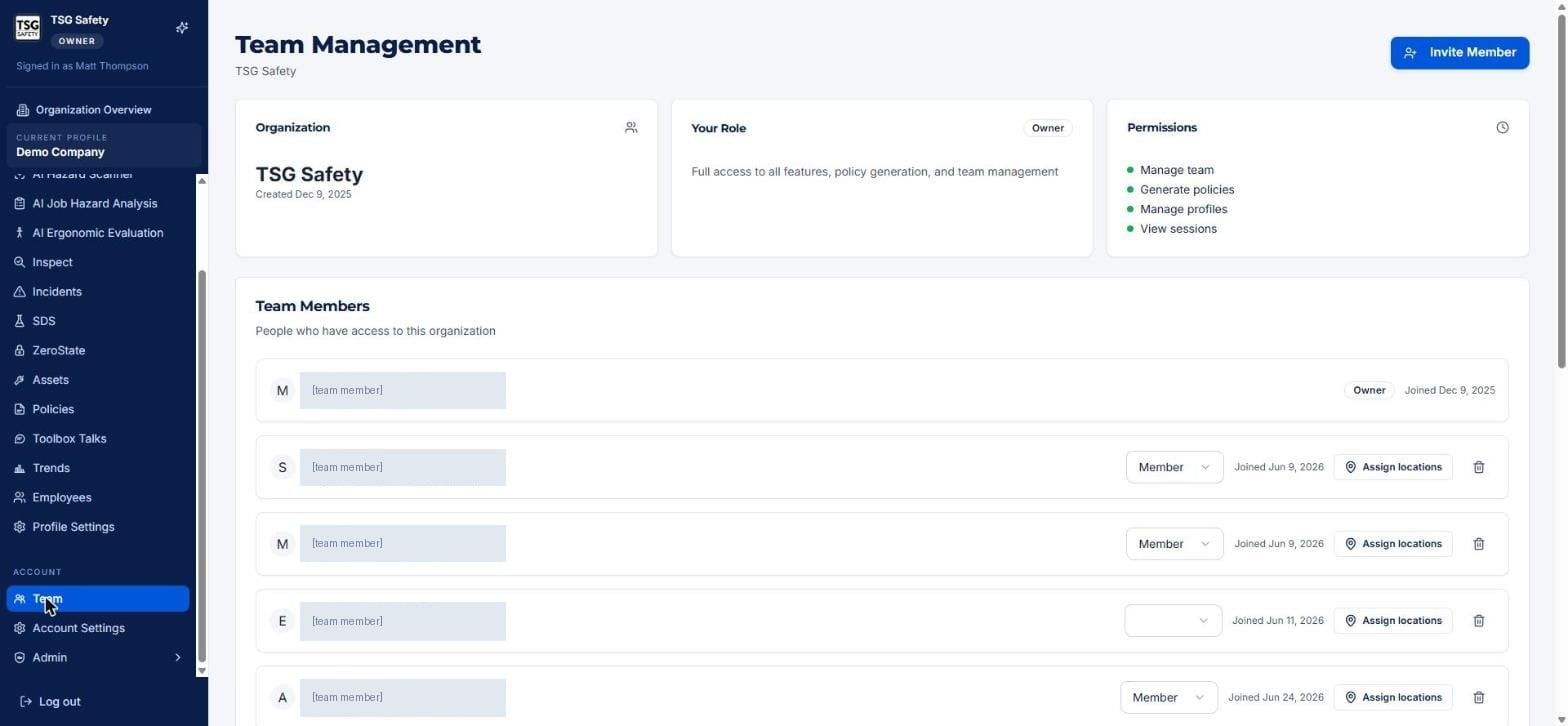
It is the account-level companion to the Employees roster. Where Employees lists the workers safety is about, Team lists the people who use the software - the safety managers, coordinators and admins with a ShieldSphere login. Every person here has an account, a role, and a set of sites they can reach.
2Roles and permissions
The panels at the top of the page show your role and the permissions it grants - for an owner, full access to all features, policy generation, profile management and team management. Each member you invite is given a role that decides their reach.
| Role | What it can do |
|---|---|
| Owner | Full control - all features, policy generation, managing profiles, and managing the team itself. |
| Member | Works within the organization at the sites and features their access allows. The default for an invited user. |
An owner can add and remove other team members and change roles. Keep the owner count small and give most people Member, scoped to just the sites they work.
3Invite a member
Click Invite Member at the top right and enter the person's email. They receive an invitation to create their login and join your organization. Once they accept, they appear in the Team Members list with a join date, where you can set their role and scope their sites.
The trash icon on a member row removes their access to the organization. Use it promptly when someone leaves - a stale login is an open door.
4Assign locations
Not everyone needs every site. Assigning locations keeps a member's view to the sites they actually work.
Each member row carries an Assign locations button. Use it to pick which sites (profiles) that member can see and work in. A regional coordinator might get several; a single-site safety lead gets just theirs.
Give a new member the narrowest set of sites that lets them do their job, and widen it later if needed. It keeps their dashboards focused and limits the blast radius of a mistake.
5Troubleshooting
| Symptom | Cause and fix |
|---|---|
| An invited person cannot log in | They have not accepted the invitation yet, or used a different email. Confirm the address and re-invite if needed. |
| A member cannot see a site | That site is not in their assigned locations. Use Assign locations to add it. |
| A member can do too much | Their role is too high. Change it from Owner to Member, and scope their locations. |
| Someone left the company | Remove them with the trash icon on their row so their login no longer works. |
| I cannot manage the team | Team management requires an owner role. Ask an existing owner to make the change or promote you. |
Try Team in ShieldSphere
Start a free hazard scan and see the platform these guides describe - no credit card required.
Screens captured from the live application in July 2026 using a demonstration site - your screens will show your own data. Because ShieldSphere ships changes regularly, check the version above against the current release before circulating this guide widely. Questions? Contact support.