
Training Sessions
a QR code on the wall, and the sign-in sheet writes itself
How to run a toolbox talk or a training class in ShieldSphere: create the session, put the QR code in front of the crew, watch people sign in, fix anyone the roster did not recognise, and close the session so it becomes training records you can prove.
Short answer
A ShieldSphere training session records one delivery of a toolbox talk or a training class. You create the session, show its QR code, and attendees sign in on their own phones with a name and a signature. Closing the session turns that attendance into dated training records on each person's file, so the proof is a by-product of running the talk.
1What a session is
A session is one delivery, on one day, to whoever turned up - and it is the thing that turns a talk you gave into training you can prove you gave.
Most safety software asks you to deliver the training in the real world and then, separately, to go back to a desk and type in who was there. The second half is the half that does not happen. A session closes that gap: the sign-in is the record. You run the talk, the crew scans a code, and when you close the session ShieldSphere writes a dated training record for every person who signed in.
Sessions come in two kinds, and the kind decides whether the training expires:
| Kind | Use it for |
|---|---|
| Toolbox talk | The five-minute briefing before the shift. No expiry date - a talk is delivered, not held as a qualification. |
| Training | A real class that someone is credentialed by: forklift, fall protection, confined space. Carries a training type and a renewal interval, so it starts counting down to due. |
Employees on your roster, contractor personnel, and people who are on neither list can all sign in to the same session. Each one ends up on the right record: employees get a training record on their file, contractor personnel get a contractor training record, and anyone unrecognised waits for you to sort them out before the session closes.
2Words you'll see
| Word | What it means |
|---|---|
| Session | One delivery of one topic on one date, at one location. |
| Sign-in window | How long the QR code keeps working. Set when you create the session, extendable later. |
| Open / Closed | Open means people can still sign in. Closed means sign-in has stopped and the training records have been written. |
| Attendee | One person on the session's list, however they got there - scanned the code, used the kiosk, or you added them by hand. |
| Linked | The attendee was matched to a person on your roster, so the record lands on their file. |
| Unmatched | ShieldSphere could not find that name on the roster. The sign-in is kept; it just needs you to say who it is. |
| Kiosk mode | The same sign-in page, running on your device, resetting after each person so you can pass it round the room. |
| Attestation | The tick-box confirming the attendee was there and understood the material. It is what makes the signature mean something. |
3Create the session
Sessions live on the Sessions tab of the Training module.
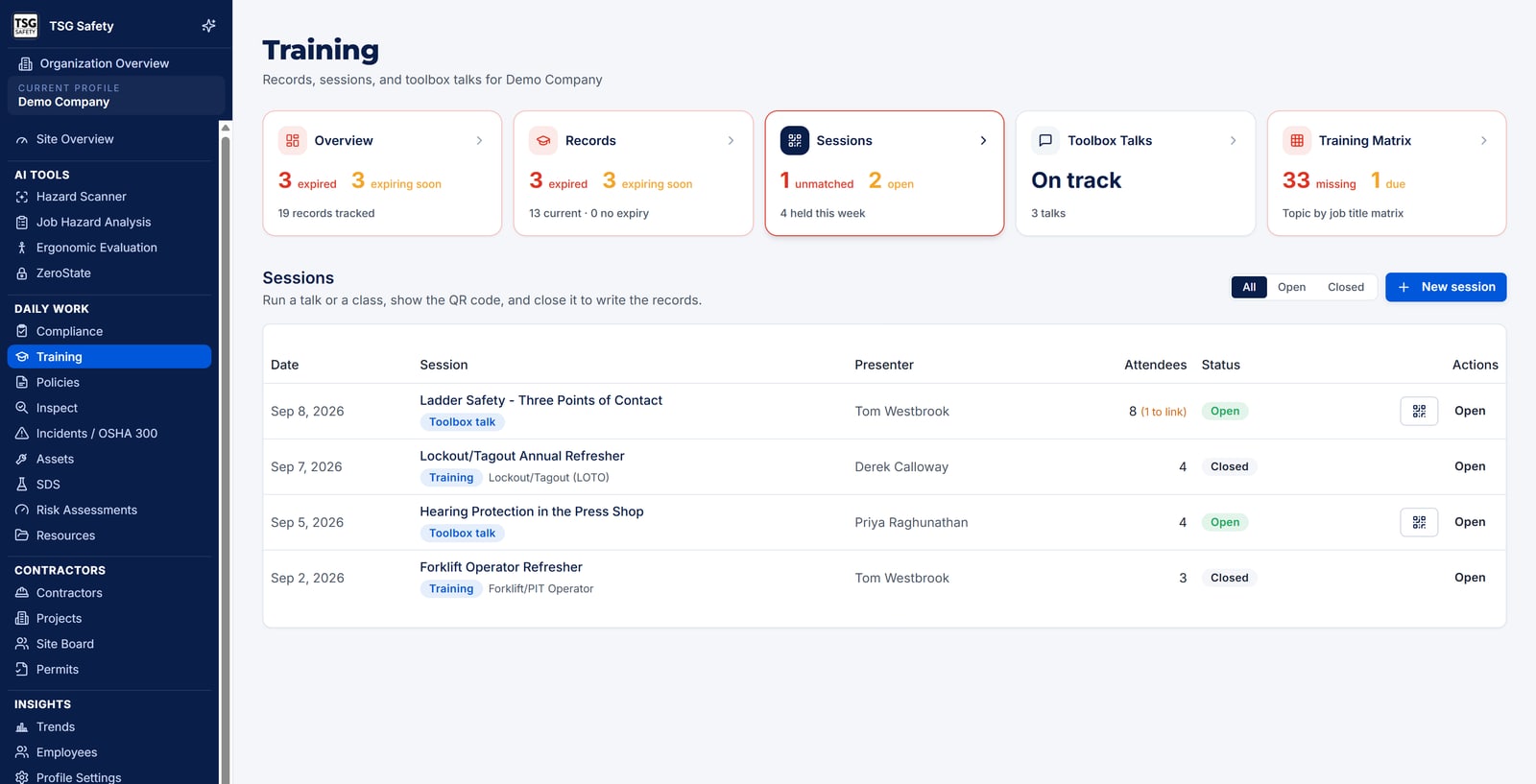
Choose the kind, then the topic
Pick Toolbox talk or Training. For the topic you can pick a talk from the ShieldSphere library, search the talks already saved at this location, or simply type a title - Ladder safety is a perfectly good topic. Picking a library talk also gives you the script to deliver and, if you want them, its comprehension questions.
Say who is leading it and when
Presenter defaults to your name. Date defaults to today. There is an optional Project, and a Room or area box for a note like Break room or Bay 3 - useful later when you are looking at six sessions from the same week.
For a Training session, set the type and the renewal
Training type is what the record will be called on each person's file. Renews every (months) is what makes it expire - leave it blank for training that never lapses. Get this right at the start: it is what puts the person back on your due list at the right time.
Decide on signatures, questions and the window
Require signature is on by default and should usually stay on - a signature is the difference between a list of names and evidence. Ask comprehension questions adds up to three questions the attendee answers as they sign in. The sign-in window defaults to 24 hours; you can extend it later without recreating anything.
The QR code exists the moment the session is saved. Make it while the crew is gathering, not after they have gone back to work.
4Put the QR code in front of the crew
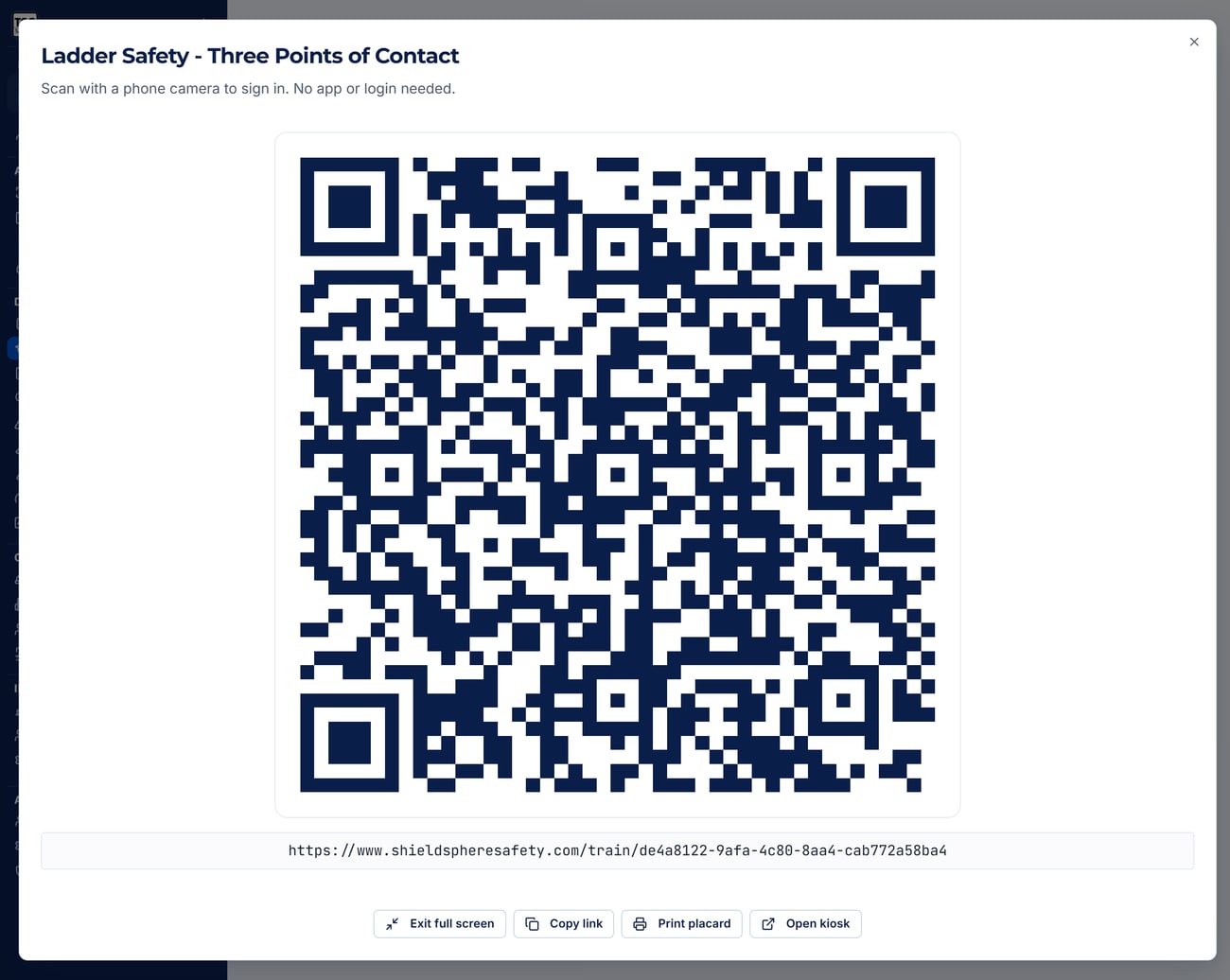
Open the session and you get a Sign-in QR panel. It is the same code however you show it, so use whichever fits the room:
Full screen
Throws the code up large on a laptop or a projector. Best for a room with a screen.
Print placard
A one-page PDF with your logo, the topic, the presenter, the date and the code. Tape it to the wall or the toolbox.
Copy link
The plain sign-in URL. Paste it into a group text or a WhatsApp thread for a crew that is spread out.
Kiosk mode
Runs the sign-in on your own device and resets after each person. For crews without phones - see section 6.
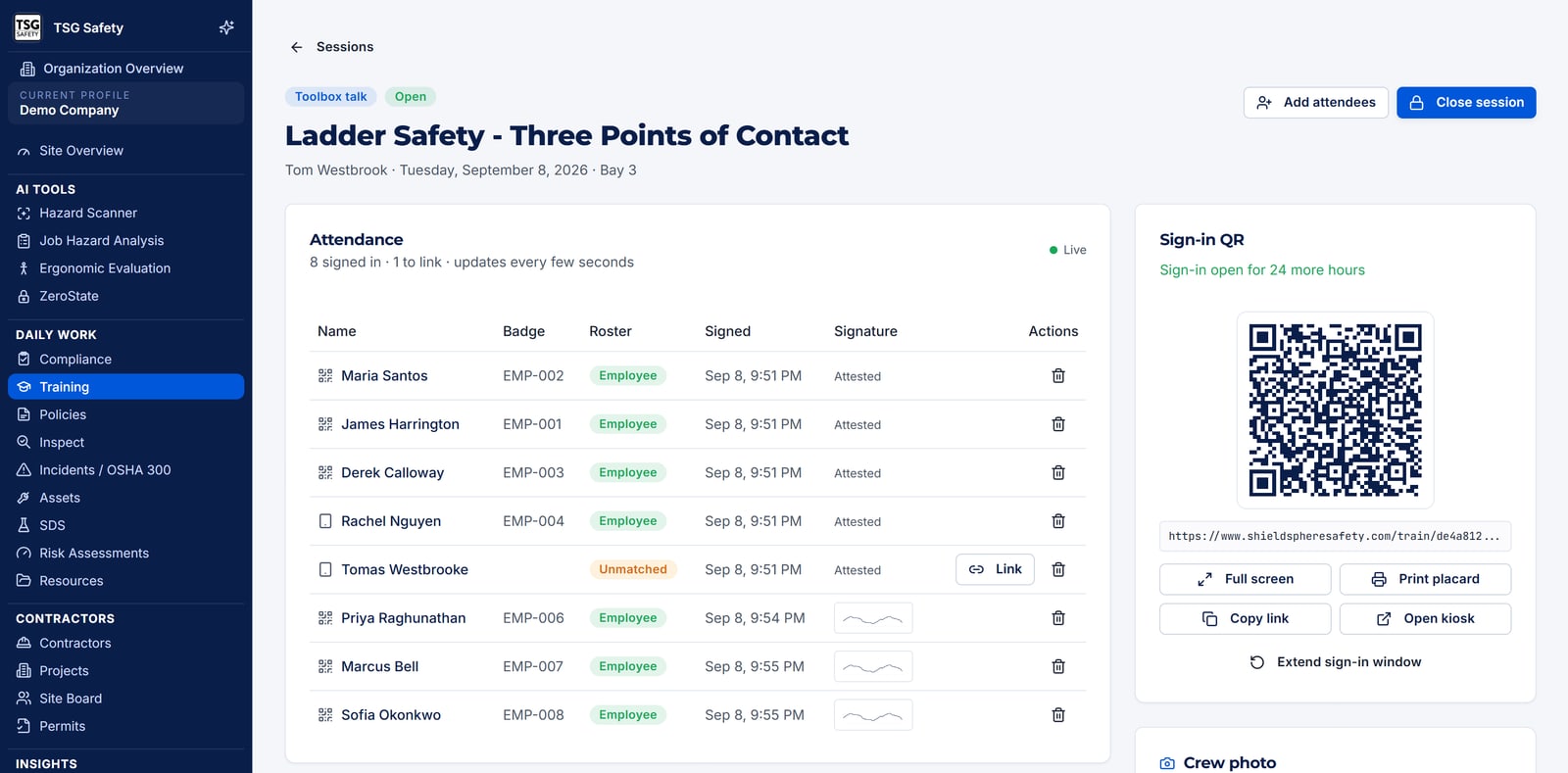
The sign-in page is public. Anyone who can scan the code can sign in - that is the point, because the people in front of you are mostly not software users. The code is unguessable and stops working when the window closes or you close the session.
5What the attendee sees
They scan, and their phone opens a single short page: your logo, the topic, the presenter and the date, then a very small form.
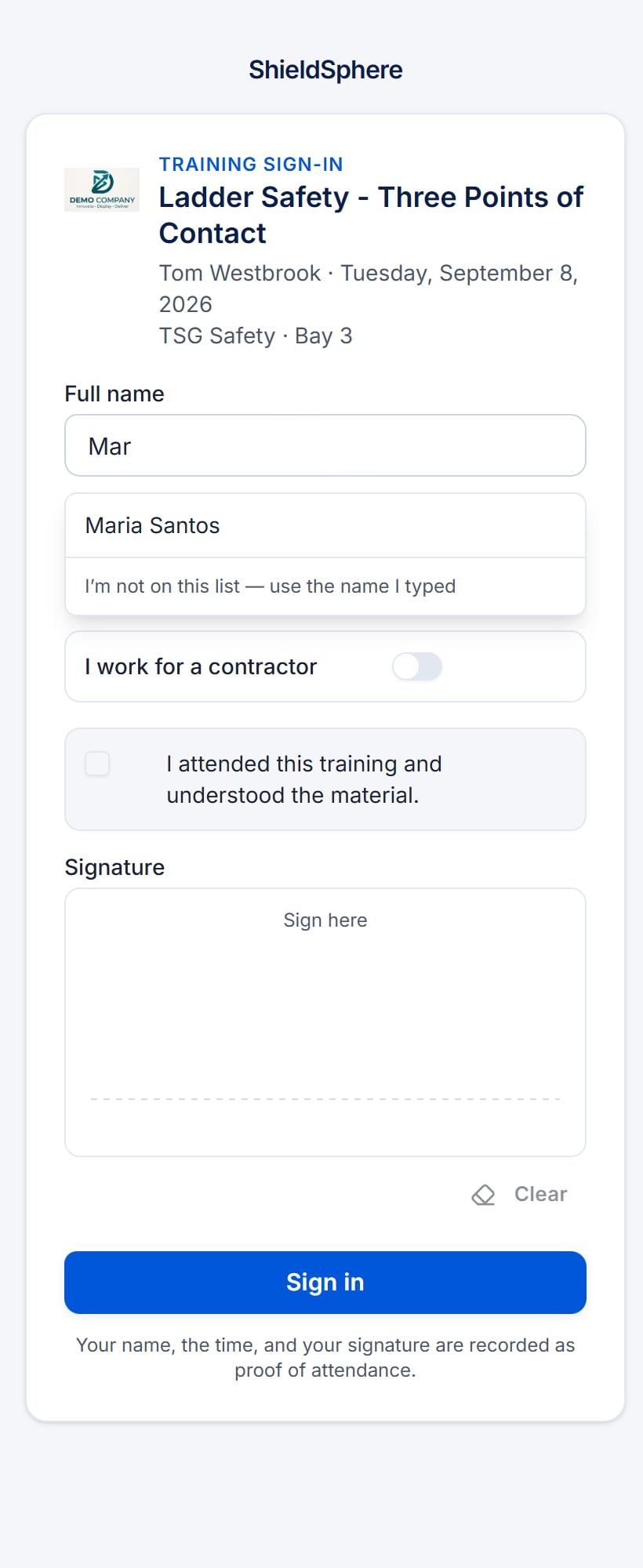
They start typing their name
After three characters, ShieldSphere offers matching people from your roster. Picking their own name from that list is the best outcome available: it links the sign-in to their record as a certainty rather than a guess, so it can never land in the unmatched pile. If they are genuinely not on the list there is an I'm not on this list - use the name I typed escape, and free text works perfectly well.
Badge, and whether they are a contractor
Badge or employee ID is optional and helps the match. An I work for a contractor switch lets them pick their company, which routes their record to that contractor's crew list instead of your employee roster.
They attest and sign
They tick I attended this training and understood the material, sign with a finger, and tap Sign in. They get Thank you, you are signed in and can close the page.
It will not return anything under three characters, never shows more than a handful of names, leaves out anyone no longer employed, and is limited to people employed by the same business as the site running the session. It is built to confirm a name someone already knows, not to browse your roster.
6People without a phone
Plenty of crews cannot all scan a code, and the answer is kiosk mode. It opens the same sign-in page on your device, but after each person submits it clears itself and shows Signed in. Next person. instead of a thank-you screen. Hand the tablet round the room and everyone signs on the same device.
The other option is simply to add people yourself. Add attendee on the session page lets you pick from the roster for this location, pick contractor personnel, or type a bare name. Both routes end up in the same attendance list; the source is recorded so you can see later who scanned and who was added by hand.
If an auditor is going to want signatures, the kiosk is the better answer than adding names for people. It takes the same amount of time and produces real proof.
7Watch the sign-ins arrive
The session page lists attendance as it happens - you do not need to refresh. Each row shows the name, the badge they typed, how they signed in, their signature, whether they attested, and whether ShieldSphere matched them to your roster. If you turned on comprehension questions, Show answers reveals what each person wrote.
If fourteen people are in front of you and the count says eleven, you know to ask before anyone leaves. Chasing a missing signature the next day is much harder than chasing it now.
8Fix an unmatched attendee
An attendee shows as unmatched when the name they typed is not one ShieldSphere can find on your roster - a nickname, a misspelling, a genuinely new hire. Nothing is lost: the sign-in and the signature are kept exactly as given. It just needs you to say who it is, and the row offers two ways to do that.
Link to roster
Use this when the person is on your roster under a different spelling. Search, pick them, and the attendance attaches to their record.
Create employee
Use this when they are genuinely new. It adds them to the roster from what they typed and links the attendance in one step - which means a brand-new starter's first training record can be created by them signing in.
Closing the session writes records for the people it can identify. An attendee still unmatched at close is kept on the attendance list and shown as Still unmatched, but no training record is written for them - so they will not appear on anyone's file or count towards a requirement.
9Close the session
When the talk is over and the list looks right, use Close session. ShieldSphere tells you exactly what it is about to do before it does it: QR sign-in stops, and attendance becomes training records - so many employee records, so many contractor records.
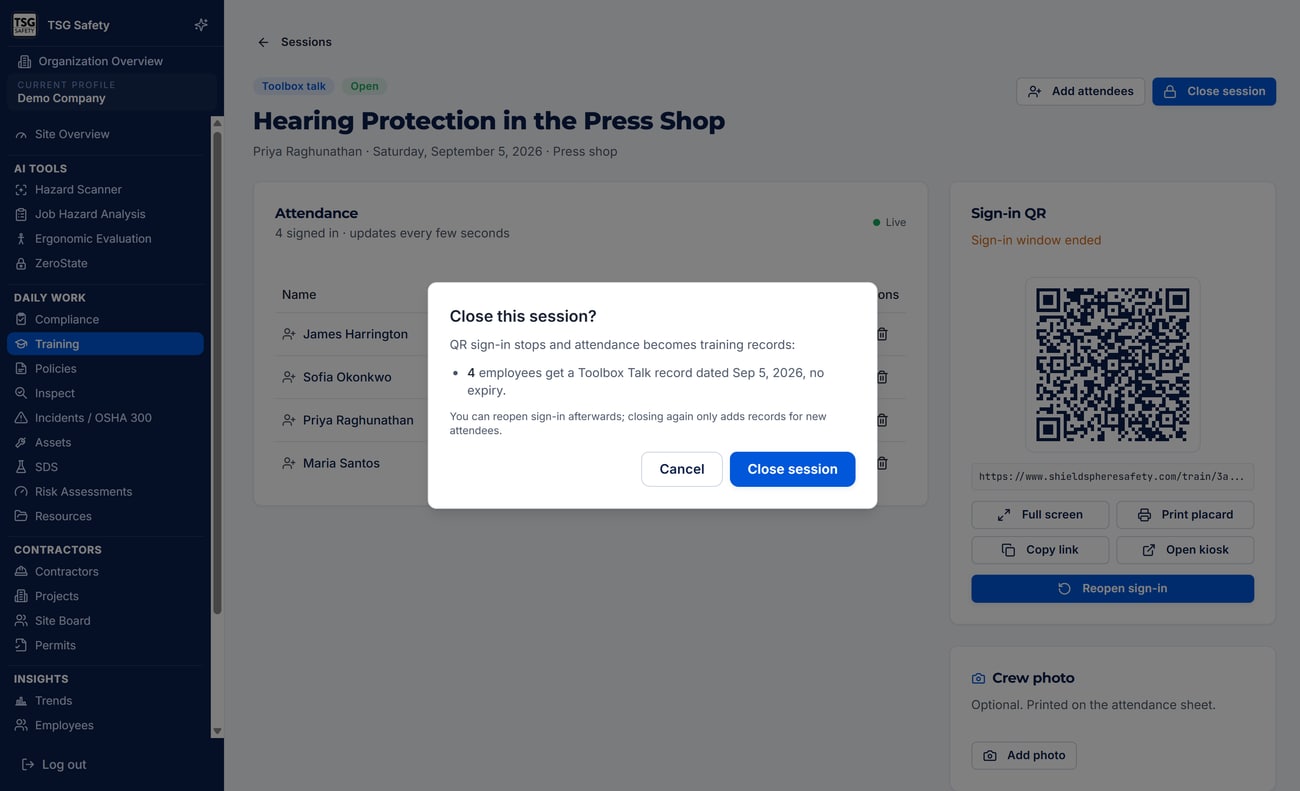
For a Training session, each record carries the training type and the renewal interval you set, so expiry is calculated from the session date and the person joins the due list at the right moment. For a Toolbox talk, the record simply says the talk was delivered on that date.
If someone turns up late, Reopen sign-in puts the code back to work for a number of hours you choose. You can also Extend sign-in window before closing at all. Records are written once and only once, so reopening and closing again does not duplicate anyone.
10Certificates and the attendance sheet
A closed session gives you the paperwork.
The attendance sheet is a PDF of the session: topic, presenter, date, and every attendee with their signature and how they signed in. It is the document to hand an auditor or a client asking for proof of a specific talk. There is also an optional crew photo you can add to the session, which prints on the sheet - useful when a client wants to see the crew that was actually there.
Certificates can be issued for the training records the session wrote, from the Certificates card on the session. ShieldSphere skips anyone who already has one on file, so pressing it twice is safe.
For a date range rather than a single session - an audit, a client request, an insurance renewal - use the evidence pack on the Training overview. It gathers sessions, records and attendance into one export. That is covered in the Training User Guide.
11Troubleshooting
| What you see | What to do |
|---|---|
| The QR code does nothing | The sign-in window has probably closed. Open the session and use Reopen sign-in or Extend sign-in window. |
| Everyone is coming through unmatched | The roster for this location is empty or the names are stored differently to how people say them. Sign-ins are still safe; link them, or use Create employee to build the roster from the sign-ins themselves. |
| "You are already signed in" | That person has already been recorded on this session. It is a duplicate guard, not an error. |
| "Too many attempts from this device" | A rate limit, most often when a whole crew signs in over one hotspot. Wait a minute and continue. |
| An attendee cannot sign on their phone | Their browser may be blocking the drawing area. Use kiosk mode on your device instead - the signature is the point, so prefer that over turning signatures off. |
| Someone signed in twice under two spellings | Remove the wrong row from the attendance list before you close. Removal is per attendee and asks first. |
| Records were not written for a contractor | Check the attendee picked their company on the sign-in page. Without it they are treated as an unrecognised person rather than contractor personnel. |
| The count is right but a name looks wrong | Attendees are recorded exactly as they typed. Use Link to roster to attach the sign-in to the right person; the typed name is kept as part of the evidence. |
Try Training Sessions in ShieldSphere
Start a free hazard scan and see the platform these guides describe - no credit card required.
Screens captured from the live application in September 2026 using a demonstration site - your screens will show your own data. Because ShieldSphere ships changes regularly, check the version above against the current release before circulating this guide widely. Questions? Contact support.