
Inspect
administrator setup & configuration
How to build checklist templates, schedule recurring inspections, manage location presets, and set report defaults - everything needed to configure Inspect for your team.
Short answer
Administrators configure ShieldSphere's Inspect module before a team runs inspections: build and publish checklist templates, set recurring inspection schedules so they generate automatically, save location presets, and set report defaults. A checklist must exist and be published before anyone can run it. Running inspections is covered in the Inspect User Guide.
This Administrator Guide covers only what you set up to make Inspect work for your team - checklist templates, recurring schedules, location presets, and report defaults. For running inspections, reviewing findings, and working corrective actions to closure, see the companion ShieldSphere Inspect User Guide.
1Build checklist templates
A checklist has to exist and be published before anyone can run it. This is where that happens.
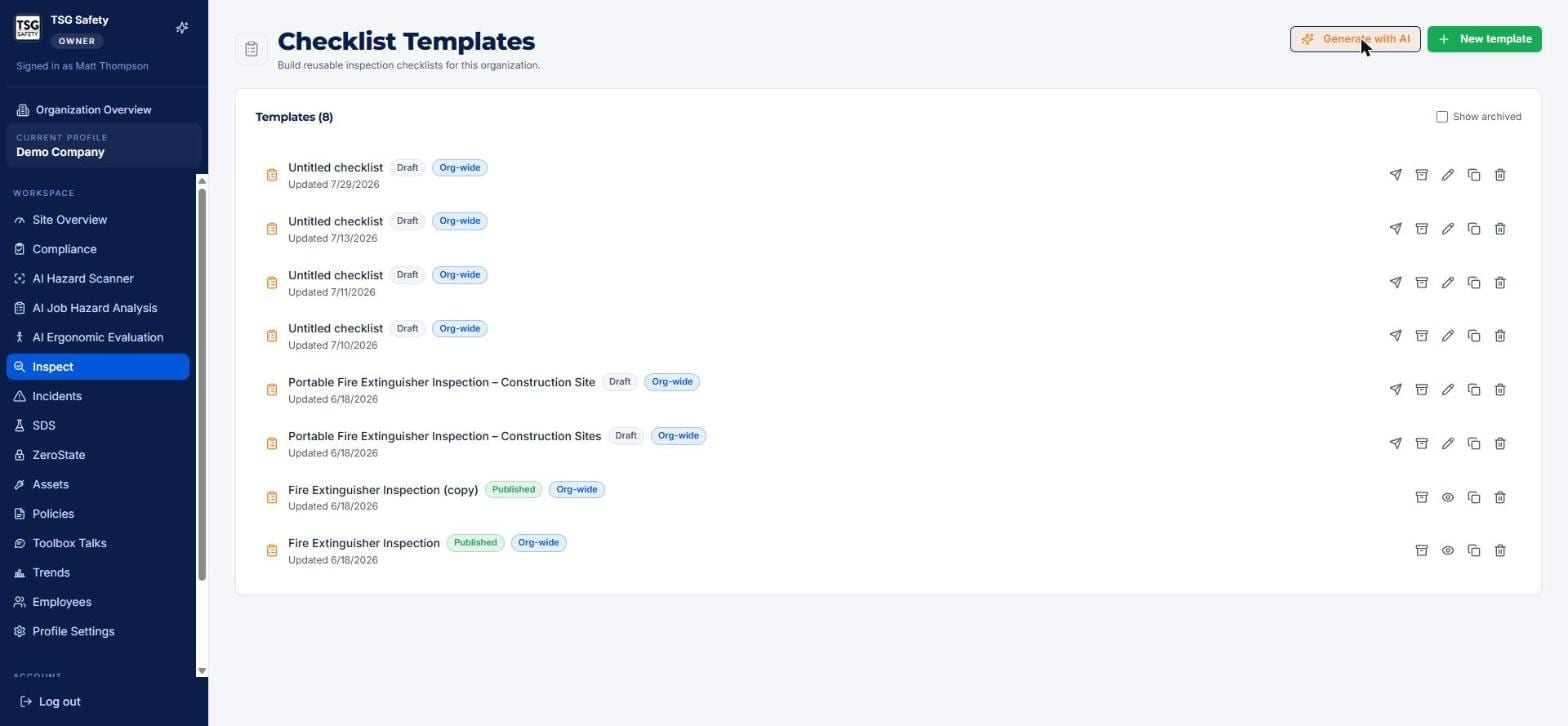
The row icons
| Send | Assign the checklist out to be run. |
| Archive | Retire a template without deleting its history. Tick Show archived to see them again. |
| Pencil | Edit - drafts only. Published templates show an eye (view) instead. |
| Duplicate | Clone it. This is how you change a published template: clone, edit the copy, publish, archive the old one. |
| Trash | Delete permanently. |
Option A - Generate with AI
Click Generate with AI and describe what you want to inspect in plain language.
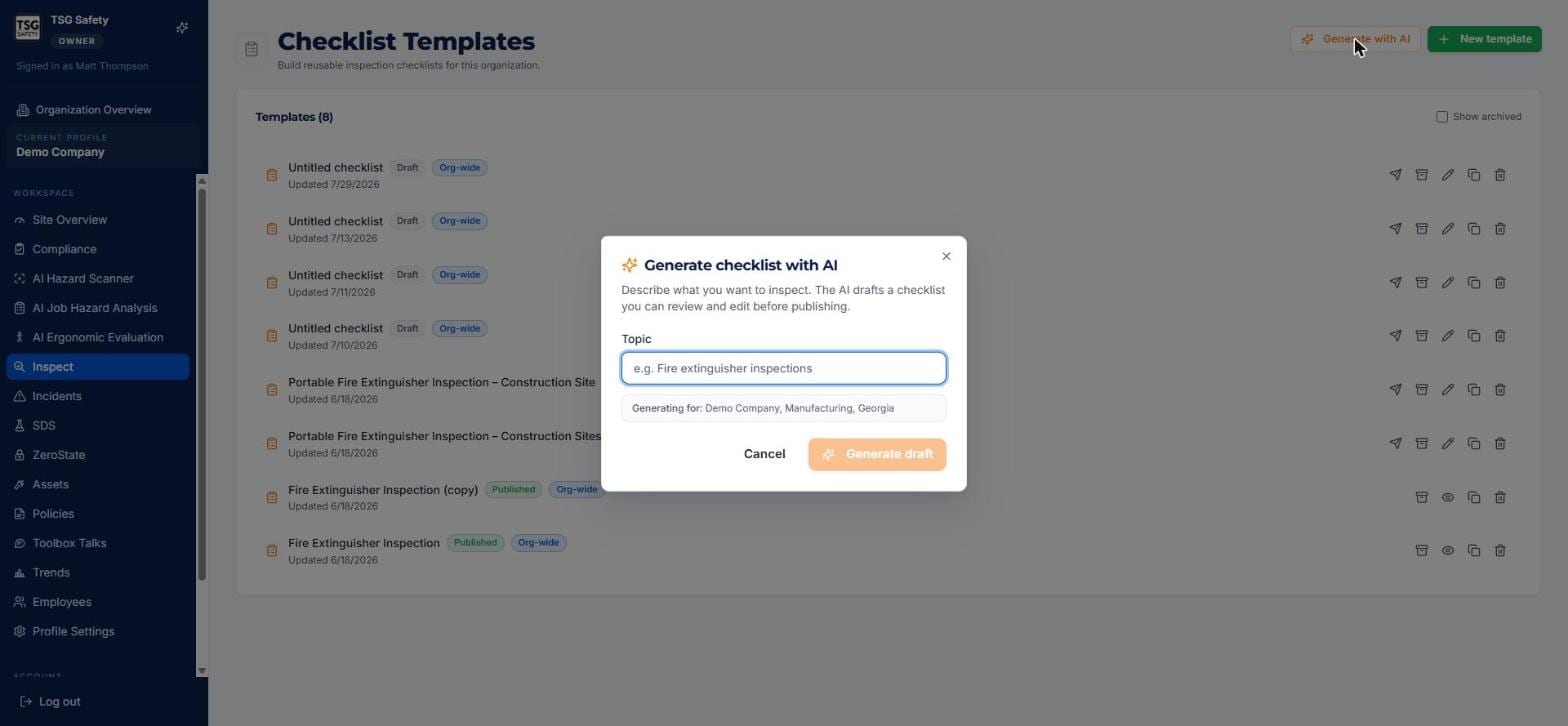
Click Generate draft. In a few seconds you land in the builder with a complete, sectioned checklist.
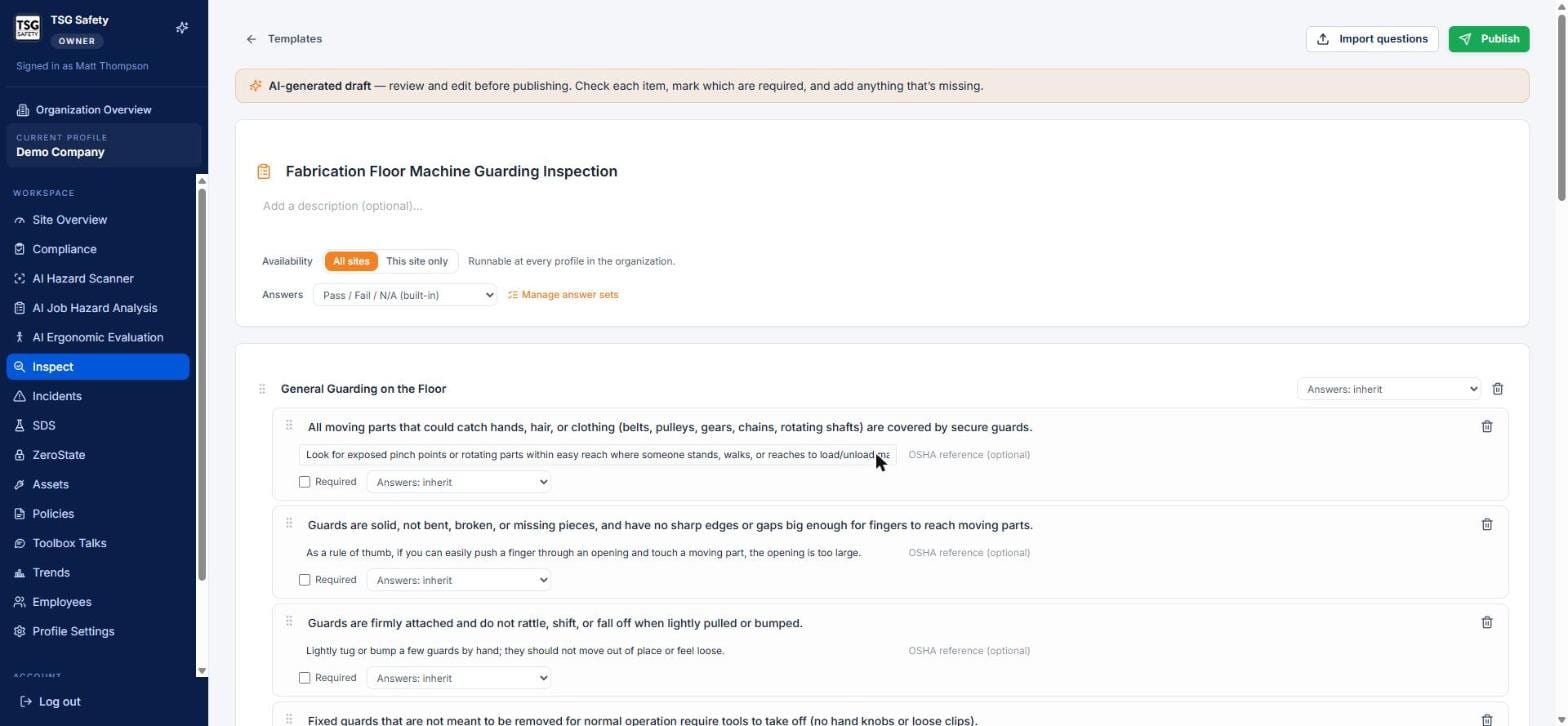
Option B - Build it yourself
Click New template for an empty builder, or Import questions to bring items in from elsewhere.
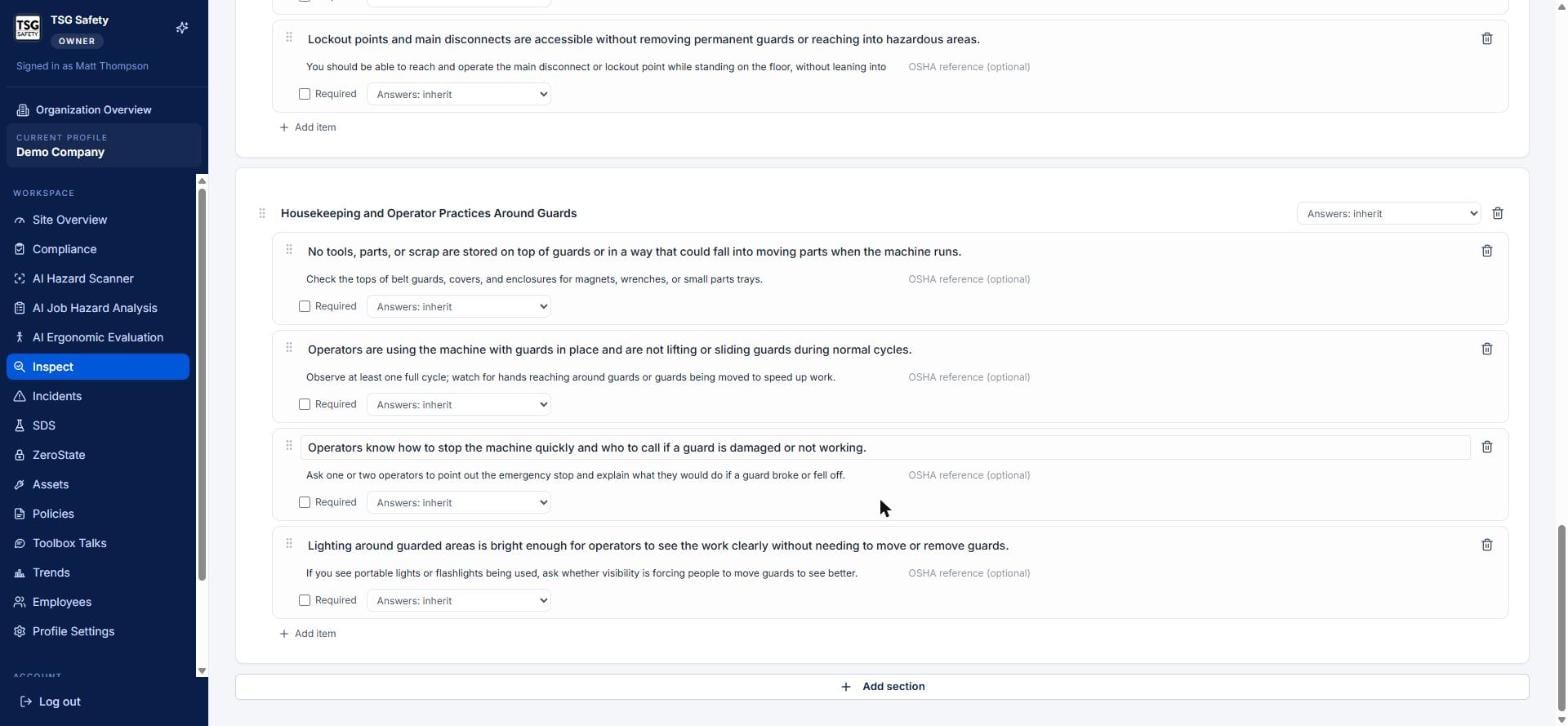
Builder controls
| Control | What it does |
|---|---|
| Title & description | Click the title to rename. Description is optional but helps whoever picks the checklist off the list. |
| Availability | All sites makes it runnable at every profile in the organization; This site only keeps it local. |
| Answers | The answer set for the whole template - Pass / Fail / N/A is built in. Manage answer sets creates custom ones. |
| Sections | Groups of items, reorderable by the drag handle. Each section can override the template's answer set. |
| Item text | Click to edit. Write it as something checkable, not a topic heading. |
| Guidance line | The grey text under each item. This is where you put the "how do I actually check this" knowledge. |
| OSHA reference | Optional citation per item. Worth filling for anything you'd be cited on. |
| Required | Tick to force an answer before the run can be completed. |
| Add item / Add section | At the bottom of each section and the template. |
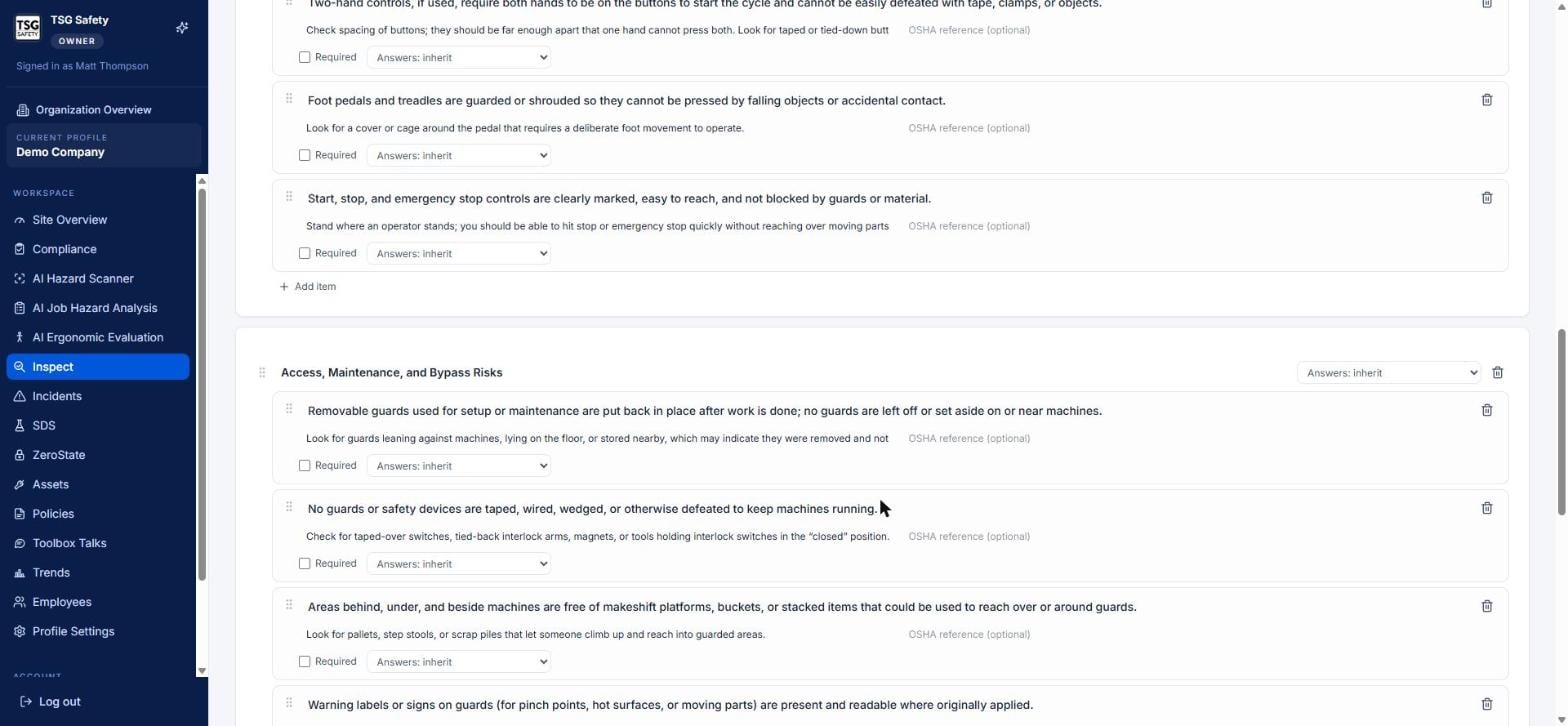
Publish it
Click Publish at the top right. The badge flips to Published and a blue banner replaces the draft banner.
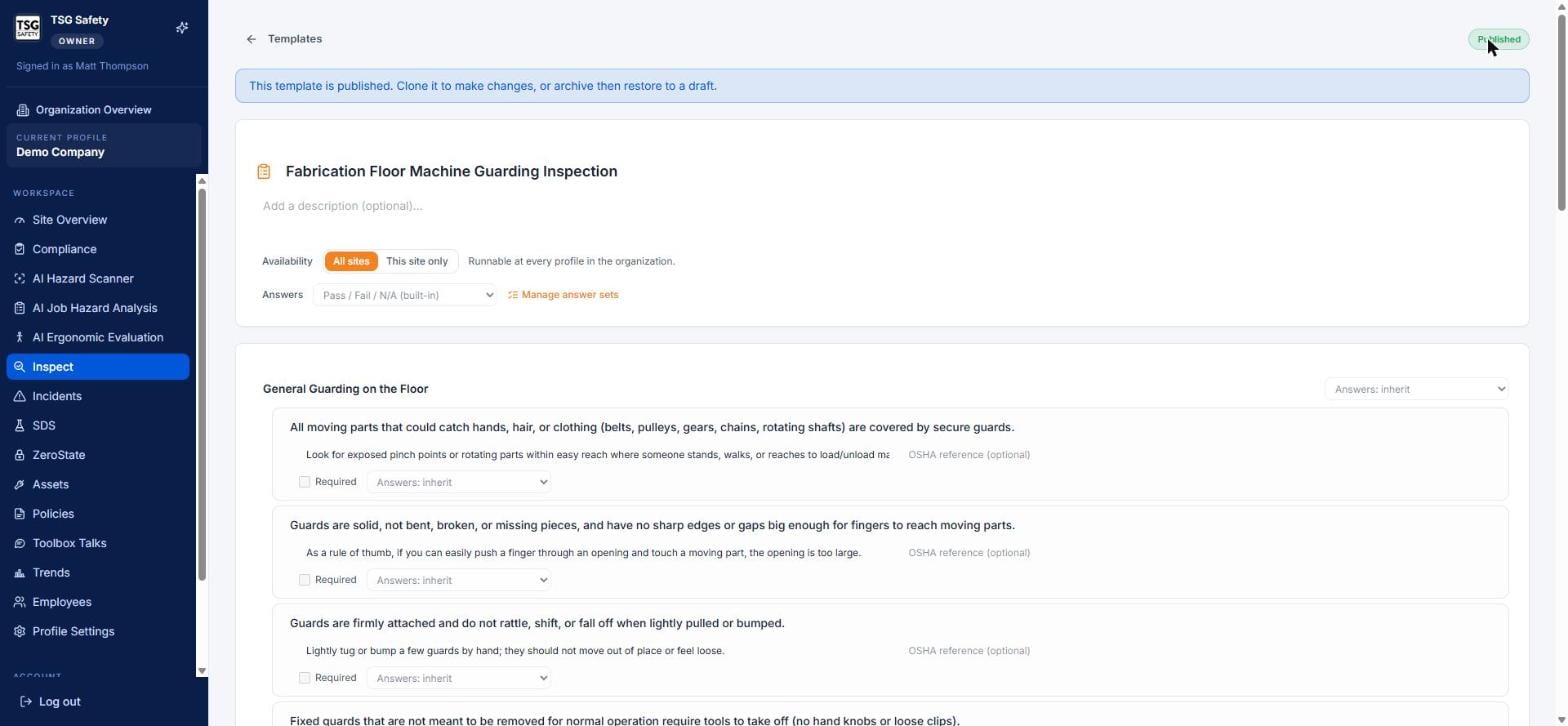
Drafts never appear in the Start a Checklist Inspection list. If someone says a checklist is missing, check its status badge first - that's the answer nine times out of ten.
2Recurring inspection schedules
Schedules generate reminder emails so recurring inspections don't quietly stop happening.
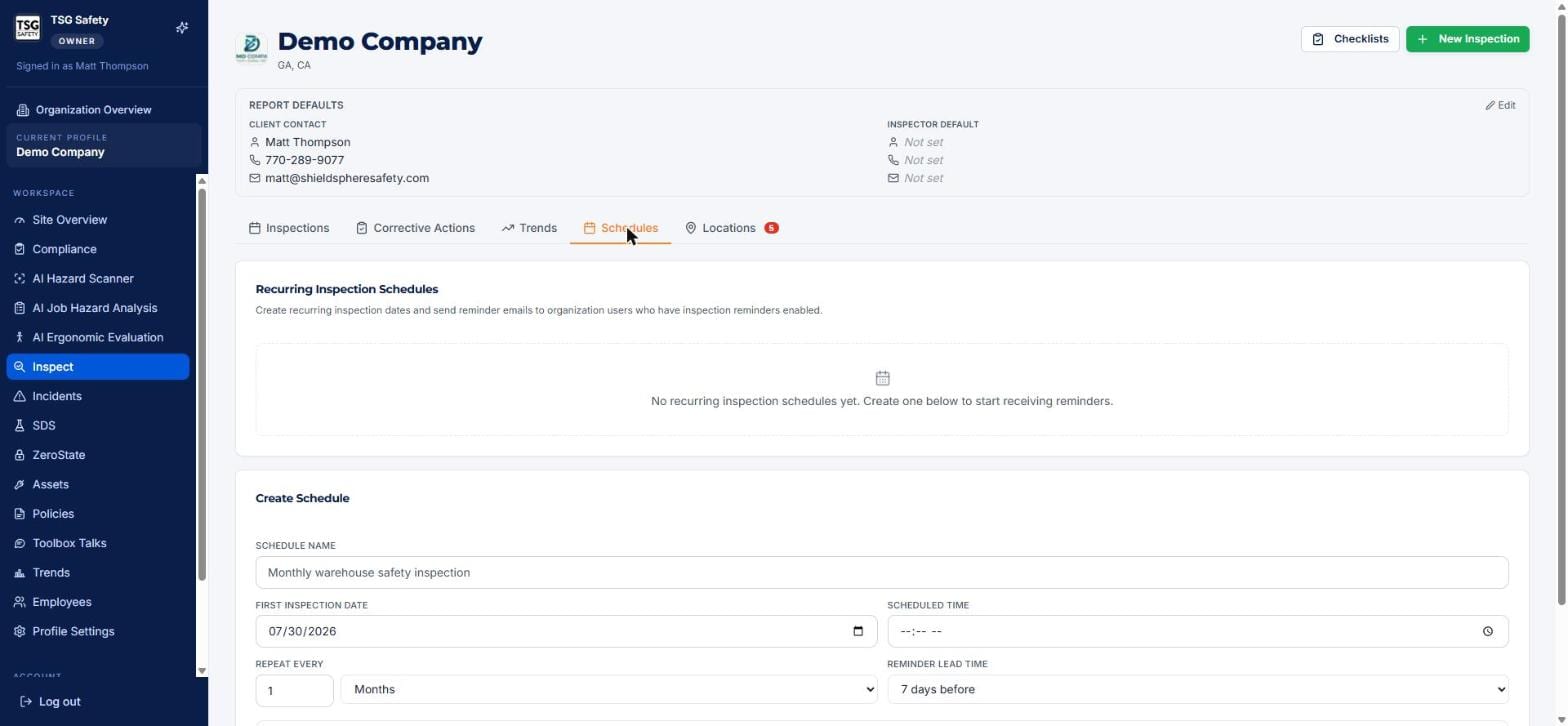
| Schedule name | What the reminder will say - e.g. "Monthly warehouse safety inspection". |
| First inspection date | When the cycle starts. |
| Scheduled time | Time of day for the inspection. |
| Repeat every | A number plus a unit (days / weeks / months). |
| Reminder lead time | How far ahead the email goes out. Default is 7 days before. |
Reminders go to organization users who have inspection reminders enabled on their own account. Creating the schedule is only half the job - check that the right people have the setting turned on, or the reminder goes nowhere.
3Location presets
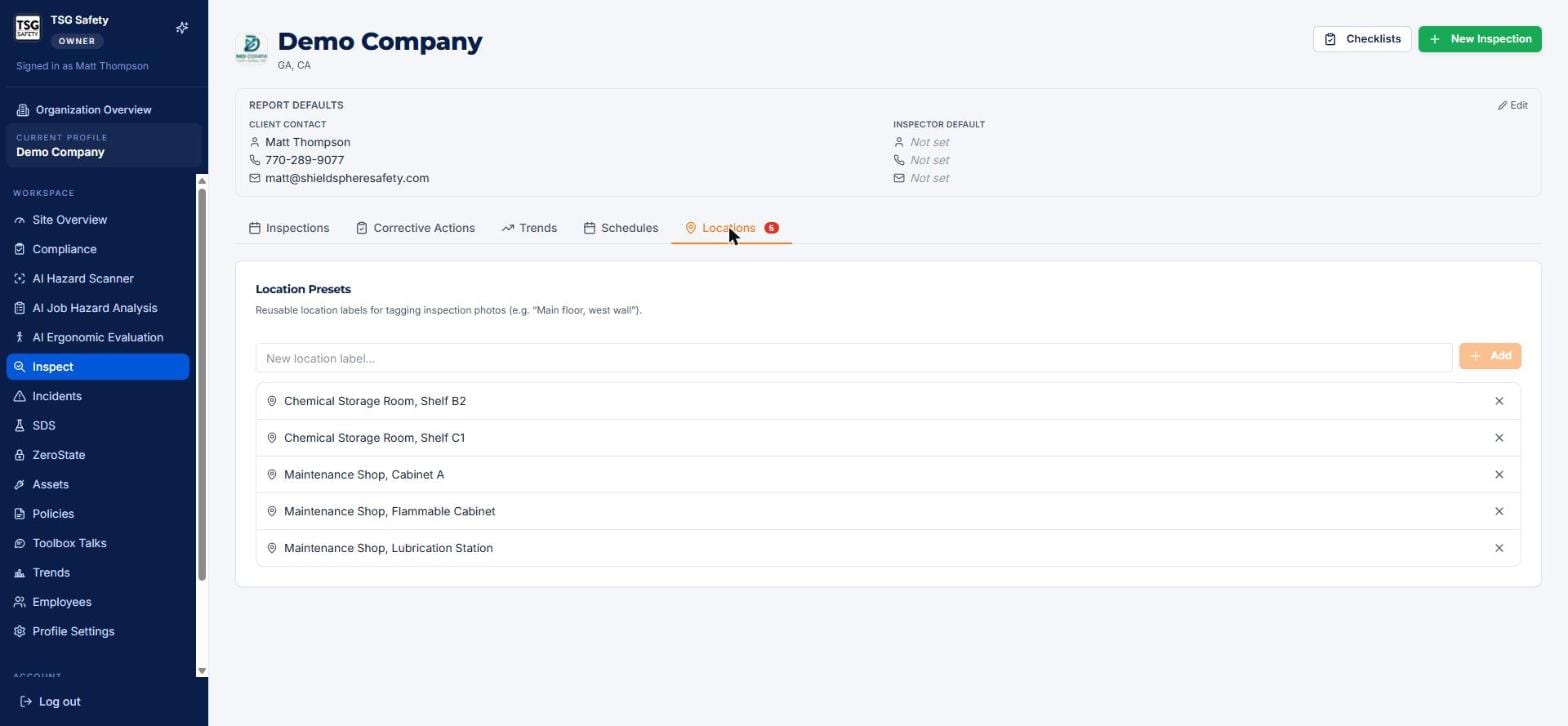
These labels populate the Select saved location dropdown when photos are tagged, and they're what the Hazards by Location chart groups on. Ten minutes here is the difference between a chart that says "Warehouse 2 has a problem" and one that says nothing.
Go specific and consistent: Maintenance Shop, Flammable Cabinet beats Shop. Use the same "Area, Sub-area" shape across every preset so the chart groups cleanly and sorts predictably.
4Report defaults
The panel at the top of the Inspect home holds two blocks, edited with the Edit link on the right:
- Client contact - name, phone and email printed on every exported report for this site.
- Inspector default - pre-fills the inspector fields on every new inspection. Set this and your team stops typing it 40 times a year.
Report defaults belong to the site you're currently in. Setting them once does not carry them to your other sites.
5Troubleshooting
| Symptom | Cause and fix |
|---|---|
| A checklist isn't in the run list | It's still a draft. Publish it (section 1), or check its availability isn't set to a different site. |
| I need to change a published checklist | Duplicate it, edit the copy, publish that, then archive the original (section 1). |
| The location dropdown is empty for the team | No presets exist for this site yet. Add them in the Locations tab (section 3). |
| Nobody's getting schedule reminders | Reminders go only to organization users who have inspection reminders enabled on their own account (section 2). |
Try Inspect in ShieldSphere
Start a free hazard scan and see the platform these guides describe - no credit card required.
Screens captured from the live application in July 2026 using a demonstration site - your screens will show your own data. Because ShieldSphere ships changes regularly, check the version above against the current release before circulating this guide widely. Questions? Contact support.