
Proactive Insights
the pattern, before it becomes the incident
How to read the insight cards on your Organization Overview and site overviews, see the evidence and the exact records behind each one, jump to the right place to act, and clear a card once you have dealt with it.
Short answer
ShieldSphere's Proactive Insights watches your inspections, corrective actions, incidents, training and asset checks every day and puts a card on your overview when it spots a pattern, such as overdue actions piling up or the same hazard repeating. Each card shows the evidence and the records behind it, with a link to act.
1What Proactive Insights does
A safety manager cannot read every record every day. Insights read them for you and say out loud what is bunching up.
Once a day, ShieldSphere checks the data you already keep for a fixed set of patterns. When one is found, it appears as a card. The check itself is rule based: it counts records against thresholds, so a card only appears when the numbers are there. The short plain-language explanation on the card is written by AI from those exact numbers, and the card carries an AI-generated label to say so. If the AI writer is unavailable, the card falls back to a standard sentence built from the same figures.
You will find the same panel in two places:
Organization Overview
Insights from across your locations, grouped by location, with organization-wide insights first.
Site overview
One location's insights, plus any organization-wide ones, in a single list.
Proactive Insights is included on the Growth and Enterprise plans. If it is not on your plan, the panel simply does not appear, and opening an insight link shows a message that it is a Growth feature. You only see insights for locations you have access to. To have it switched on, ask your ShieldSphere contact.
2Words you'll see
| Word | What it means |
|---|---|
| Critical | Red. The pattern is large or old enough to need attention first. |
| Attention | Amber. Worth acting on soon. |
| Good news | Blue. The lowest level. It covers improvements, such as fewer recordable incidents than last year, and also a few gentle nudges described in section 3. |
| Why this surfaced | The numbers and rule that triggered the card. |
| Records | The specific corrective actions, incidents, assets or other items that make up the pattern. |
| Done | You have acted on it. The card leaves your list. |
| Dismiss | You do not want to act on it. The card leaves your list. |
3What produces an insight
Each kind of insight is a specific pattern with a threshold. The cards read plainly, and the thresholds are listed here so you know why one appeared or did not.
| Pattern | When it fires |
|---|---|
| Overdue corrective actions | Three or more open actions past due at one location, or any one action more than 30 days late. Critical at five or more, or when the oldest is over 45 days late. |
| Repeat hazard | The same hazard group recorded at least three times in 90 days at one location, across inspection findings and AI Hazard Scanner scans together. Critical at 20 or more. |
| Near misses without follow-up | Near misses between 14 and 180 days old with no corrective action raised from them. Critical at three or more. |
| Assets overdue for a check | Assets past the check cadence set on each asset. Critical at five or more. |
| Training expirations bunching | Three or more training records expiring within 30 days at one location. Critical at eight or more. |
| Training expiring with nothing scheduled | Three or more records on one topic expiring within 30 days, with no training session open or scheduled to cover that topic. |
| Training has gone quiet | A location that has run training sessions before has held none for 14 days. Shown at the lowest level. |
| Unlinked attendees | A training session closed in the last 7 days still has attendees who are not linked to an employee, so they have no training record. Shown at the lowest level. |
| Same injury, repeatedly | Two or more injuries of the same nature at one location in 30 days. Critical at four or more. |
| Seasonal incident pattern | A month that was a high-incident month last year is coming up. Needs at least 13 months of incident history and at least two incidents in that month last year. |
| Incident trend | Recordable incidents so far this year compared with the same period last year, once last year had at least three and the change is at least 30 percent. An increase is Attention. A decrease is shown as Good news, so you have a win to report upward. |
| Contractor worked without a JHA | A contractor signed in on three or more days in the last 14 without a Job Hazard Analysis on file for those days. Critical at five or more. |
| Serious injury items open | If your organization uses SIF classification: confirmed serious injury or fatality events in the last 30 days, and conditions still open. Critical when any such event exists or three or more are open. |
A pattern that is still true next period produces a fresh card, and the newer card replaces the older one. You will not see two cards for the same situation.
Insights that need history, like the seasonal pattern, stay quiet until you have enough. The training-quiet card only appears for a location and an organization that have already closed at least one training session. A quiet panel means nothing met a threshold.
4Read a card and its evidence
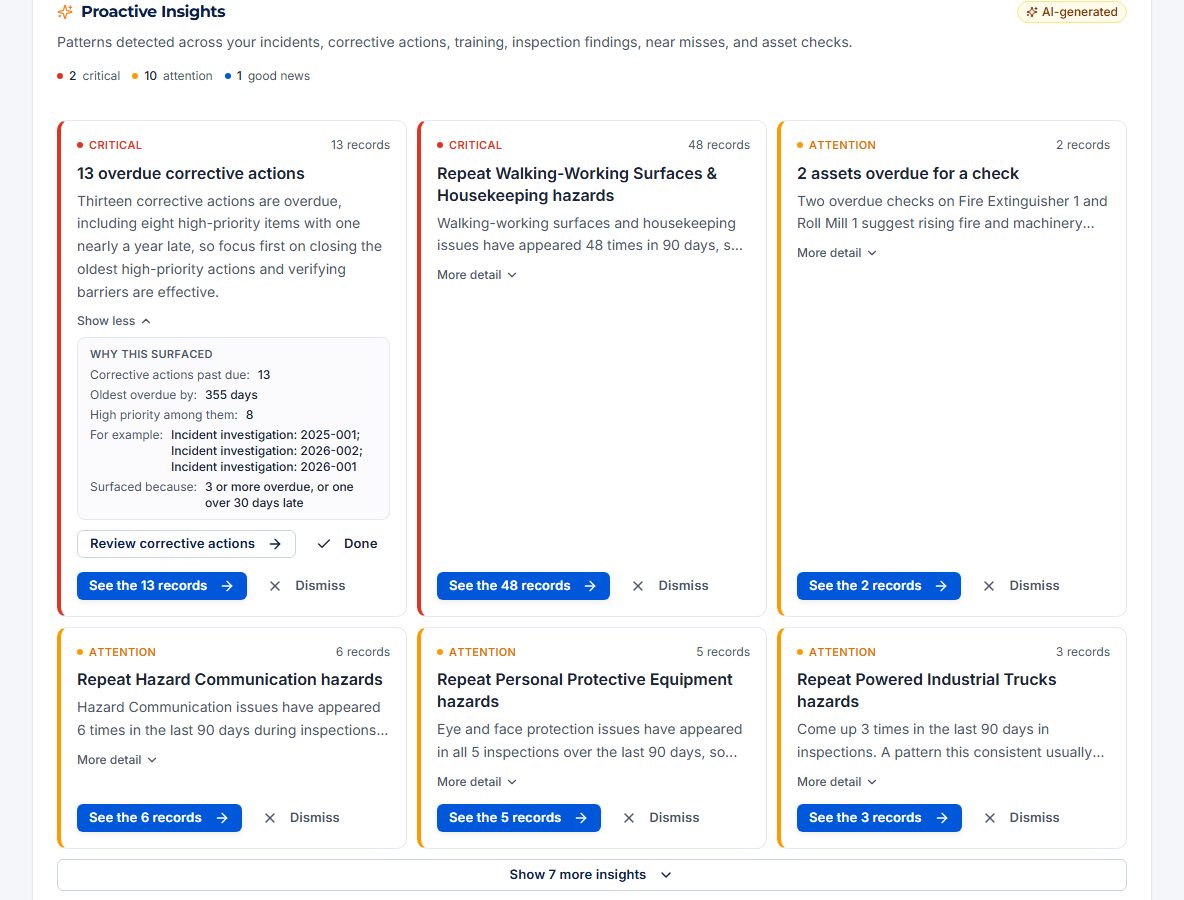
Cards are sorted so the most severe come first. Six show at once, and a button such as Show 4 more insights reveals the rest, with Show fewer to collapse again. A header line counts how many are critical, attention and good news.
Read the face of the card
Each card shows its severity, a title, a two-line explanation, and a record count such as 12 records, or 25 of 31 records when more contributed than are listed.
Open More detail
More detail expands the card to show the full text and a Why this surfaced box. It lists the numbers behind the card, for example how many actions are past due, how many days late the oldest is, and the rule that triggered it.
5The records behind an insight
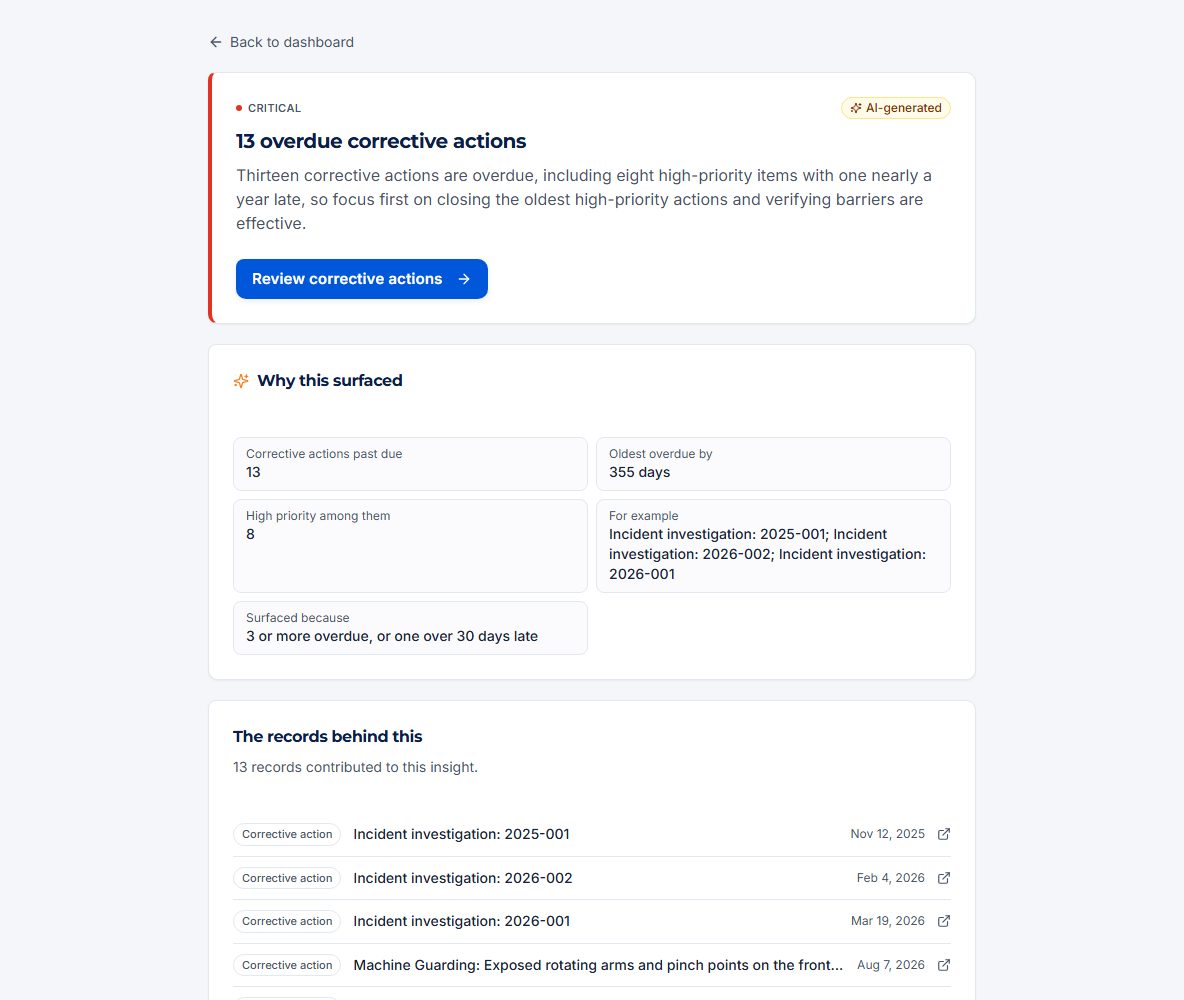
When a card has records, its main button reads See the 12 records (the number matches the records it will list). It opens the insight's own page, which has three parts:
- The title, severity and full explanation, with a button to the right place in ShieldSphere to act, for example Review corrective actions.
- Why this surfaced, as a set of labeled figures.
- The records behind this, a list of each item with a type tag (such as Corrective action or Asset), its name, a date, and a link to open that record. A line says whether you are seeing all of them or, for example, Showing 25 of the 27 records that contributed to this insight.
A Back to dashboard link at the top returns you to the overview. The page keeps working after you clear the card, so a link you saved or shared still opens.
6What to do with an insight
An insight is a prompt to look, not an order. Work through it in this sequence.
Check the evidence
Open the records and confirm the pattern is real. Records link straight to the item, so you can check each one.
Go where the fix happens
Use the action button on the card or the insight page. Where it goes depends on the pattern:
| Overdue corrective actions | The site's Corrective Actions list. See the Corrective Actions guide. |
| Training expirations | The site's Employees page. |
| Training with nothing scheduled, or gone quiet | The site's Training sessions tab, to schedule or run a session. |
| Repeat hazard | The matching section of Trends, with the category highlighted where it can be. |
| Near misses or seasonal incidents | The site's Incidents page. |
| Assets overdue | The site's Assets page. |
| Unlinked attendees | That one training session, to link the names. |
Some patterns, such as the organization-wide incident trend, have no single destination, and their cards have no action button.
Clear the card
On the face of the card, Dismiss removes it with the message Insight dismissed. Inside More detail, Done marks it as acted on. Both take the card off your list, and your name and the time are recorded. Use Done when you handled it and Dismiss when it is not worth acting on.
A card you mark Done or Dismiss goes away for everyone in your organization who can see that location, not just for you. If the same pattern is still true when the next period starts, a new card can appear. Fixing the underlying records is what stops it coming back.
When a card reports an improvement, such as fewer recordable incidents than last year, use it in your management report before you clear it.
7The email digest
If you would rather not check the overview, ShieldSphere can email a summary of new insights across your locations. It goes to owners and admins. Insights always stay visible in the app whether or not you use the digest.
Turn the digest on or off there, and choose a Frequency of Daily, Weekly, Monthly or Annually. The frequency control is available only while the digest is on.
8Troubleshooting
| What you see | What to do |
|---|---|
| No Proactive Insights panel at all | It is not included on your plan, or has not been switched on. Ask your ShieldSphere contact. |
| "Nothing needs your attention right now" | No pattern met a threshold. The check runs daily, so cards appear on their own. |
| "Proactive Insights is a Growth feature." | You opened an insight link on a plan without it. |
| "This insight could not be found. It may have been removed." | The link is wrong, or you do not have access to that location. |
| A card says 25 of 31 records | The page lists up to 25 records per insight. The count in the title is the full total. |
| A card has no action button | That pattern has no single place to fix it. Use the records or the matching module. |
| A card came back after I dismissed it | The pattern was still true in a new period and produced a new card. Resolve the underlying records. |
| A card was labeled "Good news" but is not good news | The lowest level is used for reminders too, such as training that has gone quiet. Read the title rather than the color label. |
| I do not receive the digest | The digest goes to owners and admins only. Check it is on under Notifications. |
Try Proactive Insights in ShieldSphere
Start a free hazard scan and see the platform these guides describe - no credit card required.
Screens captured from the live application in November 2026 using a demonstration site - your screens will show your own data. Because ShieldSphere ships changes regularly, check the version above against the current release before circulating this guide widely. Questions? Contact support.