
Corrective Actions
every problem found, followed through to fixed
How to see every open corrective action at a site or across your whole organization, assign each one to an owner, copy the right people on reminders, let a crew member close an action from their phone without a login, and keep overdue work from slipping.
Short answer
ShieldSphere's Corrective Actions module is the single list of every fix a problem needs, whether it came from an inspection, an incident, a near miss, a hazard scan, an observation or a committee meeting. You assign an owner and a due date, copy supervisors on the emails, and the owner can mark it complete from a link without signing in.
1What Corrective Actions does
Finding a problem is only half the job. A corrective action is the record that someone was asked to fix it, by when, and that it got fixed.
Several parts of ShieldSphere find problems: inspections, incident reports, the AI Hazard Scanner and more. Each of them can raise a corrective action, and every one lands in the same place. That means you do not have to open several modules to answer "what is still open at this site?" There are two views:
Site list
Every action at one location, in any status, with the full set of controls to assign, notify, complete, verify and attach evidence.
Organization view
Open and in-progress actions across every location you can see, with filters for site, source, priority, and who it is assigned to. Click a row to jump into the site list.
Corrective Actions is part of the paid plans, including the Scanner plan. On a plan without it you will see an upgrade prompt instead of the list. Some users have a field seat that does not include this module, and some have no seat assigned yet. In either case the page tells you so, and your administrator can change it. If you expect to have access and do not, ask your ShieldSphere contact to switch it on for your organization.
2Words you'll see
| Word | What it means |
|---|---|
| Open | Raised and not started. |
| In Progress | Someone has started on it. Use Start to move it here. |
| Completed | The owner says the fix is done. |
| Verified | A second person has checked the fix and confirmed it. The last step. |
| Overdue | Still Open or In Progress after its due date. Completed and Verified actions are never overdue. |
| Priority | Critical, High, Medium or Low. The colored bar on the left edge of each row shows it. |
| Source | The module that raised the action. Shown as a small tag on each row. |
| Responsible party | The person who owns the fix. |
| Notification email | Where assignment emails and reminders for that owner go. |
| Also notify | Extra people copied on the assignment email and on every reminder. |
| Completion link | A private link that lets the owner mark an action complete with no login. |
3Where actions come from
Each row carries a source tag so you can tell where it started.
| Source tag | How the action is raised |
|---|---|
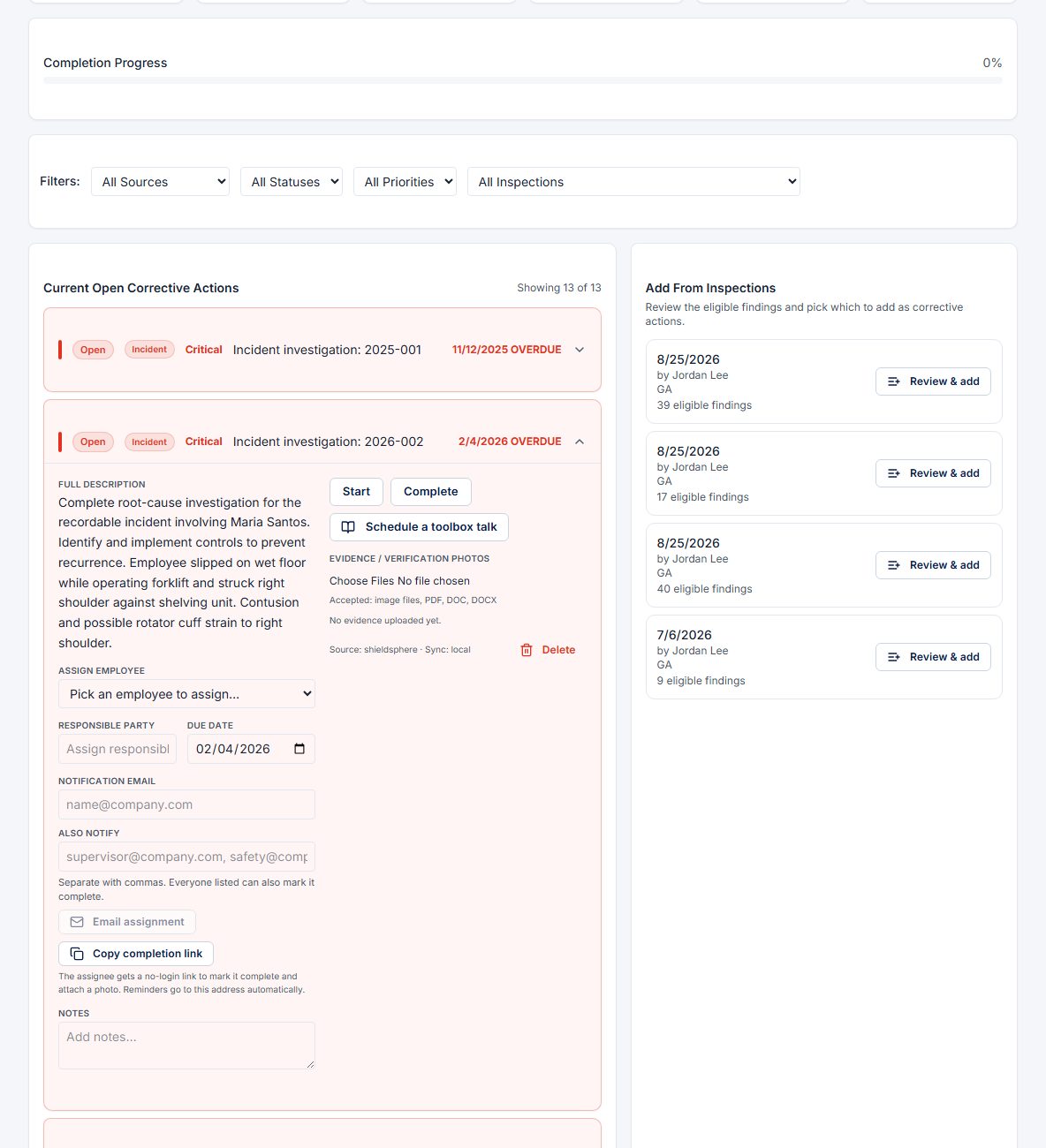
| Inspection | From a finding in an Inspect inspection. On the site list, the Add From Inspections panel shows each inspection with findings that do not yet have an action, with a Review & add button. You pick which findings to turn into actions. |
| ZeroState | From a deficiency on a periodic lockout/tagout inspection. |
| Incident | From an incident report, including actions that come out of a root cause analysis. |
| Near Miss | From a near-miss report. |
| Hazard Scan | From the AI Hazard Scanner. On a scan, choose to create corrective actions, pick who each is assigned to (or leave it unassigned), and confirm. |
| Observation | From a safety observation. |
| Safety Committee | From an action item on a safety committee meeting. |
| Manual | Created by hand. |
When a site has no actions yet, the list explains that actions appear automatically when an incident, lockout/tagout deficiency or hazard scan is logged, or you can generate them from a completed inspection.
If your organization uses SIF classification, confirming a serious injury or fatality event or potential can raise the priority of the related actions and notify site leads without anyone doing it by hand. See the SIF Classification guide.
See also: Safety Observations and Safety Committee, which both feed this list.
4Work the site list
Open the site's list from Corrective Actions in the sidebar, from the Corrective Actions tile on the site overview, or from the Corrective Actions tab of the Compliance Calendar.
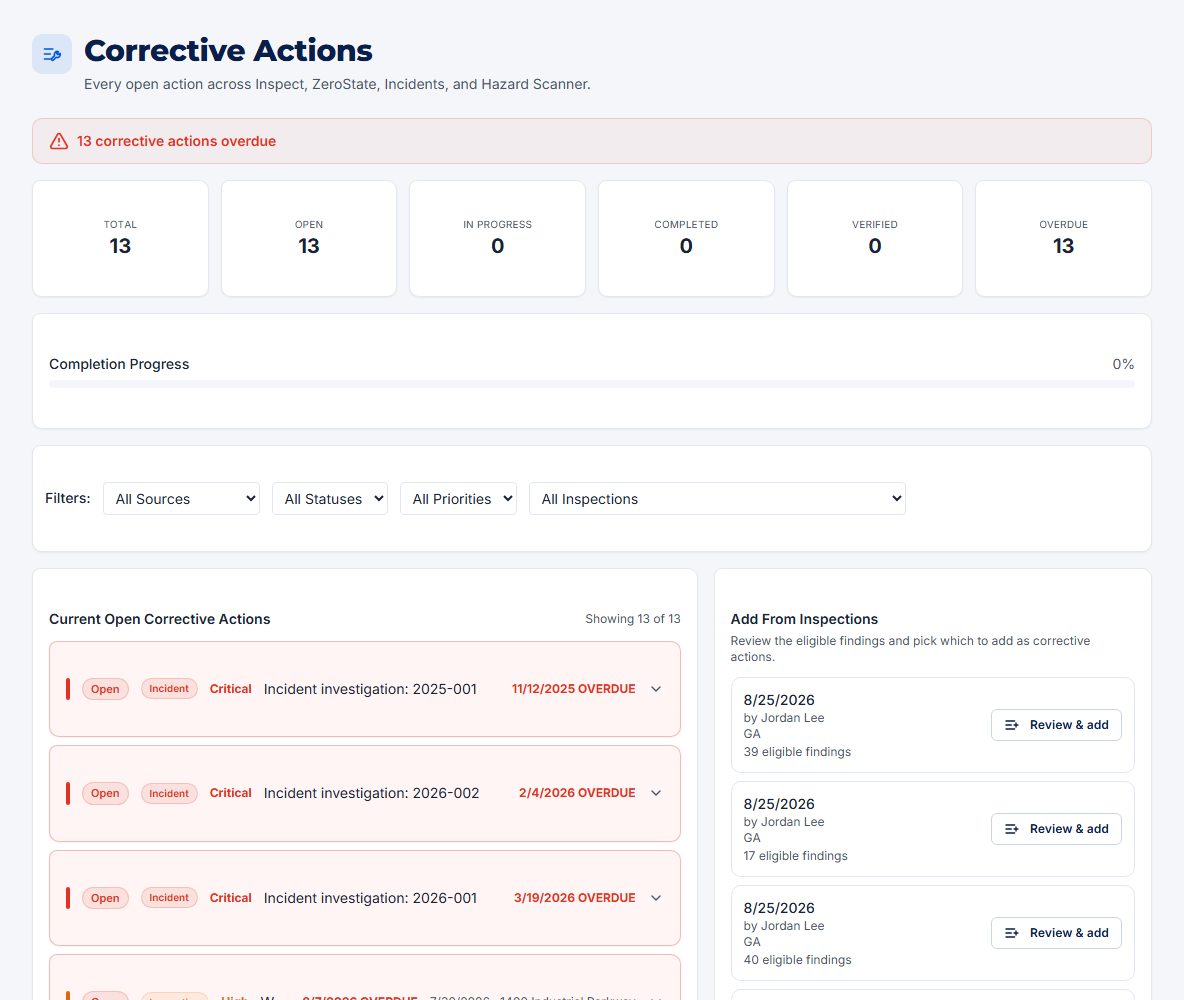
Read the top of the page
- A red banner such as 3 corrective actions overdue appears whenever anything is past due.
- Six tiles show Total, Open, In Progress, Completed, Verified and Overdue. They always describe the whole site, whatever filters are set.
- Completion Progress is the share of actions that are Completed or Verified.
Filter the list
Under Filters, narrow the list with any combination of All Sources, All Statuses, All Priorities and All Inspections. Use Clear to reset. If nothing matches, the list says No corrective actions matching filters.
Open an action
Each row shows its status, source tag, priority, title and due date, with the word OVERDUE beside the date when it is late. Overdue rows are tinted red. Click a row to expand it. Inside you can read the Full Description and change the responsible party, due date, notification email, who to also notify, and Notes. Changes save when you leave the field.
Every expanded action has a Schedule a toolbox talk button. It opens a talk for that location, linked back to the action, so the crew hears about the hazard that was fixed. See Toolbox Talks.
5Assign an action and notify people
Pick the owner
In the expanded action, use Assign Employee to choose from your employee list. This fills in the name and the notification email together. An employee with no email on file is marked (no email). You can instead type any name or role into Responsible Party, which suits an outside contractor.
Set the due date and the email
Choose a Due Date and make sure Notification Email holds a working address. Reminders go to that address automatically.
Copy the right people
In Also Notify, list supervisors or a shared safety inbox, separated by commas. Each person gets the assignment email, every reminder, and a working completion link, and each of them can mark the action complete. Addresses must be valid, a duplicate or the owner's own address is dropped so nobody is emailed twice, and the limit is ten extra people.
Send it
Click Email assignment. A confirmation lists everyone it went to. The button is unavailable until a notification email is set. Prefer to send the link yourself? Click Copy completion link and paste it into a text or chat.
When you create actions from an inspection with Review & add, the same choices appear in that window: pick an employee or Someone else (enter email), add Also notify (optional) addresses, and leave notification on to send the assignment emails as the actions are saved.
6Complete an action without a login
The person fixing the problem is often a contractor, a mechanic or a crew lead who has no ShieldSphere account. The completion link is for them.
The link opens a simple page titled Complete Corrective Action. It shows the action's title, priority and due date, then asks for:
- Your name, so the record shows who did the work.
- A Photo (optional). Take photo opens the phone camera and Choose photo opens the photo library. Photos up to 10MB are accepted.
- A Note (optional) about how it was resolved.
Tapping Mark complete moves the action to Completed, stamps the name and time, and attaches the photo. The page then reads Marked complete. If the same link is opened again, it says the action has already been marked complete and nothing more is needed.
The person who raised the action is emailed when it is completed, whether it was completed from the link or inside ShieldSphere. They are not emailed about their own completions. Each user can turn this off under Corrective Action Completions in their notification settings.
Anyone holding the link can mark that one action complete, and only that action. It does not expose anything else in your account. Send it to the owner, not to a group chat. Completing from the link never verifies the action: a second person still checks the fix, as described next.
7Close the loop: complete, verify, evidence
Inside the expanded action, the buttons you see depend on its status.
| Button | What it does |
|---|---|
| Start | Shown on Open actions. Moves the action to In Progress. |
| Complete | Shown on Open and In Progress actions. Asks for your full name to confirm, then moves the action to Completed and records who and when. |
| Verify | Shown on Completed actions. Asks for your full name, then moves the action to Verified and records who and when. |
| Delete | Removes the action after you confirm. If it came from an inspection, that finding becomes available to add again. |
A Verified action shows a Verified mark and no more status buttons. The completed-by and verified-by lines with their dates sit under the buttons, so the record shows who did what.
Use Evidence / Verification Photos to attach files that prove the fix. Image files, PDF, DOC and DOCX are accepted, and you can choose several at once.
Verification is worth most when it is not the same person who did the work. Have the supervisor or safety manager verify, and ask for a photo before they do.
8Reminders and overdue work
ShieldSphere sends reminders for you once an action has a due date and a notification email (or an assigned user with an account).
- Due soon. A reminder goes out when the due date is within three days. It is sent once for each due date, so moving the date out re-arms it.
- Overdue. A reminder repeats about every seven days until the action is completed.
- One email per person. Someone who owns several actions gets one digest listing them, not one email each. The digest lists up to 15 and points to the dashboard for the rest.
- Copied people. Everyone in Also Notify receives the same reminders.
- It does stop. Once an action has been overdue for 90 days, the emails stop so recipients do not learn to ignore them. The action stays open and stays visible in both views, and it still counts as overdue.
Only Open and In Progress actions are reminded about. An action with no due date is never overdue and is never reminded about, so give every action a date.
9See the whole organization
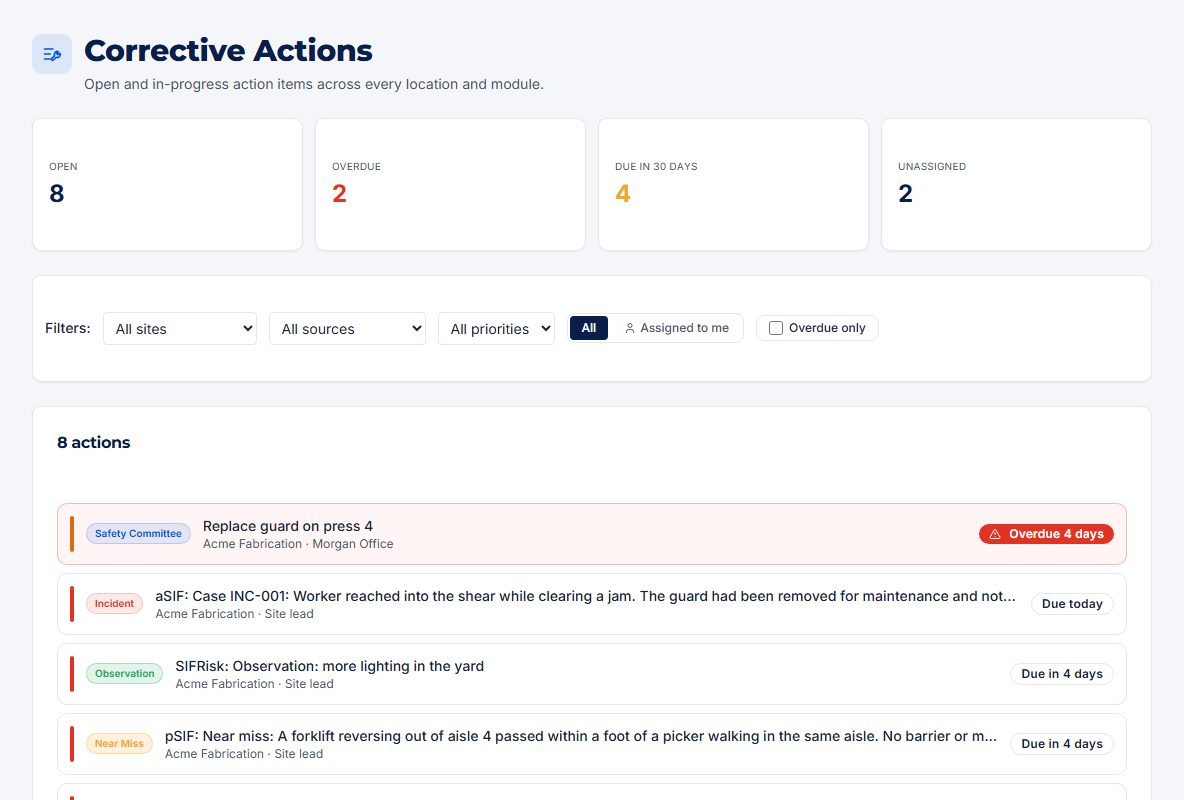
The organization view lists open and in-progress actions across every location you can see. It is reached from the Corrective Actions tab of the Compliance Calendar, or by saving its link as a bookmark.
| Tile | What it counts |
|---|---|
| Open | Every open or in-progress action in view. |
| Overdue | The ones past their due date. |
| Due in 30 days | Not yet late, but due within the next 30 days. |
| Unassigned | No responsible person recorded. |
Under Filters, choose All sites, All sources and All priorities, switch between All and Assigned to me, or tick Overdue only. Clear resets them. Each row shows the source tag, title, location, owner and a due label such as Due tomorrow or Overdue 4 days. Click any row to open that site's list, where you can make changes. The organization view is for reading and routing, not for editing.
Assigned to me matches actions assigned to your user account. An action whose owner was typed in as a plain name will not appear there.
10Troubleshooting
| What you see | What to do |
|---|---|
| An upgrade prompt instead of the list | Corrective Actions is not on your current plan. Ask your ShieldSphere contact to switch it on. |
| "Not included for field users" or "No seat assigned yet" | Your seat does not cover this module. Ask your administrator. |
| "Email assignment" is greyed out | The action has no notification email. Enter one first. |
| "Not a valid email address" under Also Notify | Fix or remove the address named. A mistyped address is never silently dropped, so you do not think someone was copied when they were not. |
| The completion link says it is missing information or no longer valid | The link was cut short when copied, or the action was deleted. Copy a fresh link from the action. |
| The completion link says it was already completed | Someone already used it. Check the action in the site list. |
| A photo will not upload | Photos must be 10MB or smaller. Take or choose a smaller one. |
| An action is missing from the organization view | That view shows only Open and In Progress. Completed and Verified actions appear in the site list. |
| An inspection is missing from Add From Inspections | Every finding on it already has an action, or it has no findings to add. |
| No reminders are arriving | Check the action has a due date and a notification email, and that it has not been overdue for more than 90 days. |
Try Corrective Actions in ShieldSphere
Start a free hazard scan and see the platform these guides describe - no credit card required.
Screens captured from the live application in November 2026 using a demonstration site - your screens will show your own data. Because ShieldSphere ships changes regularly, check the version above against the current release before circulating this guide widely. Questions? Contact support.