
SIF Classification
the few events that could have been life-altering, found first
How ShieldSphere suggests an ASTM E2920 serious injury and fatality classification for your incidents, near misses, observations, hazard scan findings and failed inspection items, how your team confirms or changes each suggestion, and how to read the SIF dashboard. For safety managers and site supervisors.
Short answer
ShieldSphere's SIF Classification module suggests an ASTM E2920 serious injury and fatality classification for each incident, near miss, observation, hazard scan finding and failed inspection item. Your team reviews every suggestion and makes the final call. Only confirmed classifications count on the SIF dashboard or trigger escalation. It is available on Growth and Enterprise plans.
1What SIF Classification does
Most injuries are minor. A few events, or a few conditions, could have ended a life or changed one for good. SIF Classification helps you pick those out and act on them first.
SIF stands for serious injury and fatality. ShieldSphere reads the facts of a record and suggests where it falls on the severity scale in the ASTM E2920 standard guide. You see the suggestion with a short plain-language reason. Your safety professional then confirms it or changes it. ShieldSphere flags, you decide.
Every suggestion is labeled Suggested by ShieldSphere and carries the line Your safety professional makes the final call. A suggestion never escalates, never counts on the dashboard, and is never written over a review a person has already made.
Who can use it
| Who | What they can do |
|---|---|
| Owners, admins and members | See classifications, confirm a suggestion, and edit and save a classification. Members see only the sites they have access to. |
| Viewers | Read classifications, but cannot confirm or change them. |
| Owners and admins only | Turn the escalation email on or off, and add the starter SIFRisk checklists to Inspect. |
SIF Classification is available on Growth and Enterprise plans, and it is switched on for each organization separately. If you cannot see it, ask your ShieldSphere contact to switch it on. There is no upgrade prompt, because the module simply does not appear until it is on.
2Words you'll see
| Word | What it means |
|---|---|
| Level 1: aSIF | An actual serious injury or fatality. A clear workplace connection with life-ending, life-threatening or life-altering consequences. |
| Level 2: Priority | Not an actual SIF, but a clear workplace connection with significant consequences. Elevated to a key performance indicator. |
| Level 3: Regulatory | Cases generally recorded to satisfy OSHA or local law. |
| Level 4: Minor / Near miss | First-aid cases and near misses that do not reach Level 1 to 3. |
| pSIF | Potential SIF. No SIF occurred, but the event had realistic potential for life-altering harm absent a safeguard or luck. Applies to incidents and near misses at Level 2, 3 or 4, never Level 1. |
| SIFRisk | A condition, with no incident yet, that carries the energy or potential to cause an aSIF if left uncorrected. Applies to observations, scan findings and failed inspection items. |
| Energy involved | The kind of energy at play: gravity, motion / mobile equipment, mechanical, electrical, pressure, temperature, chemical, biological, radiation or sound. Optional. |
| Direct control | Yes, No or Unknown. A direct control targets the specific hazard source, works even when someone makes a mistake, and was installed and verified at the time. PPE alone and training alone are not direct controls. Optional. |
| Needs review | No classification has been suggested or confirmed yet. |
| Confirmed / Edited and confirmed | A person kept ShieldSphere's suggestion (Confirmed), or changed it (Edited and confirmed). |
Events (incidents and near misses) get one level from 1 to 4, plus a pSIF yes or no. Conditions (observations, scan findings, failed inspection items) get no level. They get a SIFRisk yes or no instead.
The screens label the module ASTM E2920-26 and the level names above are the ones ShieldSphere shows. For anything beyond that, such as the standard's full wording, refer to the standard itself.
3Where suggestions come from
You do not run a classification. When one of these records is created, ShieldSphere prepares a suggestion in the background, usually within a few seconds. Until it arrives, the record shows SIF: Needs review.
Incidents
Recordable incidents on the OSHA 300 log. Because every recordable case is on the log, an incident is suggested at Level 3 or higher.
Near misses
Suggested with a level and a pSIF answer. A near miss with no higher level is suggested at Level 4.
Observations
Safety Observations are suggested a SIFRisk answer. Safe behavior reports are not classified.
Hazard Scanner findings
Each finding in a scan is classified on its own. Scans with no site are not classified.
Failed inspection items
A No answer on an Inspect checklist item that fails. If the item is later changed off Fail, an unreviewed suggestion goes away.
Only the facts of what happened are sent for the suggestion. Employee names, addresses, dates of birth, physicians and contact details are not.
Where you see a classification
- Incidents and near misses: a SIF badge on each row, and the full classification card when you open the record.
- Safety Observations: the classification card in the triage panel, and a badge on list rows.
- Hazard Scanner: a badge on each finding.
- Inspect: a badge on each failed checklist item.
Clicking a badge on an incident, near miss, scan finding or failed item opens the card so you can review it right there.
SIF review and the SIF dashboard are reached from buttons at the top of the Incidents page and of a site's Safety Observations page. When you arrive from a site, the screen opens filtered to that site.
4Review a suggestion
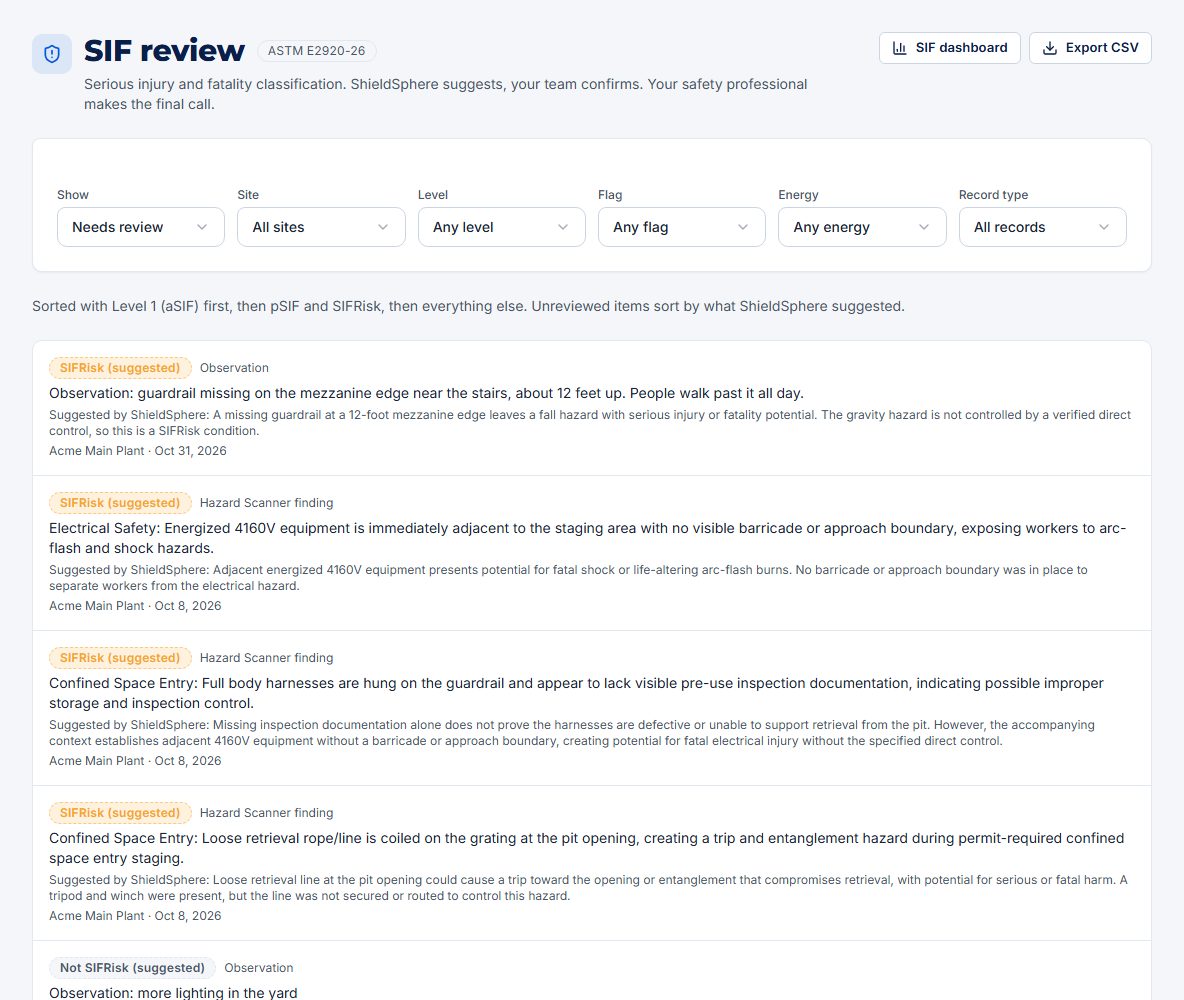
The review queue is the one place to work through everything waiting. Open it from the SIF review button on the Incidents page.
Find what needs you
The queue opens on Needs review. Use the filters to narrow it: Show (Needs review, Reviewed or Everything), Site, Level, Flag (pSIF or SIFRisk), Energy and Record type. The list is sorted with Level 1 (aSIF) first, then pSIF and SIFRisk, then everything else. Unreviewed items sort by what ShieldSphere suggested.
Open an item
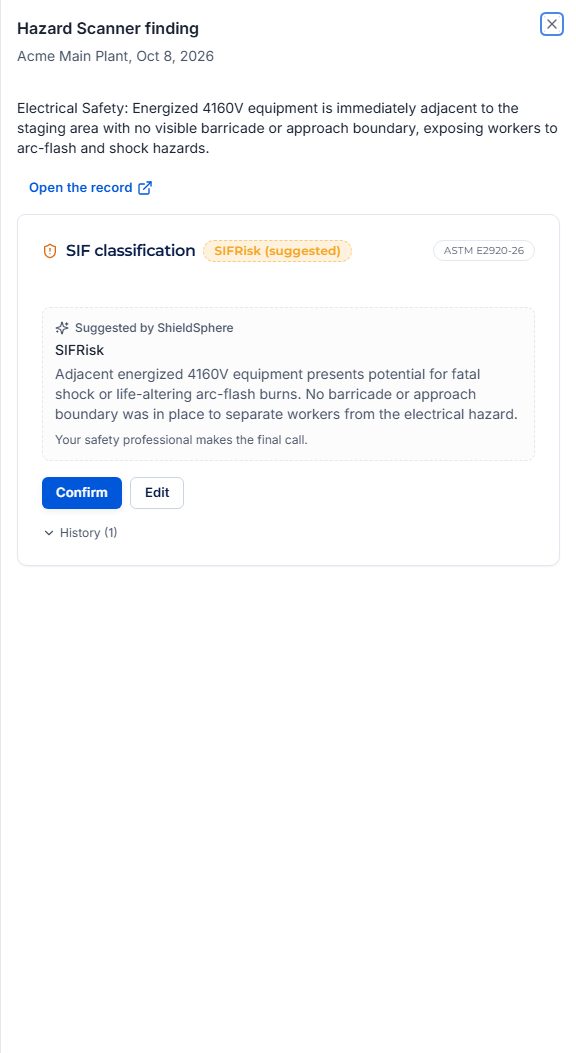
Click a row. A panel opens with the record's summary, an Open the record link when one is available, and the SIF classification card.
Read the suggestion and its reason
Under Suggested by ShieldSphere you see the suggested level and pSIF answer for an event, or SIFRisk / Not a SIFRisk for a condition, with a short rationale. If no suggestion is there yet, the card reads Needs review and offers Ask ShieldSphere to suggest.
Confirm it, or change it
Click Confirm to accept the suggestion as it stands. Or click Edit (or Classify, if there is no suggestion) to set your own answer, then Save. Once a classification is reviewed, the button reads Change.
When you edit
For an event, choose one Severity level (1 to 4) and set the pSIF switch. For a condition, set the SIFRisk switch. Then optionally pick the Energy involved, answer Direct control in place and add Notes. The energy and direct control answers help explain the classification. They do not decide it.
| Rule | What you will see |
|---|---|
| pSIF at Level 1 | The switch is turned off and locked. An actual SIF already occurred. |
| Incident at Level 4 | A warning that the incident is on the OSHA 300 log, which usually means Level 3 or higher. You can still choose Level 4. |
| Invalid combination | A message in red, and Save stays disabled until it is fixed. |
If you kept ShieldSphere's level and flag, the record is Confirmed. If you changed the level, pSIF or SIFRisk answer, it is Edited and confirmed. Changing only energy, direct control or notes does not change the status. The card shows who confirmed it and when, and a History list at the bottom records each change.
If you see An owner, admin or member of your organization can confirm this, your role is read-only. Ask someone with one of those roles to review it.
5What happens when you confirm
Confirming or saving a classification that is Level 1 (aSIF), pSIF or SIFRisk starts an escalation. It happens once per classification, so confirming twice or two people confirming at the same moment does not send twice.
| Step | What ShieldSphere does |
|---|---|
| Raise linked corrective actions | Every open or in-progress corrective action linked to the record is raised to critical priority. |
| Draft one if there is none | If the record has no corrective action at all, a new open one is created with critical priority and responsible party "Site lead". It is due in 2 days for an aSIF and 7 days otherwise. |
| Completed actions only | If the record only has completed corrective actions, nothing new is created and the email asks you to check they still control the hazard. |
| Org owners and admins, plus members assigned to that site, are emailed. Level 1 emails are sent right away and marked URGENT. Deactivated users are skipped. |
After you confirm, a message tells you what happened: Confirmed. Urgent escalation sent., Confirmed. Escalation sent., or plain SIF classification saved when there was nothing to escalate. If a step fails you see Saved, but the escalation did not finish. Save again to retry. Retrying is safe and will not create a second corrective action.
For more on the corrective actions themselves, see the Corrective Actions guide.
An owner or admin can turn the escalation email off (see section 7). Raising corrective actions to critical still happens. Where an email is skipped on purpose, for example because it is turned off or there are no recipients, ShieldSphere does not treat it as a failure.
6The SIF dashboard
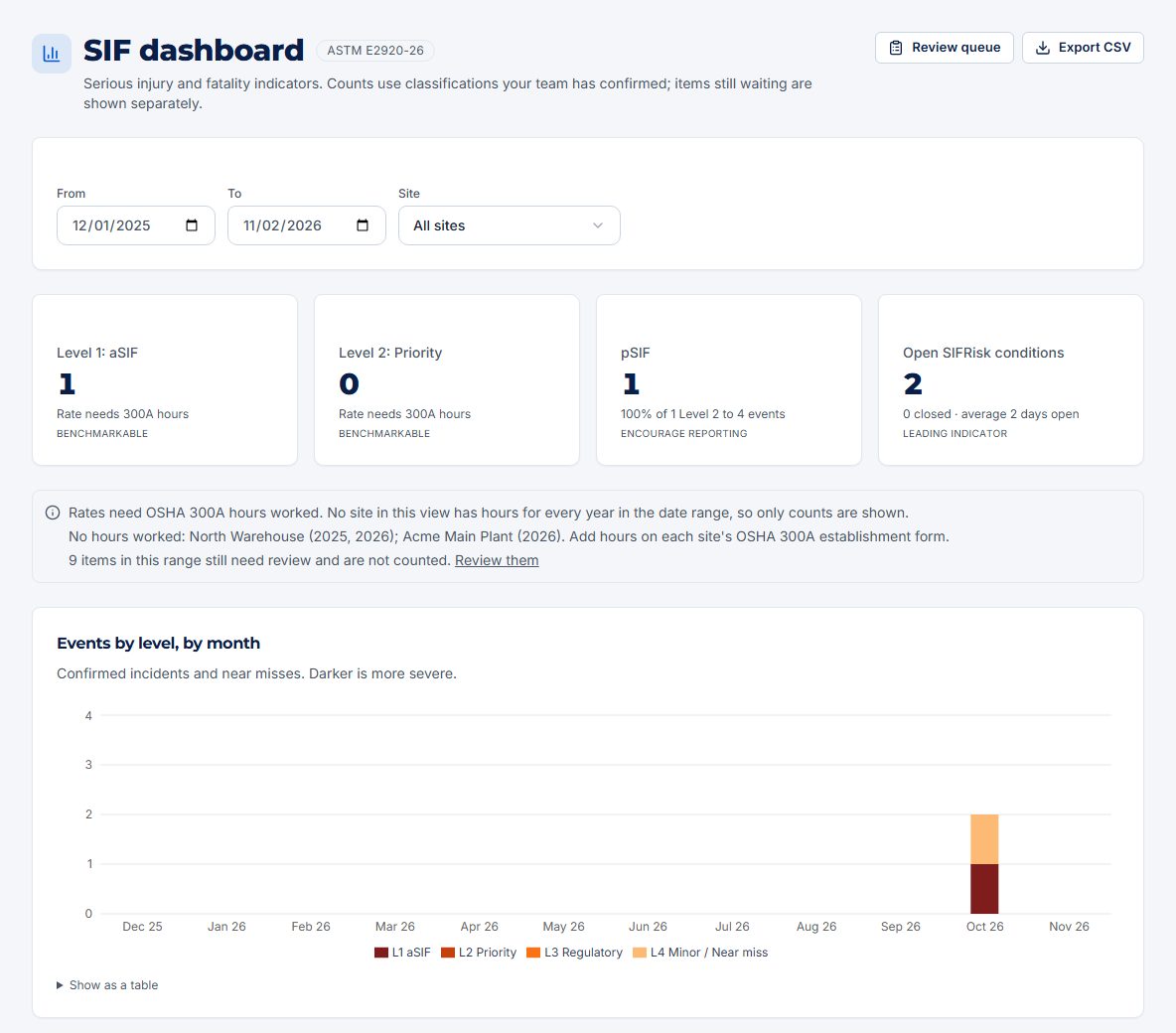
The dashboard turns confirmed classifications into indicators. Open it from the SIF dashboard button on the Incidents page or the SIF dashboard button on the review queue.
It counts only classifications your team has confirmed. Items still waiting are not counted. If any fall in the date range, a line tells you how many and links to Review them.
Filters
From and To dates (the default is the last twelve months) and Site.
The four tiles
| Tile | What it shows |
|---|---|
| Level 1: aSIF | The count, and a rate per 200,000 hours worked. Tagged Benchmarkable. |
| Level 2: Priority | The count, and a rate per 200,000 hours worked. Tagged Benchmarkable. |
| pSIF | The count, and the share of Level 2 to 4 events. Tagged Encourage reporting. More pSIF reports is a good sign, not a bad one. |
| Open SIFRisk conditions | How many are open, how many are closed, and the average days open. Tagged Leading indicator. |
The aSIF and Priority rates use the hours worked entered on each site's OSHA 300A establishment form. Without hours the tile reads Rate needs 300A hours. A site missing hours for any year in the range is left out of the rate entirely and named on the screen, so the rate never reads higher than it should. Hours are prorated to the date range you chose.
Below the tiles
- Events by level, by month: confirmed incidents and near misses, stacked by level. Darker is more severe. Show as a table gives the same numbers in a table.
- pSIF by month.
- Open SIFRisk conditions: oldest first, with site, days open and corrective action status. A condition with no linked corrective action reads None yet. A condition counts as closed when it has at least one linked corrective action and all of them are completed or verified.
- By energy type: aSIF, Priority and pSIF events, and SIFRisk conditions. Level 3 and 4 events without pSIF are left out to keep this view on serious potential.
- By site: aSIF, Priority, pSIF, open SIFRisk and Needs review for each site.
7Settings, checklists and export
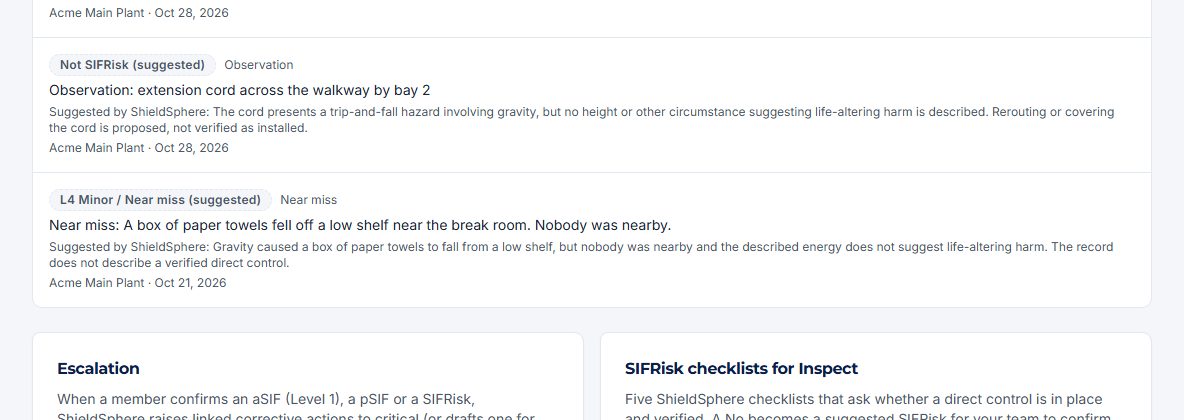
Two settings panels sit at the bottom of the review queue.
Escalation
The Send escalation email switch turns the escalation email on or off for your organization. Only owners and admins can change it. Everyone else sees it greyed out with Only owners and admins can change this.
SIFRisk checklists for Inspect
ShieldSphere provides five starter checklists that ask whether a direct control is in place and verified: hazardous energy / LOTO, fall protection, mobile equipment and pedestrian separation, confined space, and electrical energized work. Each answer is Yes, No or N/A. A No on one of these checklists becomes a suggested SIFRisk for your team to confirm.
An owner or admin clicks Add all five to Inspect (or Add the missing ones to Inspect). Others see An owner or admin can add these to Inspect. Once added, the checklists appear in your Inspect checklist library. See the Inspect guide for how to run them.
Export to CSV
Both the review queue and the dashboard have an Export CSV button. From the queue it exports the records that match your filters, reviewed ones included. From the dashboard it exports everything in the chosen date range and site.
8Troubleshooting
| What you see | What to do |
|---|---|
| No SIF buttons, badges or pages anywhere | SIF Classification is not switched on for your organization, or your plan does not include it. Ask your ShieldSphere contact to switch it on. It is available on Growth and Enterprise plans. |
| A badge says "SIF: Needs review" for more than a minute | Open the record and click Ask ShieldSphere to suggest. You can also just click Classify and set your own answer. |
| I cannot see Confirm or Edit | Only owners, admins and members can review. Viewers read only. |
| Save is greyed out | Read the red message on the card. The combination of level, pSIF and SIFRisk is not allowed, for example pSIF at Level 1. |
| "Saved, but the escalation did not finish" | Your classification is saved. The corrective action update or the email failed. Click Save again to retry. |
| Rate tiles say "Rate needs 300A hours" | Enter hours worked on each site's OSHA 300A establishment form. |
| A record is missing from the queue | Deleted incidents are not listed. A reviewed classification on an incident that was changed between near miss and recordable stays out of the lists while the record is the other type, and returns if it is changed back. Members also see only the sites they can access. |
| Dashboard says it hit its row limit | Narrow the date range or pick one site for exact numbers. |
Related guides: Incidents, Safety Observations, Hazard Scanner, Inspect, Corrective Actions and Proactive Insights.
Try SIF Classification in ShieldSphere
Start a free hazard scan and see the platform these guides describe - no credit card required.
Screens captured from the live application in November 2026 using a demonstration site - your screens will show your own data. Because ShieldSphere ships changes regularly, check the version above against the current release before circulating this guide widely. Questions? Contact support.