
Safety Observations
what your crew sees, turned into fixes
How to let anyone on site report a hazard, an unsafe act, good safe work or an idea from a phone, how to review each report, and how to turn real problems into corrective actions. Written for safety managers and site supervisors.
Short answer
ShieldSphere Safety Observations lets anyone at a site report an unsafe condition, an unsafe act, good safe work or an idea from a phone, by scanning a QR poster or using the employee portal. Safety staff review each report, set where it stands, and turn real problems into tracked corrective actions.
1What Safety Observations does
Your crew sees more than your inspections do. This module gives them an easy way to tell you.
Each site has its own list of observations. Reports arrive from three places: a QR poster anyone can scan without logging in, the employee portal, and staff typing one in on the dashboard. Whatever the source, every report lands in the same list, where you review it and decide what happens next.
Safety Observations is included with the Growth plan, the same plan that includes Incidents. Owners, admins and members can add observations, change their status and raise corrective actions. Viewers can see the list but not change anything. Employees report through the portal and see only their own reports. There is no sidebar entry; you reach it from the Safety observations card on the site overview.
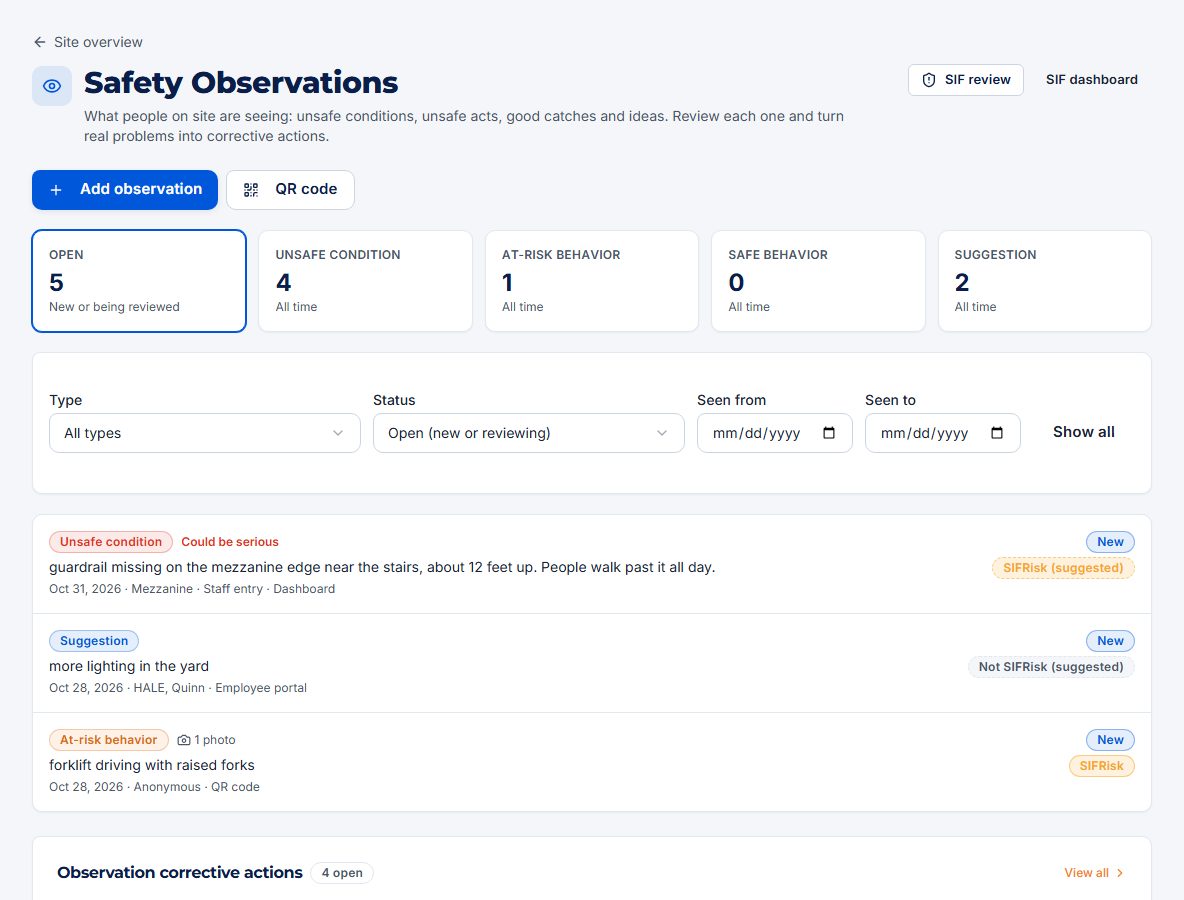
2Words you'll see
| Word | What it means |
|---|---|
| Unsafe condition | Something at the site could hurt someone. A spill, a missing guard, a blocked exit. |
| Unsafe act (At-risk behavior) | Someone working in a way that could get them hurt. Reporters see it as "Unsafe act"; your list calls it "At-risk behavior". |
| Good catch / safe work (Safe behavior) | Someone did it right. Reporters pick "Good catch / safe work"; your list calls it "Safe behavior". |
| Idea (Suggestion) | A way to make the job safer or easier. |
| New | Nobody has looked at it yet. |
| Reviewing | Someone is looking into it. |
| Action assigned | A corrective action has been raised for it. |
| Closed | Dealt with. The time of closing is recorded. |
| Dismissed | Looked at and no action is needed. Add a note saying why. |
| Open | A filter that means New or Reviewing together, the reports that still need attention. |
| Could be serious | A red flag in the list on reports where the reporter said the outcome could be high severity. |
3Set up the QR poster
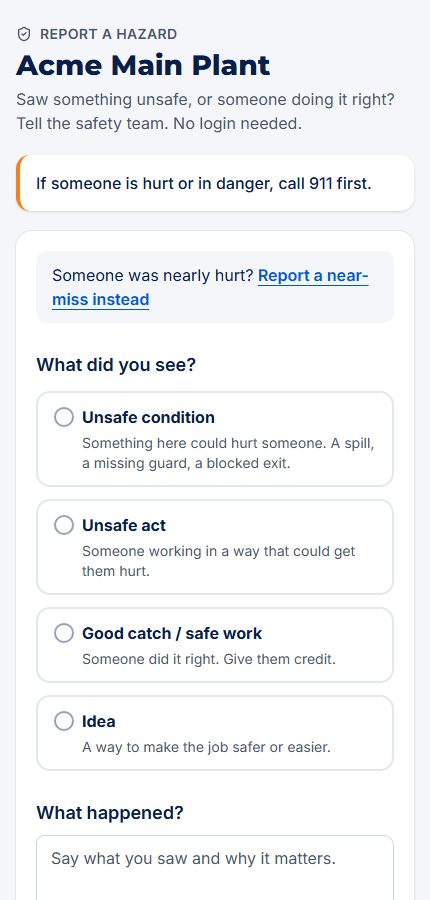
The poster is a printable page with a QR code. Anyone who scans it reaches a short form for your site, with no account needed. They see only the site name and the form.
The QR link works only if public reporting links are turned on for your organization. If they are not, the QR window says so and the Turn on QR link button is unavailable. Ask your ShieldSphere contact to switch it on. Reporting through the employee portal does not depend on this.
Open the QR window
On the Safety Observations page, choose QR code. The window is called QR code for this site and shows a status: Not set up, On: the poster works, or Off: old posters show "not active".
Turn it on
Choose Turn on QR link. The QR code appears with the link underneath and a copy button. If you turned it off earlier, the button reads Turn QR link back on.
Print the poster
Choose Print poster to download a PDF named for your site. Hang it where people work: the break room, the dock, the gate.
Make a new link, or turn it off
If a poster was copied or put somewhere it should not be, choose Make a new link. Every poster printed before that moment stops working, and you will need to print and hang new ones. Choose Turn off to stop reports from the QR code altogether; old posters then show a "not active" message. Only owners, admins and members see these buttons.
If your organization's billing is paused, the form tells people reporting is paused and to tell a supervisor in person. Reporting resumes when the account is back in good standing.
4How people report
The form is built for a phone and a gloved thumb: big buttons, few questions.
The same form is used by the QR page, the portal, and the dashboard. It asks, in order:
| Question | Notes |
|---|---|
| What did you see? | Required. Pick one of the four types. |
| What happened? | Required. A few words at least. |
| Where? | Optional. For example, "Dock 3" or "north stairwell". |
| How bad could it get? | Optional, and only for unsafe conditions and unsafe acts. Low (minor first aid at worst), Medium (someone could miss work) or High (serious injury or worse). |
| Photos | Optional, up to three. Phones offer the camera or the photo library. |
| Report anonymously | When on, no name or contact is saved. When off, the QR form offers optional name and contact fields. |
When the report is sent, the reporter sees Thanks. Your report is in. with a button to report something else. When your organization has a near-miss form live, the form also links to it for the case where someone was nearly hurt. Every public page reminds people to call 911 first if someone is hurt or in danger.
From the employee portal
Employees signed in to the portal find a Report a Hazard page. Their name is attached automatically, unless they choose to report anonymously. Below the form, My reports lists what they have sent and where each one stands, in plain words:
| Your status | What the employee sees |
|---|---|
| New | Sent |
| Reviewing | Being looked at |
| Action assigned | Being fixed |
| Closed | Closed |
| Dismissed | Closed, no action |
Anonymous reports do not appear in My reports, and employees never see each other's reports. The portal page is for employees only, and only while hazard reporting is switched on for the site in its portal settings. It is on by default.
5Review what comes in
Start with the Open tile
The page opens filtered to Open, the reports that are New or Reviewing, with the count on the first tile. The other tiles count each type; click one to filter by it, and click it again to clear. The site overview card also shows how many reports are waiting.
Narrow the list if you need to
Use Type, Status, Seen from and Seen to. Show all clears every filter. The list shows the newest 500; narrow the dates to see older ones.
Open a report
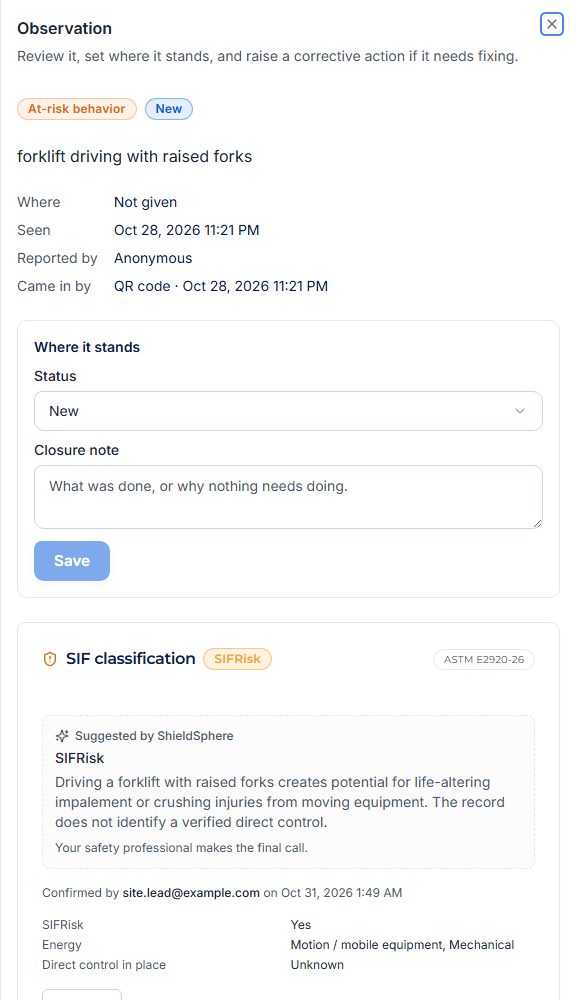
A side panel called Observation shows the full description, where and when it was seen, who reported it (or Anonymous), how it came in (QR code, Employee portal or Dashboard), and any photos. Click a photo to open it larger.
Set where it stands
In Where it stands, change the Status and add a Closure note saying what was done or why nothing needs doing. When you choose Dismissed, the note label asks you to say why no action is needed. Choose Save. The time of first review and the time of closing are recorded for you.
Add one yourself
Choose Add observation (owners, admins and members) to log something you or a worker saw. The form is the same, with two extras: When was it seen? and Who reported it?. Entries with no name show as "Staff entry".
Use the Safe behavior tile to find reports that recognize good work. Closing them with a note such as "recognized at the Monday meeting" tells your crew that reporting what goes right is worth the effort.
6Turn an observation into a corrective action
A real problem should become tracked work with an owner and a date. You do that from inside the report.
Choose Create corrective action
In the side panel, under Corrective actions, choose Create corrective action. The form is filled in from the report: the title starts with the type and the first line of the description, and the description carries the location and date seen.
Check and complete it
Edit the Title and What needs to happen if you want to. Priority is pre-set from the severity the reporter chose: High becomes High, Low stays Low, anything else is Medium. You can change it to Critical, High, Medium or Low. Add a Due date, Who owns it and Their email.
Create it
Choose Create corrective action. The action appears in the panel as a link that opens it on the Corrective Actions page. If the observation was New or Reviewing, its status moves to Action assigned. A report that is already Closed or Dismissed keeps its status.
You can raise more than one action from a single report. Below the list on the Safety Observations page, Observation corrective actions shows the open actions that came from observations at this site. See the Corrective Actions guide for how actions are worked and verified.
If an observation describes something that could have caused a serious injury, see the SIF Classification guide. If someone was actually hurt, record it in Incidents instead. See the Incidents guide.
7Troubleshooting
| What you see | What to do |
|---|---|
| A Growth plan prompt instead of the list | Safety Observations comes with the Growth plan. Ask your ShieldSphere contact about upgrading. |
| "Public reporting links are not turned on for your organization" | Ask your ShieldSphere contact to switch it on. Portal reporting still works in the meantime. |
| The QR page says "This reporting link is not active" | The link was turned off, or a new link was made and this is an old poster. Turn it back on, or print the new poster. |
| The form says reporting is paused | The organization's billing is paused. Tell people to report to a supervisor until it is resolved. |
| No Add observation button, and no Save in the side panel | Your role is Viewer. Only owners, admins and members can change observations. |
| An employee cannot see Report a Hazard in the portal | Only employees see it, it must be on in the site's portal settings, and the employee must be linked to a site. Ask your safety admin to check. |
| An employee does not see their report in My reports | They sent it anonymously. Anonymous reports are never listed there. |
| "Nothing matches these filters" | The Open filter hides closed reports. Choose Show all. |
| The photos will not send | Remove one and try again. Up to three photos are accepted, and a weak signal can stop a large upload. |
Try Safety Observations in ShieldSphere
Start a free hazard scan and see the platform these guides describe - no credit card required.
Screens captured from the live application in November 2026 using a demonstration site - your screens will show your own data. Because ShieldSphere ships changes regularly, check the version above against the current release before circulating this guide widely. Questions? Contact support.