
Safety Committee
the roster, the meetings and the minutes in one place
How to set up a site's safety committee, keep the member roster balanced, schedule meetings, take attendance, write and finalize minutes, track action items, and share the finalized minutes with employees. Written for safety managers and site supervisors.
Short answer
ShieldSphere Safety Committee lets you run a site's safety committee in one place. Keep the roster of worker and management members, schedule meetings and see when the next is due, take attendance against a quorum rule, write and finalize minutes as a PDF, turn decisions into tracked action items, and share finalized minutes with employees.
1What Safety Committee does
A committee is only as good as its follow-through. This module replaces the binder and the shared drive with one record.
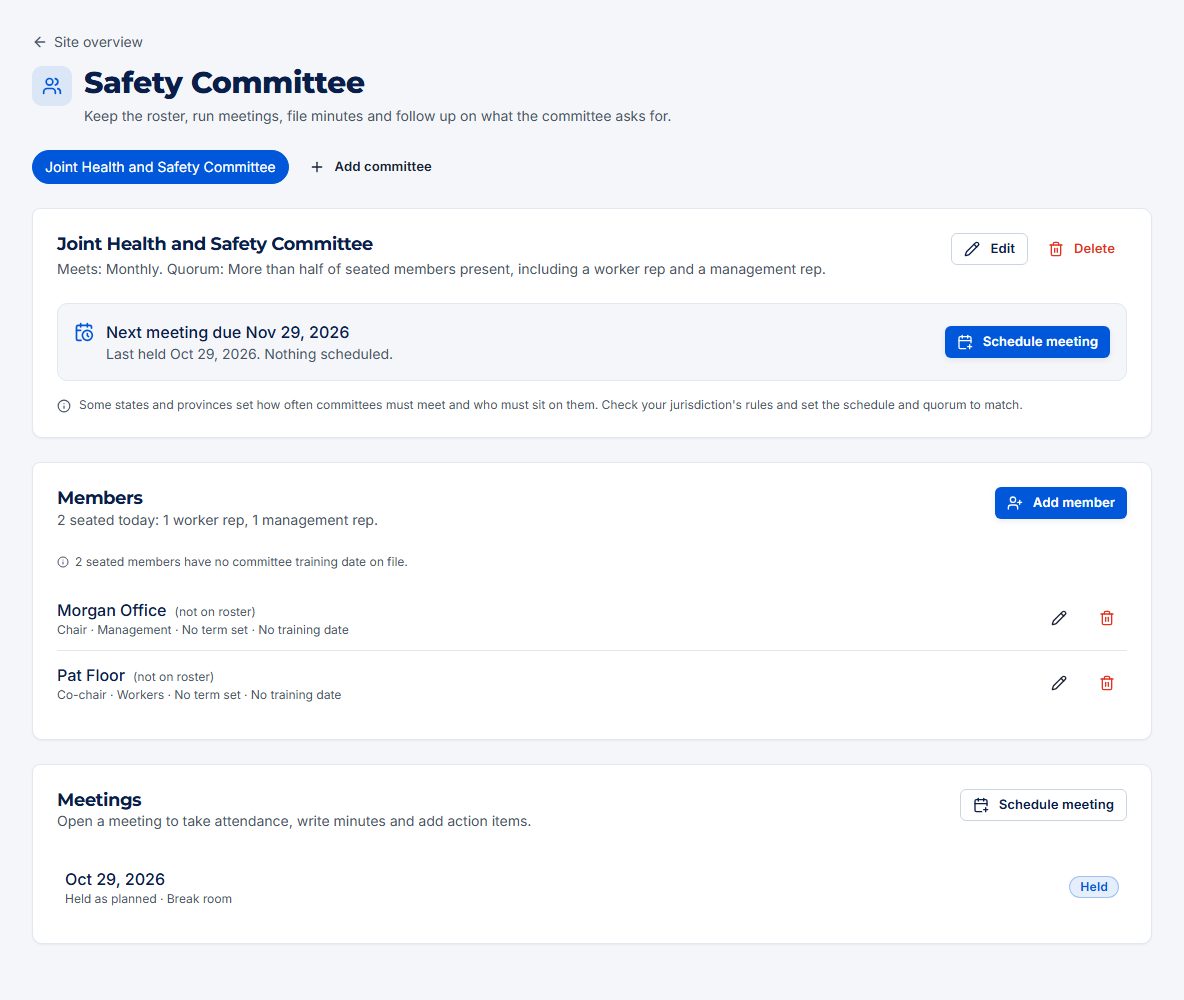
Each site can have one or more committees. For each one you keep the members, set how often it meets and what counts as a quorum, hold meetings, and file minutes. When a meeting decides something needs doing, you add it as an action item, and it is tracked like any other corrective action.
Safety Committee is included with the Growth plan, the same plan that includes Incidents. Owners, admins and members can set up committees, edit the roster, and run meetings. Viewers can read everything but not change it. Only owners and admins can reopen finalized minutes or delete a committee. There is no sidebar entry; you reach it from the Safety committee card on the site overview, which also shows when the next meeting is due.
2Words you'll see
| Word | What it means |
|---|---|
| Charter | A short statement of what the committee does, who it reports to and how members are picked. |
| Quorum | How many members must be present for a meeting to count. You set the rule. |
| Seated | A member who is active and whose term covers the date in question. Members with no term dates are always seated while active. |
| Workers / Management | Which side a member represents. |
| Scheduled | A meeting is planned. |
| Held | The meeting took place. Minutes can still be edited. |
| Finalized | Minutes are locked and available as a PDF. |
| Canceled | The meeting will not happen. |
| Action item | A task from a meeting. It is a corrective action, so its status updates as the work progresses. |
3Set up a committee
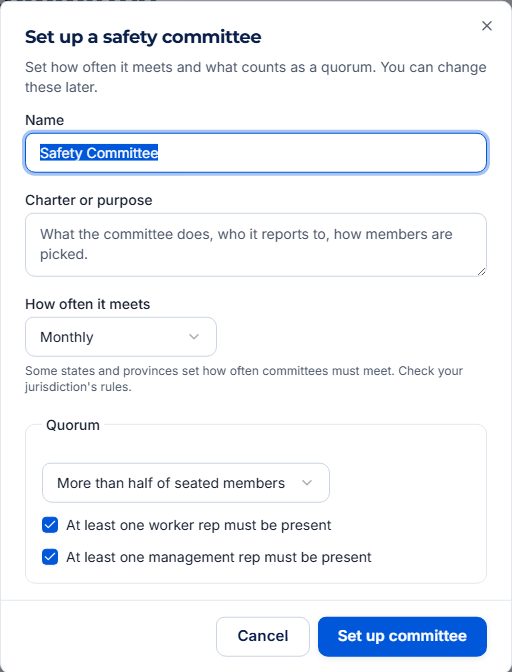
The first time you open the page it says No safety committee at this site yet. Choose Set up a committee. The window is called Set up a safety committee.
Name it and describe it
Give the committee a Name. Add a Charter or purpose if you have one; it is shown to employees in the portal.
Choose how often it meets
Under How often it meets choose Monthly, Quarterly or Every set number of days (then type the number of days, up to 366).
Set the quorum rule
Choose More than half of seated members or A set number of members. Two boxes, ticked by default, add conditions: At least one worker rep must be present and At least one management rep must be present. Untick either if your committee does not require it.
ShieldSphere does not apply any state or provincial requirement for you. Some jurisdictions set how often a committee must meet and who must sit on it. Set the schedule and quorum here to match the rules that apply to your site. The page says the same.
Later, choose Edit on the committee card to change these settings. In the edit window an Active switch lets you retire a committee: an inactive committee keeps its records but drops off the site overview. Choose Add committee if the site needs more than one; tabs along the top switch between them. Owners and admins also see Delete, which removes the committee with its roster and meetings and cannot be undone.
4Keep the roster
The Members card lists everyone on the committee with their role, which side they represent, their term, and the date they completed committee training. A line under the title counts who is seated today, for example "5 seated today: 3 worker reps, 2 management reps."
Add a member
Choose Add member. Pick From this site's roster and search by name or job title, or choose Not on the roster and type a name, for example an outside advisor or a union representative.
Set role and side
Role is Chair, Co-chair, Secretary or Member. Represents is Workers or Management.
Add term and training dates
Optionally set Term starts, Term ends, Committee training completed and Notes. When you edit a member, an Active member switch lets you retire them without losing the record.
The roster check
A Roster check box appears when the roster looks lopsided: no one seated, no worker representative, no management representative, or fewer worker reps than management reps. Smaller notes flag members whose terms have ended but who are still active, and seated members with no training date. These are prompts to act on, not legal findings.
| Marker | Meaning |
|---|---|
| Outside term | The member is active but today falls outside their term dates. They do not count toward the quorum for meetings on dates outside their term. |
| (not on roster) | The member was typed in, not picked from the site's employee roster. |
| Past members | A collapsed list of people marked inactive. |
The remove button deletes a member who has never appeared on an attendance sheet. A member who has attended a meeting cannot be deleted, because the minutes depend on them. Mark them inactive instead.
5Schedule and run a meeting
The committee card shows Next meeting due with a date, and an Overdue badge once that date has passed. The due date is one meeting interval after the last meeting actually held. A committee that has never met is counted from the day it was set up. Scheduling a meeting does not move the due date; holding it does.
Schedule it
Choose Schedule meeting. Pick a Date (the due date is suggested), and optionally a Location and an Agenda, then choose Schedule. The meeting opens in a side panel.
Open the meeting when it happens
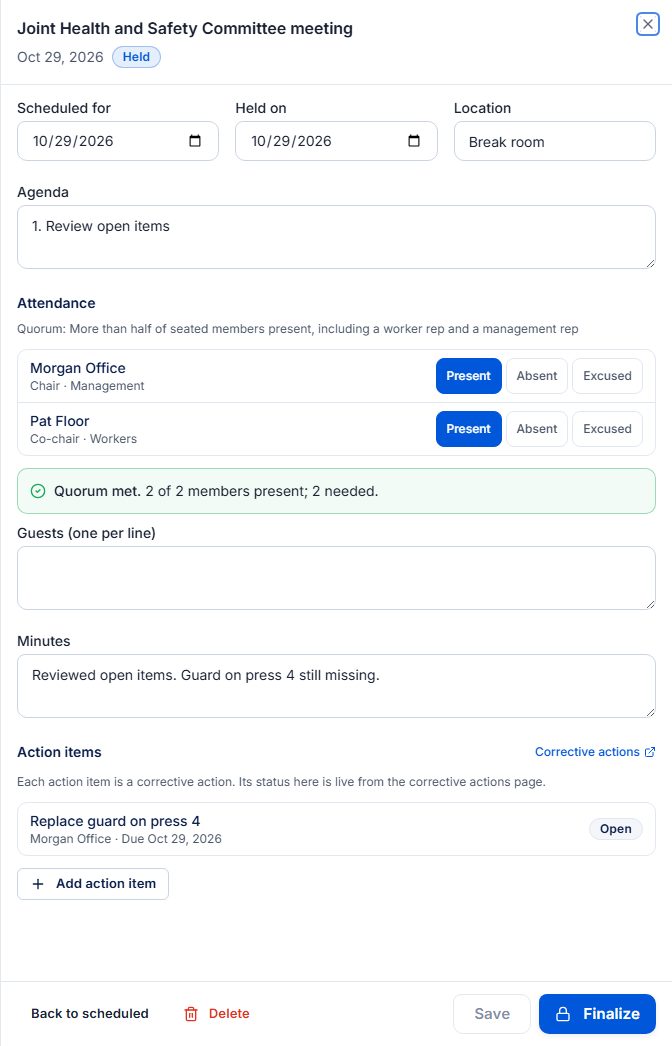
On the Meetings card, click the meeting. The panel has the dates, location, agenda, attendance, guests, minutes and action items. Choose Mark held once it has taken place, then set Held on if the date differs from the plan.
Take attendance
Every member seated on the meeting date is listed with Present, Absent and Excused buttons. A live message under the list says either that the quorum is met (for example "4 of 6 members present; 4 needed") or why it is not.
Record guests and minutes
List Guests one per line, then write the Minutes: what was discussed, what was decided, and who will follow up. Choose Save as you go.
| Button | What it does |
|---|---|
| Mark held | Moves a scheduled meeting to Held. |
| Cancel meeting | Marks a scheduled meeting Canceled. A canceled meeting does not count toward the due date. |
| Back to scheduled | Undoes Held or Canceled. |
| Delete | Removes the meeting after you confirm. This cannot be undone. |
6Finalize the minutes
Finalizing locks the record. Once you finalize, the minutes are read-only and can be downloaded as a PDF.
Get the meeting ready
The Finalize button appears on a meeting marked Held. It stays unavailable until the minutes are written and the Held on date is set; a hint under the buttons says so.
Press Finalize
If the quorum was not met, a message tells you so and asks you to press Finalize again to confirm. You can still finalize; the PDF will say the meeting did not make quorum.
Download the PDF
A finalized meeting shows "These minutes are finalized and read-only" with a Download PDF button.
When you finalize, any seated member you did not mark is recorded as Absent, and the attendance sheet is saved as it stood. Later changes to the roster do not change a finalized meeting.
To fix a mistake, an owner or admin can choose Reopen. The meeting goes back to Held, the reopening is recorded with who did it and when, and the minutes become editable again. Finalize again when done.
7Action items
Every meeting has an Action items section at the bottom of its panel. Each action item is a corrective action, so it also shows up on the site's Corrective Actions page, and its status here is read live from there. See the Corrective Actions guide for how they are worked and verified.
Choose Add action item
Fill in What needs to happen, Owner, Owner email (for reminders), Due date and Priority (Low, Medium, High or Critical). A title, an owner and a due date are required.
Choose Create action item
It appears in the list with the owner, due date and a status badge: Open, In progress, Completed or Verified.
You cannot add action items to finalized minutes, or to a canceled meeting. If you forget one, an owner or admin must reopen the minutes first. Items already created can still be worked on the Corrective Actions page.
8What employees see
Employees and client contacts signed in to the portal see a Safety Committee tile, which opens a read-only page showing, for their own site only:
The committee
Its name and charter.
Members
Name, role and side for each member seated today. Terms, training dates and notes are not shown.
Meeting minutes
Finalized meetings only, listed by date with the location, each with a Download PDF button.
Drafts, held meetings that are not yet finalized, attendance and action items never reach the portal. If nothing has been shared, the page says No safety committee has been shared for your site yet, and shows "No minutes have been posted yet" when a committee has no finalized meetings. At the bottom it tells employees to bring any concern to a member listed on the page.
The portal tile is on by default. To hide it for a site, switch off Safety Committee in the site's portal visibility settings. See the Profile Settings guide and the Employee and Client Portal guide.
9Troubleshooting
| What you see | What to do |
|---|---|
| A Growth plan prompt instead of the committee | Safety Committee comes with the Growth plan. Ask your ShieldSphere contact about upgrading. |
| No Set up a committee, Add member or Schedule meeting buttons | Your role is Viewer. Only owners, admins and members can change committee records. |
| No Reopen or Delete committee button | Only owners and admins have them. |
| Finalize is greyed out | The meeting must be marked Held, have a Held on date, and have minutes written. A Scheduled meeting must be marked held first. |
| "No members are seated on this date" | Add members on the roster, or check their term dates cover the meeting date. |
| "No quorum yet" when everyone came | Check each person is marked Present, and that the quorum rule needs a worker rep and a management rep. Both sides must be present if both boxes are ticked. |
| "This member is on past attendance sheets. Mark them inactive instead." | Edit the member and switch off Active member. They move to Past members. |
| Overdue badge on a committee that is meeting | The due date counts from the last meeting marked Held or Finalized. Mark the meeting held. |
| "These minutes are finalized. An admin must reopen them to add action items." | Ask an owner or admin to reopen the minutes. |
| Employees cannot see the committee | Safety Committee may be switched off for the site in portal visibility settings, or no committee is active at their site. |
Try Safety Committee in ShieldSphere
Start a free hazard scan and see the platform these guides describe - no credit card required.
Screens captured from the live application in November 2026 using a demonstration site - your screens will show your own data. Because ShieldSphere ships changes regularly, check the version above against the current release before circulating this guide widely. Questions? Contact support.