
Employee and Client Portal
your site's safety information, one sign-in link away
How employees and client viewers sign in with an emailed link, read and acknowledge policies, sign off on toolbox talks, report incidents and hazards, and look up safety data sheets, plus how the administrator who invites them decides what each site shows.
Short answer
ShieldSphere's Employee and Client Portal is a simple, separate site where employees and client viewers sign in with an emailed link, no password needed. They read and acknowledge policies, sign off on toolbox talks, report incidents and hazards, and look up safety data sheets. An administrator decides which areas each site shows.
1What the portal does
The portal is the part of ShieldSphere that is built for people who do the work, not for the people who manage the safety program.
You do not see the full ShieldSphere dashboard. You see a short list of tiles, one for each area your site has shared with you. Everything on the portal is aimed at one of three jobs: read something, confirm that you read it, or tell the safety team about something you saw.
There are two kinds of portal user:
Employee
A person on your company's employee list who has been given portal access. Employees can read, acknowledge, sign off and report. Only employees see the reporting tiles and My Training.
Client viewer
A read-only guest, typically a client of a safety consultant. Client viewers can look at what has been shared with them. They cannot report incidents or hazards and have no personal training page.
The home screen shows your role in the page header, as Employee or Client viewer, next to the name of your site.
2Words you'll see
| Word | What it means |
|---|---|
| Sign-in link | The one-time link emailed to you. It replaces a password. |
| Acknowledge | Press a button to record that you read a policy or a Job Hazard Analysis. The date and time are saved. |
| Sign off | The same idea for a toolbox talk: you confirm you took part. |
| Safety admin | The person at your company who runs ShieldSphere and who the portal tells you to contact when something is missing. |
| Site | The workplace location your account belongs to. The portal shows you information for your site only. |
| Finalized | Complete and approved by the safety team. Inspections, Job Hazard Analyses, procedures and committee minutes only appear on the portal once they are finalized. |
3Sign in with an emailed link
You never choose a password for the portal. Each time you sign in, ShieldSphere emails you a link.
Open the portal sign-in page
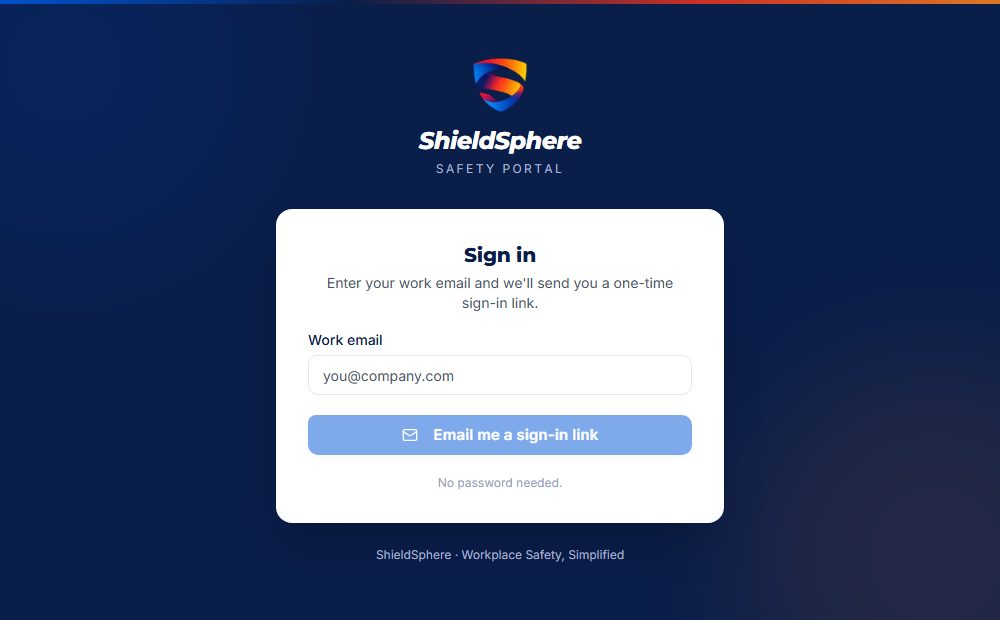
Use the link from your welcome email, or go to the portal address your safety admin gave you. The page is titled Safety Portal and says Sign in.
Enter your work email and ask for the link
Type your Work email, then press Email me a sign-in link. Use the same address your employer has on file for you.
Open the email and tap the button
The screen changes to Check your email. The message is titled Your ShieldSphere Safety Portal access. The link is valid for one hour and works once. If it never arrives, check your spam folder, or press try again on the sign-in screen.
After you press the button, the screen always says the link has been sent if your email is registered. That is deliberate, so a stranger cannot use the page to find out who has access. If no email arrives, the likely reason is that your administrator has not granted you access yet.
Requests are limited. If you ask for several links in a row, further requests quietly stop being sent for a while. Use the latest email you received and wait before asking again.
4Your home screen and what decides it
The home screen greets you by first name and shows one tile for each area open to you. Two things decide which tiles appear: what your administrator has switched on for your site, and your role.
| Tile | What you do there |
|---|---|
| Safety Policies | Read each policy and acknowledge it. |
| Safety Data Sheets | Look up the data sheet for a chemical at your site. |
| Toolbox Talks | Read a safety briefing and sign off. |
| Lockout/Tagout Procedures | Open the written procedure for a piece of equipment. |
| Job Hazard Analyses | Review hazards, controls and PPE for a task, and acknowledge the ones your role requires. |
| Inspections | Download completed inspection reports. |
| OSHA 300 Log | View the recordable injury and illness cases for your site. |
| Resources | Browse and download shared company files. |
| My Training | See your own training records and certificates. Employees only. |
| Safety Committee | See who is on the committee and read finalized meeting minutes. |
| Report an Incident | Report an injury, illness or near-miss. Employees only. |
| Report a Hazard | Flag an unsafe condition or act, give credit, or share an idea. Employees only. |
Why a tile might be missing
- Your administrator turned it off for your site. Each site has its own on and off switches. For a company that manages its own safety program, Job Hazard Analyses, Inspections and the OSHA 300 Log start out off, and everything else starts on. For a safety consultant's client sites, everything starts on. The administrator can change any of them.
- The tile is for employees only. Report an Incident, Report a Hazard and My Training never appear for client viewers, even when switched on.
- The area is an add-on your organization does not have. Resources only appears when the organization has the Resource Library. Report a Hazard only appears when the organization's plan includes incident recordkeeping. Ask your ShieldSphere contact to switch these on if you need them.
If nothing at all is shared with you, the home screen says Nothing has been shared with you yet. Contact your safety administrator.
Turning a tile off hides it from the portal. It does not change who can sign in or what your safety team sees in the main dashboard.
5Read, acknowledge and sign off
Safety Policies
The list shows each policy with its last-updated date. Open one to read it in full, including any OSHA references. At the bottom, press Acknowledge. The page then shows Acknowledged on and the date and time, and the list marks the policy Acknowledged.
Toolbox Talks
Each talk shows its date, and the date it is scheduled for if there is one. Open it to read the overview, why it matters, discussion points, safety reminders and discussion questions. Press Sign off to confirm. The page then shows Signed on with the time, and the list marks it Signed.
Job Hazard Analyses
Only finalized analyses for your site are listed. Each row shows the number of steps and hazards and the overall risk level. Two download links sit on each row: Employee handout, a one-page version for the crew, and Full report.
If your job role requires an analysis, the row is tagged Required for your role, those rows are listed first, and a button appears: I have read and understand this. If the analysis is later changed, the button comes back as Acknowledge the update with a note that it changed since you last acknowledged it. Client viewers see the list and downloads but no acknowledge button.
6Report an incident or a hazard
Both reporting pages begin with the same warning: call 911 first if someone is hurt or in danger. The portal is for recording what happened, not for getting help.
Report an Incident
Use this for a workplace injury, illness or near-miss. Employees only. The safety admin reviews every report before it is added to the OSHA log, so a report is a request for review, not an entry in the official record.
Say when and what kind
Pick the Date of incident (it cannot be in the future) and answer What kind of incident? with Injury, Skin disorder, Respiratory condition, Poisoning, Hearing loss or Other illness.
Describe it
Fill in Describe the injury or illness (at least 10 characters). Then, if shown, add Where did it happen?, Kind of injury, Where on the body? (tap the body diagram), What were you doing just before? and What happened?.
Submit
Press Submit report. You will see Report submitted and a Back to portal button.
Some sites use a custom form with extra questions of their own, and may rename or hide some of the standard ones. Answer whatever your form shows; required questions are marked.
Report a Hazard
Use this for anything short of an injury. Employees only. Choose what you saw:
| Choice | Use it for |
|---|---|
| Unsafe condition | Something here could hurt someone, such as a spill, a missing guard or a blocked exit. |
| Unsafe act | Someone working in a way that could get them hurt. |
| Good catch / safe work | Someone did it right. Give them credit. |
| Idea | A way to make the job safer or easier. |
Then describe what you saw, say where it was, and optionally rate the severity (Low, Medium or High) and add up to three photos with Take or add a photo. You can send the report anonymously. Anonymous reports do not show up in your own list afterward.
If your site has a separate near-miss form, a line near the top reads Someone was nearly hurt? Report a near-miss instead. If reporting is paused for your site, the page says so and asks you to tell your supervisor in person.
Under My reports you can follow each report you sent under your name. The status uses plain words:
| Status shown to you | Meaning |
|---|---|
| Sent | Received, not yet looked at. |
| Being looked at | The safety team is reviewing it. |
| Being fixed | An action has been assigned. |
| Closed | Finished. |
| Closed, no action | Reviewed and closed without further action. |
For how the safety team handles what you send, see the Safety Observations guide. For how incident reports are reviewed, see the Incidents guide.
7Look things up
Safety Data Sheets
Search by chemical or manufacturer, then tap a chemical to open its data sheet. A chemical with no sheet uploaded shows No SDS on file. See the SDS guide.
Lockout/Tagout Procedures
Lists finalized procedures with the equipment name and location. Open one to view the same PDF the safety team prints.
Inspections
Lists finalized inspections by date, inspector and place. Press the download button on a row for the report. Need a fuller report? Ask your safety admin.
OSHA 300 Log
Shows approved recordable cases with job title, date, place and outcome (Death, Days away from work, Job transfer/restriction, Other recordable case). A privacy case shows as Privacy case instead of a name. For the 300A annual summary, contact your safety admin.
Resources
A searchable, read-only list of shared company files. Filter by tag, sort, and click a file to download it. See the Resources guide.
Safety Committee
Shows each committee at your site with its members, their role and who they represent, and finalized meeting minutes you can download as a PDF. Drafts are never shared. See the Safety Committee guide.
My Training
Your training records with their expiry status (for example Expired, Expires today or Expires in 12 days), a Certificate button on each, and the sessions you signed in to. This page is for reading; you do not complete training here.
8For the administrator: invite people and choose what they see
Owners and admins manage portal access. It takes two steps: give each person access, then decide which areas the site shows.
Give an employee access
Make sure the employee is ready
The person must be on your employee list as an active employee with an email address. Without an email, or if the person is inactive, the Portal access section tells you so.
Grant access
Open the employee's record and find the Portal access section. Its badge reads Not granted. Press Grant access. ShieldSphere emails a sign-in link and the message reads Portal access granted. Sign-in link sent.
Check on them later
Once granted, the badge reads Granted and the section shows the date granted and the Last sign-in (or Never). Press Resend link to send a fresh link, or Revoke to remove access.
If the address is already linked to a different organization, access cannot be granted and you are told to contact support.
Revoke cannot end a session that is already open, but the person is turned away on their very next request, and signing in again fails with a message that access has been revoked.
Choose what each site shows
Each site has a switch for every portal area, labelled Show [area] on the portal. The areas are Safety Policies, Safety Data Sheets, Toolbox Talks, Lockout/Tagout Procedures, Job Hazard Analyses, Report an Incident, Report a Hazard, Inspections, OSHA 300 Log, Resources, My training and Safety Committee. Employee-only areas are marked as such. Save the page to apply your changes. The settings are per site, so two sites in the same organization can show different tiles. See the Profile Settings guide.
Client viewer accounts are set up for you. Ask your ShieldSphere contact if you need to add one.
9Troubleshooting
| What you see | What to do |
|---|---|
| No email arrives | Check spam. Confirm you typed the exact address your employer has on file. Ask your admin to check you have been granted access, and to press Resend link. |
| We couldn't find your employee record. Ask your safety admin to add you and grant portal access. | You are not on the employee list yet, or have no portal access. Ask your administrator. |
| Your portal access has been revoked. | An administrator removed your access. Contact them. |
| That sign-in link is invalid or has expired. | Links last one hour and work once. Request a new one. |
| This email is already linked to a different organization. | Contact your safety admin; they will need ShieldSphere support. |
| A tile you expected is missing | See section 4. It is switched off for your site, reserved for employees, or part of an add-on your organization does not have. |
| Taken to the dashboard instead of the portal | Your account is a full ShieldSphere user, not a portal user. Full users work in the dashboard. |
Try Employee and Client Portal in ShieldSphere
Start a free hazard scan and see the platform these guides describe - no credit card required.
Screens captured from the live application in November 2026 using a demonstration site - your screens will show your own data. Because ShieldSphere ships changes regularly, check the version above against the current release before circulating this guide widely. Questions? Contact support.