
SDS Management
your chemical inventory and safety data sheets, on hand
How to keep a per-site inventory of hazardous chemicals, attach and read their Safety Data Sheets, print GHS labels, and give on-shift workers instant access.
Short answer
ShieldSphere's SDS Management module is your HazCom program made simple: a live per-site list of every hazardous chemical, each with its Safety Data Sheet one tap away. It tracks what you have and where, attaches one SDS PDF per chemical, and produces the paperwork that follows - GHS secondary-container labels and EPCRA Tier II and TRI reporting flags.
1What SDS Management does
SDS Management is your HazCom program made simple: a live list of every hazardous chemical on site, each with its Safety Data Sheet a tap away for the person who needs it.
It keeps three things straight for every chemical:
- What you have and where - a per-site inventory with manufacturer, location and quantity.
- The Safety Data Sheet - one SDS PDF attached to each chemical, so hazard and handling data is never in a binder across the plant.
- The paperwork that follows - GHS secondary-container labels, and EPCRA Tier II / TRI reporting flags for the chemicals that need them.
SDS Management is a site-level module - each site keeps its own chemical inventory. Chemicals can carry a storage location that lines up with the same location presets used elsewhere in ShieldSphere.
Enabling the module and setting up the public-access QR poster are covered in the companion SDS Administrator Guide. This guide is about using the inventory day to day.
2Words you'll see
| Term | What it means |
|---|---|
| SDS | Safety Data Sheet - the manufacturer's hazard and handling document for a chemical. One PDF per chemical. |
| HazCom | OSHA's Hazard Communication Standard (1910.1200) - the rule that requires you to keep SDSs accessible. |
| GHS label | The standardized hazard label for a secondary container, printable from the chemical's record. |
| Location | Where the chemical is stored. A chemical can be in several locations at once. |
| Tier II | EPCRA hazardous-chemical inventory reporting for chemicals held above threshold quantities. |
| TRI | Toxic Release Inventory reporting (EPCRA section 313). |
| Public viewer | The no-login page on-shift workers reach by scanning the posted QR code. |
3The chemical inventory
Click SDS in the sidebar and scroll to Chemical inventory. Every hazardous chemical on site is listed, each row able to carry one SDS PDF (a paperclip marks the ones that have one).
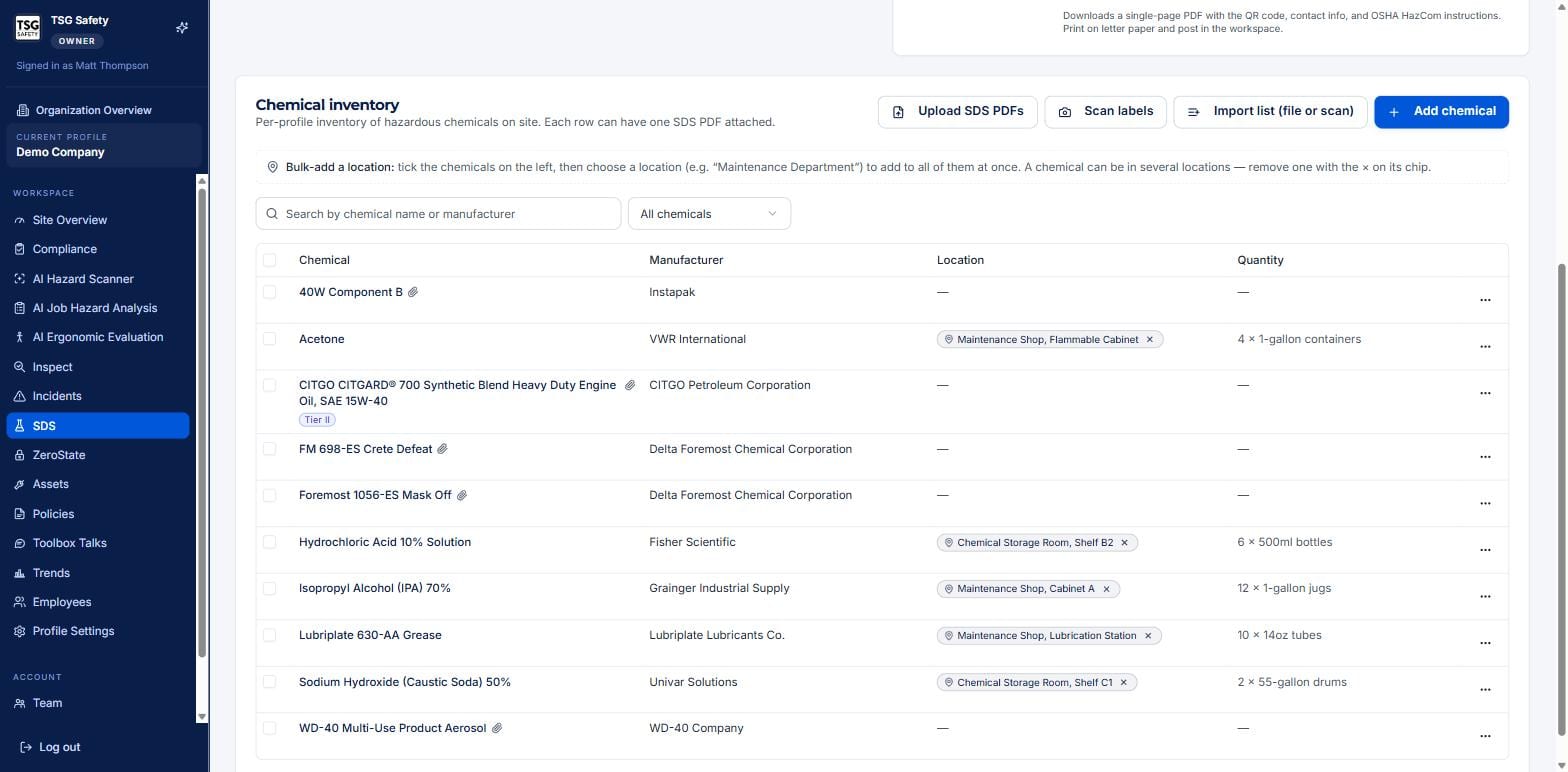
Four buttons sit above the list: Upload SDS PDFs to attach sheets in bulk, Scan labels to add a chemical from a photo of its label, Import list to bring an inventory in from a file or scan, and Add chemical to enter one by hand.
Tick several chemicals on the left, choose a location, and they all get it at once - the fast way to say "everything on this shelf lives in the Chemical Storage Room". A chemical can be in several locations; remove one with the × on its chip.
4Add a chemical
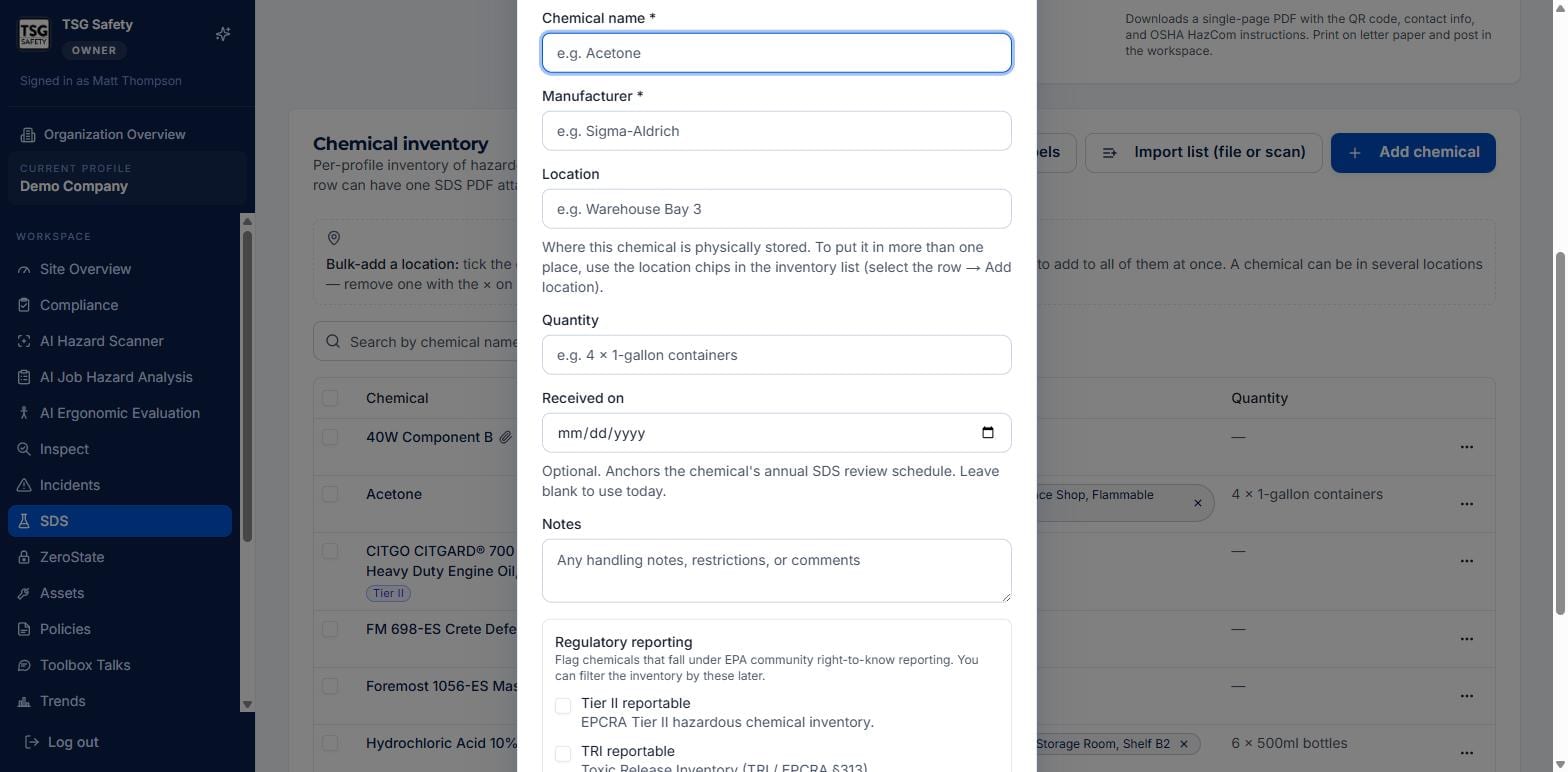
Fill in the storage location and quantity, add any handling notes, and flag Tier II or TRI reporting if the chemical falls under EPCRA community right-to-know. You can filter the inventory by those flags later, so setting them now saves work at reporting time. Attach the SDS PDF from the chemical's record once it is created.
5Inside a chemical
Click any chemical to open its record - inventory, notes, reporting status, its SDS, and label printing in one place.
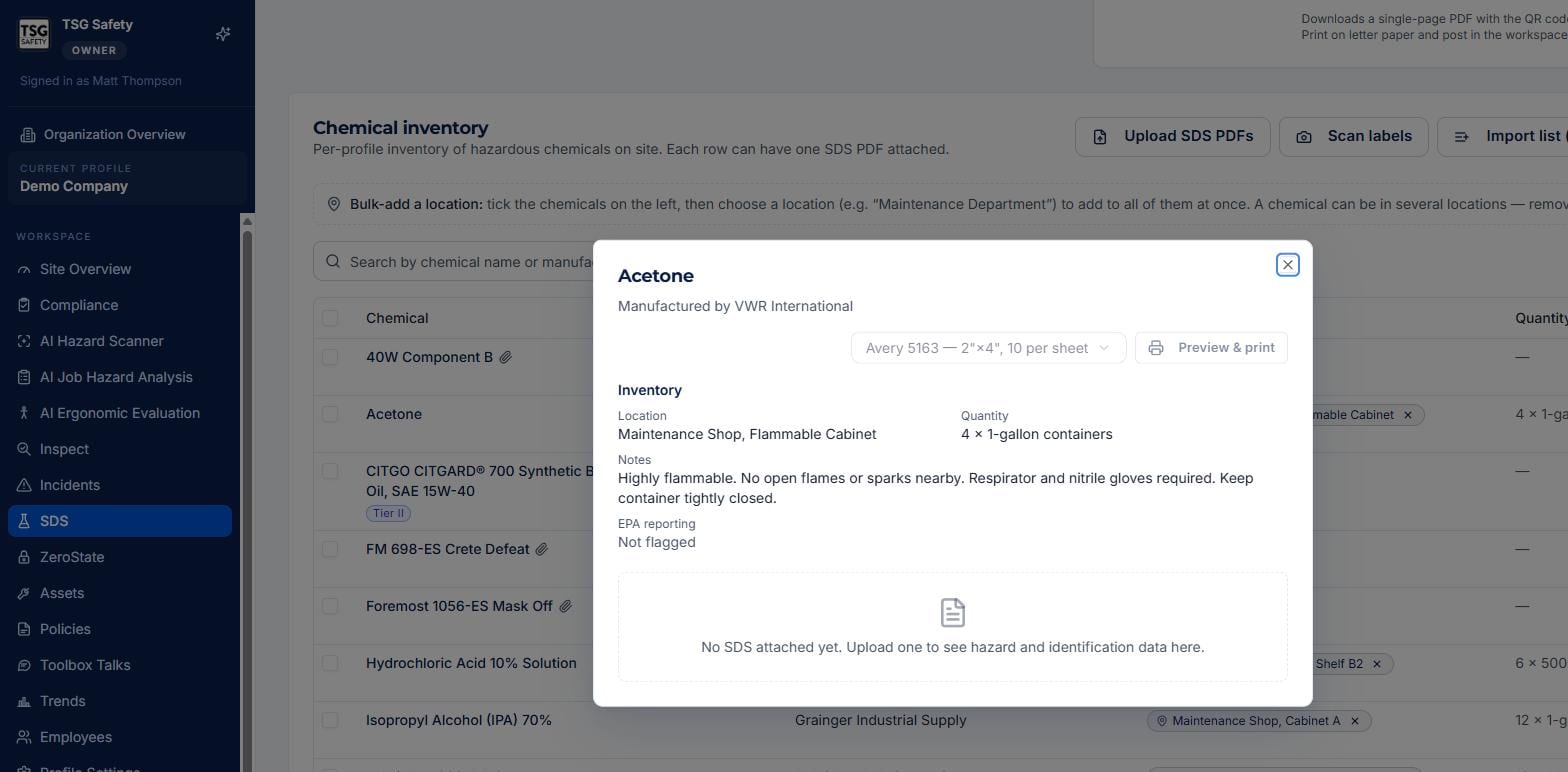
| Part | What it does |
|---|---|
| Inventory | Where the chemical is, how much, and any handling notes. |
| EPA reporting | Whether the chemical is flagged for Tier II or TRI. |
| Label printing | Pick a label stock (for example Avery 5163) and Preview & print GHS secondary-container labels. |
| SDS | The attached Safety Data Sheet. With one attached, hazard and identification data shows here; without, you get a prompt to upload one. |
6On-shift access
OSHA requires SDSs to be accessible to workers on every shift. ShieldSphere handles that with a public viewer - a no-login page listing the site's chemicals and their SDSs - reached by scanning a posted QR code.
Your administrator prints and posts the QR poster (see the Administrator Guide). Once it is up, a worker scans it with a phone camera and sees the chemical list and every attached SDS - no account, no app. Your job on the inventory side is simply to keep the SDS attached to each chemical current, so what they see is right.
7Troubleshooting
| Symptom | Cause and fix |
|---|---|
| A chemical has no hazard data | No SDS is attached. Open the chemical and upload its SDS PDF - hazard and identification data then populates from it. |
| A chemical should be in two places | Use the location chips - select the row, add another location. Remove one with the × on its chip. |
| I have a whole list to enter | Use Import list to bring an inventory in from a file or scan, or Upload SDS PDFs to attach sheets in bulk. |
| Workers cannot reach the SDSs | The public viewer poster is not up, or the module is off. Both are administrator settings - see the Administrator Guide. |
| I need a secondary-container label | Open the chemical, pick a label stock, and use Preview & print. |
Try SDS Management in ShieldSphere
Start a free hazard scan and see the platform these guides describe - no credit card required.
Screens captured from the live application in July 2026 using a demonstration site - your screens will show your own data. Because ShieldSphere ships changes regularly, check the version above against the current release before circulating this guide widely. Questions? Contact support.