
Training
the setup that makes the module tell the truth
The decisions an administrator makes once: what each job title is required to hold, how job titles are shared between sites, which talk comes round next, who gets the expiry reminders, and what employees and contractors can see.
Short answer
Setting up ShieldSphere Training means deciding what training each job title must hold, how far those job titles reach across your sites, which toolbox talk comes round next, and who is told when training is about to expire. Those settings are what turn the module from a filing cabinet into something that tells you who is short before an auditor does.
1What an administrator sets up
The day-to-day work - running sessions, adding records, delivering talks - is covered in the Training User Guide and the Training Sessions User Guide. This guide is the handful of decisions that shape what those pages report.
There are five, and only the first is genuinely required:
| Decision | Why it matters |
|---|---|
| The requirements matrix | Nothing counts as a gap until you have said it is required. This is the one that makes the module useful. |
| Job title scope | Whether a job title and its requirements apply across a client's sites or at one location only. |
| Talk rotation | What ShieldSphere suggests next, and on which day of the week. |
| Reminder preferences | Whether expiry emails go out, and to whom. |
| Portal visibility | Whether employees and contractors can see their own training. |
2Who can see Training
Training sits in the Daily Work group of the workspace sidebar. Whether it is available depends on your plan, and the module was built with one deliberate exception to that:
Logging that you trained your own people is a compliance obligation, so the act of recording it is not gated. What varies by plan is the surrounding tooling: the full 120-talk library, QR sign-in for sessions, and PDF export. A sampler of ten library talks stays open on every plan, and AI talk generation is limited on the free plans.
Field users - people using the mobile app rather than the full dashboard - can read the tracker and create a session, so a foreman can run a tailgate talk without needing an administrator to set it up first.
3The requirements matrix is the policy
This is the setup task that matters most, and the one most likely to be skipped. Until a training is required of a job title, nobody can be short of it - so an empty matrix reports that everyone is current, forever, no matter what the records say.
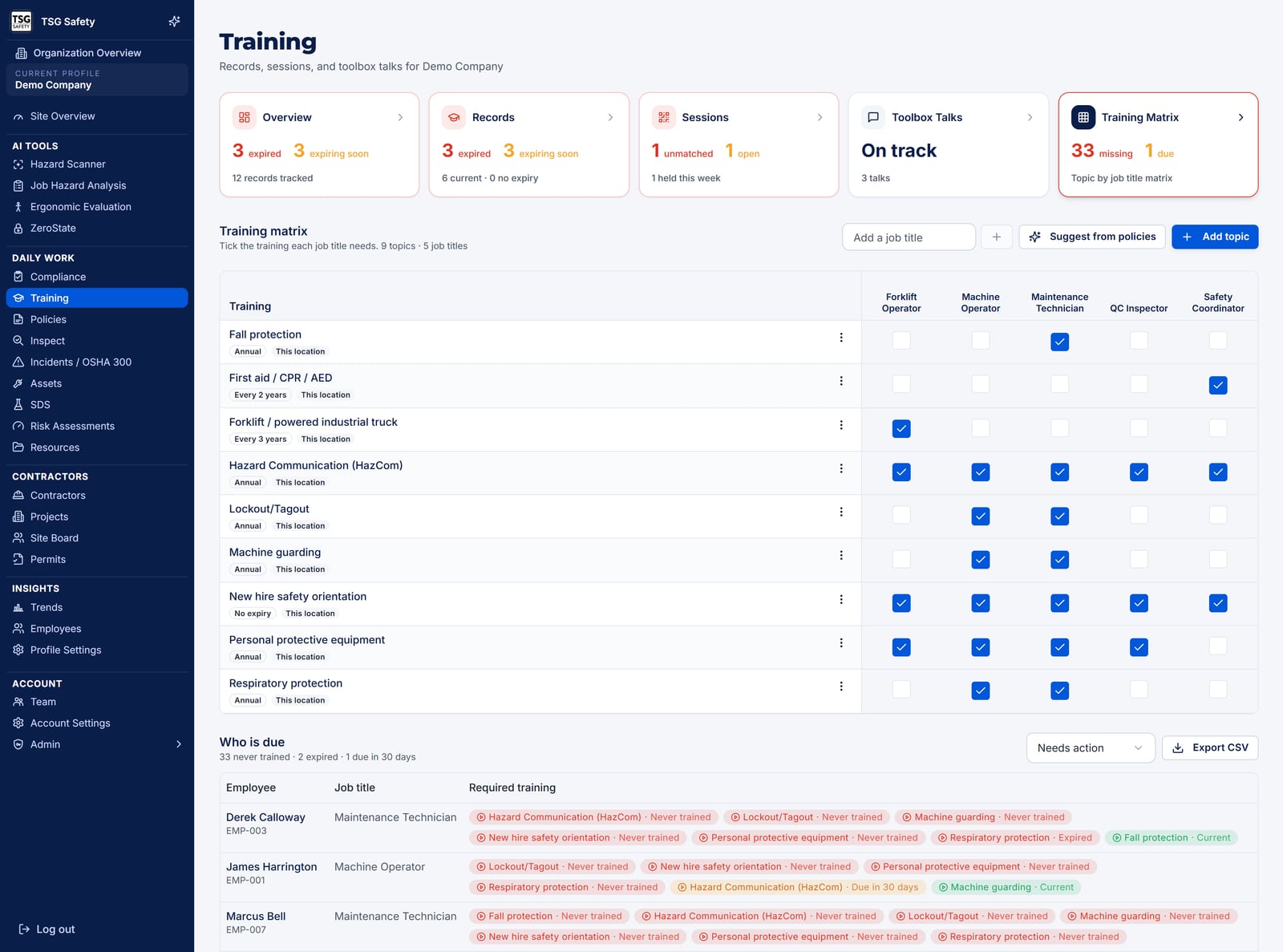
Take the suggestions from your own policies
ShieldSphere reads the policies you hold at that location and suggests training topics from them. Start here: a matrix built from your own written policies is one you can defend, because the requirement and the document that imposes it agree by construction.
Set a renewal interval on anything that lapses
A requirement with a renewal interval expires the way the training does, so a person who was trained three years ago on a two-year certification shows as a gap rather than as covered. A requirement with no interval is satisfied once and stays satisfied.
Add a note where the rule needs explaining
Requirements carry an optional note. Use it for the reason - the standard, the client contract, the insurer's condition. The person reading the gap report a year from now is often not the person who set the rule.
A requirement is satisfied by a matching training record. If your records say "Forklift" and the requirement says "Powered industrial truck", every operator reads as a gap. Agree the wording once, at the point you build the matrix.
4Job titles across sites
A job title added to the matrix is shared across all of a client's sites by default. That is deliberate: a forklift operator is a forklift operator wherever they work, and making each site invent its own job titles produces a matrix nobody can read across.
Individual requirements can still be scoped. When you set one, choose:
All locations
The rule applies everywhere this job title exists. The right default for anything driven by a standard or a company policy.
This location
The rule applies at this site only. For genuine site differences - a confined space that exists at one plant, a client-specific induction.
If one site needs something extra, add the extra requirement at This location rather than creating a site-specific job title. Duplicated titles split your gap report in half and the two halves quietly diverge.
5The weekly talk rotation
Rotation decides what ShieldSphere puts up as the next toolbox talk, so a crew gets a sensible year of topics without anyone planning one. It is set per location, on the Toolbox Talks tab.
| Setting | What it changes |
|---|---|
| Day of the week | The day the next talk is dated to. Set it to the day you actually hold them. |
| Industry | Weights the rotation towards the talks that matter for your work, so a warehouse is not offered trenching. |
| Jurisdiction | United States, Canada, or both - which decides whether the Canadian talks are in the rotation. |
The card shows what is next in rotation, along with anything flagged as a priority for your industry or a seasonal pick - heat illness in July, cold stress in January.
6Expiry reminders
ShieldSphere emails when training is coming up for renewal, on a fixed cadence:
| When | What is sent |
|---|---|
| 30 days before expiry | The first warning - enough notice to book a course. |
| 7 days before expiry | The second warning. |
| On expiry | The record is marked expired and appears in the expired count and the gap report. |
Each reminder is sent once per record, so a record cannot generate the same warning twice. Reminders go to the organization owner, and can be turned off in that person's notification preferences.
The expired count, the due list and the gap report are all still there. The preference only governs whether an email is sent - which matters if you would rather work from the dashboard than the inbox.
7Contractors and the employee portal
Two audiences outside your dashboard can be given a view of training, and both are opt-in.
Employees
The employee portal has a My training module which, when switched on, lets employees see their own training records, the sessions they attended, and their certificates. It is the cheapest way to stop people asking you for a copy of their forklift card.
Contractors
Contractor personnel can sign in to a session the same way your own people do - the public sign-in page has an I work for a contractor switch, and picking their company routes the record to that contractor's crew list rather than your employee roster. Contractors also have their own toolbox talk flow in the contractor portal.
You do not run separate sessions for staff and contractors. A single delivery produces employee training records, contractor training records, and a list of anyone unrecognised for you to resolve - which is what makes a mixed crew workable.
8Signatures and evidence
Sessions require a signature by default, and it is worth leaving that on. A list of names proves attendance was recorded; a signature against an attestation proves the person said they were there and understood the material. Signatures are stored privately and appear on the attendance sheet for the session.
For anything wider than one session - an audit, a client request, an insurance renewal - the evidence pack on the Training overview exports sessions, records and attendance across a date range you choose.
Training records outlive employment in most regimes, and the attendance sheet is the document that carries the signature. Agree internally how long you keep evidence packs and where, so the answer exists before an auditor asks for it.
9Troubleshooting
| What you see | What to do |
|---|---|
| The gap report is always empty | The matrix has no requirements. Nothing is a gap until it is required - start from the suggestions drawn from your policies. |
| Trained people still show as gaps | The requirement's topic name and the training record's name do not match, or the requirement has a renewal interval the record has passed. |
| A job title appears at a site that does not employ it | Job titles are shared across a client's sites by design. Scope the requirement to This location rather than removing the column. |
| Nobody is getting reminder emails | Check the organization owner's notification preferences - training reminders can be switched off there. Records still track expiry regardless. |
| A reminder went out only once | That is intended. Each record sends its 30-day and 7-day warning once each, so a long-expired record does not nag forever. |
| Employees cannot see their training | The My training module is off in the portal settings. It is opt-in. |
| Library talks are locked | The full library, QR sign-in and PDF export are on the paid plans. The ten-talk sampler and recording training you delivered are always available. |
| Contractor sign-ins land as unmatched | The attendee did not pick their company on the sign-in page. Link them from the session's attendance list. |
Try Training in ShieldSphere
Start a free hazard scan and see the platform these guides describe - no credit card required.
Screens captured from the live application in September 2026 using a demonstration site - your screens will show your own data. Because ShieldSphere ships changes regularly, check the version above against the current release before circulating this guide widely. Questions? Contact support.