
Training
who is trained, who is due, and the proof
How to use the Training module day to day: read the overview, keep training records, deliver toolbox talks from a library of 120, decide what each job title is required to hold, and pull an evidence pack when someone asks for proof.
Short answer
ShieldSphere's Training module is where you keep every training record, deliver toolbox talks, and prove both. It tracks what each person holds and when it expires, defines what each job title is required to have, and turns a delivered session into dated records automatically. When someone asks for evidence, one export covers the period they asked about.
1What Training does
Training answers three questions that usually take three different filing systems: what has this person been trained on, what are they supposed to have, and can you prove it.
The module has five tabs, and they build on each other:
| Tab | What it is for |
|---|---|
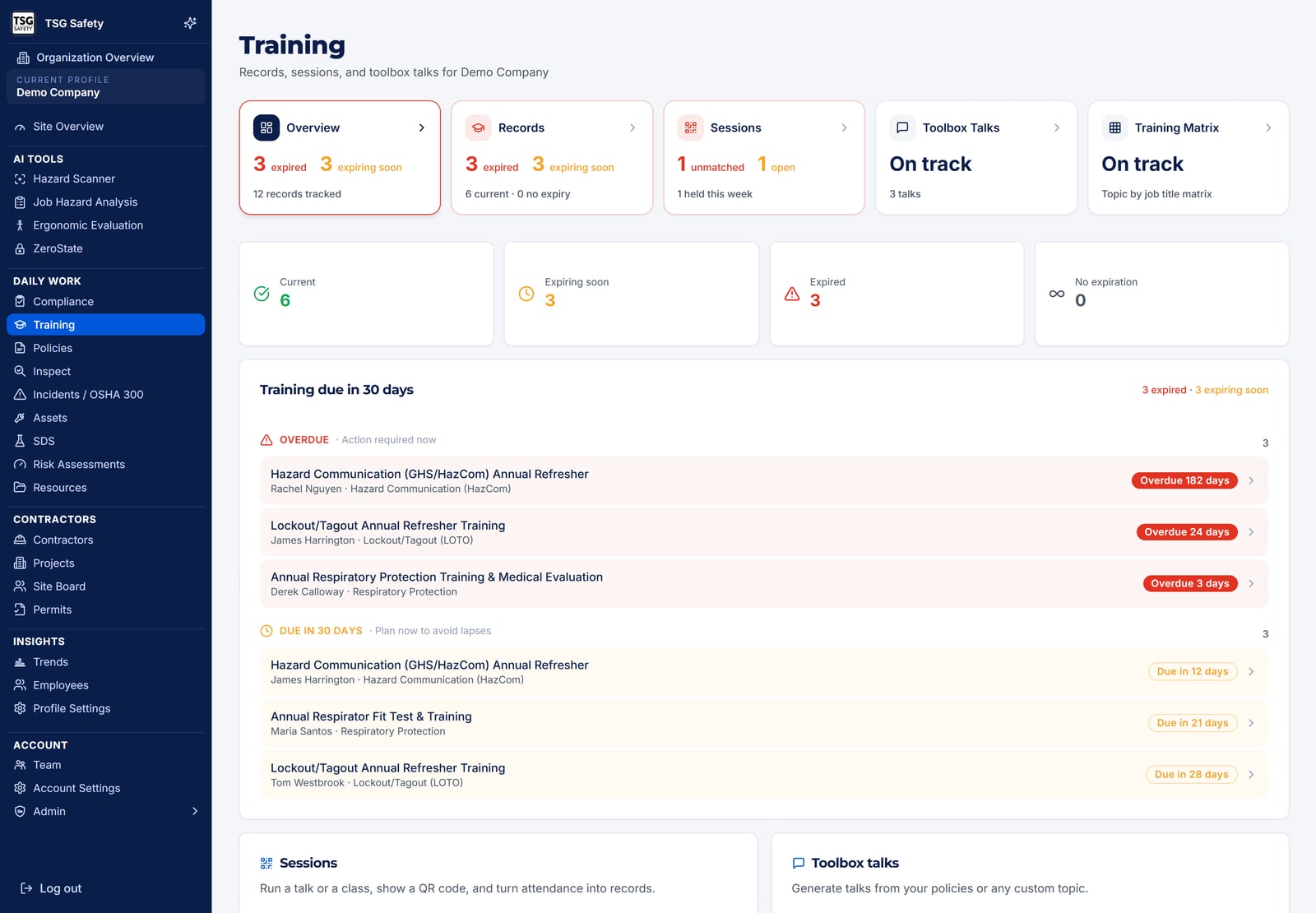
| Overview | The state of training at this location - current, expiring, expired - plus what is due in the next 30 days and what is open. |
| Records | Every training record for every employee. Add, edit, import from a spreadsheet, attach certificates. |
| Sessions | Deliveries. Create a session, show a QR code, and attendance becomes records. Covered in its own guide. |
| Toolbox Talks | A library of 120 ready-to-deliver talks, plus talks generated from your own policies or any topic you name. |
| Requirements | A matrix of training topics against job titles, and the gap report that falls out of it. |
It is now the Toolbox Talks tab inside Training, alongside the records the talks produce. Old links and bookmarks to the standalone page still work - they forward to the right tab.
2Words you'll see
| Word | What it means |
|---|---|
| Training record | One person, one topic, one completion date - and an expiry date if that training lapses. |
| Renewal interval | How many months the training stays valid. Blank means it never expires. |
| Current / Expiring soon / Expired | The three states a record can be in. "Expiring soon" is the 30-day warning. |
| Session | One delivery of a talk or class. Closing it writes records for everyone who signed in. |
| Library talk | One of the 120 talks ShieldSphere ships, written and ready to deliver. |
| Requirement | A rule saying a job title must hold a given training. What creates a gap when it is missing. |
| Gap | A person who is required to hold a training and does not, or whose record has expired. |
| Evidence pack | An export of sessions, records and attendance over a date range, for an audit or a client. |
3The Overview tab
Four tiles count the records at this location: Current, Expiring soon, Expired and No expiration. Below them, Training due in 30 days is the working list - the people to book onto something this month.
The tabs themselves carry counts, which is usually the faster read. A number on Sessions means attendees are still unmatched or a session is still open. A number on Requirements means someone is missing training they are required to hold.
The tiles tell you the shape of the problem. The badges tell you what has an action waiting behind it. If every badge is clear, there is nothing on this page that needs you today.
4Records: the training tracker
The Records tab is the roster of what everyone holds. Each row is one person's training: the topic, when they completed it, when it expires, and whether a certificate is on file.
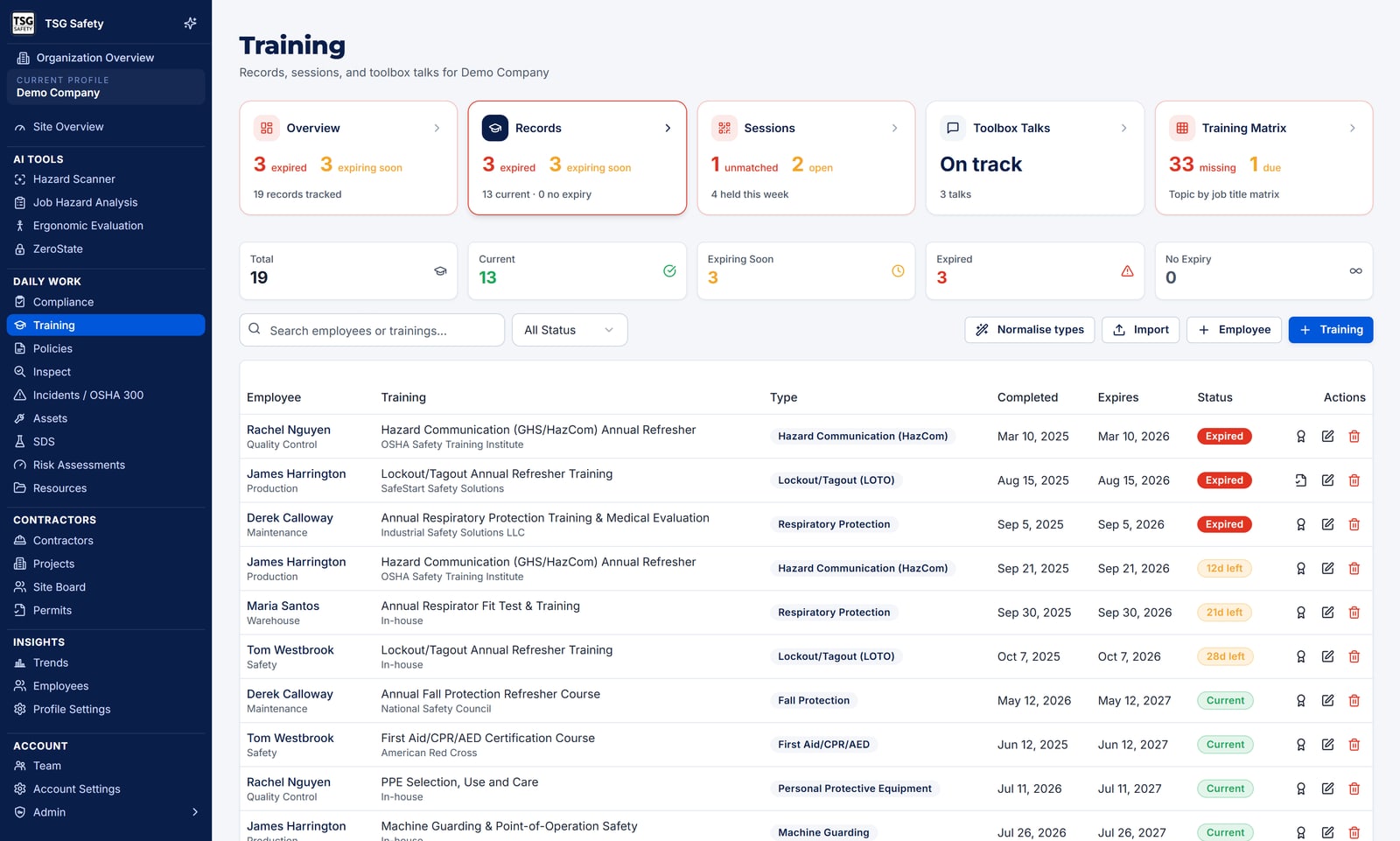
Add a record by hand
Pick the employee, name the training, set the completion date, and set the renewal interval if it expires. The expiry date and the status follow from those - you never set a status yourself.
Import a spreadsheet
If your history lives in Excel, import it rather than retyping it. This is the usual way to start: bring in what you already have, and let sessions handle everything from today onwards.
Attach the certificate
Upload the certificate the training provider issued. An uploaded certificate always wins over one ShieldSphere generates, because the provider's document is the one an auditor wants.
Anything you deliver yourself is better recorded by running a session - the record, the signature and the attendance sheet all come out of it at once. Keep manual entry for training done by an outside provider.
5Toolbox Talks
Three ways to get a talk, and they suit different moments.
The library
ShieldSphere ships 120 talks across 15 categories - general safety, PPE, falls and working at height, electrical, machines and tools, forklifts and vehicles, chemicals and HazCom, confined spaces, fire and emergencies, ergonomics, environmental and seasonal, construction, warehousing and manufacturing, health and wellness, and a Canada set. Each one is written to be read out as it stands. The 30 most-used talks also have a Spanish version.
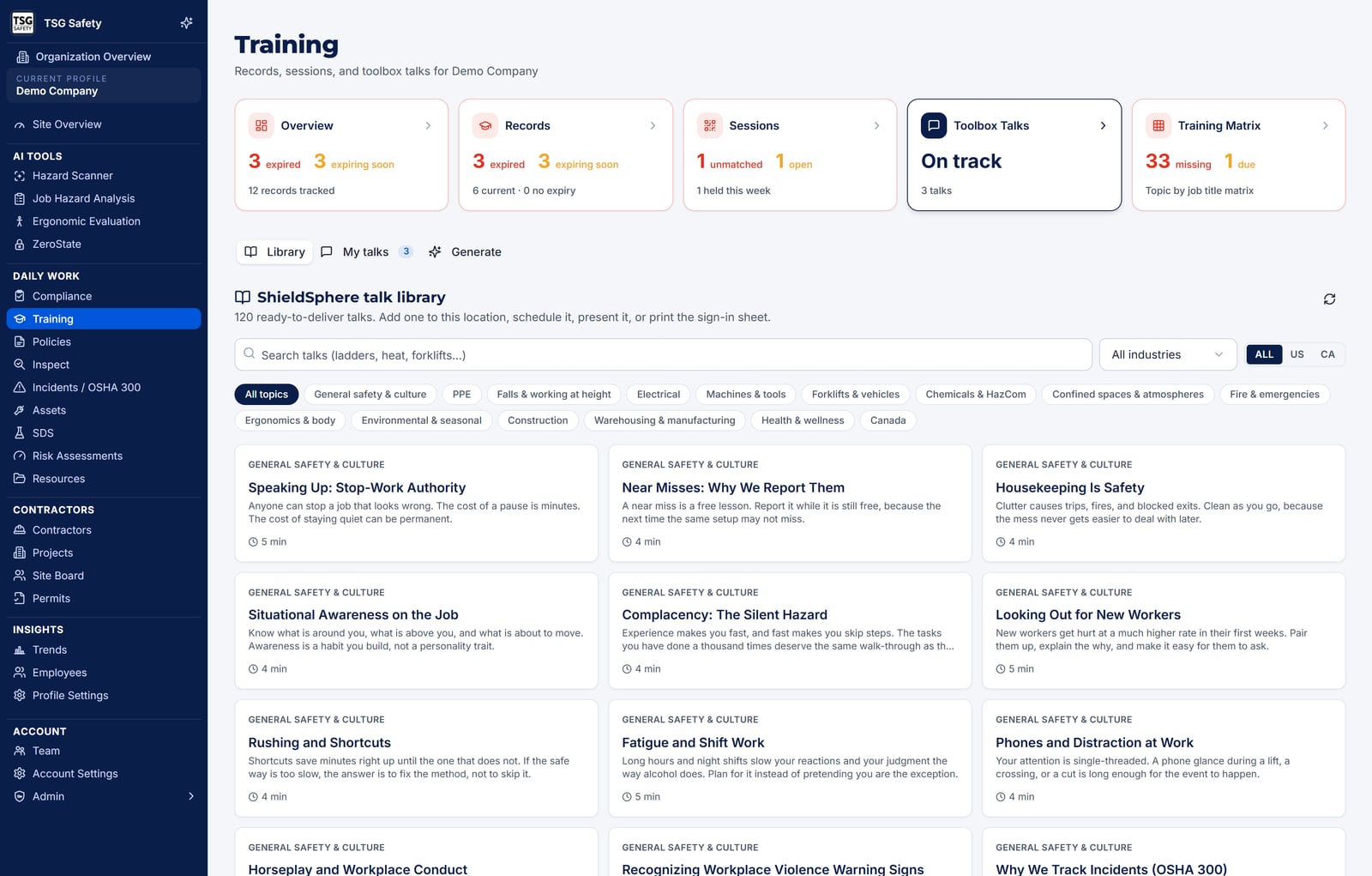
Generated from your own policies
ShieldSphere can write a talk from one of your written policies, so the briefing says what your policy actually says rather than something generic. You can also describe any hazard and get a custom talk on it.
From a hazard you found
When a hazard turns up in an inspection or a scan, you can go straight from it to a talk on that hazard - the fastest honest route from "we found this" to "we briefed the crew on it".
Delivering one
Presenter mode puts the talk full screen in the sections you actually read out - overview, why it matters, discussion points, safety reminders, and questions to ask the crew - with the session QR alongside so people can sign in while you talk. There is also a branded PDF if you would rather work from paper.
Rotation settings pick the next talk for you: choose a day of the week, your industry and your jurisdiction, and ShieldSphere suggests what to run next, weighted to what matters for your industry and the season.
Scheduling or generating a talk proves nothing on its own. The training record appears when you run it as a session and close it - see the Training Sessions User Guide.
6Requirements: the training matrix
The matrix is where you say what each job title must hold. Training topics run down the side, job titles across the top, and you tick the cells where that title needs that training.
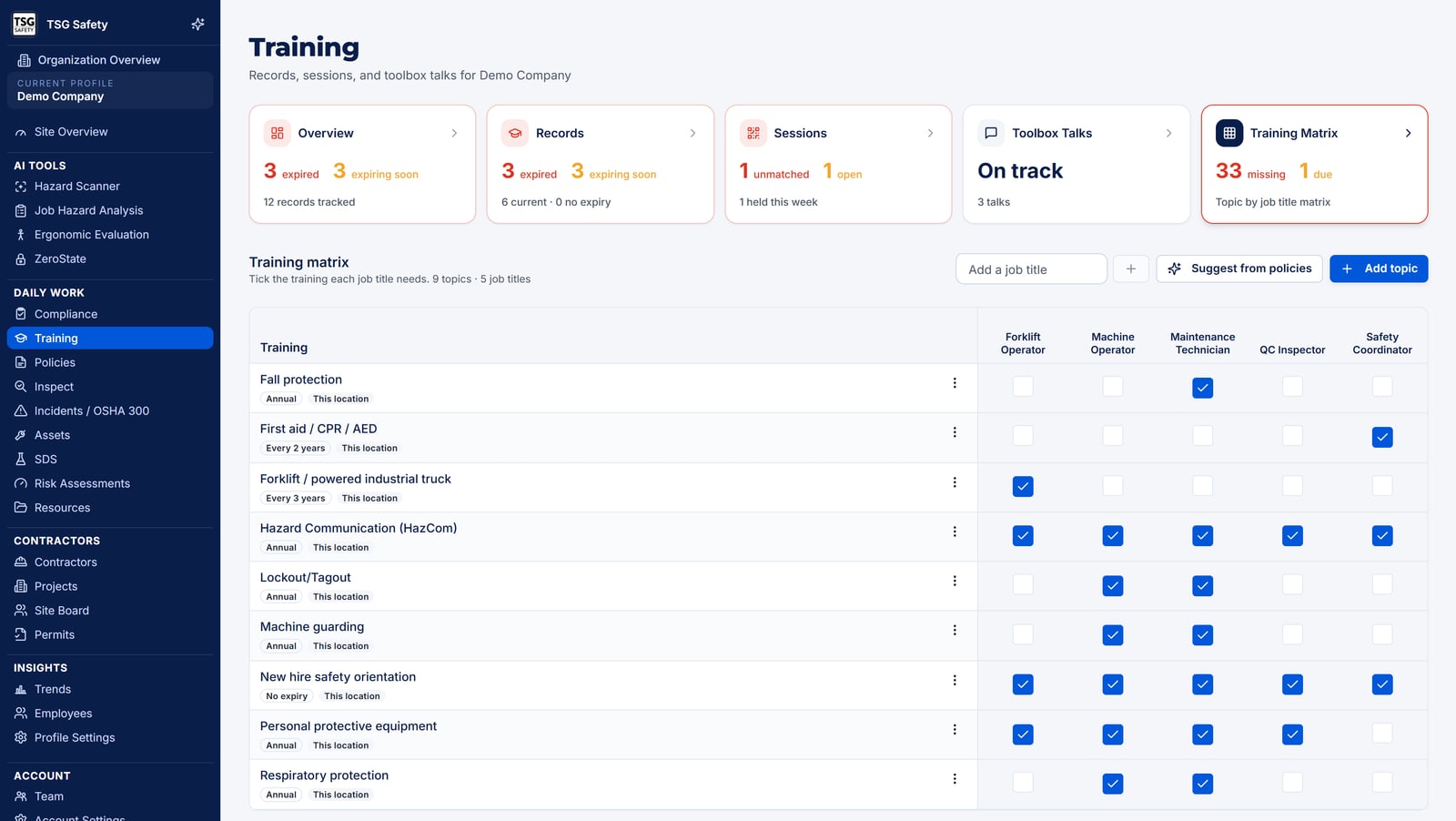
Add the job titles you employ
Add a column per job title. By default a job title is shared across all of a client's sites, because a forklift operator is a forklift operator wherever they work - but a requirement can be set for This location only when a site genuinely differs.
Add the topics
Pick from the preset topics or name your own, and set a renewal interval so the requirement expires the way the training does. ShieldSphere also suggests topics from the policies you already hold at that location, which is the quickest way to a defensible matrix.
Read the gap report
Who is due lists every person who is required to hold a training and does not, or whose record has expired. Filter by job title or by required training, and start a session straight from a gap - the session opens already filled in for that topic and its renewal interval.
That message is the goal state, and it means something specific: it is measured against the requirements you set. An empty matrix will always report everyone current, so the matrix is what makes the gap report worth reading.
7Evidence packs and exports
When a client, an auditor or an insurer asks what training you have done, the evidence pack is the answer. Give it a date range, choose what to include, and it gathers the sessions, the training records and the attendance behind them into one export.
If you only want the numbers, you can take Records CSV only or Sessions CSV only instead and work with them in a spreadsheet.
Requests are almost always framed as a period - "the last twelve months", "since the contract started". Set that range rather than exporting everything: a pack that answers the question exactly is far more convincing than one that buries it.
8Certificates
ShieldSphere can issue a certificate for any training record, and for forklift training it issues a wallet card naming the truck types the person is signed off on - which is the thing an operator is actually asked to produce on a site.
Certificates can be issued in bulk from a closed session, or one at a time from a record. If the training provider gave you their own certificate, upload it: an uploaded certificate always takes precedence over a generated one.
9Troubleshooting
| What you see | What to do |
|---|---|
| The gap report says everyone is current, and you know they are not | The matrix is empty or the topic is not required for that job title. Gaps are measured against requirements, so add the requirement first. |
| A job title column is missing at one site | Job titles are shared across a client's sites by default. If it is genuinely missing, add it - and check whether the requirement was set to This location when it should be all locations. |
| Someone has training but still shows as a gap | Check the record's expiry date, and check the training name matches the required topic. A record for "Forklift" does not satisfy a requirement named "Powered industrial truck". |
| A talk is locked | The full library, session sign-in and PDF export are on the paid plans. The sampler of ten talks stays open, and recording training you delivered is never blocked. |
| An old Toolbox Talks bookmark | It still works - it forwards to the Toolbox Talks tab inside Training. |
| Records from a session did not appear | The session is probably still open. Records are written when you close it. See the Training Sessions User Guide. |
| An import brought in names in the wrong order | Names given as "LAST, FIRST" are normalised on import and at sign-in, so they match the roster either way. If a name still looks wrong, correct it on the employee record. |
Try Training in ShieldSphere
Start a free hazard scan and see the platform these guides describe - no credit card required.
Screens captured from the live application in September 2026 using a demonstration site - your screens will show your own data. Because ShieldSphere ships changes regularly, check the version above against the current release before circulating this guide widely. Questions? Contact support.