
ZeroState
lockout/tagout, from procedure to periodic inspection
How to find and follow a machine-specific lockout/tagout procedure, record the annual periodic inspection, and export the documents your team needs on the floor.
Short answer
ShieldSphere's ZeroState module holds your lockout/tagout program: a documented, machine-specific procedure for every piece of equipment with stored energy. Each procedure lists the energy sources to isolate, the ordered steps to bring the machine to zero state and return it to service, the authorized employees and required PPE, and the annual periodic inspection 29 CFR 1910.147 requires.
1What ZeroState does
ZeroState is where your lockout/tagout program lives - a documented, machine-specific procedure for every piece of equipment that can hurt someone with stored energy, kept current and inspected on schedule.
The name is the goal: a machine at zero state is one with every energy source isolated and verified, safe to work on. Each procedure carries the whole story:
- The energy sources that must be isolated - electrical, hydraulic, pneumatic, and more.
- The ordered steps to bring the machine to zero state and to return it to service.
- The authorized employees, required PPE, and the person who reviewed it.
- The annual periodic inspection that OSHA 1910.147(c)(6) requires, tracked so it never lapses.
A lockout/tagout procedure is only as good as the person following every step. Read the whole procedure before you start, isolate and verify every energy source it lists, and never skip a step because the machine "looks off".
This guide covers finding, following and inspecting procedures. Creating and publishing them - the procedure builder - is covered in the companion ZeroState Administrator Guide.
2Words you'll see
| Term | What it means |
|---|---|
| Lockout/tagout (LOTO) | Isolating a machine's energy so it cannot start while someone works on it, and tagging it so no one re-energizes it. |
| Energy source | A form of stored or supply energy - electrical, hydraulic, pneumatic, thermal, gravity - that must be isolated. |
| Isolation point | The exact place you isolate a source - a breaker, a valve - and the lockout device used there. |
| Zero state | The machine with all energy isolated and verified - safe to service. |
| Authorized employee | A person trained and named on the procedure to perform the lockout. |
| Periodic inspection | The annual review of the procedure that OSHA 1910.147(c)(6) requires. |
| Final | A published, in-force procedure. Only final procedures can be inspected. |
3The ZeroState home screen
Click ZeroState in the left sidebar. The home screen is your program at a glance for the current site.
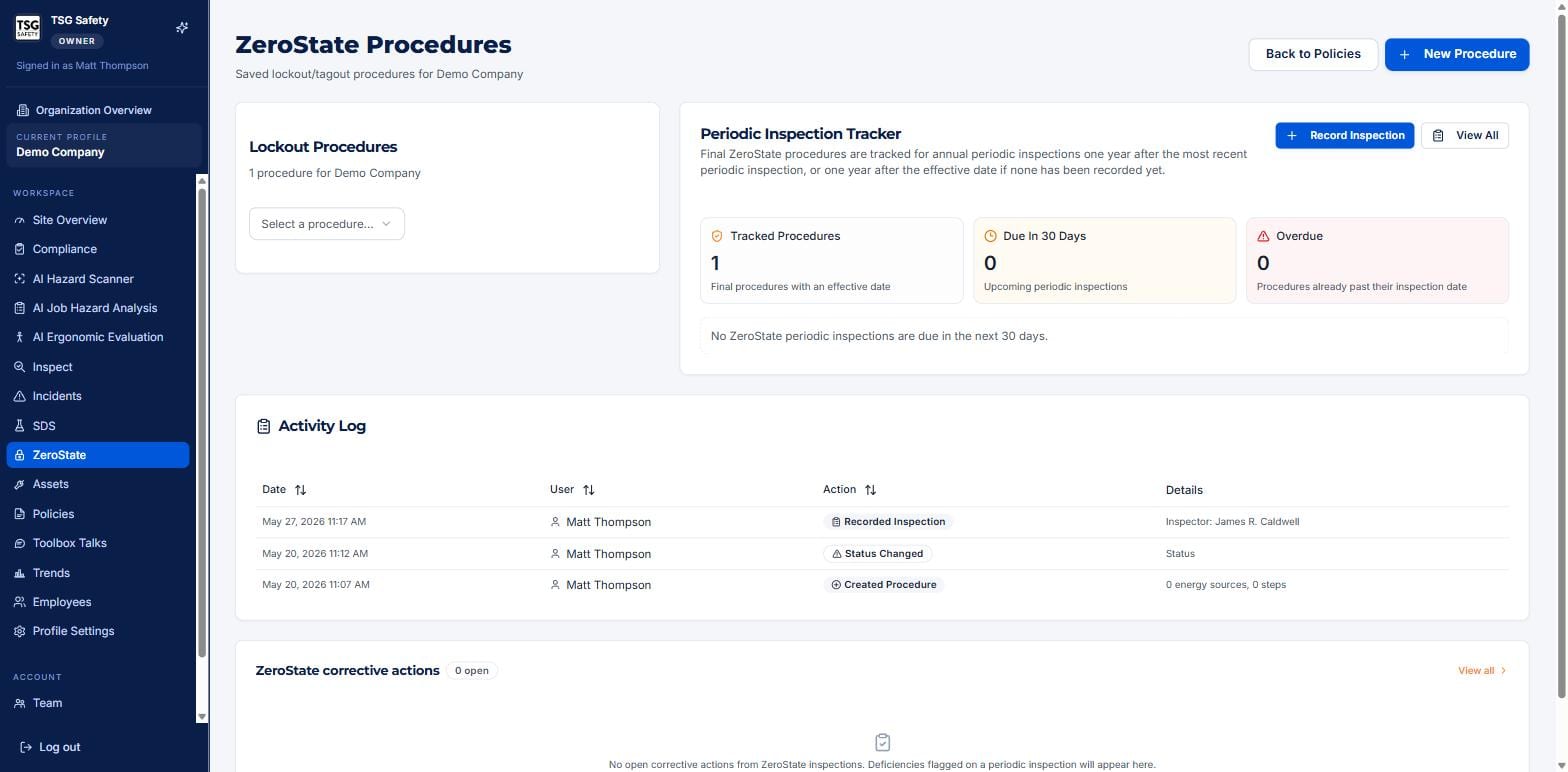
| Area | What it shows |
|---|---|
| Lockout Procedures | A selector for every saved procedure at this site. |
| Periodic Inspection Tracker | How many final procedures are tracked, how many inspections are due in 30 days, and how many are overdue. |
| Activity Log | A running history - procedures created, statuses changed, inspections recorded. |
| ZeroState corrective actions | Any deficiencies flagged on a periodic inspection, as assigned actions. |
A red Overdue count means a procedure has missed its annual inspection - a direct 1910.147 finding waiting to happen. Clear it before anything else.
4Find and follow a procedure
Everything an authorized employee needs to bring the machine to zero state, on one screen.
Choose the machine from the Lockout Procedures selector. The procedure opens with its summary at the top - effective date, next periodic inspection, authorized employees, who reviewed it, and the required PPE.
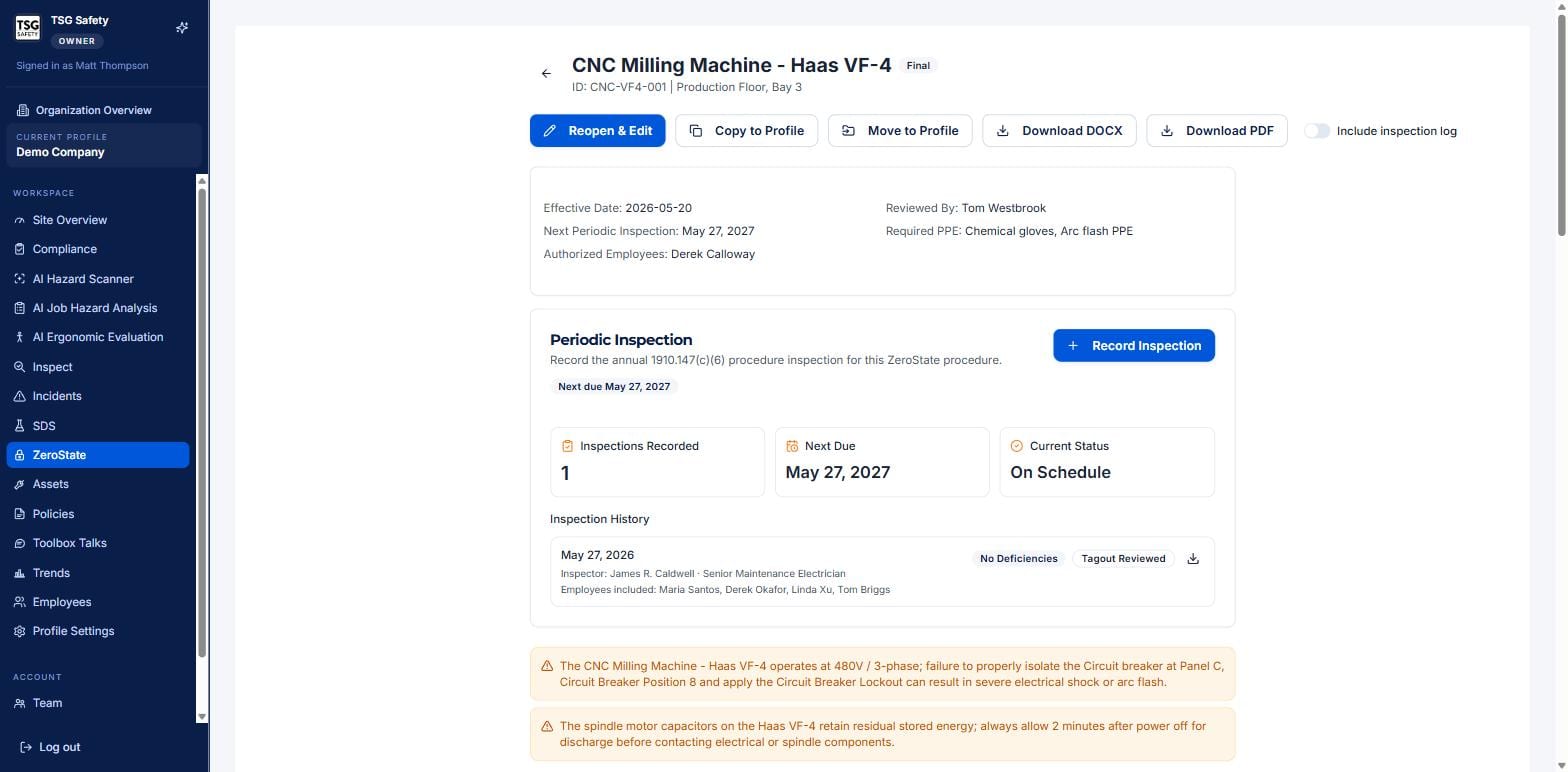
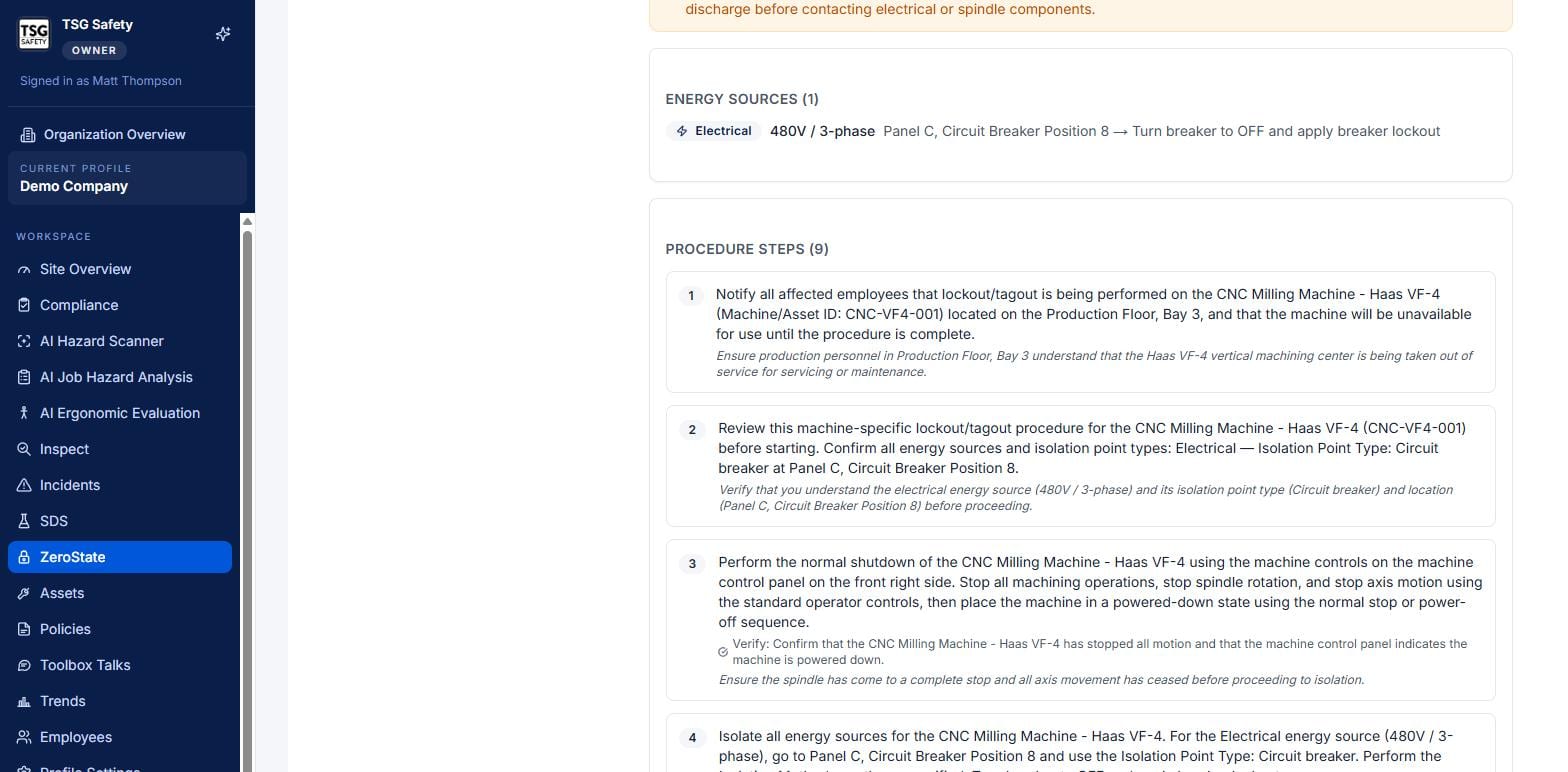
Scroll down for the parts you follow on the floor: the energy sources to isolate, each with its isolation point, and the numbered procedure steps - each with a verify note telling you how to confirm the step is done.
5Record a periodic inspection
OSHA wants each procedure inspected once a year. This is where you log it so the tracker resets.
Click Record Inspection on the home screen (or on a procedure), pick the finalized procedure, and complete the annual 1910.147(c)(6) record - the inspector, the employees included, whether the tagout was reviewed, and any deficiencies found.
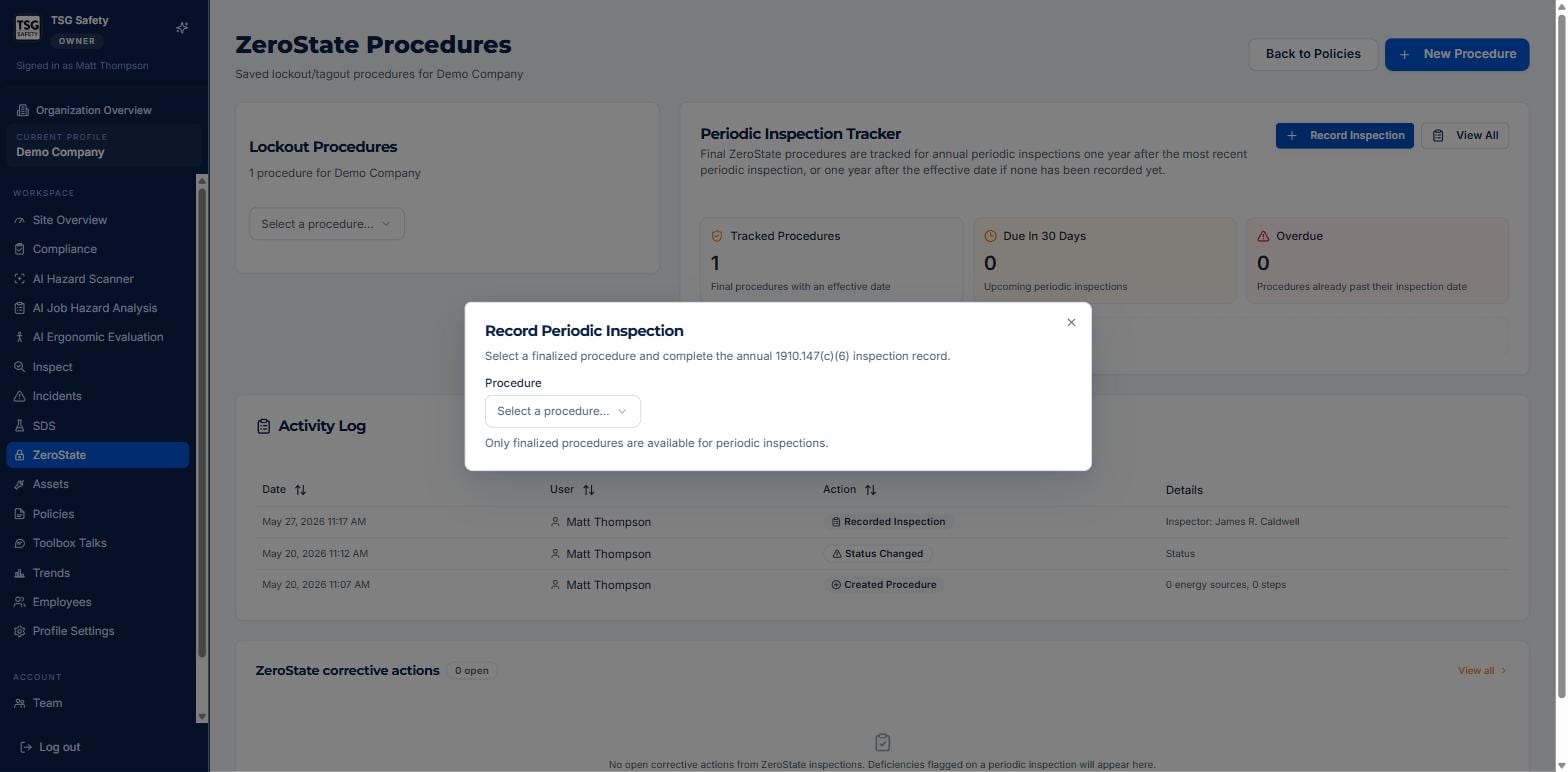
Anything you flag as a deficiency on the inspection shows up under ZeroState corrective actions on the home screen, with an owner and a due date - so a failed inspection turns into a tracked fix, not a note in a binder.
6Export and share
From any procedure, the buttons across the top turn it into a document for the floor or the file:
Download PDF
The full procedure, ready to print and post at the machine.
Download DOCX
The same procedure as an editable Word file, for when you need to drop it into a larger document.
The Include inspection log toggle adds the periodic-inspection history to the exported document - useful when an auditor wants to see not just the procedure but its inspection record.
7Troubleshooting
| Symptom | Cause and fix |
|---|---|
| A procedure is not in the Record Inspection list | Only finalized procedures can be inspected. A draft must be published first (see the Administrator Guide). |
| The Overdue count is red | A procedure has passed its annual inspection date. Record the periodic inspection to clear it. |
| I need to change a step or energy source | Use Reopen & Edit on the procedure - an admin task covered in the Administrator Guide. |
| The procedure is for the wrong site | Use Copy to Profile or Move to Profile on the procedure. |
| An auditor wants the inspection record too | Turn on Include inspection log before downloading the PDF or DOCX. |
Try ZeroState in ShieldSphere
Start a free hazard scan and see the platform these guides describe - no credit card required.
Screens captured from the live application in July 2026 using a demonstration site - your screens will show your own data. Because ShieldSphere ships changes regularly, check the version above against the current release before circulating this guide widely. Questions? Contact support.