
Compliance Assistant
ask in plain language, check the source
How to open the ShieldSphere Assistant, ask it OSHA and state-plan questions, have it find records in your own account, and check its citations before you rely on an answer. For safety managers and site supervisors.
Short answer
The ShieldSphere Compliance Assistant is a chat panel inside the dashboard that answers OSHA and state-plan questions and finds records in your own account. It searches ShieldSphere's regulation library before it answers, shows which excerpts it used as citation tags, and never changes your data. You open it from the sparkle button in the sidebar.
1What the Assistant does
The Assistant does two jobs and nothing else: it answers workplace-safety regulation questions, and it finds things in your ShieldSphere account.
For a regulation question, such as how often fire extinguishers must be inspected, it searches the regulation library first and builds its answer from the excerpts it finds. For an account question, such as "show my recent inspections," it looks up your records and lists what it finds. It is read-only. It cannot create, edit or delete anything, and if you ask it to, it points you to the page where you can.
It is deliberately narrow. Questions about coding, trivia, travel or anything outside workplace safety get a short refusal and a reminder of what it can help with.
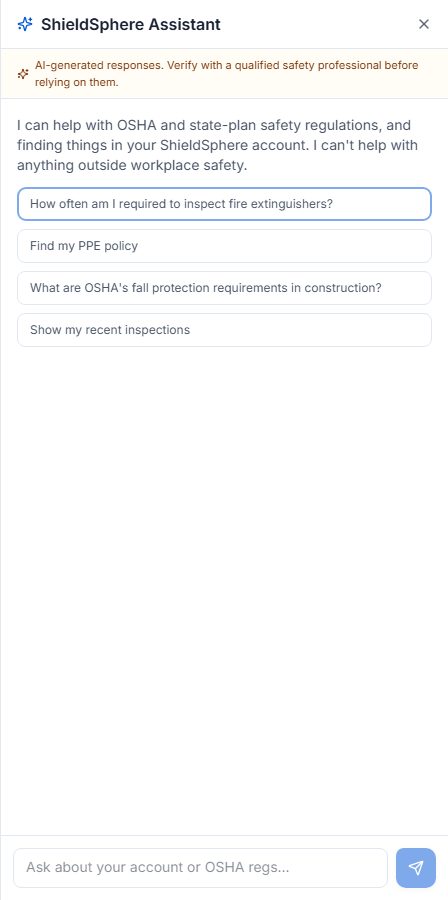
A banner at the top of the panel reads AI-generated responses. Verify with a qualified safety professional before relying on them. Treat the Assistant as a fast way to find the right rule and the right record, then confirm against the source, as section 6 describes.
2Open the Assistant
The Assistant is available from the dashboard. If you do not see the button described below, ask your ShieldSphere contact to check that your account has it.
Click the sparkle button in the sidebar
At the top of the left sidebar, next to your organization's name, is a small sparkle icon. Hover over it and the tooltip reads Account & OSHA assistant.
Start with a suggestion or type your own
A panel titled ShieldSphere Assistant slides in from the right. On an empty chat it offers four starter questions you can click: how often fire extinguishers must be inspected, finding your PPE policy, OSHA's fall protection requirements in construction, and your recent inspections. Or type in the box at the bottom, which reads Ask about your account or OSHA regs...
Send, and watch it work
Press Enter to send, or Shift + Enter for a new line within your message. Messages can be up to 4,000 characters. The answer streams in as it is written, and above it you will see small lines such as Searching regulations or Searching your account, each with the question it searched for and a count of what came back.
Click New chat in the panel header (it appears once a conversation has started) to clear the conversation and begin again. Within one chat, the Assistant remembers what you asked earlier, so follow-ups like "what about construction?" work. Reloading the page starts a fresh chat.
3Ask about regulations
Ask the way you would ask a colleague. The Assistant rewrites your question into a search, pulls the matching excerpts, and answers from them in short paragraphs or bullets.
| Covers | Detail |
|---|---|
| Federal OSHA | General industry (29 CFR 1910), shipyards, marine terminals and longshoring (1915 to 1918), construction (1926) and agriculture (1928). |
| State plans | California, Washington, Oregon, Michigan and Minnesota. Name the state or plan in your question, such as "Cal/OSHA" or "MIOSHA," and you get the state rule, cited as the state code. |
| No state named | You get the federal rule. If a state-plan excerpt differs in a way that matters, it adds that as a supplementary note. |
| Canadian sites | If your active location is a Canadian site, the Assistant answers from Canadian occupational health and safety provisions only. It will not fall back to US law, and if nothing on point is in the library it says so. |
Mention the industry or the situation when it matters. "What are the fall protection requirements for a roofing crew?" gets a more useful answer than "fall protection."
4Find things in your account
For "find my" and "show me my" questions, the Assistant searches your organization's records. It returns up to ten matching records per search, so narrow your question if you expect more. The records it can look through are:
Policies
Written safety policies such as PPE, fall protection and lockout/tagout.
Inspections and findings
Inspection records, and the hazards found in them. Ask for open findings to see only unresolved ones.
Sites
Your company sites and locations.
Respirator fit tests
Fit test records, including overdue ones.
OSHA incidents
OSHA 300 and 301 injury and illness records, including open cases.
Employees and training
The roster, and training records such as who completed training this year, who is due, and what has expired.
Toolbox talks
Toolbox talks and tailgate meetings.
Lockout/tagout procedures
Procedures with their next review date, including overdue and due soon.
Hazard scans
Past AI Hazard Scanner analyses.
The Assistant only sees what you are allowed to see in ShieldSphere. If a record is limited to a location you do not have access to, it will not appear. If a search finds nothing, the Assistant says so plainly rather than guessing.
5How it uses your active location
Which law applies depends on where the work happens, so the Assistant uses the location you are working in. It decides in this order:
- If you are on a site or client workspace page, that location is used.
- Otherwise it uses the last location you worked in on this browser.
- If neither applies, or that location is not available to you, it uses your organization-wide settings.
The location decides which jurisdictions the Assistant draws on. A stale or unavailable location is simply ignored, so it can never widen what you can see. When a location covers both US and Canadian jurisdictions, the Assistant answers from the US side.
Working across several sites? Open the right site in the sidebar before you ask. A question asked while viewing a Canadian site gets Canadian answers, and the same question asked from a US site gets OSHA answers.
6Check the citations
Under each regulation answer, small tags list the citations of the excerpts the Assistant retrieved, for example 29 CFR 1910.157 or a state code such as 8 CCR §3314. They are how you get from the answer to the source.
Match the tag to the claim
Read the answer, then look at the tags. The citation named in the text should appear among them. A federal tag when you asked about a state plan, or the reverse, is a sign to ask again and name the state.
Open the standard and read it
Look up the cited section in the official text, or in the Compliance module, and confirm the requirement, the exceptions and the scope. The tags show what the Assistant read, not a guarantee that every one supports every sentence.
Treat a missing citation as a stop sign
A regulatory answer with no tags, or one that says it found nothing, should not be acted on. Rephrase the question, or ask your safety professional.
To check a written policy against the standards, see the Policy Analyzer guide. For the module that tracks your compliance obligations, see the Compliance guide.
7Limits and troubleshooting
| What you see | What to do |
|---|---|
| It declines your question | It only covers workplace-safety regulations and your ShieldSphere account. Reword the question around safety, or use the right tool elsewhere. |
| Zero results, or it says it could not find a record | For a record, try a simpler keyword or check you are on the right location. For a state rule, the library may not hold an excerpt; the Assistant will say no state-specific rule was located. |
| It will not make a change | By design. It is read-only. Use the module's own page to create or edit the record. |
| Message too long | Messages are limited to 4,000 characters. Shorten it or split it. |
| A red error appears in the panel | Wait a moment and send again. If it keeps happening, tell your ShieldSphere contact what you asked and when. |
| Answer looks like the wrong jurisdiction | Check which location you are working in (section 5), then ask again and name the state or plan. |
| You cannot find the sparkle button | Ask your ShieldSphere contact to check that your account has the Assistant. |
The Assistant helps you find and read the rules faster. It is not legal advice and it does not make compliance decisions for you. Anything that affects a citation, an incident determination or a recordable case should be confirmed with a qualified safety professional.
Try Compliance Assistant in ShieldSphere
Start a free hazard scan and see the platform these guides describe - no credit card required.
Screens captured from the live application in November 2026 using a demonstration site - your screens will show your own data. Because ShieldSphere ships changes regularly, check the version above against the current release before circulating this guide widely. Questions? Contact support.