
Policy Analyzer
your safety manual, checked against OSHA's required content
How to upload an existing safety manual, let ShieldSphere find the OSHA programs it covers, run a gap analysis on each, read the scored report, and check every finding and citation yourself before you act on it.
Short answer
ShieldSphere's Policy Analyzer reads a safety manual you upload as a PDF or Word file, identifies which OSHA programs it covers, and grades each program section by section. You get a coverage score and a gap report showing what is present, partial or not found. It is AI-generated, so a person must verify the results.
1What the Policy Analyzer does
You already have a safety manual. The question is whether it says what an OSHA inspector would expect it to say.
The Policy Analyzer answers that first pass. You upload the manual once. ShieldSphere scans it and lists every OSHA program it appears to address, such as Hazard Communication, lockout/tagout or fall protection. You confirm the list, and each program is graded against the content OSHA expects it to contain. The result is a score per program and, for each one, a report of the sections that are covered, partly covered, or not found.
It is a starting point for review, not a ruling. Reports use neutral wording such as "Required content we did not find" and carry the notice that the analysis is not a legal compliance determination. Section 8 shows how to check the work.
A high score does not mean your program is compliant, and a low one does not mean it is deficient. The analyzer compares your wording with a checklist of required content. It cannot see your training records, your site conditions or what people actually do.
2Words you'll see
| Word | What it means |
|---|---|
| Safety manual | One document, PDF or Word, that covers several programs. This is what you upload. |
| Detected program | An OSHA program ShieldSphere believes your manual addresses, with a confidence of High, Medium or Low. |
| Coverage score | A number out of 100 for one program. Each section counts 100 if present, 50 if partial and 0 if not found, and the score is the average across sections. |
| Present | The section's required content appears to be covered. |
| Partial | The topic is addressed but some required wording, citations or sub-topics are missing. |
| Not found | The analyzer did not find the section's required content in your document. |
| Evidence | A sentence quoted from your own document that the analyzer says supports its finding. |
| Gap report | The detailed result for one program: every section with its status and notes. |
| Adopted | Your uploaded file has been made the official policy for a program. |
3Who can use it
The Policy Analyzer is included with the Growth and Enterprise plans. The Upload safety manual button is shown to organization owners and admins, and to the owner of the site profile. If an upload stops with the message Policy analyzer requires Growth plan, ask your ShieldSphere contact to switch it on for your organization.
Anyone with access to a site can open its past uploads and reports. Uploads are private to your organization.
4Upload your safety manual
Open the site's Written Programs page
Choose the site in the sidebar and open its Written Programs page. At the top is a card headed Have an existing safety manual? Choose Upload safety manual.
Choose the file
In the Analyze your safety manual dialog, use Safety manual (PDF or Word) to pick your file. Open How does this work? in the dialog if you want the four-step summary.
Upload and detect programs
Choose Upload and detect programs. The button shows its progress: Preparing file, Uploading, Verifying and extracting text, then Identifying OSHA programs. When it finishes, ShieldSphere takes you to the list of detected programs.
| File rule | Detail |
|---|---|
| Type | PDF or Word (.docx) only. Older .doc files, plain text and spreadsheets are not accepted. |
| Size | Up to 100 MB. |
| Readable text | The file needs real text in it. A PDF that is only scanned pictures of pages, with no text layer, is refused with the message that scanned or image PDFs are not yet supported. |
If your manual lives in a Word file, upload that, or export a PDF directly from it rather than scanning a printout. Clean text gives the analyzer the best chance of finding what is really there.
5Confirm the programs it found
The Detected OSHA programs page first shows Identifying OSHA programs in your manual. This usually takes 30 to 60 seconds, and the page updates by itself.
Then you see a heading such as We found 8 OSHA programs in your manual, with one row per program. Each row shows the program name, the standard it falls under, a confidence badge and a short quote from your document that led to the match.
| Confidence | What it means |
|---|---|
| High | 90% or above. Ticked for you. |
| Medium | 70% to 89%. Ticked for you. |
| Low | Below 70%. Not ticked. Tick it yourself if you want it graded too. |
Untick anything you do not want graded, then choose Analyze followed by the number, for example Analyze 6 programs. The counter beside it reads 6 of 8 selected for analysis. You must select at least one program.
You may see No OSHA programs detected in this document. Try a different file, such as the full manual rather than a cover sheet or table of contents. If detection fails outright, the page shows Classification failed with the reason.
6Follow the analysis
After you start, the Comprehensive policy analysis page shows one row per program. The heading counts progress, such as Analyzing 6 programs: 2 of 6 complete, and N in progress shows while any are still running. Rows update on their own every few seconds. Most programs finish in a minute or two.
Each finished row shows a percentage score and is colored by band, with the number itself always shown.
| Score | Shown as |
|---|---|
| 80% or higher | Green |
| 60% to 79% | Amber |
| Below 60% | Red |
Finished programs are sorted by score, highest first. Click any finished row to open its gap report. A row that could not be graded is marked failed and shows its error. If the page says Polling timed out, refresh it to pick up where things stand.
7Read a gap report
The Policy gap analysis page names the program, the standard and your file. If the analysis is still running, the page says so and refreshes itself, with most policies finishing in 60 to 90 seconds.
The score
The Coverage score sits at the top out of 100, beside counts of Present, Partial and Not found sections. A banner above reminds you that the analysis is AI-generated and is not a legal compliance determination.
Section findings
Below that, Section findings lists every section of the program, worst first: Not found, then Partial, then Present. Sections that need attention are open. Present ones are collapsed. Inside a section you may see:
| Heading | What it tells you |
|---|---|
| Topics addressed | The required topics the analyzer did not flag as missing. |
| Required content we did not find | Required topics or wording the analyzer could not locate. These are your to-do list. |
| Citations the policy does not reference | Regulations a program of this kind is expected to cite, shown as amber tags. |
| Evidence from your policy | A sentence quoted from your document. |
| Analyst note | A short remark on nuance, when there is one. |
8Check it before you act on it
The analyzer is a fast, tireless first reader. It is not a safety professional, and it can be wrong in both directions. Treat every finding as a question to answer, not a fact to file.
Before you add, remove or rely on any citation, a qualified person must look it up in the current regulation. Never copy a citation from a gap report into a policy, a training record or an inspection response without checking it against the source.
A checking routine
Check each Not found against your manual
Search your own document for the topic. Content can be present in different words, in a part of the manual the analyzer did not weigh well, or in a separate document such as a procedure or form. A "Not found" can mean "not found in the text we read", especially in a very long manual.
Check each quoted Evidence line
Search for the quoted sentence in your file. It should be there word for word, and it should really support the finding. A quote that does not appear, or that says something different from the summary, means that finding cannot be trusted.
Check every citation against the regulation
For each amber citation tag, open the current text of the regulation and confirm that it applies to your work and your state. The analyzer is told to use only the federal citations ShieldSphere holds for the program, plus state citations for the states on your profile. That instruction reduces invented citations but is not a guarantee, and a citation being listed is not a statement that your site is out of compliance.
Check the context
Confirm that the industry, employee count and states on the site profile are right, because the analysis relies on them. A wrong state changes which state citations are in play.
Have a qualified person sign off
Before changing the program or telling anyone it is compliant, have a safety professional, your safety committee lead, or your advisor review the findings. The report is built to support that conversation.
Occasionally a section shows Analyzer returned an unreadable response for this section, always as Not found, with a note. That means the check failed, not that your manual lacks the content. The section also counts as zero in the score, so the score for that program is understated. Re-run the analysis, or review that section by hand.
9What to do next
At the bottom of a finished gap report, What would you like to do next? offers two routes. The header also has Download PDF, which saves the report to share with your safety committee or advisor. The PDF carries the same AI-generated notice.
Adopt as official policy
Makes your uploaded file the policy of record for that program at this site. Employees with portal access can view and acknowledge it, and any existing policy for the program is replaced. A confirmation appears first.
Build from the library
Takes you to the written program library to build a verified written program for the same topic. Its text is checked against current regulations and covers the required topics in the report.
Adopting does not depend on the score. A document with open gaps can still be adopted, and it will replace whatever policy was there. Close the gaps that matter first, and make sure what you adopt is the file you want your employees to read.
To act on a gap, update your manual, upload the new version and run the analysis again. You can compare the scores in your upload history.
10Past uploads
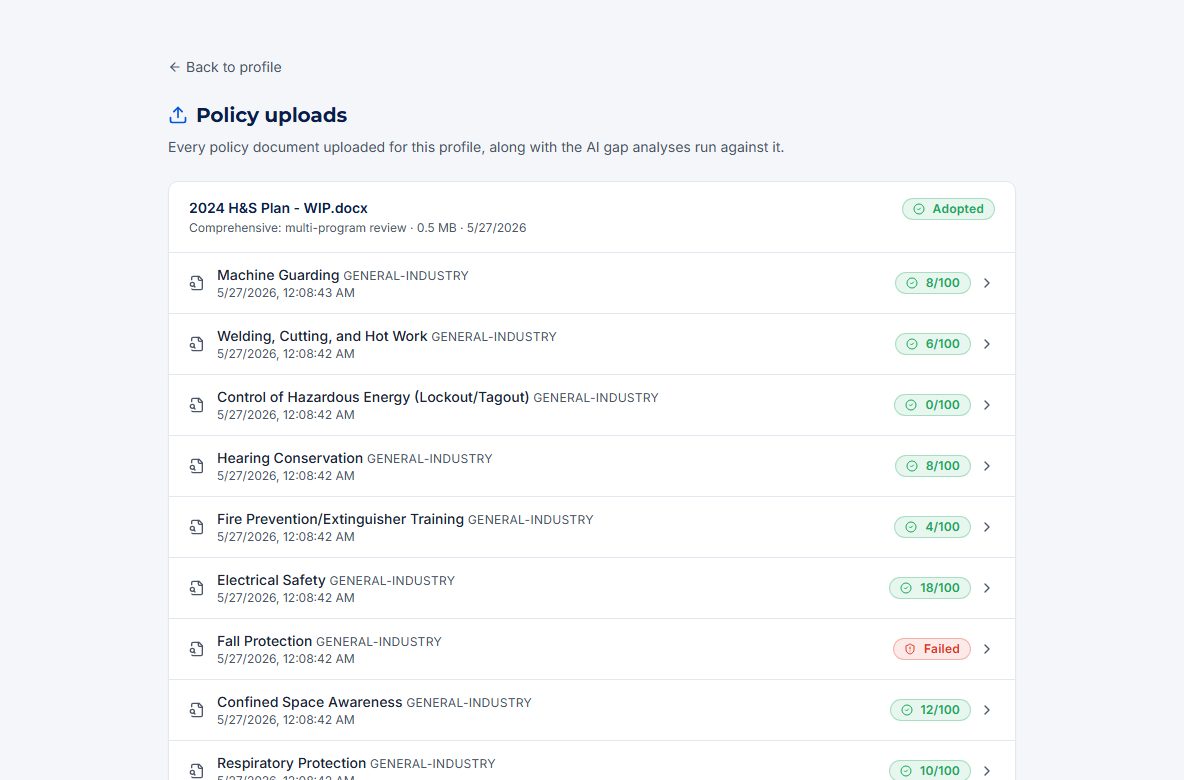
From the upload card, choose View past uploads to open Policy uploads: every document uploaded for the site, newest first, with its file size, page count, date and whether it was a multi-program review or a single program. Under each upload are the analyses run against it. Click one to open its gap report.
| Badge | Meaning |
|---|---|
| Adopted | The upload has been made an official policy. |
| A score such as 72/100 | The analysis is complete. |
| Queued, Classifying or Running | The analysis is in progress. |
| Failed | The analysis did not complete. Open it to see why. |
The page says No uploads yet until the first manual is uploaded.
11Troubleshooting
| What you see | What to do |
|---|---|
| No Upload safety manual button | It is shown to owners, admins and the site profile's owner. Ask one of them, or ask to be given the right role. |
| "Policy analyzer requires Growth plan" | The analyzer is not enabled for your organization. Ask your ShieldSphere contact to switch it on. |
| "Please choose a PDF or Word (.docx) file." | Save or export the document as a PDF or a .docx file and try again. |
| "File exceeds the 100 MB limit." | Compress the PDF, or remove large embedded images, then upload again. |
| "This PDF has no extractable text. Scanned/image PDFs are not yet supported." | Upload the original Word file or a PDF exported from it, rather than a scan. |
| "This Word document is empty." | The file has no text in it. Check you picked the right file. |
| Detection takes more than a couple of minutes | Refresh the page. If it shows Classification failed, upload the file again. |
| No OSHA programs detected | Upload the full manual. A short excerpt may not carry enough wording to identify a program. |
| A program shows Failed on the matrix | The row shows the reason. Upload the file again to run it afresh, and contact ShieldSphere support if it keeps failing. |
| A score looks too low | Open the report and check the Not found sections against your manual (section 8). Sections that could not be graded count as zero. |
| A section is Not found but your manual covers it | The wording may be different, or the content may sit in a part of a long manual that was not weighed. Treat it as a prompt to make the wording clearer, and take the finding to your reviewer. |
| Download PDF fails | Wait a moment and try again. The button only appears on completed reports. |
Related guides: Policies, Compliance Assistant and OSHA Inspection Simulator.
Try Policy Analyzer in ShieldSphere
Start a free hazard scan and see the platform these guides describe - no credit card required.
Screens captured from the live application in November 2026 using a demonstration site - your screens will show your own data. Because ShieldSphere ships changes regularly, check the version above against the current release before circulating this guide widely. Questions? Contact support.