
OSHA Inspection Simulator
practice the visit before the officer arrives
How to play the free OSHA inspection practice game: handle the knock, set the scope, walk your floor ahead of the compliance officer, answer record requests, and read your citations, penalties and grade. For safety managers and site supervisors who want their team ready.
Short answer
The ShieldSphere OSHA Inspection Simulator is a free practice game that puts you in the safety manager's seat for a full OSHA inspection. You pick a facility, make the decisions a real inspection asks of you, and walk your floor fixing hazards ahead of the compliance officer. You finish with citations, proposed penalties and a grade. It is practice, not legal advice.
1What the Simulator is
A real inspection tests what your people do when an officer is standing in the lobby. The Simulator lets them rehearse it when nothing is on the line.
It is open to anyone at shieldspheresafety.com/osha-inspection-simulator. There is nothing to install and you do not need a ShieldSphere account to play. It runs in a browser on a computer, phone or tablet, and a run takes about ten minutes. You play the safety manager. A Compliance Safety and Health Officer (CSHO) arrives unannounced, and you take the inspection from the knock at the door to the closing conference.
Every run is different. The reason for the visit, the inspector, the hazards on the floor and the state of your records are drawn fresh each time. The decisions follow 29 CFR 1903 and the OSHA Field Operations Manual, and each one shows the rule it rests on.
The Simulator is a readiness exercise. Its citations, penalties and grade are for training and discussion. Penalty figures are estimates based on the OSHA Field Operations Manual, state-plan states may differ, and nothing here predicts what a real inspector will find. Before a real inspection, talk to your safety professional or counsel about your rights and obligations.
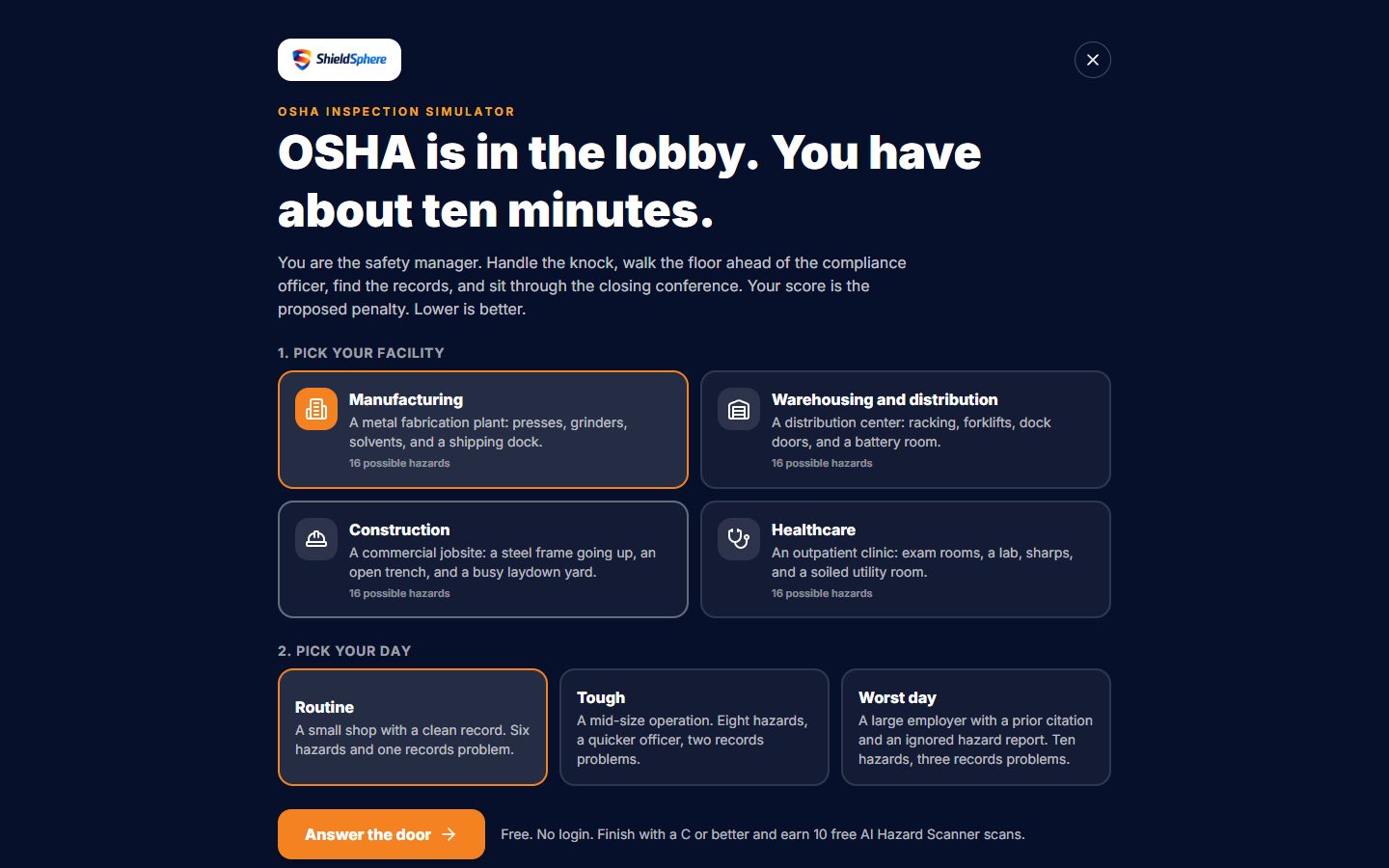
Manufacturing
A metal fabrication plant: presses, grinders, solvents and a shipping dock.
Warehousing and distribution
A distribution center: racking, forklifts, dock doors and a battery room.
Construction
A commercial jobsite: a steel frame going up, an open trench and a busy laydown yard.
Healthcare
An outpatient clinic: exam rooms, a lab, sharps and a soiled utility room.
2Start a run
Click Play the simulator
On the simulator page, click Play the simulator. The game opens over the page. The X at the top left closes it at any time.
Pick your facility and your day
Under Pick your facility, choose Manufacturing, Warehousing and distribution, Construction or Healthcare. Each has 16 possible hazards, and a run uses some of them. Under Pick your day, choose how hard it is.
| Day | What you face |
|---|---|
| Routine | A small shop with a clean record. Six hazards and one records problem. |
| Tough | A mid-size operation. Eight hazards, a quicker officer and two records problems. |
| Worst day | A large employer with a prior citation and a hazard report nobody acted on. Ten hazards and three records problems. Expect a repeat and a willful citation if you leave those two alone. |
Click Answer the door, then read the briefing
The Before the knock screen tells you who you work for, how many employees there are, the company's citation history and where your records are kept. Headcount and history change the penalty math later. Click The front desk is calling to begin.
| Device | Controls |
|---|---|
| Computer | Move with W, A, S, D or the arrow keys. Press E to inspect what you are standing next to. Press a number key to pick an answer on a decision, and Enter to continue. |
| Phone or tablet | Use the on-screen joystick to move. Tap the buttons to inspect, fix and answer. |
The button at the top right switches between High and Low graphics quality. In High, everyday items such as cartons, crates, drums, fire extinguishers, electrical panels, desks and chairs are drawn as detailed, realistic models with shadows. In Low they are drawn as simple shapes, which is lighter on the device. Phones and less powerful computers start in Low. Nothing about the inspection changes between the two: the same hazards are in the same places.
3The six stages
Every run has the same six stages in the same order. The bar at the top of the screen shows which one you are in.
| # | Stage | What you do |
|---|---|---|
| 1 | The knock | Check credentials, ask why OSHA is here, decide between consent and a warrant, and choose who joins the opening conference. |
| 2 | Opening conference | Set the scope of the inspection, sort out the employee representative and handle the document request. |
| 3 | Walkaround | Walk your own floor ahead of the officer. Find hazards and fix them before they are documented. |
| 4 | Manager interviews | Sit for your own interview, and your supervisor's: who is in the room, what you answer, and whether you sign. |
| 5 | Records review | Answer each record request before the four business hour clock runs out. |
| 6 | Closing conference | Hear the apparent violations, then decide what to do when the citations arrive. |
Making a decision
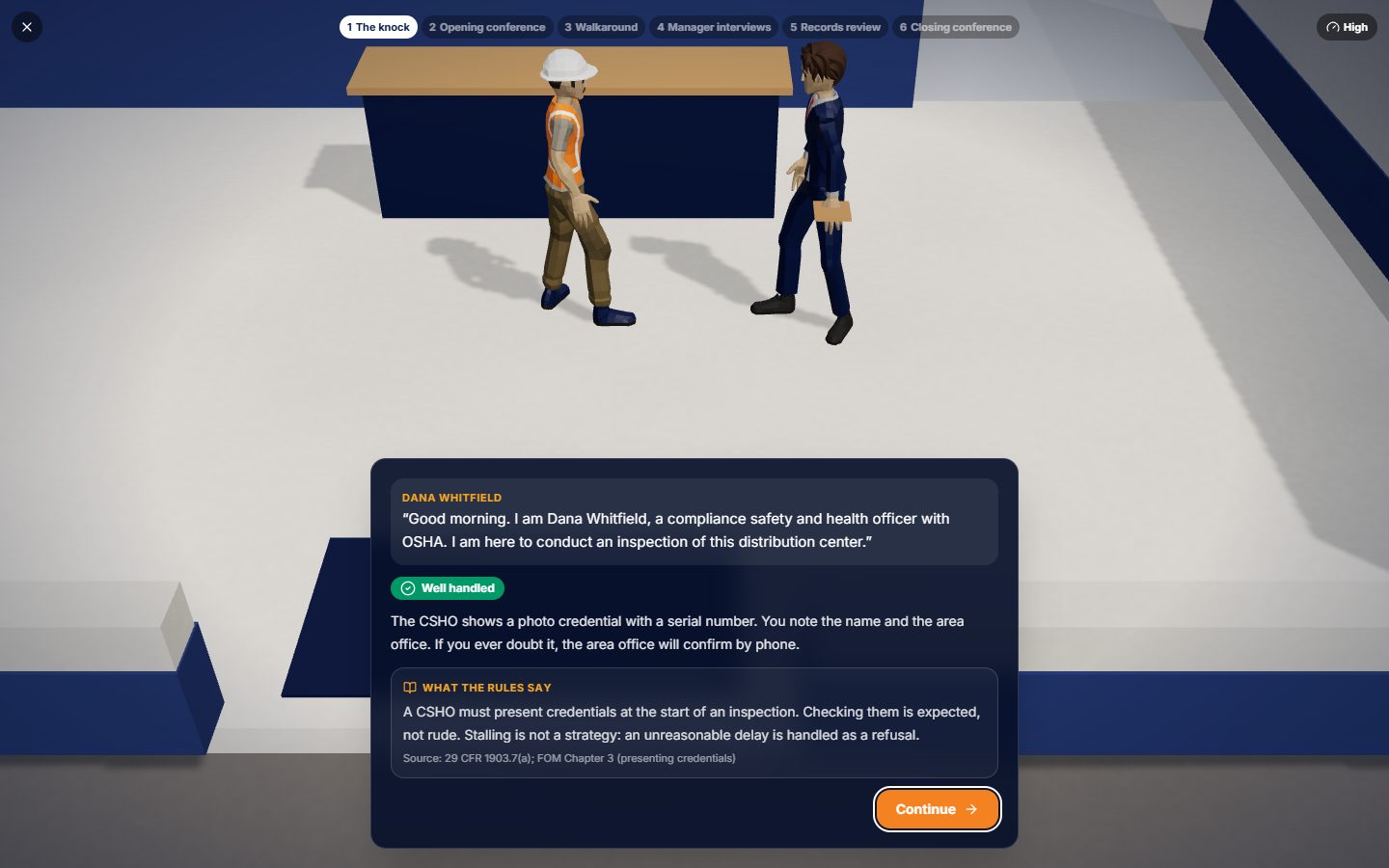
Outside the walkaround, the inspection moves by decisions. The officer, an employee or a supervisor says something, and you choose from three or four answers. Click one or press its number. The order of the answers changes from run to run, so read them rather than remembering where the good one was.
After you choose, the game tells you how it went (Well handled, Could be better or That hurt), what happened next, and What the rules say, with the regulation or manual chapter it comes from. Some answers have consequences later: a poor answer at the door can cost you time on the floor, and a false statement or a refused record can become a citation.
Your interview
The interview stage is about you. You are management, and what a manager or supervisor says can be attributed to the company, so these interviews are handled differently from an inspector's private conversations with hourly employees. The stage always opens with the officer asking to interview you and always ends with a written statement to sign.
- Before you start, ask to have a company representative or counsel in the room. The same goes for your supervisors.
- If the officer wants to record it, you can decline the recording and still answer the questions.
- When you answer, give facts you personally know. "I do not know" and "I would have to check" are complete answers. Do not guess, and do not agree to a conclusion worded for you.
- When the statement comes across the table, the well-handled answer is to decline to sign and ask for a copy. You are not required to sign the officer's summary of what you said.
The inspector
One of four inspectors walks in, and you do not get to pick. Their manner differs. The rules do not.
| Inspector | What to expect |
|---|---|
| By the book | Polite and methodical. A textbook inspection. |
| The safety cop | Loud and impatient. Demands records that are not due, tries to widen the inspection, and threatens the worst. Your job is to hold the line calmly. |
| The best friend | All first names. Offers shortcuts, asks questions "off the record" and says nothing will come of it. The same findings go in the report. |
| The quiet one | Says very little and writes everything down. |
No inspector adds a citation of their own. What gets cited comes from the facility and from what you do. A pushy inspector can only see more of your building if you let them.
4The walkaround
This is the main part of the game: you and the officer on the same floor, and you with a head start.
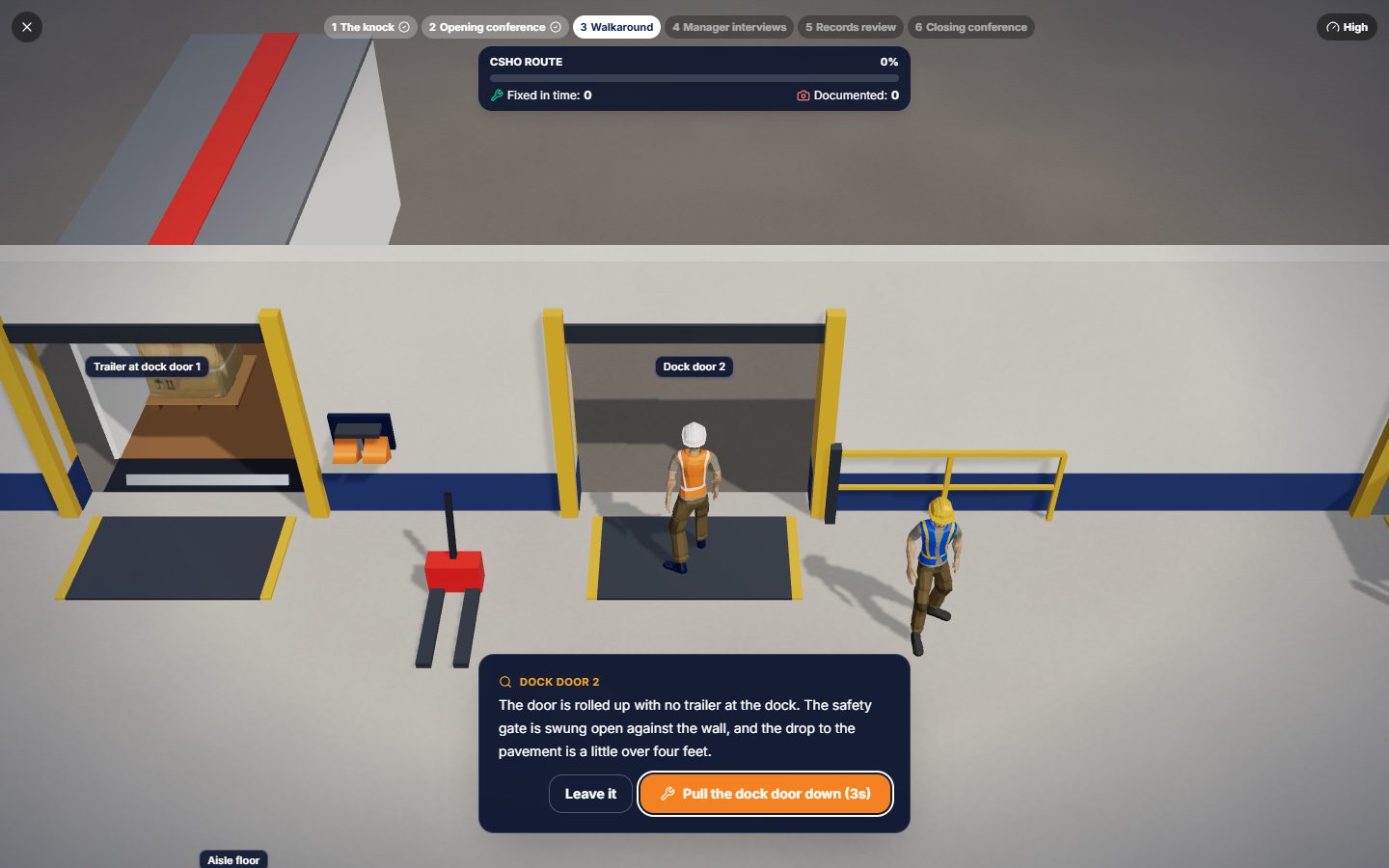
The How the walkaround works screen names the areas the officer will walk through, in order. When you start, the officer takes a moment to get a camera and notes together, then sets off along that route. The CSHO route bar at the top shows how far along they are, with counts for Fixed in time and Documented.
Run ahead and look
Move ahead of the officer. As you come near a piece of equipment or an area that can be inspected, its name appears above it, such as Dock door 2 or Electrical panel. Every such item is named, whether or not anything is wrong with it. Nothing is highlighted as a hazard: you have to look.
Inspect it
Stand next to the item and click Inspect, or press E. A card describes what you see. If it is in order, the card says so and you choose Looks fine. If something is wrong, the card describes the condition and offers a fix.
Fix it or leave it
Click the fix, for example Pull the dock door down. The number in brackets is how many seconds it takes. The fix runs on its own once started, but you have to stay there until it finishes. Choose Leave it if you would rather spend the time elsewhere.
| What happens | What it means for you |
|---|---|
| You fix a hazard before the officer reaches it | No citation. |
| The officer reaches it first | It is documented and marked on the floor. Any hazard inside the ring drawn around the officer gets documented. |
| You fix it after it was documented | It is still cited, at a reduced penalty for the quick fix. |
| Nobody finds it | No citation this time. It is still out there. |
The officer will also stop you along the way: to take photographs, to ask how long something has been like that, to speak with an operator, or to ask for a safety data sheet or a lockout procedure at the machine. Answer the way you would on the day. While you are dealing with it, the officer keeps moving.
5Scope and record requests
Two habits protect an employer more than any other, and the game is built to drill both.
Set the scope in the opening conference
When OSHA comes because of a complaint, a referral or a reported injury, the inspection has a subject. The opening conference is where you establish what that subject covers, and you do it before anyone starts walking. Confirm the area and operation at issue, say that your consent covers that and nothing more, and agree on a direct route. If you hold the scope, the officer walks only as far as the area at issue. If you offer a full tour, or give in when the officer asks for more, the whole building is on the route.
Expect to be tested. The safety cop announces a wall to wall inspection before the scope has even been agreed, and any inspector may ask on the floor to look at the other side of the building. Decline politely. Whether to seek a warrant for more is the Area Director's decision, not the inspector's. Anything in plain view along the way still counts.
A programmed inspection is different: it is comprehensive, and you cannot narrow it.
Only the injury and illness records are on the clock
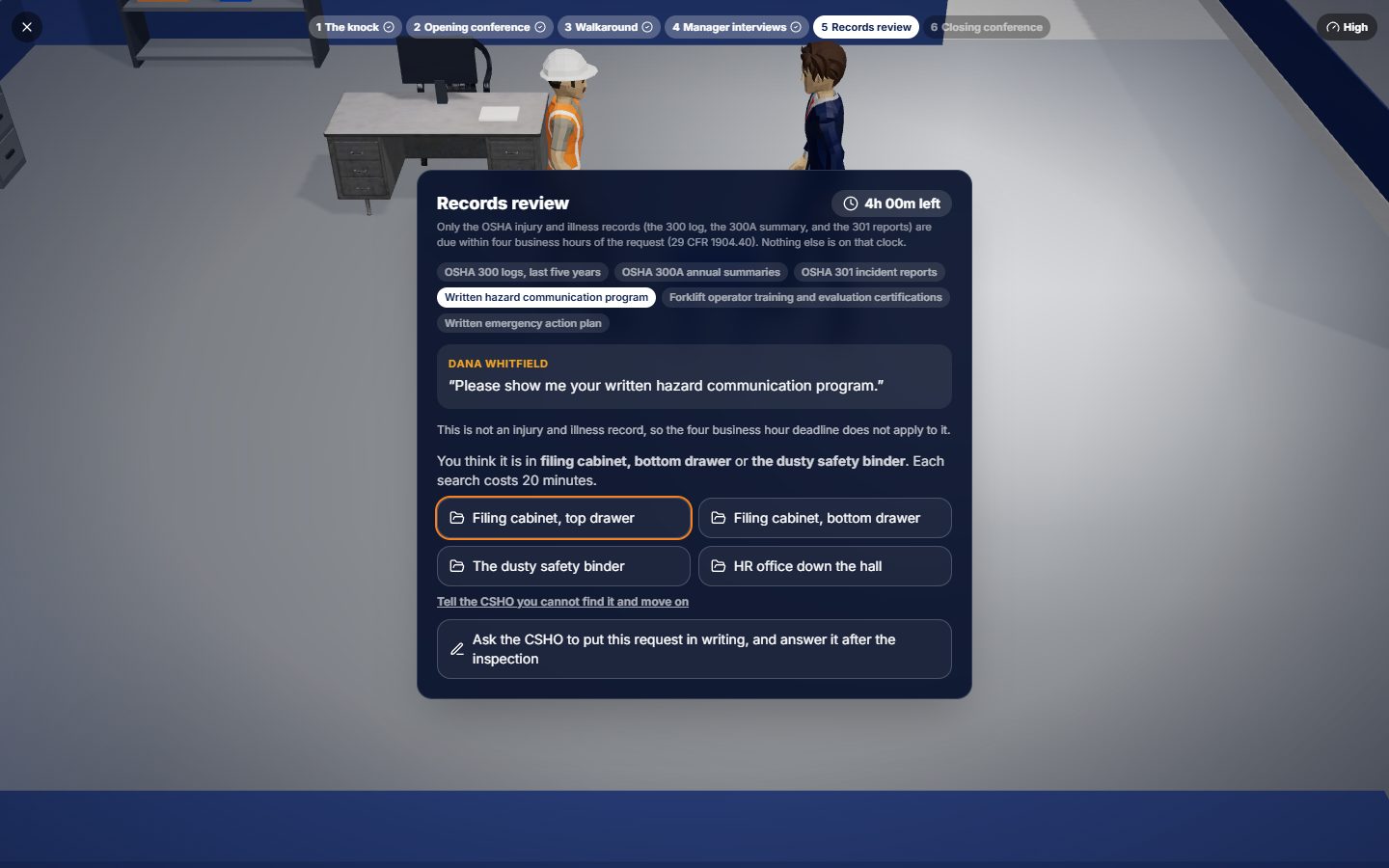
In the records review, the officer asks for documents one at a time and a clock counts down four business hours. That deadline belongs to three things only: the OSHA 300 log, the 300A summary and the 301 reports. Find those and hand them over. Each place you search costs time, so use the hint about where the document probably is.
For every other request, such as a written program or training records, choose Ask the CSHO to put this request in writing, and answer it after the inspection. That is the well-handled answer. You get a record of exactly what was asked for, management sees the document before it leaves the building, and on a limited inspection it shows whether the request has anything to do with the scope. Handing the document over on the spot is allowed but scores lower. Promising it and then failing to find it is cited as not produced.
Taking a request in writing does not make a missing program exist or a deficient record whole. If a required written program was never written, or a certification has lapsed, that is still cited.
6How scoring works
Your score is the total of the proposed penalties. Lower is better. You also get a grade from A to F.
| Part | How it is worked out |
|---|---|
| Proposed penalties | Each citation starts from a gravity-based penalty set by how severe and how likely the harm is. Reductions then apply for the size of the employer, good faith and inspection history, following the OSHA Field Operations Manual. |
| Classification | Citations are other-than-serious, serious, repeat or willful. On a worst day, a hazard you were cited for before becomes a repeat, and one that was reported and ignored becomes willful. |
| Good faith reduction | Earned in the records review: the full reduction when no records or program problems are found, a smaller one with minor deficiencies, and none when a required written program does not exist. |
| Decisions handled well | Every decision counts: a well-handled answer in full, a middling one for half, a poor one for nothing. Record requests outside the injury and illness records count here too. |
| Grade | Mostly how your penalties compare with the worst this inspection could have gone, and partly your decisions. A C or better is a pass. |
7Read your results
After the closing conference you see your grade, the proposed penalty total, and four numbers: Hazards fixed in time, Citations, Decisions handled well and Good faith reduction. The screen also names your inspector.
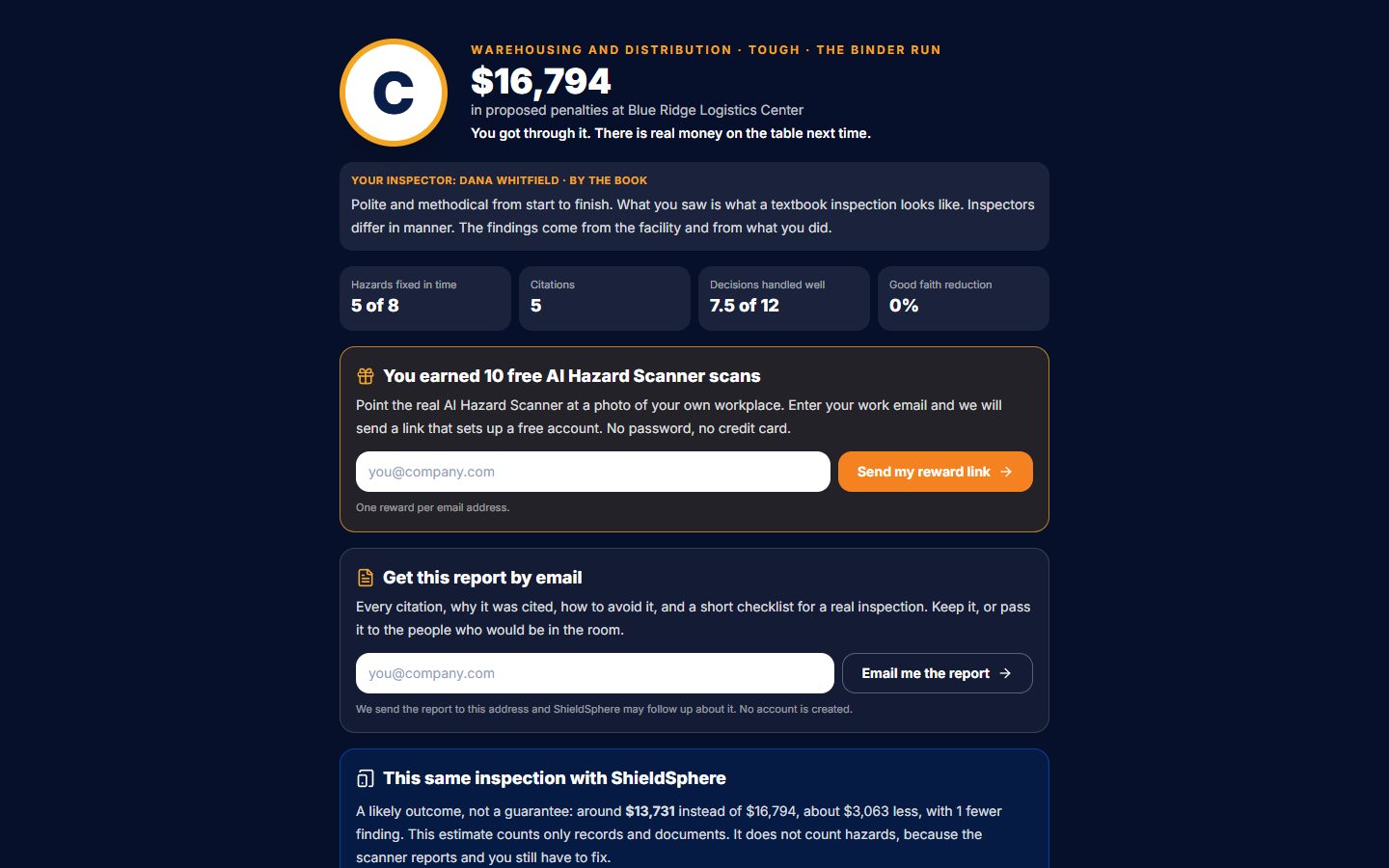
| Section | What it gives you |
|---|---|
| The reward | A grade of C or better earns 10 free AI Hazard Scanner scans. Enter your work email and click Send my reward link. Open the link in the email within one hour to confirm your address and set up a free account. One reward per email address. If you did not pass, the panel points you to the free scanner instead. |
| Get this report by email | Enter your email and click Email me the report. The report lists every citation with why it was cited and how to avoid it, the lessons from the decisions that could have gone better, and a short checklist for a real inspection. It is offered for any grade, and ShieldSphere may follow up about it. |
| This same inspection with ShieldSphere | An estimate of how the records and document findings would likely have gone with ShieldSphere, shown as a likely outcome and never a guarantee. It does not count hazards, because finding one is not the same as fixing it. See the next section. |
| Share your result | A card with your grade and penalty total. Share on LinkedIn opens a post with the text and link already in it. Copy link and Download image do what they say. |
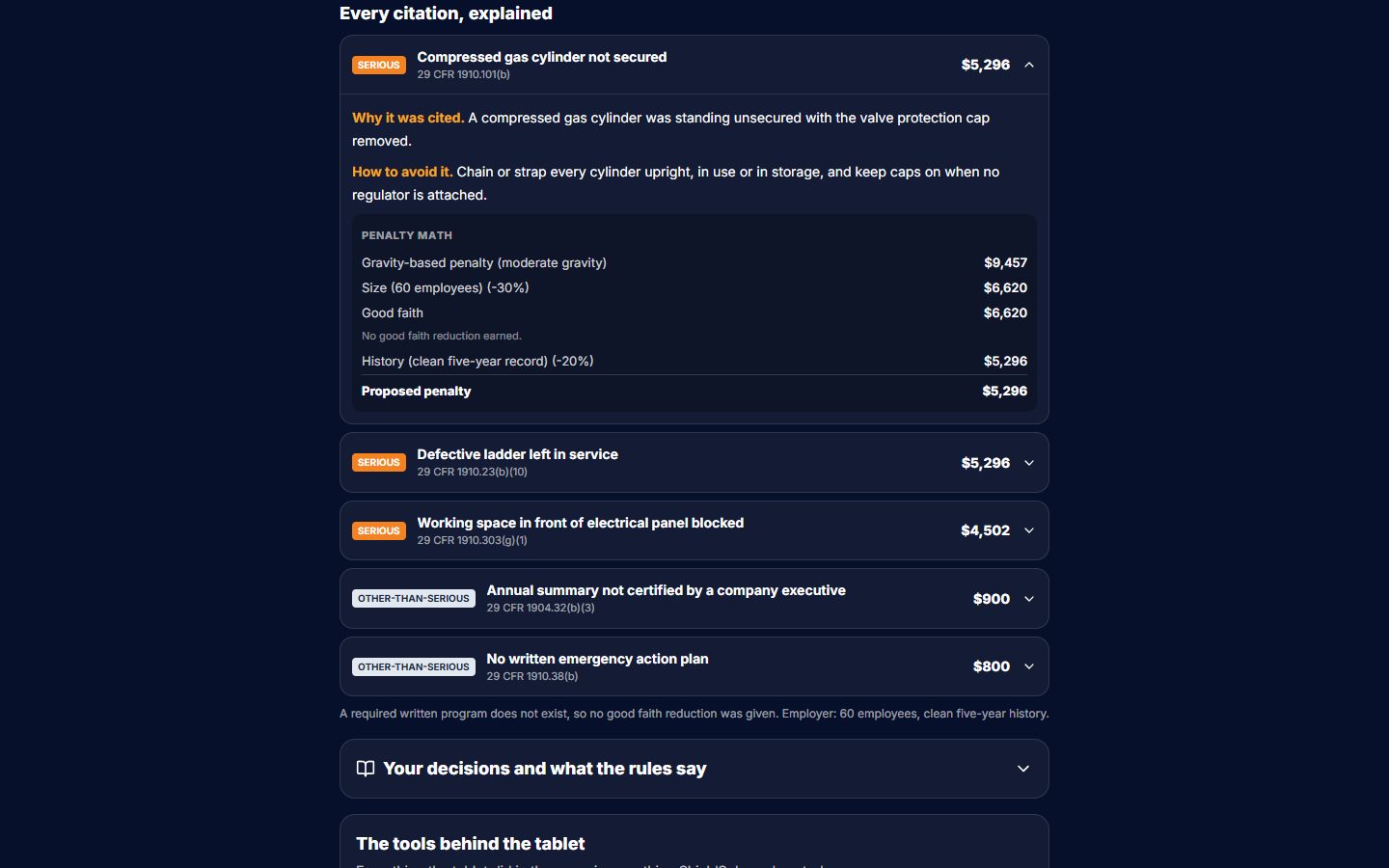
| Every citation, explained | Open a citation to see the standard down to the paragraph, why it was cited, how to avoid it, and the penalty math line by line. |
| Your decisions and what the rules say | Each answer you gave, how it went, the rule behind it and its source. |
Have a supervisor play while the rest of the team watches, then talk through each decision and each missed hazard. Compare the lessons with your own procedures for who greets the officer, how the scope is set, what you hand over and how interviews are handled.
8Replay with ShieldSphere
Your first run is the binder run: records live in a filing cabinet and a dusty binder. From the results screen, click Replay this inspection with the ShieldSphere tablet to walk the same facility again with the tablet in your hand.
The replay is the walkaround only. The same hazards are in the same places with the same inspector. The rest of the inspection goes the way you handled it the first time, the injury and illness records come straight off the tablet, and every other record request is taken in writing.
- Morning alerts. Before you start, the tablet shows what it flagged that morning, such as an expired forklift evaluation or an overdue corrective action. Act on them before the walk begins.
- The AI Hazard Scanner. Click Scan this area as often as you like. A scan reports the hazards near you, with the standard and a corrective action, and marks them on the floor. It reports. You still have to walk over and fix them.
- Documents at the machine. When the officer asks for a safety data sheet or a lockout procedure on the floor, you can pull it up on the tablet.
The replay ends with a second set of results, side by side with the first as Run 1: the binder and Run 2: with ShieldSphere. Everything the tablet does in the game is something ShieldSphere does today. See the Hazard Scanner guide, and the Inspect guide for running your own site inspections.
9Troubleshooting
| What you see | What to do |
|---|---|
| This device cannot run the 3D walkaround | Try a different browser or device, and make sure your browser is up to date. |
| Loading the facility takes a while | The first load downloads the 3D scene. Wait for the loading message to clear. |
| The walkaround is slow or jerky | Click High at the top right to switch to Low quality. Low draws simple shapes in place of the detailed models and is much lighter. |
| The facility looks plainer than the pictures in this guide | You are in Low quality. Click Low at the top right to switch to High, if your device can handle it. |
| I cannot tell what something is | Walk closer. The name of each item you can inspect appears above it when you are near. Stand next to it and click Inspect to read what is wrong, if anything. |
| The right answer is in a different place than last time | That is intended. The order of the answers changes every run. |
| The reward needs a grade of C or better | Play again. You know where the hazards hide now, so the next run goes better. |
| The reward link did not arrive | Check your spam folder. The link is valid for one hour and each email address can claim once. Finish another run to ask again. |
| Too many requests | Reward and report requests are limited per connection and per email address. Try again later. |
| We could not send the report | Try again in a minute. If it keeps failing, tell your ShieldSphere contact. |
| I want the earlier version | The previous simulator is still available at shieldspheresafety.com/osha-inspection-simulator/classic. |
Try OSHA Inspection Simulator in ShieldSphere
Start a free hazard scan and see the platform these guides describe - no credit card required.
Screens captured from the live application in November 2026 using a demonstration site - your screens will show your own data. Because ShieldSphere ships changes regularly, check the version above against the current release before circulating this guide widely. Questions? Contact support.