
Respirator Fit Testing
cleared first, fit tested every year
How to record the medical clearance each respirator wearer needs, log the annual fit test with the respirator and method used, and keep both current, in line with 29 CFR 1910.134. Written for safety managers and supervisors who run a respiratory protection program.
Short answer
ShieldSphere's Fit Testing module keeps the two records a 29 CFR 1910.134 respirator program depends on: each employee's medical clearance and their annual fit test. You record the evaluation first, then the fit test with the respirator and method used. ShieldSphere sets the next due date, flags what is expiring, and sends reminders.
1What Fit Testing does
An employee cannot be fit tested for a respirator until a medical evaluation says they can wear one, and then the fit test has to be repeated on a schedule.
The module puts those two halves side by side for each location. It records who is cleared, who has been fit tested on which respirator, and when each is next due, so an inspector's question about your respiratory protection records has one place to be answered.
The page has two tabs, Fit Tests and Medical Evaluations. Work in a single location at a time; use the location switcher in the sidebar. The module belongs to the Compliance part of ShieldSphere. If you open it and see an upgrade banner over a grayed-out preview, your plan does not include it yet: ask your ShieldSphere contact to switch it on.
The Compliance guide shows how fit test due dates appear on the compliance calendar. This guide covers the module itself, which now has its own page under Compliance in the sidebar, including the medical evaluations that come before a fit test.
2Words you'll see
| Word | What it means |
|---|---|
| Medical evaluation | The clearance recommendation of a physician or other licensed health care professional (the PLHCP) that an employee may wear a respirator. |
| Cleared | The employee may wear a respirator. |
| Cleared with restrictions | The employee may wear one, within limits you must write down, such as "filtering facepiece only". |
| Not cleared | The employee may not wear a respirator. |
| QLFT | A qualitative fit test, pass or fail by the wearer's response to a test agent. |
| QNFT | A quantitative fit test, which produces a measured fit factor. |
| Fit factor | The number a quantitative test produces. It is recorded only for QNFT. |
| Next due | When the next fit test is needed. ShieldSphere sets it to one year after the test date. |
| Current, Due soon, Expired, Failed | The four states a fit test shows. See section 5. |
3Record a medical evaluation
Start here for anyone new to a respirator. The tab says why: a medical evaluation is required before an employee is fit tested.
At the top of the tab a card explains the requirement and links to a partner service that provides respirator medical evaluations. The card says plainly that the evaluations are performed and reviewed by that partner, not by ShieldSphere. You can ignore the link if your company already uses a clinic; this tab records the result either way.
Open the form
Select Record evaluation. The form is titled Record medical evaluation and describes itself as the PLHCP's written clearance recommendation.
Choose the employee
Pick the Employee from the location's roster. If they are not on it, such as a new hire or a contractor, type a name under Not on the roster? Enter a name.
Enter the clearance
Set the Evaluation date and the Clearance status: Cleared, Cleared with restrictions or Not cleared. A restricted clearance needs the Restrictions described before it will save. Add the Provider (PLHCP), and the Respirator scope if the clearance covers only some respirators (for example, Half-mask APR).
Set when it is next due
Next evaluation due is optional, and you set it yourself, because it depends on your program and the provider's advice. It cannot be earlier than the evaluation date. Select Record evaluation to save.
The form tells you to keep clinical detail out of the restrictions and notes fields. Record the outcome and any limits on respirator use, not the employee's health information.
The list shows each employee's status (Cleared, Cleared with restrictions or Not cleared), the evaluation date, the provider and the next due date. A due date in the past reads overdue, and one within 30 days reads due soon. Use the pencil icon to edit a record. The bin icon deletes it after a confirmation, and only owners and admins can complete a delete.
4Record a fit test
Record a fit test the day it is done. Each record is one employee, one respirator and one test.
Choose the employee
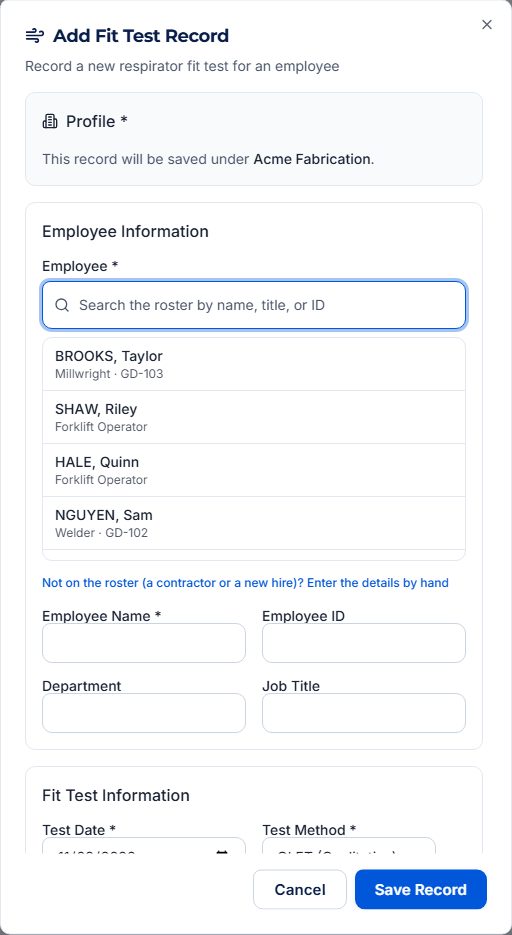
The form is titled Add Fit Test Record. Pick the Employee from the location's roster. If they are not on it, choose to enter the details by hand and type the Employee Name. Employee ID, Department and Job Title are optional.
Check the clearance banner
When you pick someone from the roster, the form shows their latest medical clearance: a green line if they are cleared, an amber line for restrictions (with the restriction text), and a red line if they are not cleared or have no clearance on file. It is a warning and not a block, so you can still log the test, for example to backfill an old record. Add the evaluation on the Medical Evaluations tab to clear a red banner.
Describe the test
Enter the Test Date, then the Test Method: QLFT (Qualitative) or QNFT (Quantitative). The Test Protocol list changes with the method. For QLFT it offers saccharin, Bitrex, isoamyl acetate (banana oil) and irritant smoke. For QNFT it offers generated aerosol (PortaCount), ambient aerosol CNC and controlled negative pressure. Set the Test Result to Pass or Fail. For QNFT a Fit Factor box appears, with a hint of the minimum for half-mask and full-face respirators.
Describe the respirator
Make/Brand, Model and Size are required. Respirator Type is a list: N95 filtering facepiece, half-mask APR, full-face APR, PAPR, supplied-air respirator or SCBA. The size and model matter because a fit test only covers the respirator it was done on.
Add the administrator and save
Optionally record the Administrator Name, their Certification and any Notes. Select Save Record. ShieldSphere sets the next due date to one year after the test date; you do not enter it.
If an employee is issued a different make, model or size, that is a new fit test and a new record. Do not edit the old record to point at the new respirator.
5Read the lists and work what is due
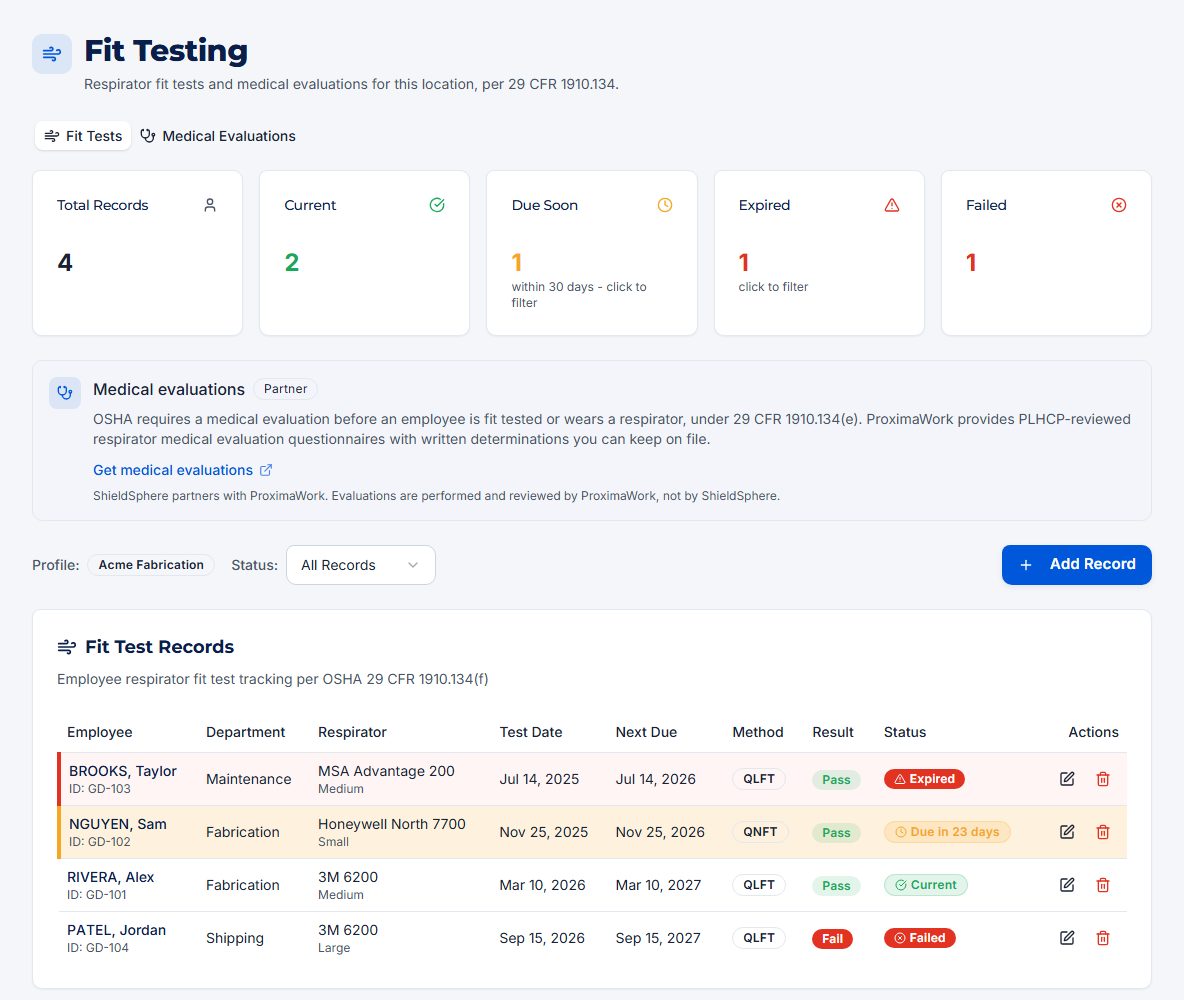
The Fit Tests tab begins with five tiles: Total Records, Current, Due Soon (within 30 days), Expired and Failed. Select the Due Soon or Expired tile to filter the table to just those records, and select it again to clear the filter. The Status menu filters to Current, Expired or Failed.
| Status badge | What it means and what to do |
|---|---|
| Current | Passed, and more than 30 days from its due date. Nothing to do. |
| Due in N days, or Due today | Within 30 days of the next due date. Book the fit test now. A test due today is due, not expired; it expires the day after. |
| Expired | The due date has passed. The employee needs a new fit test before they continue to rely on this one. |
| Failed | The test result was Fail. A worker who failed should not be in that respirator until it is resolved. Record the next test, with a different respirator or size if needed, once it passes. |
Use the pencil icon on a row to correct a record and the bin icon to delete one after a confirmation. Changing the test date on a record recalculates its next due date.
6Reminders and the calendar
Fit test due dates and medical evaluation due dates both appear on the Compliance calendar (see the Compliance guide). Reminder emails go out 30 days before, 7 days before, and on the due date, once for each due date. Recording a new test or evaluation moves the due date and arms the reminders again.
These reminders follow each person's "Training, Testing and Certification Reminders" email setting, so someone who has turned that off will not receive them.
Medical evaluations only produce a reminder when you set a Next evaluation due date, so set one if your program calls for re-evaluation.
7Troubleshooting
| What you see | What to do |
|---|---|
| An upgrade banner over a grayed-out page | Your plan does not include Fit Testing. Ask your ShieldSphere contact to switch it on. |
| "Medical evaluations aren't set up yet" | The Medical Evaluations tab has not been prepared for your organization. Ask your ShieldSphere contact. |
| You cannot find your fit tests or evaluations for another site | Records belong to one location. Switch locations in the sidebar to see another site's records. |
| "Describe the restrictions when the employee is cleared with restrictions" | Fill in the Restrictions box, or change the status. |
| "The next evaluation cannot be before this evaluation" | Check the two dates. Next evaluation due must be on or after the evaluation date. |
| A red banner says no clearance is on file | Add the employee's evaluation on the Medical Evaluations tab. Make sure it was recorded at the same location as the fit test. |
| The employee is not in the picker | They are not on this location's roster. Add them on the Employees page, or type their name by hand. |
| "Employee Name is required", "Test Date is required", "Respirator Make/Brand is required" or "Respirator Model is required" | Fill in the missing field. Size is also required. |
| A fit test shows Expired but was done this year | Check the test date on the record. The next due date is always one year from it. |
| A failed test is still listed | The Failed record stays on the list until you edit or delete it. Add the new passing test as its own record. |
Related guides: Compliance and Hearing Conservation.
Try Respirator Fit Testing in ShieldSphere
Start a free hazard scan and see the platform these guides describe - no credit card required.
Screens captured from the live application in November 2026 using a demonstration site - your screens will show your own data. Because ShieldSphere ships changes regularly, check the version above against the current release before circulating this guide widely. Questions? Contact support.