
Hearing Conservation
from the noise survey to the employee letter
How to record noise surveys, enroll the employees who are exposed, keep baseline and annual hearing tests on schedule, enter results, follow up a threshold shift and print the employee notice, all against 29 CFR 1910.95. Written for safety managers and the people who run the program day to day.
Short answer
ShieldSphere's Hearing Conservation module tracks the noise surveys, program enrollment and audiometric testing behind a 29 CFR 1910.95 program. You record noise surveys, enroll exposed employees, record baseline and annual hearing tests, enter results, follow up threshold shifts, and print the employee letter. Each location has its own page.
1What Hearing Conservation does
A hearing conservation program is a chain: measure the noise, enroll the people it reaches, test their hearing on a schedule, and act when a test shows a change.
Most programs fail at a link nobody was watching, usually a baseline test that was never booked or a written notice that went out late. This module keeps the whole chain on one page for each location, shows who is overdue, and holds the audiometric results somewhere only the right people can open.
You need to be working in a location (use the location switcher in the sidebar) to see the page. The module belongs to the Compliance part of ShieldSphere. If you open Hearing and see an upgrade banner over a grayed-out preview, your plan does not include it yet: ask your ShieldSphere contact to switch it on.
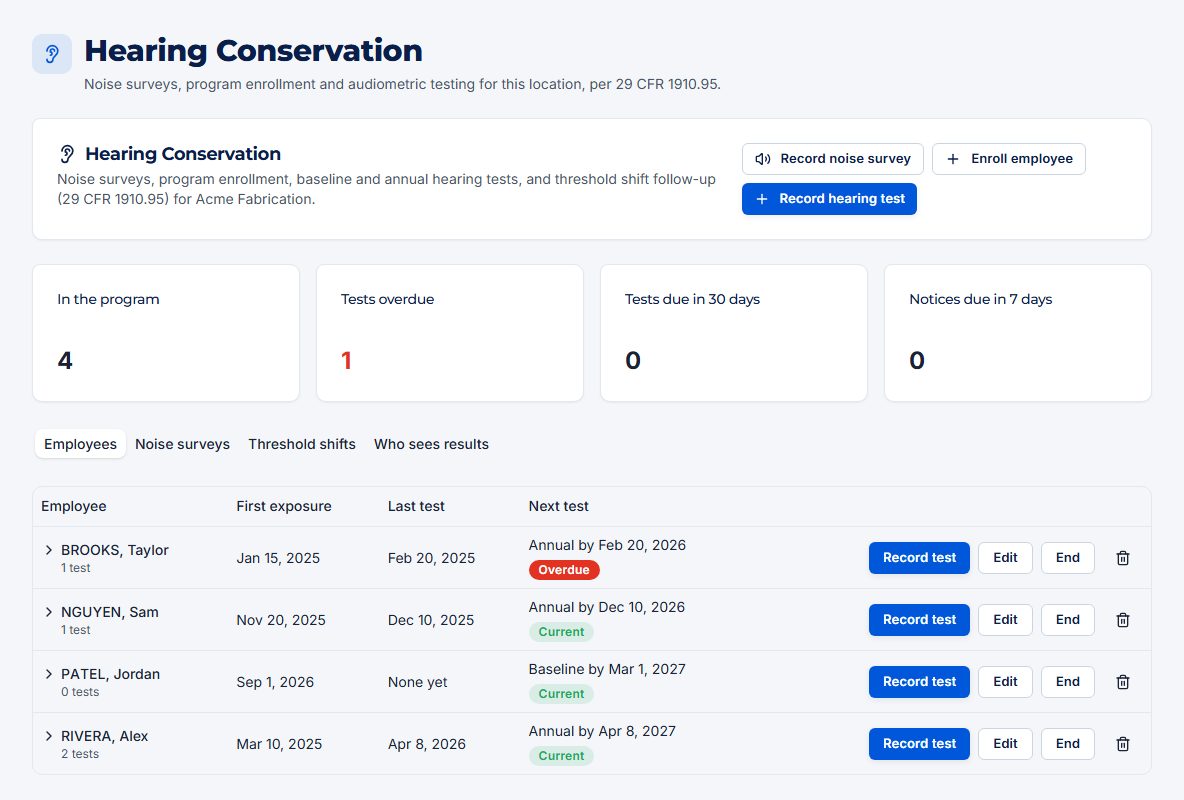
The page has three buttons across the top, Record noise survey, Enroll employee and Record hearing test, and up to four tabs underneath.
| Tab | What it is for |
|---|---|
| Employees | Everyone enrolled, with their first exposure date, last test and next test due. Open a row to see that person's tests. |
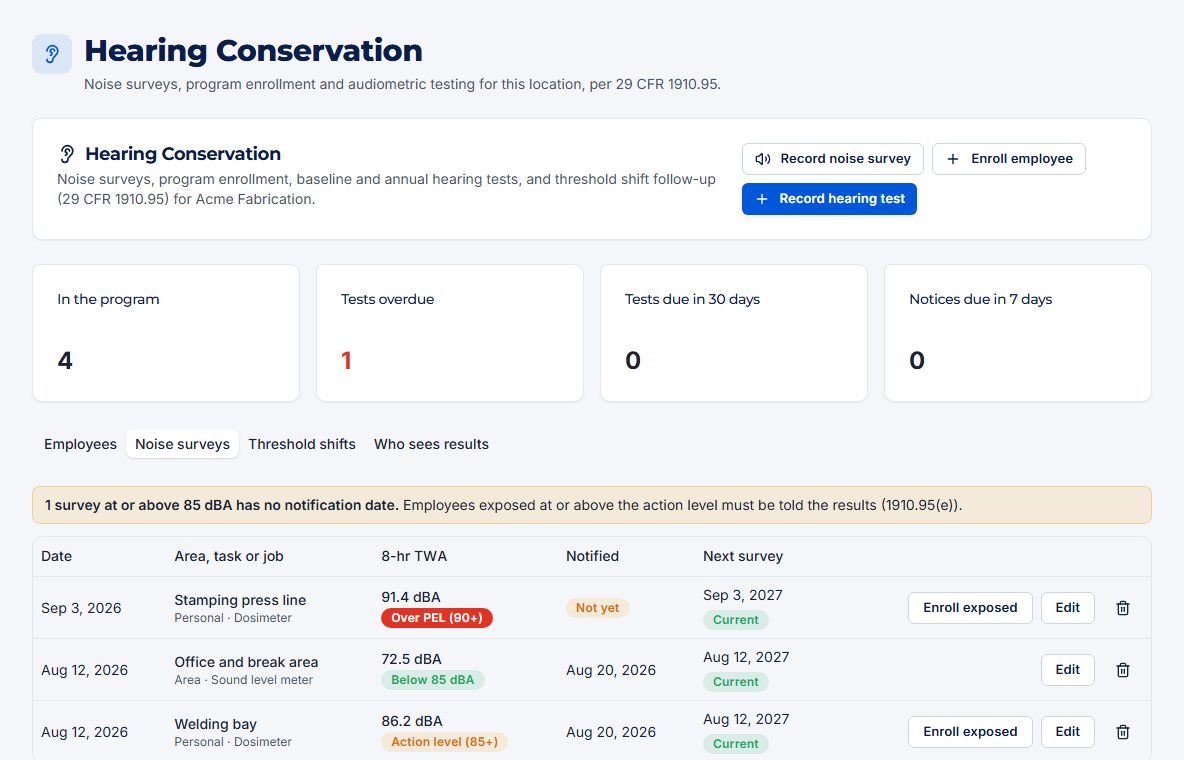
| Noise surveys | Every noise measurement you have recorded, with a band showing whether it reached the action level. |
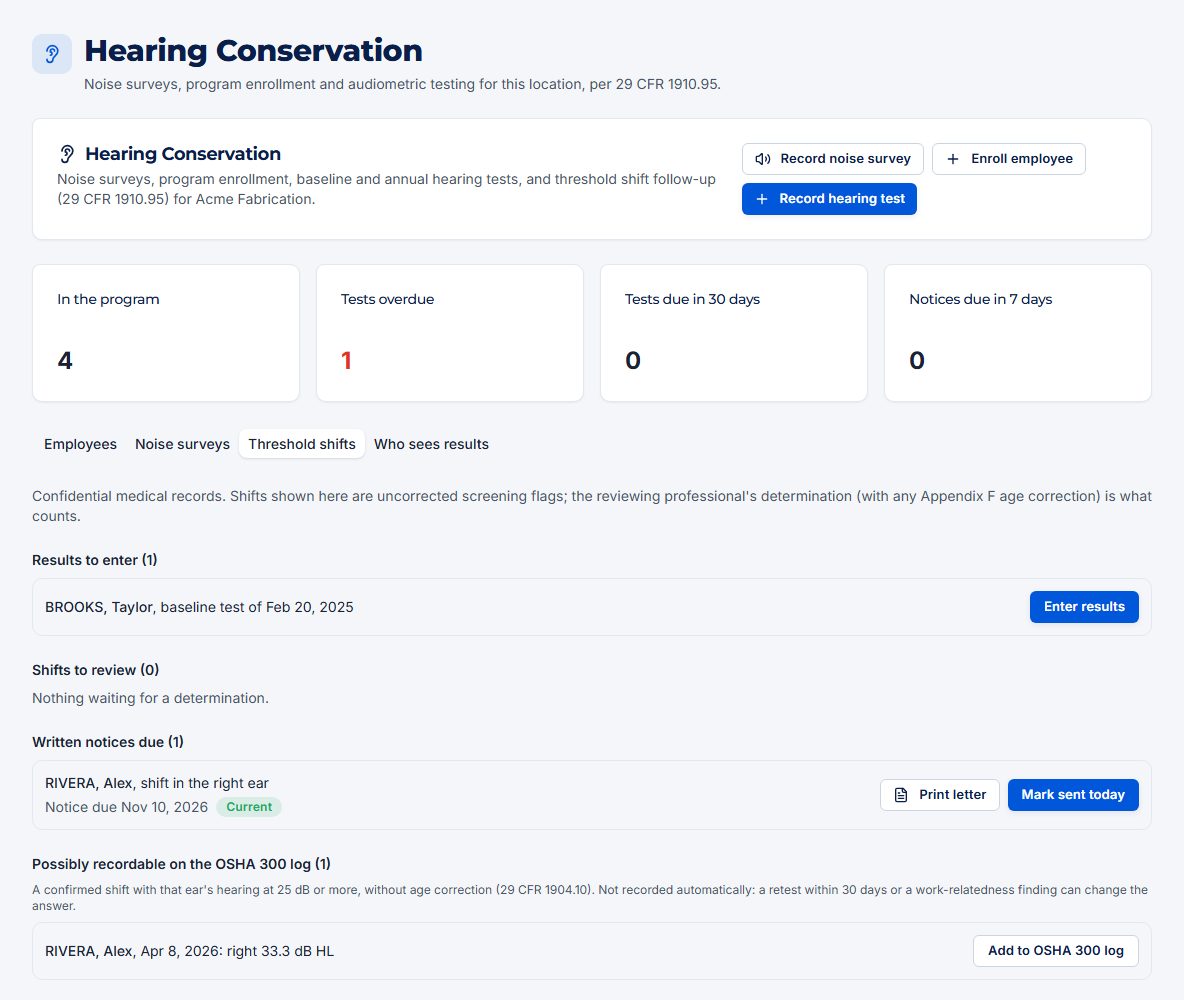
| Threshold shifts | Results to enter, shifts to review, written notices due and cases that may need the OSHA 300 log. Only people allowed to see results get this tab. |
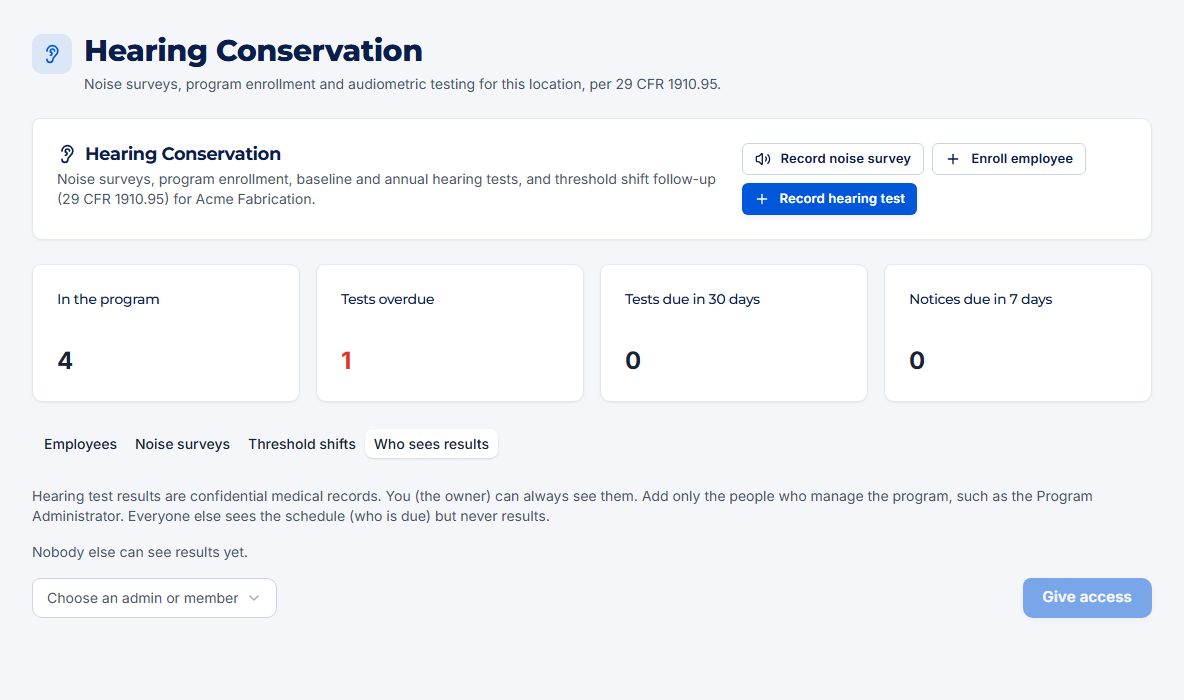
| Who sees results | Where the account owner decides who can open hearing test results. Only the owner sees this tab. |
2Words you'll see
| Word | What it means |
|---|---|
| 8-hour TWA | The time-weighted average noise level for a shift, in dBA. It is the number you enter from a survey. |
| Action level | 85 dBA as an 8-hour TWA. At or above it, an employee belongs in the program. |
| PEL | The 90 dBA permissible exposure limit. A survey at or above it shows as Over PEL. |
| Enrollment | An employee's place in the program. It starts at their first exposure at or above the action level. |
| Baseline, Annual, Retest | The three types of hearing test. The baseline is the first and every later test is compared with it. |
| Hearing levels | The thresholds recorded for each ear at 500, 1000, 2000, 3000, 4000 and 6000 Hz, in dB HL. |
| Standard threshold shift | A change in hearing compared with the reference test. ShieldSphere flags a possible one when the average at 2000, 3000 and 4000 Hz is 10 dB or more worse. |
| Reference test | The test a new one is compared with: the baseline, or a later test that was marked as the revised baseline. |
| Determination | The reviewing professional's decision on whether a shift is confirmed. You record it; ShieldSphere does not make it. |
3Who can see and do what
Hearing test results are confidential medical records, so the module treats them differently from everything else on the page.
| Role | What they can do |
|---|---|
| Owner | Everything, including entering and reading results, deleting records, and choosing who else can see results. |
| Admin | Record surveys, enrollments and tests, and delete records. Sees results only when the owner has added them. |
| Member | Record surveys, enrollments and tests. Cannot delete. Sees results only when the owner has added them. |
| Viewer, employee and other read-only roles | See the schedule and the noise surveys. Cannot record anything and never see results. |
Everyone who can open the page sees who is due. Only the owner, plus people the owner designates, see what the tests found. If you cannot see a Threshold shifts tab, you have not been designated.
Designate who sees results (owner only)
Open the Who sees results tab. Choose an admin or member from the list and select Give access. To take access away, select Remove beside their name. Add only the people who manage the program, such as the program administrator.
Everyone you add can read every employee's hearing results at every location. The tab says so plainly: add only the people who run the program.
4Record a noise survey
A noise survey is the measurement that tells you whether an area or job reaches the action level. Record one for each area, task or job you measure.
Open the form
Select Record noise survey at the top of the page. The form is titled Record a noise survey and notes that these are exposure monitoring records to keep for at least 2 years.
Say what was measured
Enter the Survey date and the Area, task or job (for example, Press line 2). Choose the Sample: an Area sample, or a Personal sample (worn by an employee). For a personal sample, pick the Employee who wore it from the roster, or type the name if they are not on it. Choose the Instrument: Sound level meter or Dosimeter.
Enter the result
8-hour TWA (dBA) is required. Dose (%) and Peak (dB, if impulse) are optional. Use Controls considered or added to note what you did about it.
Record who was told and when to survey again
Employees notified on records the date you told exposed employees the result. Next survey due sets the re-survey date; the +1 year button fills in one year after the survey date. The form reminds you to re-survey whenever a change in equipment, process or controls could raise exposure. Select Record survey to save.
Back on the Noise surveys tab, each survey carries a band:
| Band | Shown when the 8-hour TWA is |
|---|---|
| Below 85 dBA | Under 85 dBA. |
| Action level (85+) | 85 dBA or more, but under 90. |
| Over PEL (90+) | 90 dBA or more. |
The Notified column shows the date employees were told. For a survey at or above 85 dBA with no date it shows Not yet, and a banner at the top of the tab counts how many surveys are waiting for a notification date. The Next survey column carries a Due soon or Overdue badge once a date is set.
5Enroll employees
Employees exposed at or above 85 dBA (8-hour TWA) belong in the program. Enrolling someone starts their testing clock.
Start from the survey if you can
On the Noise surveys tab, a survey at or above 85 dBA has an Enroll exposed button. It opens the enrollment form with the survey date and area already filled in. You can also select Enroll employee at the top of the page.
Pick the employee and the first exposure date
Choose the Employee from this location's roster, then enter First exposure at or above 85 dBA. Add Notes if you need them. Select Enroll. Anyone already enrolled at the location is left out of the list, and an employee can only be in the program once at a time.
Tick the mobile van box if it applies
The baseline test is due within 6 months of first exposure. If the baseline will be done in a mobile test van, tick the mobile van box in the form and the deadline becomes 1 year. The form notes that the employee wears hearing protectors after 6 months in that case.
If the employee you want is not offered, they are not on this location's roster. Add them on the Employees page first.
On the Employees tab each enrolled person has Record test, Edit and End buttons. Edit changes the first exposure date, the mobile van choice or the notes; changing the date or the van choice moves the baseline deadline. End takes someone out of the program when they are no longer exposed at or above 85 dBA or have left the company: enter the End date and an optional reason. Their test records are kept, and they move to Former participants at the bottom of the tab.
6Record a hearing test and enter results
Recording a test and entering its results are two steps, and they can be done by different people. That split is how the schedule stays visible to everyone while the results stay confidential.
Record that the test happened
Open the form
Select Record test on the employee's row, or Record hearing test at the top of the page. From the row, the employee is filled in and the type is suggested for you: Baseline if they have none yet, Annual after that.
Fill in the details
Enter the Test date and the Type: Baseline, Annual or Retest (within 30 days of a shift). Add the Testing provider or clinic if you want it on the letter. Scheduling notes is for logistics only. The field says not to put results or clinical notes there. Select Record test.
Enter the results
If you are the owner or a designated person, the results form opens straight after you save a new test. Otherwise the test waits, and the people who can see results find it under Results to enter on the Threshold shifts tab. On an employee's row, open the row to list their tests and select Enter results, or View or edit results once they exist.
Enter the hearing levels
The grid has a row for each ear and a column for 500, 1000, 2000, 3000, 4000 and 6000 Hz. Type whole numbers from -10 to 120 dB HL, and leave a box blank if that frequency was not tested. A baseline needs nothing more; later tests are compared with it.
Read the shift check
For a baseline there is nothing to compare. For an annual test or retest, a section called Shift from the reference audiogram compares each ear's average at 2000, 3000 and 4000 Hz with the reference and shows the difference. A shift of 10 dB or more shows Possible STS (uncorrected).
ShieldSphere does not apply the age correction. The shift it shows is uncorrected, and the form says the reviewing professional may apply the Appendix F correction before deciding. The determination you record is the professional's, not ShieldSphere's.
Record the determination
Choose Reviewing professional's determination: Not reviewed yet, No standard threshold shift or Standard threshold shift confirmed. Once it is not "Not reviewed yet", enter the Date determined (the Today button fills it in) and who made it under Determined by, and tick the box if the professional applied the Appendix F age correction. If the professional judged a shift persistent, or hearing improved, tick Use this audiogram as the revised baseline and later tests will be compared with this one.
For a confirmed shift, add the follow-up details
Tick Right, Left or both under Ear(s) with the shift. Set Work-related to Not determined, Yes or No (the No option is for when a licensed health care professional found it is not). When the employee has been told in writing, enter Employee notified in writing on. Select Save results.
7Threshold shifts, the letter and the OSHA log
The Threshold shifts tab is the working list for everything that follows a test. It is confidential, and only the owner and designated people see it. It has four sections, each with a count.
| Section | What it holds and what to do |
|---|---|
| Results to enter | Tests that have been recorded but have no results. Select Enter results. |
| Shifts to review | Annual tests and retests with results but no determination yet, showing the shift for each ear. Select Record determination once the professional has decided. |
| Written notices due | Confirmed shifts where the employee has not yet been notified in writing. Each shows the due date, 21 days after the determination, with a badge. Select Print letter, then Mark sent today. |
| Possibly recordable on the OSHA 300 log | Confirmed shifts where that ear's average is 25 dB or more without age correction, and which have not been found not work-related. Select Add to OSHA 300 log. |
The employee letter
Print letter opens a clean, printable notice in a new tab. It is filled in from what is on record: the company, the employee's name and job or department, the date of the test, the testing provider, and which ear or ears showed the shift. The follow-up choices (such as protectors, refit, referral and retest) are left as boxes for you to tick by hand, and the contact name, number and signature lines are left blank for you to complete.
Print it
Select Print at the top of the letter. The page tells you to give the employee a copy within 21 days of the determination and keep a copy in their confidential medical file.
Mark it sent
Back on the Threshold shifts tab, select Mark sent today. The notice moves off the due list and the date is stored with the results. If the notice went out on a different day, open the results and enter Employee notified in writing on instead.
The letter page opens only for the owner and designated people, and only for a confirmed shift. Anyone else who follows the link sees a "not found" page.
The OSHA 300 log
ShieldSphere never records a case on its own. A retest within 30 days that does not confirm the shift, or a finding that the loss is not work-related, can change the answer, and only a person can judge that. When you select Add to OSHA 300 log it asks you to confirm those two points first. It then creates a hearing loss case in Incidents for that employee and links it to the test. The test then shows On the OSHA 300 log. The confirmation message tells you to finish the 301 details in Incidents within 7 days. See the Incidents guide for the rest of that record.
8Reminders and the calendar
You do not have to remember the dates. Hearing conservation feeds the Compliance calendar (see the Compliance guide), where baseline and annual tests, noise re-surveys and written notices appear as Hearing items.
| What is due | When reminder emails go out |
|---|---|
| Baseline or annual hearing test | 60, 30 and 7 days before it is due, and on the due date. |
| Noise re-survey (next survey due) | 30 and 7 days before, and on the date. |
| Written notice after a confirmed shift | On the day the determination is recorded, then 7 and 2 days before the deadline, and on the deadline itself. |
Each reminder is sent once for a given due date. Recording a new test moves the due date and arms the reminders again. Test reminders follow each person's "Training, Testing and Certification Reminders" email setting, and noise survey reminders follow their "Policy Review Reminders" setting. The written-notice reminder is not optional: it goes only to the owner and designated people, because it carries a legal deadline.
9Troubleshooting
| What you see | What to do |
|---|---|
| An upgrade banner over a grayed-out page | Your plan does not include Hearing Conservation. Ask your ShieldSphere contact to switch it on. |
| "Hearing conservation is not set up yet" | The module has not been prepared for your organization. Ask your ShieldSphere contact. |
| No Threshold shifts tab | You have not been designated to see results. Ask your account owner to add you on the Who sees results tab. |
| The three buttons at the top are missing | Your role is read-only. Recording needs the owner, admin or member role. |
| The employee is not in the enrollment list | They are not on this location's roster, or they are already enrolled. Add them on the Employees page, or find them in the Employees tab. |
| "This employee is already in the hearing conservation program" | End the current enrollment first, then enroll them again with the new first exposure date. |
| A test shows no results to anyone but you | That is by design. Only the owner and designated people see results; everyone else sees the date and type of the test. |
| No shift is shown for a new annual test | There is no earlier baseline with results to compare against. Enter the baseline's results first. |
| A deleted test took its results with it | Deleting a test deletes its results too. Only owners and admins can delete, and the prompt warns that audiograms must be kept for the duration of employment, so delete only a test entered by mistake. |
| You enrolled someone by mistake | Use the delete icon on their row only for a mistaken enrollment. To take someone out of the program, use End so their history stays. |
Related guides: Compliance, Respirator Fit Testing and Incidents.
Try Hearing Conservation in ShieldSphere
Start a free hazard scan and see the platform these guides describe - no credit card required.
Screens captured from the live application in November 2026 using a demonstration site - your screens will show your own data. Because ShieldSphere ships changes regularly, check the version above against the current release before circulating this guide widely. Questions? Contact support.