
Forklift Evaluations
scored on the truck, certified for three years
How to evaluate a forklift operator on the equipment they actually drive, sign and complete the evaluation, issue a wallet card, bring in old paper certifications, and stay ahead of every expiry, in line with 29 CFR 1910.178(l). Written for safety managers, supervisors and the evaluators who do the work.
Short answer
ShieldSphere's Forklift Evaluations module records the practical operator evaluation required by 29 CFR 1910.178(l) and tracks each certification. Evaluators score a checklist for each truck type on a named forklift, sign, and complete it. A Yes certifies the operator for three years, with a wallet card, expiry flags and reminders.
1What Forklift Evaluations does
Classroom training is only half of operator certification. The other half is watching the operator drive, scoring what you see, and keeping the record.
This module is that second half. An evaluator picks the operator and the forklift, scores a checklist for that type of truck, answers whether the operator is qualified, and signs. The evaluation locks, a certification starts, and ShieldSphere tracks it to its expiry and sends reminders before it lapses.
Forklift Evaluations is the Forklift tab inside the Training module for each location. The tab itself shows a count of certifications that are expired and due soon. It belongs to the Training module, so if you cannot see it, ask your ShieldSphere contact to switch Training on. For classroom training, toolbox talks and the requirements matrix, see the Training guide and the Training Sessions guide. The forklift wallet card is the same card that guide describes, and this guide shows where evaluations feed it.
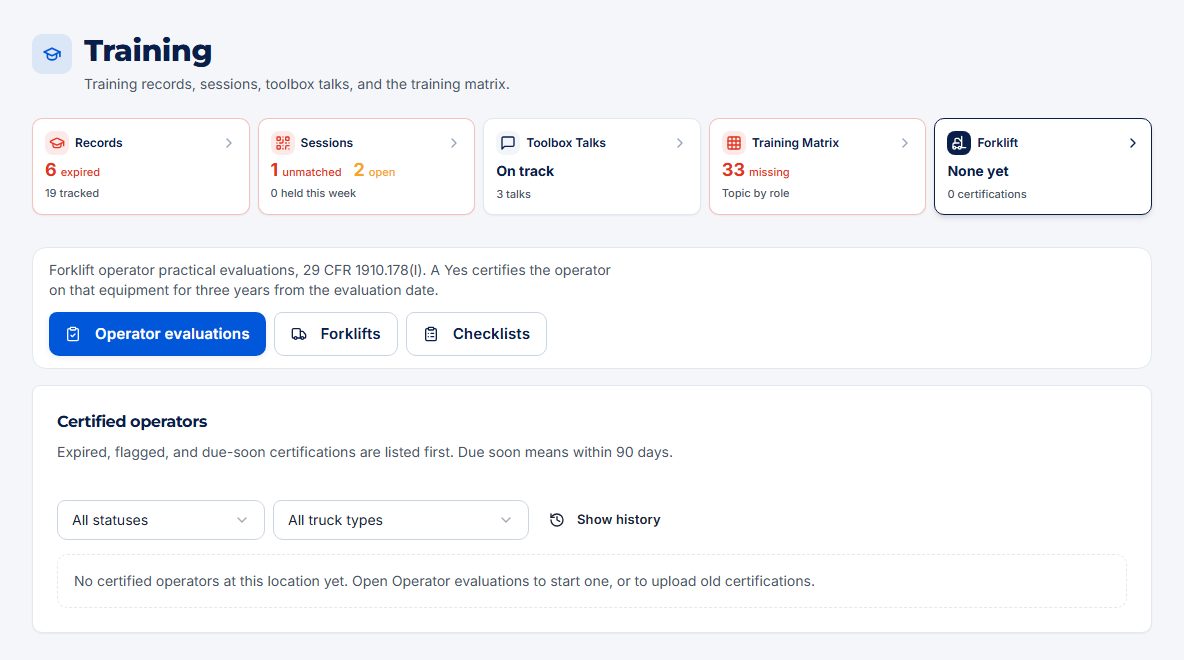
The three buttons at the top open everything else:
Operator evaluations
Start a new evaluation, upload an old certification, bulk upload several, and resume drafts. Admins also see Evaluators here.
Forklifts
The list of forklifts at this location. Every evaluation names the unit the operator was evaluated on.
Checklists
The checklists evaluators score. Use the built-in ones, or build, copy or import your own.
2Words you'll see
| Word | What it means |
|---|---|
| Evaluation | One operator, evaluated on one or more truck types, with one signature. A draft until it is completed. |
| Truck type | The kind of equipment, such as a sit-down counterbalance forklift, reach truck or telehandler. Each type has its own checklist. |
| Forklift (unit) | A specific truck in your fleet. Each is also an asset in Assets. |
| Evaluated on / Also covered | The unit the operator was actually tested on, and any similar units of the same truck type the evaluation also covers. |
| Checklist | The sections and items an evaluator scores. Scored 1 Poor, 2 Average, 3 Good, 4 Excellent, or N/A. |
| Qualified (Yes or No) | The evaluator's decision on each truck type. A Yes certifies the operator. A No is recorded and issues no certification. |
| Certification | The result of a Yes: one operator, one truck type, valid for three years from the evaluation date. |
| Externally documented | A certification brought in from an old paper record rather than evaluated in ShieldSphere. |
| Current, Due soon, Expired, Re-evaluation required | The certification states you will work with. Due soon means within 90 days of expiry. |
| Superseded, Voided | History only. These appear when you choose Show history and never count as current. |
3Who can do what
| Who | What they can do |
|---|---|
| Owners and admins | Everything: conduct and record evaluations, upload old certifications, amend, flag, manage forklifts and build checklists for every location. Only admins see the Evaluators button. |
| Members who are evaluators | Conduct and record evaluations, upload old certifications, amend and flag. An admin makes someone an evaluator. |
| Other members | View evaluations and certifications. They can create checklists for locations they can access, as the Checklists dialog says. |
| Viewers and employees | View only. Their Operator evaluations dialog says to ask an admin to make them a forklift evaluator. |
Make someone an evaluator (admins)
Select Operator evaluations, then Evaluators. The dialog notes that OSHA requires evaluations to be done by people with the knowledge, training and experience to train operators and evaluate their competence. Owners and admins are always evaluators. For each member, select Make evaluator or Remove evaluator.
Every evaluator attests, at the point of signing, that they have the knowledge, training and experience to evaluate operators. Only grant the role to people for whom that is true.
4Set up forklifts and checklists
Add your forklifts
An evaluation cannot be completed until it names the forklift the operator was evaluated on, so add your trucks first.
Open Forklifts and add a unit
Select Forklifts, then Add forklift. Enter the Name or unit number (for example, Forklift 3), the Truck type, the Make, the Model, and optionally the Serial number. Each forklift you add is also an asset, so it appears in Assets with its QR checks; see the Assets guide.
Reuse trucks already in Assets
If your Assets list already holds something that looks like a forklift but has no truck type, it appears under Already in Assets. Select Add to fleet instead of entering it again.
Keep the list honest
Use Out of service and Back in service for a truck that is down for repair. Use Retire for one that has left the fleet; retired units are listed under Retired and can come back with Back in service. A unit that is out of service cannot be chosen for a new evaluation.
Choose or build checklists
Select Checklists to see every checklist evaluators can use here. Each row shows its truck type, whether it is Built-in, Org-wide or This location, and whether it is Published, Draft or Archived. ShieldSphere ships built-in checklists you can use as they are. Some standard truck types have no built-in checklist yet, and for those the New evaluation form says they are for old certification upload only until you build one.
Start a new checklist
Select New checklist. Under Start from choose Blank, Copy a checklist or Import a file. If you can create both kinds, choose Every location (org-wide) or This location only. Give it a Checklist name, which prints as the title of the evaluation record, and choose the Equipment type. You can add your own equipment type here, or under Equipment types in the Checklists dialog, for equipment such as a tow tractor.
Or import one you already have
With Import a file, choose PDF or photo (read by AI, word for word, up to 4 MB), Spreadsheet (an .xlsx or .csv with a Section column and an Item column, with a Download the template button), or Paste text. A draft is created with the items it found. Check every item before you publish.
Edit the draft and publish
In the builder, use Add section and Add item, and the arrows to reorder. You can edit the final qualification statement. The scoring scale is fixed at 1 Poor to 4 Excellent, or N/A. Preview as evaluator shows what the evaluator will see. Save draft keeps your work and Publish makes it available to evaluators. A checklist needs a name, an equipment type, at least one section, and items in every section before it can be published.
Change one later
A published checklist is read-only. Select Edit as new version to work on the next version, or Archive to stop offering it for new evaluations. Archived checklists are kept for the evaluations that used them. A built-in checklist offers Copy to customize.
5Run an evaluation
Starting an evaluation needs a connection. Once it is started, scoring autosaves, and it keeps working if the signal drops: the top of the page then reads Offline. Saved on this device, will retry. Signing and completing need a connection again.
Pick the operator and the forklifts
Choose the Operator from the roster. Under Forklifts, tick the unit the operator is evaluated on. To cover similar forklifts with the same evaluation, tick more units of the same truck type: the first is marked Evaluated on and the rest Also covered, and you can switch which is which with Evaluated on this one instead. To evaluate on a different truck type, tick a unit of that type. If a truck type has more than one checklist, a Checklist for menu lets you choose. No forklifts yet? Evaluators can use Add a forklift in the same form.
Set the dates and start
Enter the Training date and the Evaluation date. Neither can be in the future, and you can change both while the evaluation is a draft. Select Start evaluation.
Score each truck type
There is a tab for each truck type on the evaluation. For each checklist item, tap 1 Poor, 2 Average, 3 Good, 4 Excellent, or N/A. An item scored 1 (Poor) needs a note saying what the operator did. A section for Additional Comments and Recommendations follows the items.
Answer the qualification statement
For each truck type, choose Yes or No. If any item is scored 1, ShieldSphere shows a warning and asks you to confirm before it accepts a Yes: you can still answer Yes if, in your judgment, the operator is qualified, and the decision is yours. A No is recorded on the evaluation and issues no certification for that truck type.
Attest and sign
Under Evaluator attestation and signature, tick the box confirming you have the knowledge, training and experience to evaluate operators. Enter your Evaluator name and Evaluator title, draw your signature, and select Save signature. If you change anything after signing, you are asked to sign again. The person who completes the evaluation is the one who signs it.
Complete it
A panel lists what is Still to do, such as unscored items, a missing forklift, or a missing signature. When it reads Ready to complete, select Complete evaluation. The evaluation locks, and each truck type answered Yes starts a certification.
If another person changed the same draft, a banner offers Discard my changes and reload or Keep my changes. Read the message before you choose.
Discard draft deletes the draft and all its scores. Drafts you start and do not finish stay under Drafts in progress in the Operator evaluations dialog, where Resume reopens them.
6Bring in old certifications
Operators evaluated before ShieldSphere, or by someone outside it, still need to be tracked. Upload their paper certification and the module creates an Externally documented record with a certification that expires three years after the date of service.
One at a time
Open the form
Select Operator evaluations, then Upload old certification. Choose the Operator and tick the Truck types the operator was found qualified on.
Enter the dates and evaluator
Enter the Date of service, which is recorded as both the training date and the evaluation date. If the paper shows two different dates, select The record shows different training and evaluation dates. Enter the Evaluator / Trainer (as written on the form), and optionally their title and any comments. You can attach a copy of the old form as a PDF or photo (a PDF must be under 4 MB).
Many at once
Set the defaults, then add the files
Select Bulk upload. Enter the Evaluator / Trainer (for all rows), optionally a title, and the Truck types for new rows. Then choose files, drop PDFs and photos onto the box, or use Take a photo. You can add up to 50 files at a time.
Check every row
Each file becomes a row. If the file name contains an operator's name and a date, such as Jane Smith 2023-05-14.pdf, ShieldSphere suggests them. It suggests an operator only when every part of the name is in the file name and only one employee fits. Check each suggestion, pick any operator it could not match, and confirm the truck types and date. A row needs an operator, at least one truck type, and a date that is not in the future.
Save
Select Save N records. Rows save one at a time, so a bad row never blocks the rest. Rows that failed are marked, and you can fix them and save again.
7Certified operators, flags and wallet cards
The list on the Forklift tab is Certified operators. Expired, flagged and due-soon certifications are listed first, so the top of the list is always the work.
| Status | What it means |
|---|---|
| Current | Valid, with more than 90 days left. |
| Due soon | Expires within 90 days. Book the next evaluation. The operator is still authorized. |
| Expired | Past its expiry date. The expiry date itself is the last valid day. |
| Re-evaluation required | Flagged for refresher training and a new evaluation. Not current until a new evaluation passes, however far off the expiry is. |
Each row shows the operator, status, truck type, the expiry date with days remaining, who evaluated them and when, and an Externally documented badge for imported records. Filter by status (including Needs attention) or by truck type. Show history adds superseded and voided certifications, which are kept for the record. Status always appears as an icon plus words, never color alone.
Each row has actions:
- View evaluation opens the full record of the evaluation behind it.
- Wallet card downloads the operator's card for current and due-soon certifications. It names the truck types they are signed off on.
- Flag (evaluators only) marks the operator for re-evaluation.
- The reminder menu (evaluators only) chooses who gets the reminder emails.
Flag an operator for re-evaluation
Select Flag and choose the reason: Observed operating the truck in an unsafe manner, Involved in an accident or near-miss incident, Received an evaluation showing unsafe operation, Assigned to drive a different type of truck, or A change in the workplace could affect safe operation. Add Notes (what happened, and when) and save. The row now reads Re-evaluation required with the reason beneath it.
Clear the flag
Run a new evaluation for that truck type and answer Yes. The new certification replaces the flagged one.
An operator's certifications also appear on their own employee profile, in a Forklift tab with the same statuses and links.
8Correct a completed evaluation
Completing locks the evaluation. A mistake is corrected by an amendment, which keeps the original and records who changed what and why.
Open the record and select Amend
Open the evaluation with View evaluation. Evaluators see an Amend button. You can change the header details, scores, comments and the Yes or No result. The truck type cannot be amended, because the scores belong to that type's checklist.
Give a reason and save
Select Save amendment and answer Why is this record being corrected? in your own words. The record then shows Amended with an Amendment history listing each change, who made it and when.
From the same record, Evaluation record PDF downloads a printable copy, and Wallet card downloads the operator's card when at least one truck type was answered Yes.
9Reminders
Reminder emails go out 90, 30 and 7 days before a certification expires, and on the expiry date. Each is sent once for a given expiry date. A new evaluation moves the date and starts the reminders again. Flagged certifications are still reminded, because the operator still needs the evaluation.
The emails go to the person set in the reminder menu on the row (it defaults to the evaluator), plus every owner and admin, except anyone who has turned off training reminder emails. Choose Reminders: admins only to send them to owners and admins alone. You can only choose people who can see that location. Old certifications you upload are reminded the same way.
10Troubleshooting
| What you see | What to do |
|---|---|
| No Forklift tab in Training | Your plan does not include Training. Ask your ShieldSphere contact to switch it on. |
| "You can view evaluations. To conduct them, ask an admin to make you a forklift evaluator." | Your role is not an evaluator. An admin can grant it under Operator evaluations, then Evaluators. |
| A forklift is grayed out in New evaluation | It is out of service, or its truck type has no published checklist (the form says "old certification upload only"). Put it back in service, or publish a checklist for that type. |
| "No forklifts at this location yet" | Add the forklift under Forklifts first, or use Add a forklift in the New evaluation form. |
| "Starting an evaluation needs a connection" | Reconnect and start again. Scoring can continue offline once the evaluation is open. |
| Complete evaluation lists things still to do | Each line names the truck type and the problem: unscored items, items scored 1 without a note, an unanswered Yes or No, a missing forklift, the attestation, your name or title, or the signature. |
| "Signing needs a connection" | Your scores are saved on the device. Sign again once you are back online. |
| A PDF is "larger than 4 MB" | Save it at a lower resolution or take a photo of the card instead. |
| A bulk upload row did not match an operator | Matching is deliberately strict so a record never attaches to the wrong person. Pick the operator in the row. |
| An operator reads Expired but has a new evaluation | Check that the new evaluation was completed and answered Yes for the same truck type. Drafts and No answers do not create a certification. |
| You answered Yes with a Poor score and want to change it | Use Amend on the completed record and give the reason. |
| A checklist will not publish | It needs a name, an equipment type, at least one section, and items in every section. |
Related guides: Training, Training Sessions and Assets.
Try Forklift Evaluations in ShieldSphere
Start a free hazard scan and see the platform these guides describe - no credit card required.
Screens captured from the live application in November 2026 using a demonstration site - your screens will show your own data. Because ShieldSphere ships changes regularly, check the version above against the current release before circulating this guide widely. Questions? Contact support.