
ROI Calculator
the business case for a safety fix, in finance's language
How to build a case for a safety improvement in four guided steps, read the answer (net value, payback and return), back it with your own records and cited published figures, start one from an ergonomic evaluation, share it as a PDF, Excel model or email, and compare what you projected with what your incident log shows after the fix goes in.
Short answer
ShieldSphere's ROI Calculator turns a proposed safety improvement into a business case your finance team can read. You enter what the injuries cost today, what the fix costs and how many injuries it should prevent. It returns net present value, payback and return, with scenarios, a PDF report and an Excel model.
1What the ROI Calculator does
Most safety fixes get turned down for one reason: nobody put the money side in terms the approver uses.
The ROI Calculator builds that case. You describe the injuries you want to prevent, how often they happen and what each one costs. You describe the fix and what it costs. ShieldSphere works out whether the savings outrun the spend, how long that takes, and how sure you can be, using the same measures finance already uses to judge any other project.
A case can hold up to several fixes side by side, so you can show the approver the cheap option next to the thorough one and let the numbers say which is the better buy.
Every result is a pre-tax business case. Depreciation and tax effects are not included, and the report says so on its methodology page. If your finance team judges projects after tax, tell them that up front.
2Words you'll see
| Word | What it means |
|---|---|
| NPV (net value in today's money) | All the savings the fix produces, minus everything it costs, with later money counted for less than money in hand today. Above zero, the fix earns more than your hurdle rate. Below zero, it does not. |
| Hurdle rate | The minimum yearly return your company expects from money spent on projects. Finance may call it the discount rate. The higher it is, the less future savings are worth. |
| IRR (return) | The yearly rate of return the fix earns on what you spend. Compare it with your hurdle rate: above it is good. Some cases have no single IRR, and the screen says why. |
| MIRR | A steadier version of IRR for cases where IRR is unclear. It uses a finance rate and a reinvestment rate you can change under More detail. |
| Payback | How long until the fix has paid for itself. The big number counts later savings at their reduced value. Simple payback, without that reduction, is shown beneath it when the two differ. Under a year is shown in months. |
| Equivalent annual value | The NPV spread evenly across the years, so fixes that last different lengths of time can be compared fairly. |
| Break-even | How much of the injury cost the fix must remove just to pay for itself. |
| Hidden costs | What an injury costs that the insurance claim does not: supervisor and HR time, investigation, overtime or a temp, lost production, retraining. |
| Soft estimate | A saving that is real but hard to measure, such as morale or turnover. You can mark it soft and leave it out of the results. |
| Status | Where the case is in its life: Draft, Proposed, Approved, Implemented or Archived. |
3Who can use it
The ROI Calculator is switched on per organization. If you do not see ROI Calculator in the sidebar, ask your ShieldSphere contact to switch it on.
| Your role | What you can do |
|---|---|
| Owner or admin | Everything, including cases for the whole organization and recording the claim cost on a linked incident. |
| Member | Create, edit, save, export and email cases for the sites you have access to. |
| Viewer | Open cases and download the PDF and Excel files. Editing, emailing and attaching records are not available. |
A case belongs to one site, and you only see cases for sites you can already open. Whole-organization cases are for owners and admins, and are not offered to consultant accounts.
4Start a case
Click New case
On the ROI Calculator page, choose New case. If you picked a site in the sidebar, the list starts filtered to it, and the new case starts at that site.
Title, site and currency
Give it a Title that names the fix, such as Line 3 palletizing lift assist. Choose the Site, and pick USD or CAD. Everything can be changed later. Choose Create and the guided editor opens.
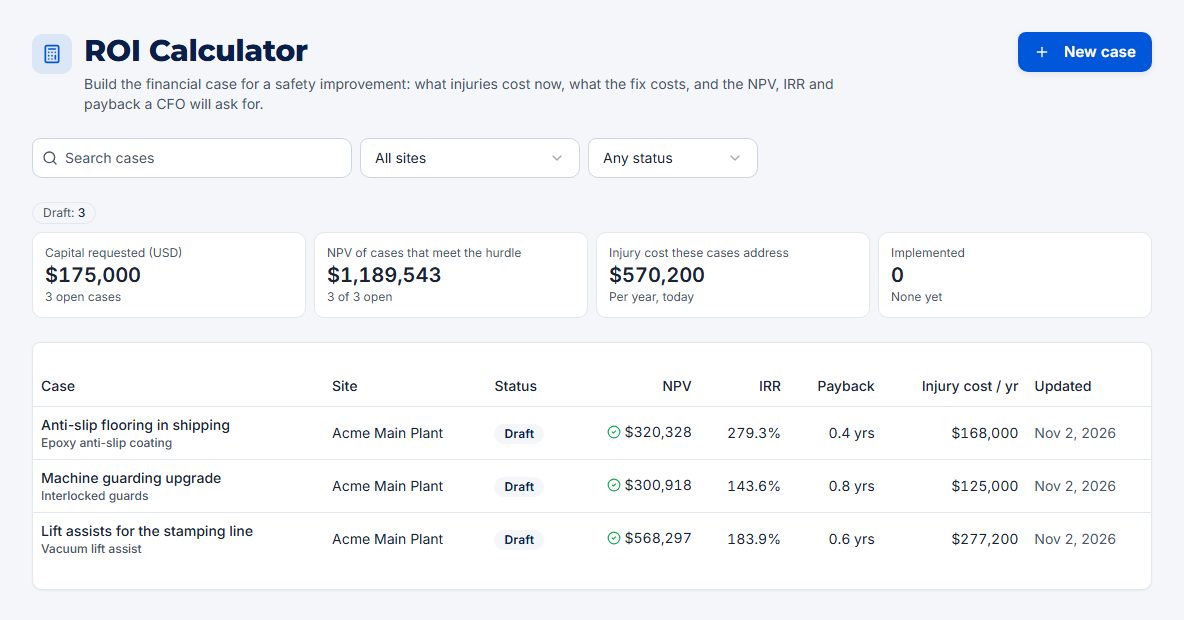
Back on the list, use Search cases, the site filter (All sites, Whole organization only for owners and admins, or one site) and the status filter (Any status or one status) to find a case. The strip above the table totals the cases in view: capital requested, the NPV of open cases that meet the hurdle, the yearly injury cost they address, and how many are implemented. Money is never added across two currencies.
5The four steps
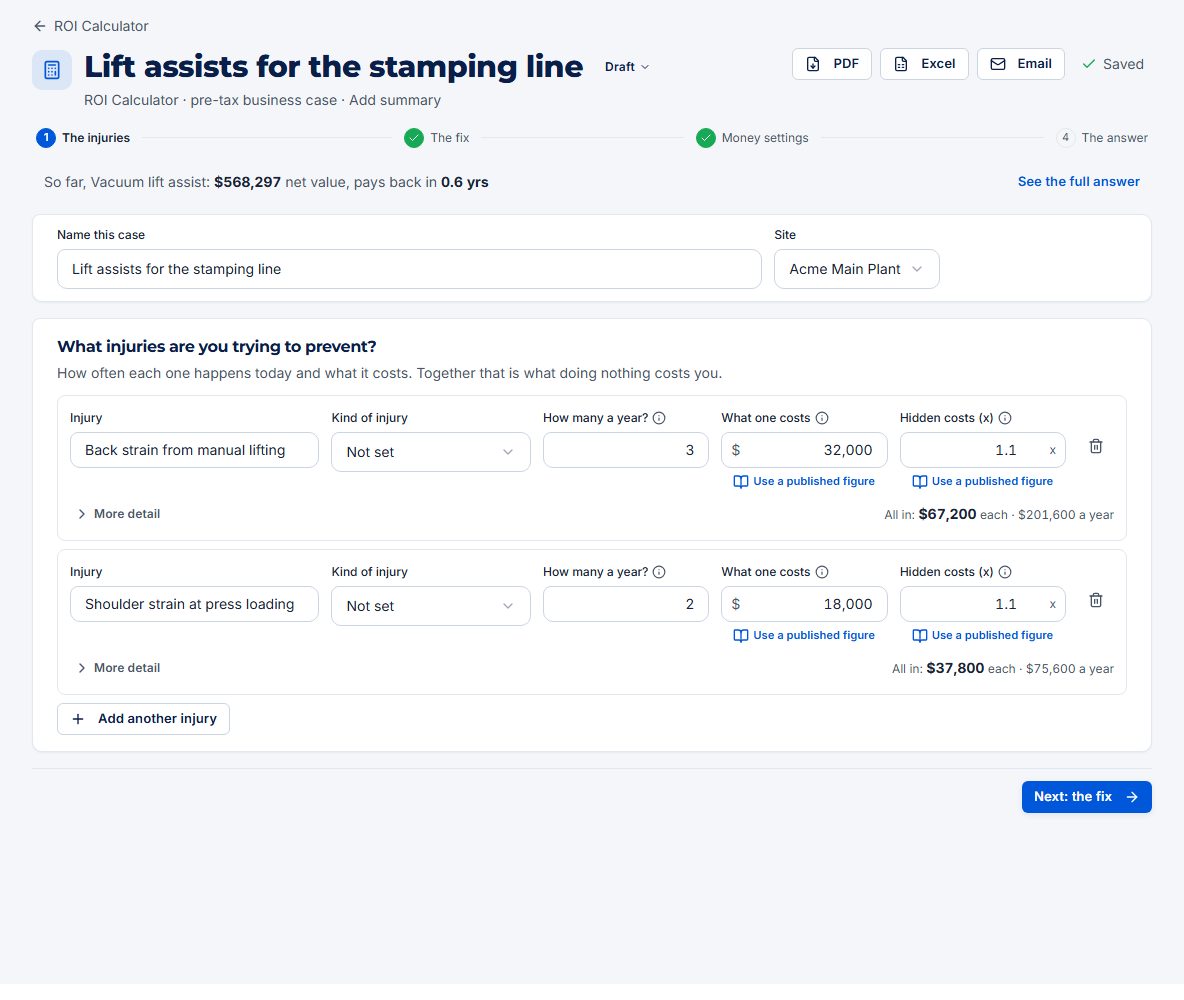
A bar across the top of the case shows the four steps: The injuries, The fix, Money settings and The answer. A tick marks a step that has what it needs. You can jump to any step, or use Back and Next at the bottom. A new case opens on the first step that still needs input. A finished one opens on the answer.
Under the bar, a one-line running answer updates as you type, with a See the full answer link. Press Ctrl+S (Command+S on a Mac) or choose Save to keep your work. The header shows Saved when nothing is waiting, and the browser warns you before you leave with unsaved changes.
Step 1: The injuries
The question here is What injuries are you trying to prevent? Name the case and confirm the site, then fill in a row for each kind of injury.
| Field | What to enter |
|---|---|
| Injury | A name, such as Lower back strain. |
| Kind of injury | Optional. Setting it lets you pull a published figure for that kind of injury and lets ShieldSphere match it to your incident log later. |
| How many a year? | Your best estimate at today's rate. Fractions are fine: one every two years is 0.5. |
| What one costs | Medical bills plus wages paid while the worker is off, for one claim. Your insurance carrier's loss run is the best source. |
| Hidden costs (x) | The costs the claim does not cover, as a multiple of the claim cost. 1 means they equal the claim. 0 leaves them out. |
Use Add another injury for more rows. Under each row, More detail lets you enter hidden costs as a dollar amount instead of a multiple, and add Extra days you pay for and Daily cost of that worker for paid time the claim does not already cover. It opens by itself when it already holds values. The line beside it, All in, shows the total per injury and per year.
Step 2: The fix
The question is What will you do about it? Name the fix, then enter Up-front cost (purchase, freight and installation), Yearly upkeep (maintenance, training and consumables, which grows with inflation) and Years it lasts (savings stop after that).
Then the key judgment: How much will it cut these injuries? Enter a percentage for each injury, once the fix is fully in place. 60% means 6 in 10 no longer happen. The box Why do you expect that? is printed in the report, so say what you are basing it on: a vendor trial, a before and after measurement, an industry result.
Use Compare another fix to add another option, or Copy this fix to start from one you already entered. Each fix gets its own tab. More detail adds a description, Resale or scrap value, Share of the effect in year 1 (for fixes that take time to bed in), later costs such as a phase 2 install, and Other yearly savings, each of which you can mark Soft estimate.
Step 3: Money settings
The question is How does your finance team judge a project? The defaults are a reasonable start, but ask finance for their hurdle rate before you share the case.
| Field | What it does |
|---|---|
| Hurdle rate | The return finance expects. A new case starts at 8%, and 8% to 12% is common. |
| Years to judge it over | How many years of savings count. A new case starts at 5. A fix that wears out sooner stops at its own life. |
| Currency | US dollars or Canadian dollars. |
Under More detail: Injury cost growth per year, General inflation, an optional Net profit margin (which adds a line showing the extra sales the company would need to cover these injuries), the two MIRR rates, and a switch, Leave soft estimates out of the results. The same panel holds the Conservative and optimistic cases (see the next section) and the What-if swing.
Step 4: The answer
The results. See the next section.
The answer step lists anything still needed under Still to fill in, in plain words such as "Lower back strain: what one costs", each with a button that takes you to the right step. While an entry is invalid, the answer keeps showing the last complete numbers and a notice tells you what to fix.
6Read the answer
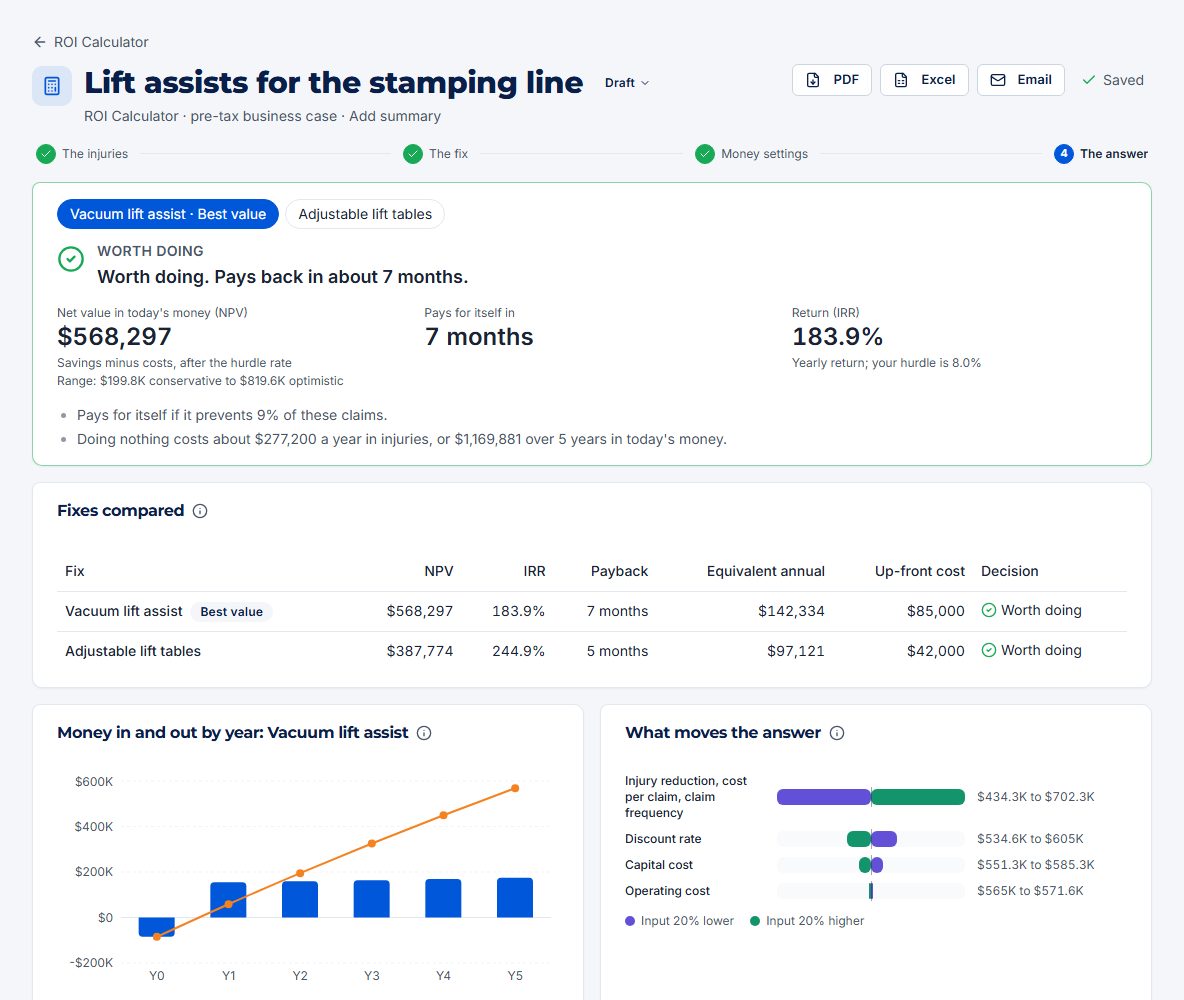
The top card gives a verdict in one sentence: Worth doing with the payback time, Does not pay off because it falls short of your hurdle rate, or Not enough to judge yet. Three large numbers sit under it.
Net value in today's money (NPV)
Savings minus costs, after the hurdle rate. A range from the conservative to the optimistic case sits beneath it.
Pays for itself in
The time to recover the spend. The faster version, without the hurdle rate, shows beneath when it differs.
Return (IRR)
The yearly return, with a note on whether it clears your hurdle. If there is no figure, the note says why.
Below those, plain-language lines say how much of the injury cost the fix must remove to pay for itself, and what doing nothing costs: about so much a year in injuries, and so much over the years you chose, in today's money.
Comparing fixes
With two or more fixes, tabs at the top of the card switch the fix being shown, and Fixes compared lists them side by side with NPV, IRR, payback, equivalent annual value and up-front cost. It is ranked by equivalent annual value, so a long-lived fix is not penalized against a short-lived one. The leader is tagged Best value.
The charts
Money in and out by year shows each year's net cash flow as bars and the running total, in today's money, as a line. The line crossing zero is the payback point. What moves the answer shows how far the NPV swings when each input is moved up or down by the what-if swing, biggest effect first. Use it to find the one number worth checking twice before you present.
Scenarios and the full measures
Open More detail: every measure finance may ask for, scenarios and year by year. It holds three things.
- Every measure. NPV, IRR, MIRR, equivalent annual value, simple and discounted payback, benefit and cost ratio, profitability index, simple and discounted ROI, the most you could spend and still break even, and claims avoided.
- Scenarios. Conservative, expected and optimistic, each with its own NPV, IRR and payback. A new case starts with the conservative case at half your injury reduction and 90% of the injury cost, and the optimistic case at 125% of the reduction and 110% of the cost. You can change those in Money settings.
- Year by year. The table behind the chart: avoided injury cost, other benefits, upkeep, capital, resale value, and the running total.
If the fix still pays off in the conservative scenario, say so first. An approver who has seen the worst case is much harder to surprise.
Warnings the calculation raises, such as inputs that look unusual, are listed at the bottom of the verdict card. Read them before you share the case.
7Back it with evidence
An approver will ask where the numbers came from. ShieldSphere keeps the answer next to each number.
Where a number came from
A small tag under a figure shows its source: entered by you, filled in from your records, taken from a loss run, or a cited published figure. If you edit a figure that came from a source, it keeps the tag and is marked as adjusted, so the report shows both facts.
Cited published figures
Where you do not have your own number, choose Use a published figure under What one costs or Hidden costs (x). The menu lists cited figures for the kind of injury you set: the publisher and edition appear under each one. They include the OSHA $afety Pays indirect cost ratios and average workers' compensation claim costs for common injury types. Picking one fills in the number and tags it with its source. The PDF and Excel files list every source cited in a references section.
Published figures are averages across many employers. Use them to get started, then replace them with your carrier's numbers before the case goes to a decision.
Supporting records
On the answer step, Supporting records (optional) lists the records behind the case. Choose Attach record, pick the type, say what it shows for this case, filter the recent records and choose Attach beside the one you want. Only records at the case's site are offered.
| Record types | Typical use |
|---|---|
| Incident | Past injuries that make up the baseline. |
| Corrective action | The action that actually carries out the fix. |
| Ergonomic evaluation | The assessment that prompted the case. |
| Hazard scan, Inspection finding, Job hazard analysis, Safety observation | Where the problem was first seen. |
| Insurance report | The loss run behind your claim costs. |
The roles you can give a record are Evidence, Baseline source, Implementing action, Before and After. Use Add a note for anything that is not a record, such as a vendor quote. The arrow beside a linked record opens it, and the bin removes the link. Removing a link never touches the record itself.
Using your own claim history
Link incidents that have a recorded claim cost and ShieldSphere shows the average of them. Choose an injury and Use as direct cost to apply it to that injury. Owners and admins can enter the cost of a linked incident's claim from the loss run and choose Save cost. That field is visible to owners and admins only. A linked insurance report that carries an average cost per claim offers the same Use as direct cost button.
8Build a case from Ergonomics
If you assess a workstation with the AI Ergonomic Evaluation and the ROI Calculator is switched on, a finding can become a case in a few clicks.
Save the evaluation, then choose Build ROI case
The button sits with the report actions on the evaluation result, beside the PDF and email options. It appears once the evaluation is saved. The evaluation must be assigned to a site, because ROI cases belong to a site.
Make your choices
The Build an ROI case dialog asks for a Case title, a Currency, and whether to use the site's last 3 years of recordable strain and repetitive-motion incidents to estimate how often these injuries happen. Optionally, Compare with an after evaluation: pick a later evaluation of the same task at the same site, such as a trial of the new setup.
Finish the case
Choose Create case. The case opens with one injury for each body area the evaluation flagged, claim frequency taken from the site's incident history where there is enough of it, and the evaluation linked as evidence. A note tells you where history was too thin. You then enter the costs and the expected reduction. They are left empty on purpose.
If you add an after evaluation, the measured change in posture risk (for example the peak REBA score going from 11 to 4) is written beside the reduction field and printed in the report as evidence. ShieldSphere does not convert it into a claim reduction. There is no validated way to turn a posture score into a number of injuries prevented, so the percentage is always yours to set and to defend.
9Share the case
Exports always describe the saved case, so ShieldSphere saves your pending changes first.
Write a summary for the reader (optional)
Next to the page title, choose Add summary (or Edit summary). Two sentences on the problem and the proposal are enough. It prints at the top of the PDF, including the one attached to emails.
Download or email
In the page header, PDF and Excel download the files. Email opens Email the business case: enter the recipient's address in To, optionally adjust the summary and add a message, then choose Send. It sends the PDF report and the Excel model of the saved case.
| File | What is in it |
|---|---|
| PDF report | Written for the person approving the spend: an executive summary, the options compared, every assumption with where it came from, the finance settings, the cash flow by year, what moves the answer, scenarios, evidence, a methodology page and the references for cited figures. |
| Excel model | Live formulas, not pasted values. A Summary sheet, an Inputs sheet with shaded input cells, one sheet per fix and a References sheet. Change a cost or the hurdle rate on the Inputs sheet and the fix sheets recalculate. |
Send the Excel model with the PDF. A finance reviewer who can change the hurdle rate and watch the answer move trusts the case far more than one who has to take the PDF on faith.
10After the fix goes in
The case does not end at approval. Move it through its life with the status badge beside the title: Draft, Proposed, Approved, Implemented or Archived. A status change saves straight away.
If you linked a corrective action as the Implementing action and it has been completed, the case shows a banner with Mark case implemented, which uses the action's completion date. You can also choose Implemented from the status menu, which uses today's date.
Since implementation
For an Implemented case at a site, the answer step gains a Since implementation card. For each injury it compares the claims the case expected without the fix, the claims it expected with the fix, and the recordable incidents your site log actually shows since the implementation date, with an estimated cost avoided.
- Only musculoskeletal injury types, such as back, shoulder, neck, hand and wrist and knee, can be matched to incident records. Other types say Not tracked against incidents.
- With under 6 months of history the card says Too early to judge.
- The cost avoided is an estimate: claims expected without the fix, minus the actual count, times today's cost per claim.
Counts this small swing from year to year. Read the trend over time rather than one quarter, and never present a single good quarter as proof the fix worked.
Back on the list, filter by status to see what is waiting on a decision (Proposed) and what has been delivered (Implemented). Archived cases drop out of the totals in the summary strip.
11Troubleshooting
| What you see | What to do |
|---|---|
| No ROI Calculator in the sidebar, or a message that you do not have access | It has not been switched on for your organization, or your seat does not include it. Ask your ShieldSphere contact. |
| "Someone else saved this case after you opened it. Reload to see their changes." | A colleague saved a newer version. Reload the page, then re-enter your changes. Your save is refused rather than quietly overwriting theirs. |
| "Fix the highlighted input before saving" | One entry is out of range or a name is missing. The notice at the top says which, with a button to the right step. |
| The verdict says "Not enough to judge yet" | Open Still to fill in on the answer step. Usually an injury has no yearly count or cost, or a fix has no cost or no injury reduction. |
| IRR reads "No up-front cost or no return" or "More than one IRR; see MIRR" | IRR needs an up-front spend followed by savings. Where it is unclear, use NPV and the MIRR in the full measures list. |
| "Assign this evaluation to a site first" | An ergonomic evaluation must belong to a site before a case can be built from it. Assign it, then try again. |
| Build ROI case is missing on an evaluation | Save the evaluation first. The button also needs the ROI Calculator switched on for your organization. |
| Email is missing, or you cannot edit | Viewers can read and download only. Ask an admin for a member role if you need to change or send cases. |
| You cannot choose Whole organization for a site | Whole-organization cases are for owners and admins, and are not available to consultant accounts. Pick a site. |
| The claim-cost field on a linked incident is missing | It is shown to owners and admins only, because loss-run figures are sensitive. |
| Since implementation says a claim type is not tracked | Only musculoskeletal injury types can be matched to incident records. Set the kind of injury on the first step if it is blank. |
Related guides: AI Ergonomic Evaluation, Corrective Actions, Incidents and Insurance Reports.
Try ROI Calculator in ShieldSphere
Start a free hazard scan and see the platform these guides describe - no credit card required.
Screens captured from the live application in November 2026 using a demonstration site - your screens will show your own data. Because ShieldSphere ships changes regularly, check the version above against the current release before circulating this guide widely. Questions? Contact support.